Einführung
This manual provides comprehensive instructions for the setup, operation, and maintenance of your FL ESPORTS F12 65% Three-Mode Wireless Mechanical Keyboard. Please read this manual thoroughly before using the product to ensure optimal performance and longevity.
Lieferumfang
- FL ESPORTS F12 Mechanical Keyboard
- USB-Kabel
- Tastenkappenabzieher
- Benutzerhandbuch (dieses Dokument)
Hauptmerkmale
- 65 % Kompaktformfaktor: 68 keys layout for maximized desktop space utilization.
- Drei-Modus-Konnektivität: Supports Bluetooth 5.0, 2.4Ghz wireless, and USB-C wired connections.
- Kailh Box White Switches: Light tactile, clicky switches for precise and fast inputs.
- Langlebige PBT-Tastenkappen: Oil-resistant, doubleshot PBT keycaps in mixed colors for longevity and aesthetic appeal.
- Langlebige Batterie: Up to 100 hours without backlight, 20 hours with RGB backlight. Real-time battery monitoring available.
- RGB-Hintergrundbeleuchtung: 16.8 million colors with 10 different lighting modes.
- Advanced Customization Software: Allows for extensive customization of lighting and key assignments.
- Hot-Swap-fähige Schalter: Supports 5-pin switches for easy DIY customization.
- Noise Absorber Foam: Innovative design for reduced noise and clear clicky sound.

Image: The FL ESPORTS F12 mechanical keyboard showcasing sein kompaktes 65%-Layout und seine lebendige RGB-Hintergrundbeleuchtung.

Image: The FL ESPORTS F12 keyboard highlighting its 2.4 GHz wireless, Bluetooth, and detachable USB-C wired connectivity options.

Image: A visual comparison demonstrating the space-saving advantage of the 65% compact layout (68 keys) of the FL ESPORTS F12 keyboard compared to a full-size keyboard.

Bild: Detailliert view of a Kailh Box White Switch, illustrating its internal structure and providing specifications such as 55g operation force, 1.8mm actuation travel, and 80 million click lifespan.

Image: A close-up shot of the mixed-color, oil-resistant PBT keycaps on the FL ESPORTS F12 keyboard, highlighting their durable textured finish.

Image: Information regarding the 2000 mAh battery capacity of the FL ESPORTS F12 keyboard, showing up to 100 hours duration with RGB backlight off and 20 hours with RGB backlight on.
Einrichtung und Anschluss
Kabelgebundene Verbindung (USB-C)
To use the keyboard in wired mode, connect the provided USB-C cable to the keyboard's USB-C port and the other end to an available USB port on your computer. The keyboard will be automatically recognized and ready for use. The keyboard will also charge in this mode.
2.4-GHz-Wireless-Verbindung
- Locate the 2.4Ghz USB dongle, usually stored in a compartment on the keyboard.
- Plug the USB dongle into an available USB port on your device.
- Slide the switch at the back of the keyboard to the right (2.4Ghz mode).
- If the keyboard is not connected automatically, long-press FN+R to remap the connection.
Bluetooth-Verbindung
Die Tastatur unterstützt die Verbindung mit bis zu drei Bluetooth-Geräten.
- Slide the switch at the back of the keyboard to the left (Bluetooth mode).
- Lange drücken FN+Q, Fn + W, oder FN+E (choose one for each device you want to save).
- The ESC key's white backlight will flash 3 times per second, indicating the keyboard is in pairing mode.
- On your device (laptop, tablet, phone), search for Bluetooth devices and select "BT5.0 KB" or "BT3.0 Keyboard" to connect.
- To switch between saved Bluetooth devices, short-press FN+Q, Fn + W, oder FN+E entsprechend dem gewünschten Gerät.

Image: Diagram illustrating how the FL ESPORTS F12 keyboard can store and switch between three Bluetooth devices using FN + Q/W/E combinations.
Bedienungsanleitung
Batterieüberwachung
To check the battery capacity in real-time, press FN + Rücktaste. The number row keys will illuminate to indicate the approximate battery percentage. In wireless mode, the Backspace key will flash blue once per second while charging and turn off when fully charged.

Image: Visual representation of the battery level indicator on the FL ESPORTS F12 keyboard, showing how the number row lights up to display charge status when FN + Backspace is pressed.
Funktionstastenkombinationen
The FL ESPORTS F12 keyboard utilizes the FN key for accessing secondary functions printed on the keycaps. Some common combinations include:
- FN + I: Druck-Bildschirm (PrtSc)
- FN + O: Scroll Lock (ScrLk)
- FN + P: Pause Break (Pause)
- FN + J: Einfügen (Ins)
- FN + K: Heim
- FN + L: Ende
- FN + Right Alt (APP key): Fungiert als rechte Maustaste.
- FN+ESC: Restores keyboard to default settings.
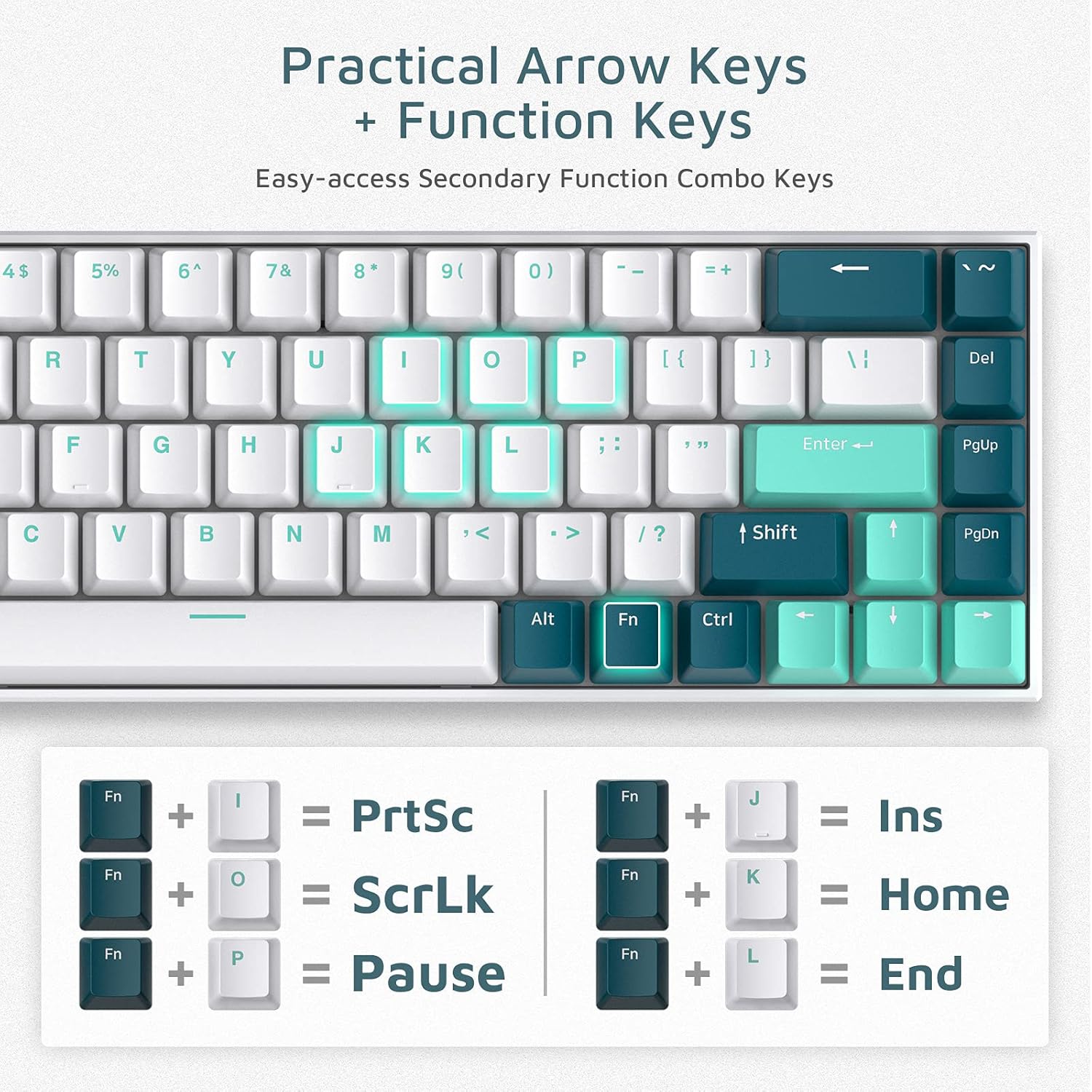
Image: A visual guide to practical arrow keys and function key combinations on the FL ESPORTS F12 keyboard, showing FN key pairings for various secondary functions.
RGB-Hintergrundbeleuchtungsanpassung
The keyboard features 16.8 million colors and 10 different styled modes. For advanced customization and key assignment, download the official software/driver from the manufacturer's website. The software allows for near-infinite personalization of lighting effects and macros.
Software/Driver download: bit.ly/FLSOFTWARE (F12 RGB Three mode keyboard Driver V1.0.5)

Image: Screenshot of the FL ESPORTS keyboard customization software interface, demonstrating options for lighting control and key remapping.
Wartung und Pflege
- Reinigung: Use a soft, dry cloth to wipe the keyboard surface. For deeper cleaning, use a can of compressed air to remove dust and debris from between the keycaps.
- Entfernen der Tastenkappe: Use the provided keycap puller to carefully remove keycaps for cleaning or switch replacement. Pull straight up to avoid damaging the switch stem.
- Schalteraustausch: The keyboard supports hot-swappable 5-pin switches. Use a switch puller (not included, but often comes with replacement switches) to remove switches. Align new switches carefully before pressing them into place.
- Lagerung: Bewahren Sie die Tastatur an einem kühlen, trockenen Ort fern von direkter Sonneneinstrahlung und extremen Temperaturen auf.
- Flüssigkeitsexposition: Avoid exposing the keyboard to liquids. In case of accidental spills, immediately disconnect the keyboard and allow it to dry completely before reconnecting.

Bild: Eine Nahaufnahme view of the keyboard's stabilizers, which help ensure consistent key presses, particularly for larger keys like the spacebar.

Bild: Eine detaillierte view of the hot-swappable switch sockets on the keyboard, showing how switches can be easily removed and replaced without soldering.
Fehlerbehebung
Keyboard Not Responding / Connection Issues
- Kabelgebundener Modus: Stellen Sie sicher, dass das USB-C-Kabel fest mit der Tastatur und dem Computer verbunden ist. Versuchen Sie es mit einem anderen USB-Anschluss oder Kabel.
- 2.4Ghz Mode: Ensure the USB dongle is properly inserted and the keyboard switch is set to 2.4Ghz mode. Try re-pairing by long-pressing FN+R. Ensure the dongle is not too far from the keyboard.
- Bluetooth-Modus: Ensure the keyboard switch is set to Bluetooth mode. Check your device's Bluetooth settings to ensure it's enabled and the keyboard is paired. If issues persist, unpair the keyboard from your device and re-pair it using FN + Q/W/E.
- Batterie: Check the battery level (FN + Rücktaste) and charge the keyboard if the battery is low.
Keys Not Registering or Malfunctioning
- Individual Keys: If a specific key is not working, carefully remove the keycap using the keycap puller. Inspect the switch for any visible damage or debris. If the switch is damaged, it may need to be replaced (hot-swappable design allows for this).
- Spacebar Wobble: Ensure the spacebar keycap is properly seated on both the switch and the stabilizers. If the issue persists, the stabilizer might be misaligned or damaged.
- CapsLock Key Function (macOS): Some users have reported issues with the CapsLock key on macOS. Ensure your keyboard firmware and software are up to date. If the issue persists, consider remapping the key using the customization software if possible.
RGB Backlight Issues
- Ensure the backlight is enabled.
- Use the customization software to check and adjust lighting modes and brightness.
- Führen Sie einen Werksreset durch Drücken der entsprechenden Taste durch. FN+ESC.
Technische Daten
| Besonderheit | Detail |
|---|---|
| Modellnummer | FL F12 |
| Abmessungen (L x B x H) | 11.81" x 3.94" x 2.56" (30 x 10 x 6.5 cm) |
| Artikelgewicht | 1.87 Pfund (0.85 kg) |
| Konnektivität | Bluetooth 5.0, 2.4-GHz-Funkverbindung, USB-C-Kabelverbindung |
| Schaltertyp | Kailh Box White (Light Tactile, Clicky) |
| Tastenkappenmaterial | Doppelschuss-PBT |
| Batteriekapazität | 2000 mAh Lithium-Polymer |
| Akkulaufzeit | Up to 100 hours (backlight off), 20 hours (RGB backlight on) |
| Hintergrundbeleuchtung | RGB (16.8 Millionen Farben, 10 Modi) |
| Kompatible Geräte | Laptop, PC, Tablet |
| Hersteller | FL ESPORTS |
| Erstes verfügbares Datum | 2. August 2021 |
Garantie und Support
For detailed warranty information, please refer to the official FL ESPORTS webBesuchen Sie die Website oder kontaktieren Sie direkt deren Kundendienst.
Eine digitale Version dieses Benutzerhandbuchs steht zum Download bereit: Benutzerhandbuch (PDF)
Weitere Hilfe finden Sie unter FL ESPORTS Store on Amazon oder wenden Sie sich an den Kundendienst.


