1. Produktkompatibilität
This keyboard case is designed for specific iPad models. Please verify your iPad's model number, typically found on the back of your device, to ensure compatibility.
- iPad 9th Generation (2021) 10.2 inch: Modelle A2602, A2603, A2604, A2605
- iPad 8th Generation (2020) 10.2 inch: Modelle A2270, A2428, A2429
- iPad 7th Generation (2019) 10.2 inch: Modelle A2197, A2198, A2200
- iPad Air 3. Generation (2019): Modelle A2152, A2123, A2153
- iPad Pro 10.5 inch (2017): Modelle A1701, A1709
This product is not compatible with any other iPad models.
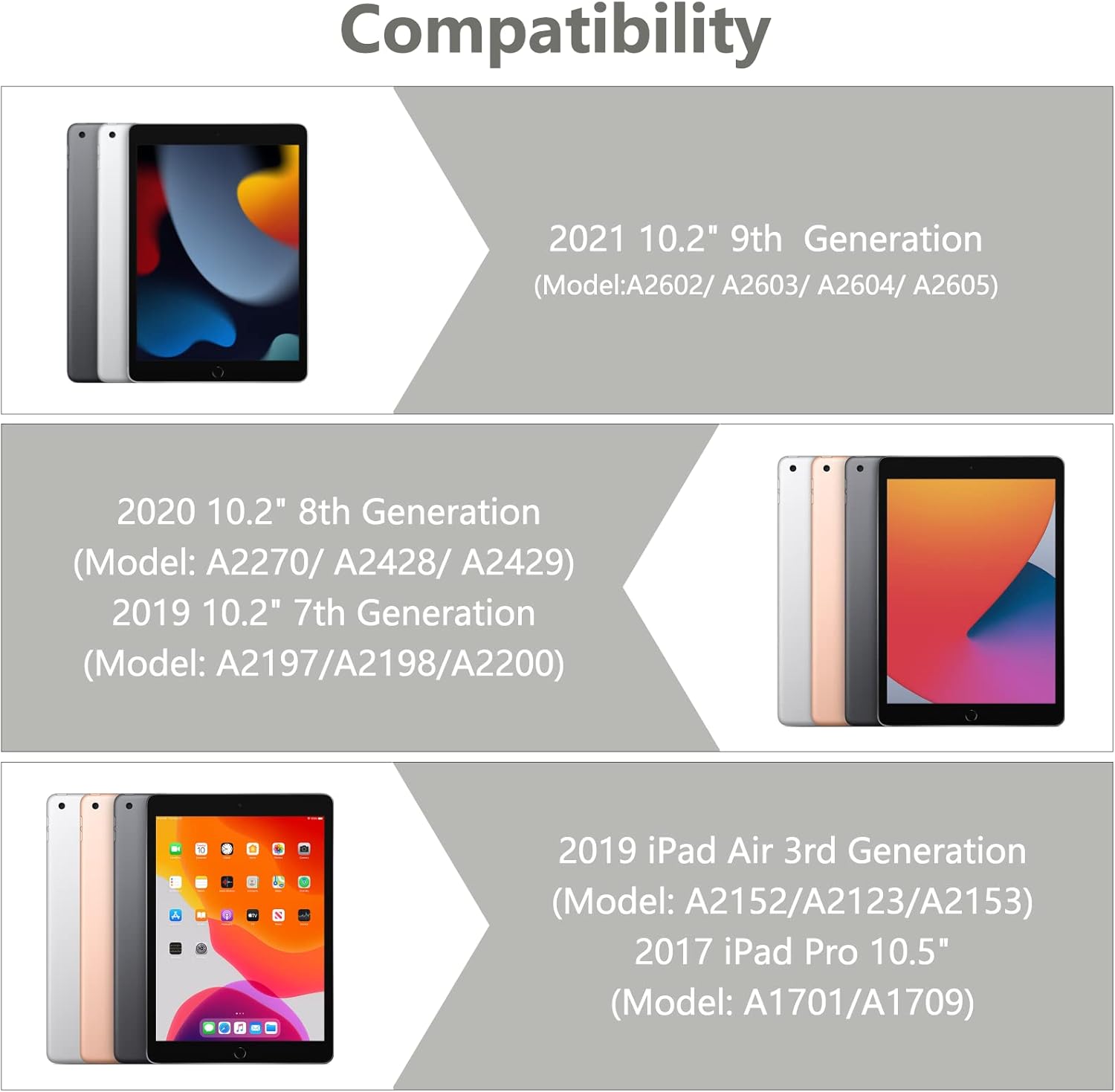
Image 1.1: Visual guide illustrating the compatible iPad models for this keyboard case.
2. Packungsinhalt
Please ensure all items are present in the package upon unboxing:
- 1 x iPad Case with Keyboard (integrated)
- 1 x Wireless Bluetooth Keyboard (detachable)
- 1 x Transparenter Tastaturschutz
- 1 x USB-Ladekabel
- 1 x Benutzerhandbuch

Bild 2.1: Überview aller im Produktpaket enthaltenen Komponenten.
3. Einrichtungsanweisungen
3.1 Installation auf Ihrem iPad
- Gently align your iPad with the case's frame.
- Press the iPad firmly into the case, ensuring all edges are securely seated. The precise cutouts will align with your iPad's ports and buttons.
3.2 Connecting the Wireless Bluetooth Keyboard
The keyboard connects to your iPad via Bluetooth. Follow these steps to pair the devices:
- Stellen Sie sicher, dass die Tastatur vollständig aufgeladen ist.
- Turn on the keyboard by sliding the power switch to the 'ON' position. The indicator light will illuminate.
- Drücken Sie die Taste „Verbinden“ auf der Tastatur. Die Bluetooth-Anzeigeleuchte beginnt zu blinken und signalisiert damit den Kopplungsmodus.
- Gehen Sie auf Ihrem iPad zu Einstellungen > Bluetooth.
- Schalten Sie Bluetooth ein. Ihr iPad sucht dann nach verfügbaren Geräten.
- Wählen Sie in der Geräteliste „Bluetooth-Tastatur“ (oder eine ähnliche Bezeichnung) aus.
- If prompted, enter the pairing code displayed on your iPad onto the keyboard and press 'Enter'.
- Once paired, the Bluetooth indicator light on the keyboard will stop flashing and remain solid or turn off, and your iPad will show the keyboard as 'Connected'.

Image 3.1: The BAIBAO keyboard case with an iPad inserted and the detachable keyboard positioned for typing.
4. Bedienungsanleitung
4.1 Funktionalität der abnehmbaren Tastatur
The keyboard is magnetically attached to the case, allowing for easy detachment and repositioning. This provides flexibility for various usage scenarios.

Image 4.1: Illustration of the magnetic adsorption mechanism that secures the keyboard to the case.
4.2 Mehrere ViewWinkel
The case features a thoughtful design that allows you to adjust your iPad to various comfortable viewing angles. This is ideal for typing, watching videos, or making presentations.

Image 4.2: Diagram demonstrating the adjustable viewing angles of the iPad when placed in the case.
4.3 Automatische Schlaf-/Wachfunktion
The smart cover automatically puts your iPad to sleep when closed and wakes it up when opened, helping to conserve battery life.

Abbildung 4.3: Visuelle Darstellung der automatischen Schlaf- und Aufwachfunktion beim Öffnen und Schließen des Gehäuses.
4.4 Integrated Pencil Holder
The case includes a dedicated slot for your Apple Pencil, preventing it from being lost and keeping it readily accessible.
4.5 Tastaturfunktionen
- Taktile Reaktion: Each key features a spring mechanism for a responsive typing experience.
- Hotkeys and Media Keys: The keyboard includes special function keys for quick access to common iPad features.
- Unterstützung mehrerer Systeme: The keyboard supports Android, iOS, and Windows systems, enhancing its versatility.
5. Wartung
5.1 Aufladen der Tastatur
The keyboard is powered by a built-in Li-ion battery. Use the provided USB charging cable to charge it.
- Connect the small end of the USB cable to the charging port on the keyboard.
- Verbinden Sie das größere Ende des USB-Kabels mit einem USB-Netzteil (nicht im Lieferumfang enthalten) oder einem USB-Anschluss Ihres Computers.
- The keyboard power indicator will flash red when charging is required.
- Eine vollständige Aufladung dauert in der Regel 2-3 Stunden.
- The keyboard can operate for at least 80 hours on a full charge and has a standby time of 130 days.
5.2 Reinigung des Gehäuses und der Tastatur
To maintain the appearance and functionality of your product:
- Wischen Sie das Gehäuse mit einem weichen, fusselfreien Tuch ab.amp Tuch. Vermeiden Sie aggressive Chemikalien oder Scheuermittel.
- For the keyboard, use a soft, dry cloth. A transparent keyboard protector is included to help keep the keys clean.
- Stellen Sie sicher, dass die Tastatur vor der Reinigung ausgeschaltet ist.
6. Fehlerbehebung
6.1 Tastatur verbindet sich nicht mit dem iPad
- Stellen Sie sicher, dass die Tastatur eingeschaltet und vollständig aufgeladen ist.
- Vergewissern Sie sich, dass Bluetooth auf Ihrem iPad aktiviert ist.
- Make sure the keyboard is in pairing mode (Bluetooth indicator flashing).
- Entferne das Gerät aus den Bluetooth-Einstellungen deines iPads und versuche, es erneut zu koppeln.
- Starten Sie sowohl Ihr iPad als auch die Tastatur neu.
6.2 Tasten reagieren nicht
- Prüfen Sie den Akkustand der Tastatur und laden Sie sie gegebenenfalls auf.
- Stellen Sie sicher, dass die Tastatur ordnungsgemäß über Bluetooth verbunden ist.
- Remove the keyboard protector to ensure it is not interfering with key presses.
6.3 Automatische Schlaf-/Aufwachfunktion funktioniert nicht
- Stellen Sie sicher, dass Ihr iPad korrekt im Gehäuse sitzt.
- Check your iPad's settings to ensure 'Lock/Unlock' is enabled under 'Display & Brightness' (or similar, depending on iOS version).
7. Spezifikationen
| Technische Daten | 11.38 x 8.15 x 1.18 Zoll |
| Artikelgewicht | 1.9 Pfund |
| Konnektivitätstechnologie | Bluetooth |
| Tastaturbeschreibung | Multifunktional |
| Besonderheit | Hotkeys, Media Keys, Ergonomic |
| Material | Acrylnitril-Butadien-Styrol (ABS) |
| Akku-Typ | 1 Lithium-Ionen-Akku (im Lieferumfang enthalten) |
| Batterielebensdauer (Betrieb) | Bis zu 80 Stunden |
| Akkulaufzeit (Standby) | Bis zu 130 Tage |
8. Garantie und Support
This product is designed for durability and performance. While specific warranty details are not provided in this manual, BAIBAO is committed to customer satisfaction.
If you encounter any issues with your product, have questions regarding its model or function, or require assistance, please contact BAIBAO customer service. We are eager to resolve any problems you may experience.
Please refer to the contact information provided with your purchase or visit the official BAIBAO webWebsite für Unterstützung.


