Einführung
The Microsoft Modern USB-C Headphones are designed to provide high-quality audio for calls, meetings, and general use, particularly optimized for Microsoft Teams. They offer clear sound, a noise-reducing microphone, and intuitive controls for enhanced productivity and communication.
Packungsinhalt
- Microsoft Modern USB-C Headset
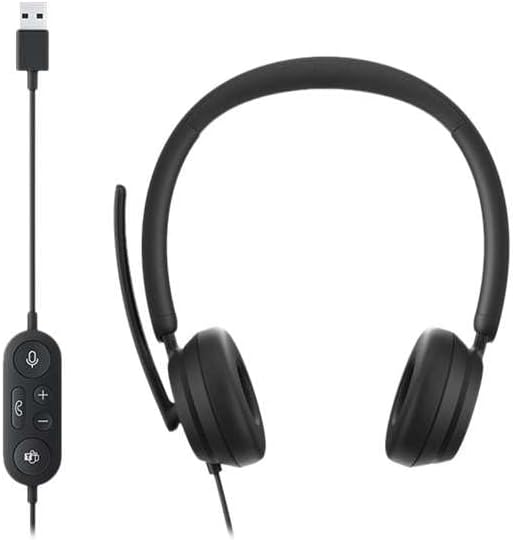
Image: The Microsoft Modern USB-C Headphones, featuring the headset with its attached USB-C cable and inline control unit. The control unit has buttons for mute, volume up/down, call answer/end, and a Microsoft Teams button.
Aufstellen
Anschließen des Headsets
- Locate an available USB-C port on your computer or compatible device.
- Plug the USB-C connector of the headset into the USB-C port.
- Your operating system (Windows 11/10/8.1/8 or Mac OS 11.0/10.15) should automatically detect and install the necessary drivers.
Mikrofoneinstellung
- The microphone boom is flexible. Position it approximately one inch from your mouth for optimal voice pickup.
- The microphone features noise reduction to minimize background distractions during calls.

Bild: Eine Nahaufnahme view of the earcups and the adjustable microphone boom of the Microsoft Modern USB-C Headphones.
Bedienung des Headsets
Inline-Steuerelemente
Die Inline-Steuereinheit ermöglicht einen bequemen Zugriff auf wichtige Funktionen:
- Stummschaltfläche: Press to mute or unmute your microphone. An indicator light on the control unit may show mute status.
- Lautstärketasten: Stellen Sie die Hörlautstärke ein.
- Anrufknopf: Drücken Sie diese Taste, um einen Anruf anzunehmen oder zu beenden.
- Microsoft Teams-Schaltfläche: Quickly launch or bring Microsoft Teams to the foreground.

Bild: Eine detaillierte view of the inline control unit, showing the microphone mute, volume up/down, call, and Microsoft Teams buttons.
Komfort und Design
The headset features padded and lightweight earcups designed for extended wear, ensuring comfort during long calls or work sessions.

Image: A close-up showing the soft, padded earcup of the Microsoft Modern USB-C Headphones, highlighting its comfortable design.
Wartung
- Reinigung: Reinigen Sie das Headset mit einem weichen, trockenen Tuch. Vermeiden Sie die Verwendung von scharfen Chemikalien oder scheuernden Materialien.
- Lagerung: Bewahren Sie das Headset bei Nichtgebrauch an einem kühlen, trockenen Ort auf. Vermeiden Sie extreme Temperaturen.
- Kabelpflege: Um Beschädigungen zu vermeiden, sollte das USB-C-Kabel nicht übermäßig geknickt oder gezogen werden.
Fehlerbehebung
| Problem | Lösung |
|---|---|
| Kein Ton aus dem Headset |
|
| Mikrofon funktioniert nicht |
|
| Headset not recognized by computer |
|
Technische Daten
| Marke | Microsoft |
| Modellname | I6N-00009 |
| Artikelmodellnummer | 2026 |
| Konnektivitätstechnologie | Kabelgebunden (USB-C) |
| Platzierung des Ohrs | Über dem Ohr |
| Formfaktor | Am Ohr |
| Material | Kunstleder |
| Steuerungstyp | Anrufsteuerung |
| Kompatible Geräte | USB-C-kompatible Geräte |
| Betriebssystemkompatibilität | Windows 11 / 10 / 8.1 / 8, Mac OS 11.0/10.15 |
| Technische Daten | 16 x 3.99 x 24.99 cm |
| Artikelgewicht | 390 g |
| Wasserbeständigkeit | Wasserfest |
Garantie und Support
Informationen zur Garantie und zum technischen Support finden Sie im offiziellen Microsoft-Support. website or contact Microsoft customer service. Details regarding specific warranty periods and terms are typically provided with your purchase documentation or available online.
You can find support resources at the official Microsoft support page: support.microsoft.com


