1. Einleitung
This manual provides detailed instructions for the installation, operation, and maintenance of your j5create USB-C Dual HDMI Docking Station (Model JCD542). This docking station is designed to expand the connectivity of your USB-C enabled laptop, offering dual display output, multiple USB ports, network connectivity, and power delivery.
Bitte lesen Sie diese Bedienungsanleitung vor der Verwendung des Produkts sorgfältig durch, um eine einwandfreie Funktion zu gewährleisten und Schäden zu vermeiden.
2. Produktüberschreitungview
2.1 Packungsinhalt
- j5create USB-C Dual HDMI Docking Station (JCD542)
- Bedienungsanleitung
2.2 Geräteaufbau und Anschlüsse
The JCD542 docking station features a comprehensive array of ports to enhance your workstation. Refer to the images below for a visual guide to the port layout.

Bild 1: Draufsicht view of the j5create JCD542 USB-C Dual HDMI Docking Station, showcasing sein schlankes Design und seine verschiedenen Anschlüsse.

Image 2: Diagram illustrating the 10 available ports on the j5create JCD542 docking station, including USB-C Power In, USB 3.0, Mic/Speaker, SD/microSD, Gigabit Ethernet, 4K HDMI, HDMI, and Security Slot.
- USB-C-Hostanschluss: Wird an den USB-C-Anschluss Ihres Laptops angeschlossen.
- USB-C Power In (PD 3.0): Supports up to 100W Power Delivery for charging your laptop.
- HDMI 1 (4K): Connects to a display for up to 4K (3840 x 2160) resolution.
- HDMI 2: Connects to a display for up to 2K (2048 x 1152) or 1080p resolution.
- USB 3.0 (5Gbps) x3: Connects to USB peripherals such as keyboards, mice, or external drives.
- RJ45-Gigabit-Ethernet: Bietet eine stabile kabelgebundene Netzwerkverbindung.
- SD-Kartenleser: Zum Auslesen von Standard-SD-Speicherkarten.
- microSD-Kartenleser: Zum Auslesen von microSD-Speicherkarten.
- Combo Audio Jack (Mic/Speaker): Connects to headphones or speakers with a microphone.
- Sicherheitsschloss-Steckplatz: Zum Anbringen eines Sicherheitskabels zur Verhinderung von Diebstahl.
3. Einrichtung
3.1 Systemanforderungen
- Available USB-C port with DisplayPort Alternate Mode (Alt Mode) support.
- Windows 10 / 8.1 / 7 or macOS X 10.8 or later (macOS 11 & 12 supported).
- For Mac users, driver installation is required for display functionality. Please visit the j5create webWebsite für die neuesten Treiber.
- For Power Delivery, your laptop must support USB-C Power Delivery.
3.2 Anschließen der Dockingstation
- Connect the integrated USB-C host cable from the docking station to an available USB-C port on your laptop.
- If you wish to charge your laptop via the docking station, connect your laptop's USB-C power adapter to the USB-C Power In port on the docking station.
- Connect your external monitors to the HDMI ports on the docking station using HDMI cables.
- Connect any USB peripherals (keyboard, mouse, external hard drive) to the USB 3.0 ports.
- For a wired network connection, connect an Ethernet cable from your router/modem to the RJ45 Gigabit Ethernet port.
- Insert SD or microSD cards into the respective card reader slots if needed.
- Connect headphones or speakers to the Combo Audio Jack.

Image 3: A laptop connected to the j5create JCD542 docking station via its integrated USB-C cable, demonstrating a typical setup.

Image 4: Illustration showing compatibility with both Windows and Mac operating systems, highlighting the need for driver installation for Mac users.
4. Bedienungsanleitung
4.1 Dual-Display-Konfiguration
The docking station supports extending your laptop's display to two external monitors. One HDMI port supports up to 4K (3840 x 2160) resolution, and the other supports up to 2K (2048 x 1152) or 1080p. You can also use your laptop screen for a total of three displays.

Image 5: A workstation demonstrating a dual-monitor setup connected via the j5create JCD542 docking station, enhancing productivity.
After connecting your monitors, you may need to configure display settings in your operating system (Windows Display Settings or macOS System Preferences > Displays) to extend or mirror your desktop.
4.2 Stromversorgung
The USB-C Power In port allows you to charge your laptop while using the docking station, supporting up to 100W Power Delivery. Ensure your laptop's original power adapter is connected to this port for charging.

Image 6: A USB-C power cable connected to the 'Power In' port of the j5create JCD542 docking station, indicating support for up to 100W Power Delivery to the connected laptop.
4.3 Data Transfer and Peripherals
The three USB 3.0 ports provide SuperSpeed 5Gbps data transfer rates for connecting various USB peripherals. The RJ45 Gigabit Ethernet port ensures a reliable and fast wired internet connection, while the SD and microSD card readers allow for convenient access to memory card data.

Bild 7: Nahaufnahme view of the three SuperSpeed USB 3.0 ports on the j5create JCD542 docking station, with a USB device connected.

Bild 8: Nahaufnahme view of the RJ45 Gigabit Ethernet port on the j5create JCD542 docking station, showing an Ethernet cable connected for a stable network connection.

Bild 9: Nahaufnahme view of the SD and microSD card reader slots on the j5create JCD542 docking station, with a memory card being inserted.

Bild 10: Nahaufnahme view of the combo audio jack (Mic/Speaker) on the j5create JCD542 docking station, with a 3.5mm audio plug inserted.
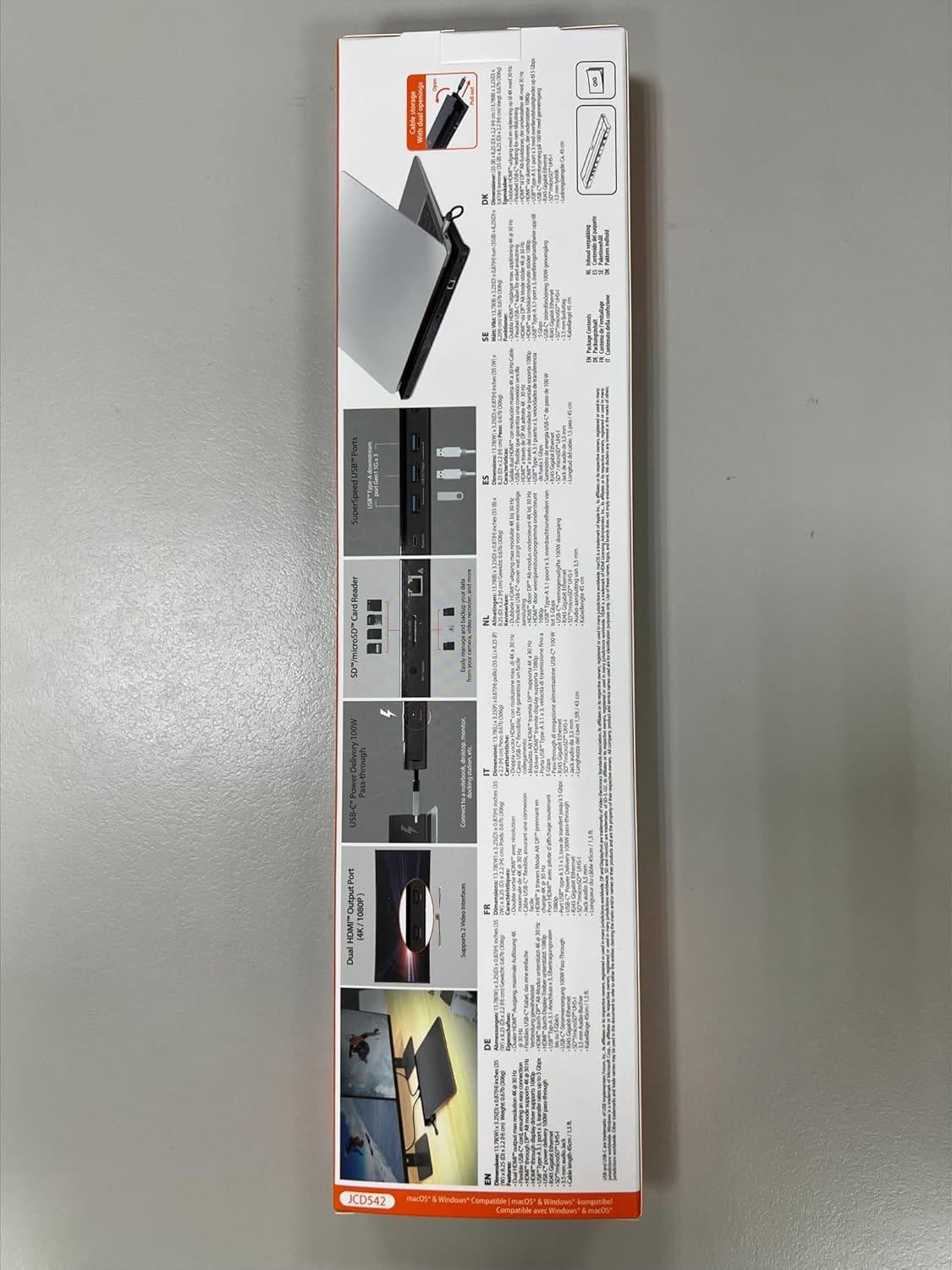
Bild 11: Nahaufnahme view of the security lock slot on the j5create JCD542 docking station, showing a security cable being attached.
5. Wartung
Um die Langlebigkeit und optimale Leistung Ihrer Dockingstation zu gewährleisten, beachten Sie bitte folgende Wartungsrichtlinien:
- Reinigen Sie das Gerät regelmäßig mit einem weichen, trockenen Tuch. Vermeiden Sie die Verwendung von flüssigen Reinigern oder Lösungsmitteln.
- Setzen Sie das Gerät keinen extremen Temperaturen, Feuchtigkeit oder direkter Sonneneinstrahlung aus.
- Lassen Sie das Gerät nicht fallen und setzen Sie es keinen starken Stößen aus.
- Um eine Überhitzung zu vermeiden, muss für ausreichende Belüftung rund um die Dockingstation gesorgt werden.
6. Fehlerbehebung
If you encounter issues with your j5create JCD542 docking station, refer to the following common problems and solutions:
- Keine Anzeigeausgabe:
- Stellen Sie sicher, dass der USB-C-Anschluss Ihres Laptops den DisplayPort-Alt-Modus unterstützt.
- Verify that all HDMI cables are securely connected to both the docking station and the monitors.
- For Mac users, ensure the necessary display drivers are installed. Visit the j5create support webWebsite für Treiber-Downloads.
- Check your operating system's display settings to ensure monitors are detected and configured correctly (extended or mirrored).
- Try disconnecting and reconnecting the docking station from your laptop.
- Laptop lädt nicht:
- Confirm that your laptop supports USB-C Power Delivery.
- Ensure your laptop's original USB-C power adapter is connected to the USB-C Power In port on the docking station.
- Verify the power adapter is functioning correctly and connected to a power outlet.
- USB-Peripheriegeräte funktionieren nicht:
- Stellen Sie sicher, dass die Dockingstation ordnungsgemäß mit Ihrem Laptop verbunden ist.
- Versuchen Sie, das Peripheriegerät direkt an Ihren Laptop anzuschließen, um zu überprüfen, ob es funktioniert.
- Test the peripheral in a different USB 3.0 port on the docking station.
- Keine Internetverbindung über Ethernet:
- Vergewissern Sie sich, dass das Ethernet-Kabel sowohl an die Dockingstation als auch an Ihren Router/Ihr Modem fest angeschlossen ist.
- Check your network settings in your operating system.
- Stellen Sie sicher, dass Ihr Router/Modem ordnungsgemäß funktioniert.
- Die Dockingstation fühlt sich warm an:
- It is normal for the docking station to generate some heat during operation, especially when multiple ports are in use or when charging a laptop. Ensure it has adequate ventilation and is not covered.
7. Spezifikationen
| Modellnummer | JCD542 |
| Technische Daten | 13.78 x 3.25 x 0.86 Zoll (350 x 82.5 x 21.8 mm) |
| Artikelgewicht | 14.3 Unzen (405 Gramm) |
| Host-Schnittstelle | USB-C |
| Videoausgang | 2 x HDMI (1x 4K, 1x 2K/1080p) |
| USB-Anschlüsse | 3 x USB 3.0 (5 Gbit/s) |
| Ethernet | RJ45 Gigabit Ethernet |
| Kartenleser | SD-Karte / microSD |
| Audio | Combo Audio Jack (Mic/Speaker) |
| Stromversorgung | Up to 100W via USB-C Power In port |
| Kompatibilität | Windows 10/8.1/7, macOS X 10.8 or later (macOS 11 & 12) |
8. Garantie und Support
j5create products are designed and manufactured with quality in mind. For warranty information and technical support, please refer to the official j5create webWebsite oder wenden Sie sich an den Kundendienst.
Hersteller: j5erstellen
Kontaktinformationen:
Kaijet Technology International BV
Address: Zomerdroom 20, 3068 MZ Rotterdam, Netherlands
Phone Number: +31 (0)6-2880 2882
E-Mail: service@j5create.com
Bitte bewahren Sie Ihren Kaufbeleg für Garantieansprüche auf.


