1. Erste Schritte
1.1 Unboxing Your Tablet
Carefully remove all items from the packaging. Ensure all components are present before discarding the box.
Video 1: This video demonstrates the unboxing process of the Blackview Tab 6, showing the tablet and included accessories such as the charger, USB cable, and SIM eject pin.
1.2 Packungsinhalt
- Schwarzview Registerkarte 6 Tablet
- Netzteil
- USB-Ladekabel
- SIM-Auswurfstift
- Benutzerhandbuch (dieses Dokument)
1.3 Einlegen der SIM-/SD-Karte
Locate the SIM/SD card tray on the side of your tablet. Use the provided SIM eject pin to open the tray. Insert your Nano-SIM card(s) and/or microSD card into the designated slots, ensuring correct orientation. Gently push the tray back into the tablet until it clicks into place.
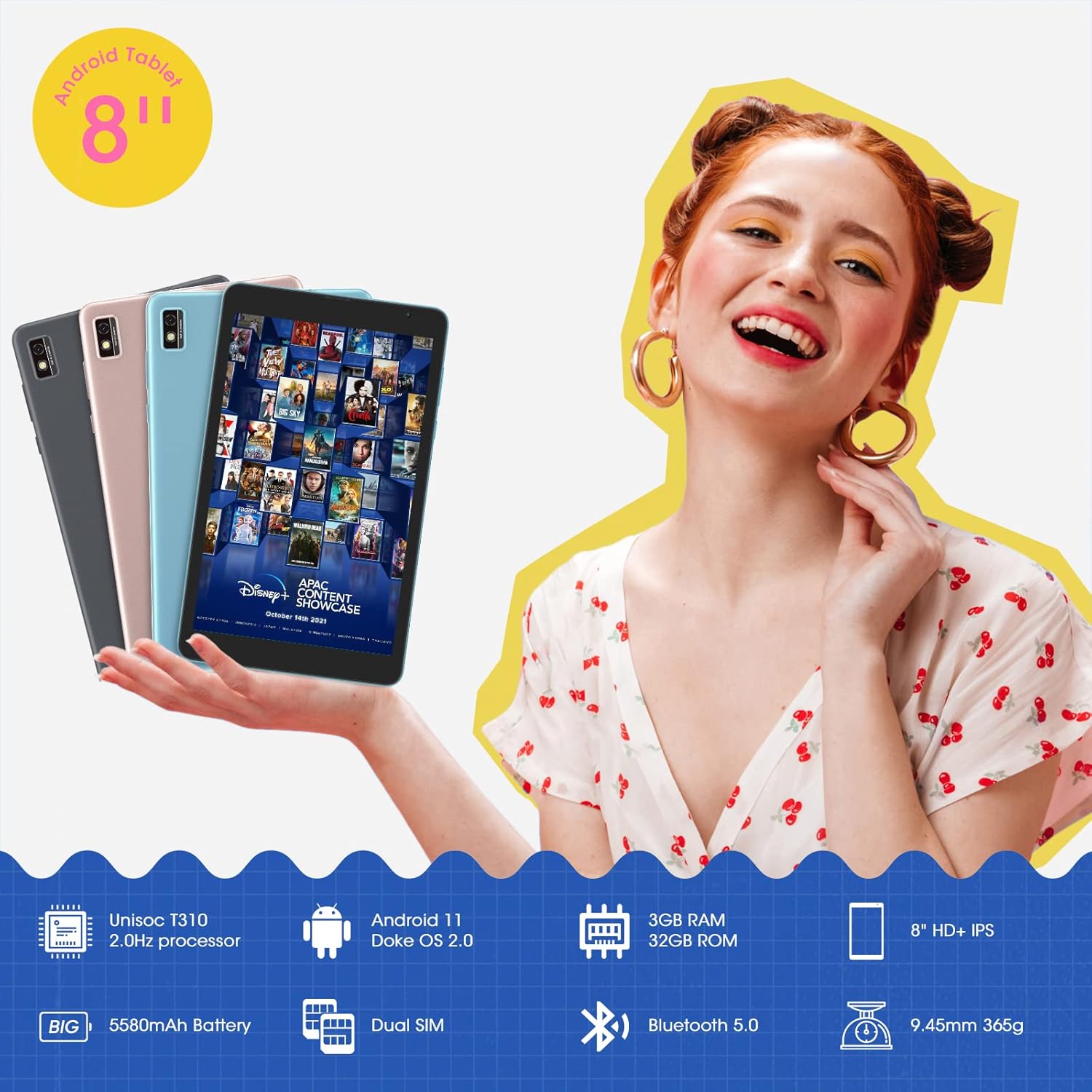
Dieses Bild zeigt das Schwarzeview Tab 6 with its dual SIM slots, highlighting its connectivity features and key specifications like the 5580mAh battery and 8-inch HD+ IPS display.
1.4 Erstes Aufladen und Einschalten
Before first use, fully charge your tablet using the provided power adapter and USB cable. Connect the USB cable to the tablet's charging port and the adapter to a power outlet. The battery indicator on the screen will show charging status. Once charged, press and hold the power button on the side of the tablet until the Blackview logo appears to power it on.
2. Bedienung Ihres Tablets
2.1 Grundlegende Navigation
Das Schwarzeview Tab 6 runs on Android 11 with Doke OS 2.0, offering an intuitive user experience. Use touch gestures for navigation:
- Klopfen: Wählen Sie ein Element aus oder öffnen Sie eine App.
- Wischen: Durch Bildschirme, Listen oder Seiten scrollen.
- Pinch-to-Zoom: Fotos vergrößern oder verkleinern und web Seiten.
- Langes Drücken: Kontextmenüs aufrufen oder App-Symbole verschieben.

This image illustrates the user interface of the Blackview Tab 6, showcasing the Android 11 operating system with Doke OS 2.0 features like gesture control and dark theme.
2.2 Anzeigemodi
The tablet offers various display modes to optimize your viewErfahrung:
- Ebook Mode: Adjusts the screen for comfortable reading, reducing eye strain.
- Normalmodus: Standard display settings for general use.
- Augenschonmodus: Filters blue light to protect your eyes, especially in low-light conditions.

This image displays the various screen modes available on the Blackview Tab 6, including Ebook Mode, Normal Mode, and Eye Comfort Mode, designed for different viewing-Präferenzen.
2.3 Konnektivität
The Tab 6 supports a range of connectivity options:
- W-lan: Supports 2.4G and 5G dual-band Wi-Fi for fast internet access.
- Bluetooth 5.0: Zum Anschließen von drahtlosem Zubehör wie Kopfhörern und Lautsprechern.
- 4G Global Network: Allows for mobile data and call functionality (where supported by your SIM card and carrier).

This image highlights the Blackview Tab 6's connectivity features, including 4G Global Network and 5G Wi-Fi support, emphasizing its versatility as a multi-functional device.
2.4 GPS-Navigation
The Tab 6 is equipped with a high-precision quad navigation system (GPS, GLONASS, Beidou, Galileo) for accurate location tracking and route planning. The large 8-inch screen and automatic brightness adjustment ensure clear readability of navigation information in various conditions.

Dieses Bild zeigt das Schwarzeview Tab 6 displaying a navigation map, illustrating its use for route guidance and location services.
Video 2: This video demonstrates various uses of the Blackview Tab 6, including gaming, note-taking, and GPS navigation, showcasing its performance and display quality.
3. Wartung
3.1 Batteriepflege
The tablet is equipped with a 5580mAh battery, providing up to 8 hours of average use. To prolong battery life:
- Vermeiden Sie extreme Temperaturen.
- Lassen Sie den Akku nicht regelmäßig vollständig entladen.
- Verwenden Sie für optimale Ladeergebnisse das Original-Ladegerät und -Kabel.
- Schließen Sie nicht verwendete Apps, die im Hintergrund ausgeführt werden.

This image highlights the 5580mAh battery of the Blackview Tab 6, indicating its long standby time and estimated usage durations for talking, music, and video playback.
3.2 Speicherverwaltung
The tablet comes with 32GB of internal storage and supports expansion up to 128GB via a microSD card. Regularly manage your storage by:
- Löschen unnötiger files und Apps.
- Umzug großer Unternehmen files auf eine microSD-Karte.
- Nutzung von Cloud-Speicherdiensten.

This image illustrates the storage capabilities of the Blackview Tab 6, showing its 3GB RAM, 32GB ROM, and support for up to 128GB storage expansion, alongside various application icons.
3.3 Reinigung Ihres Tablets
Reinigen Sie Bildschirm und Gehäuse des Tablets mit einem weichen, fusselfreien Tuch. Vermeiden Sie aggressive Chemikalien oder Scheuermittel, die die Oberfläche beschädigen könnten.
4. Fehlerbehebung
4.1 Häufige Probleme und Lösungen
- Tablet lässt sich nicht einschalten: Stellen Sie sicher, dass der Akku geladen ist. Schließen Sie ihn an das Ladegerät an und versuchen Sie es erneut.
- Langsame Leistung: Close unused apps, clear cache, or restart the tablet.
- Probleme mit der WLAN-Verbindung: Restart your router and tablet. Forget and reconnect to the Wi-Fi network.
- Ladeprobleme: Ensure the charging cable and adapter are securely connected and undamaged. Try a different compatible charger if available.
4.2 Werksreset
Sollten anhaltende Softwareprobleme auftreten, kann ein Zurücksetzen auf die Werkseinstellungen diese möglicherweise beheben. Warnung: Dadurch werden alle Daten auf Ihrem Tablet gelöscht. Sichern Sie wichtige Daten, bevor Sie fortfahren.
- Gehe zu Einstellungen.
- Wählen System > Optionen zurücksetzen.
- Wählen Alle Daten löschen (Werksreset).
- Bestätigen Sie Ihre Auswahl und folgen Sie den Anweisungen auf dem Bildschirm.
5. Spezifikationen
| Besonderheit | Spezifikation |
|---|---|
| Bildschirmgröße | 8 Zoll |
| Bildschirmauflösung | 1280 x 800 HD IPS |
| Prozessor | 2.0GHz Quad-Core (Unisoc T310) |
| RAM | 3 GB |
| Interner Speicher | 32 GB |
| Erweiterbarer Speicher | Bis zu 128 GB (microSD) |
| Betriebssystem | Android 11 (Doke OS 2.0) |
| Batteriekapazität | 5580 mAh |
| Rückfahrkamera | 5 Megapixel |
| Konnektivität | 2.4G+5G Dual WiFi, Bluetooth 5.0, 4G LTE |
| Abmessungen (LxBxH) | 8 x 4.5 x 0.4 Zoll |
| Artikelgewicht | 1.42 Pfund (ca. 644 g) |
6. Garantieinformationen
Dein Schwarzview Tab 6 tablet comes with a standard manufacturer's warranty. Please refer to the warranty card included in your product packaging for specific terms, conditions, and duration. Keep your proof of purchase for warranty claims.
7. Unterstützung
For technical assistance, troubleshooting, or further inquiries, please visit the official Blackview Unterstützung website or contact their customer service. Contact details can typically be found on the Blackview website or in the warranty information provided with your device.


