Einführung
The Intel NUC 10 Performance NUC10i3FNHN is a compact barebone system designed for versatility. It features a customizable board and chassis, allowing users to integrate their preferred memory, storage, and operating systems. This mini PC is suitable for a wide range of applications, including business, education, and DIY projects, offering a powerful computing solution in a small form factor.
Packungsinhalt
Upon opening your Intel NUC 10 Performance kit, please verify that all components are present:
- Intel NUC 10 Performance kit - NUC10i3FNHN Barebone System
- US-Netzkabel
Note: Memory, storage, and operating system are not included and must be purchased separately. Ensure the power cord provided is compatible with your region's electrical outlets.
Aufstellen
Follow these steps to set up your Intel NUC system:
- Arbeitsspeicher (RAM) einbauen:
Locate the DDR4 SDRAM compatible slots inside the NUC chassis. Carefully insert the memory modules into the slots until they click into place. Ensure proper alignment to prevent damage.
- Speicher installieren:
The NUC supports various storage options, including M.2 SSDs and 2.5-inch SATA drives. Connect your chosen storage device to the appropriate Serial ATA/600 interface or M.2 slot. Secure the drive with the provided screws if necessary.
- Peripheriegeräte anschließen:
Connect your monitor to one of the available video output ports (e.g., HDMI, USB-C/Thunderbolt). Connect your keyboard, mouse, and other USB-compatible devices to the available USB ports. The NUC features 7 USB ports for extensive connectivity.
- Netzwerkverbindung:
For wired network access, connect an Ethernet cable to the Gigabit Ethernet port. For wireless connectivity, ensure your NUC has a Wi-Fi module installed (if not integrated) and configure it after OS installation.
- Stromanschluss:
Connect the provided US power cord to the NUC's power input and then to a wall outlet. Ensure the connection is secure.
- Initial Boot and OS Installation:
Press the power button to turn on the NUC. Follow the on-screen prompts to install your preferred operating system (e.g., Windows 10, Linux distribution). You may need to create a bootable USB drive with the OS installer.

Abbildung 1: Vorderseite view of the Intel NUC 10 Performance NUC10i3FNHN, showing the power button, USB ports, and SD card slot.
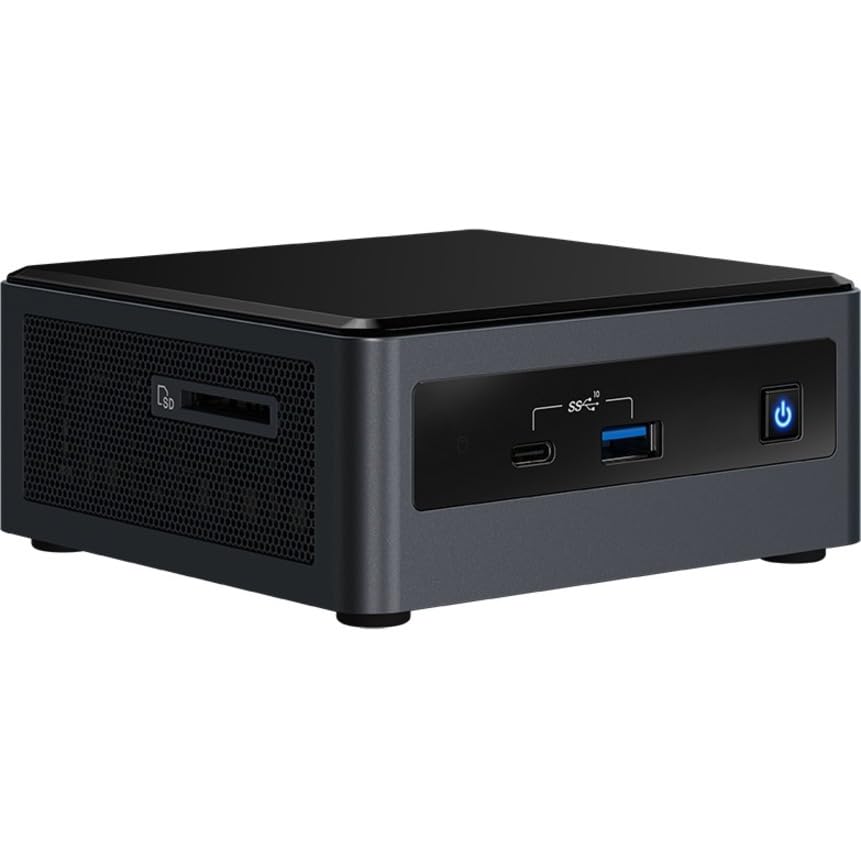
Abbildung 2: Seite view of the Intel NUC 10 Performance NUC10i3FNHN, highlighting the ventilation and additional ports.
Bedienungsanleitung
Sobald Ihr Intel NUC eingerichtet und das Betriebssystem installiert ist, können Sie ihn für verschiedene Aufgaben nutzen.
- Ein-/Ausschalten: Press the power button located on the front panel to turn the system on or off. For a controlled shutdown, use the operating system's shutdown function.
- Anschließen von USB-Geräten: Utilize the multiple USB ports (including USB 2.0 and USB 3.0/3.1) to connect external hard drives, flash drives, printers, and other peripherals.
- Netzwerknutzung: The Gigabit Ethernet port provides high-speed wired network connectivity, ideal for large file transfers and stable internet access. Wireless connectivity (if equipped) allows for flexible network access.
- Ausgabe anzeigen: Connect to displays using the available HDMI or USB-C/Thunderbolt ports. The NUC supports high resolutions, including 3840x2160 and 4096x2304, for a clear visual experience.
- Audio: Connect speakers or headphones to the audio jack for sound output.
Wartung
Regelmäßige Wartung trägt dazu bei, die Langlebigkeit und optimale Leistung Ihres Intel NUC zu gewährleisten.
- Staubentfernung: Periodically clean the exterior of the NUC with a soft, dry cloth. Use compressed air to gently clear dust from ventilation grilles to maintain proper airflow and prevent overheating. Ensure the system is powered off before cleaning.
- Software-Updates: Regularly update your operating system, drivers, and BIOS/firmware. Visit the Intel support website for the latest drivers specific to your NUC model.
- Kabelmanagement: Ensure all cables connected to the NUC are neatly organized and not obstructing ventilation.
- Umgebungsbedingungen: Betreiben Sie den NUC in einem gut belüfteten Bereich, fern von direkter Sonneneinstrahlung, Wärmequellen und übermäßiger Feuchtigkeit.
Fehlerbehebung
Dieser Abschnitt bietet Lösungen für häufig auftretende Probleme.
- Kein Strom/System schaltet sich nicht ein:
Ensure the power cord is securely connected to both the NUC and a working electrical outlet. Verify that the power outlet is active. If you are using an international power adapter, ensure it is compatible with your region's voltage and plug type. Some users have reported receiving power cords incompatible with their region; a replacement may be necessary.
- Keine Anzeigeausgabe:
Check that the monitor is powered on and the video cable (HDMI, USB-C) is securely connected to both the NUC and the monitor. Try a different video port or cable if available. Ensure the monitor input source is correctly selected.
- System Not Booting After RAM/Storage Installation:
Verify that the RAM modules and storage devices are correctly seated in their respective slots. Refer to the installation steps in the Setup section. Ensure the storage device contains a valid operating system.
- Langsame Leistung:
Ensure you have installed sufficient RAM (up to 64 GB DDR4) and a fast storage solution (e.g., NVMe SSD). Close unnecessary applications. Check for background processes consuming resources. Ensure drivers are up to date.
- Netzwerkverbindungsprobleme:
For wired connections, check the Ethernet cable and router/modem. For wireless, ensure the Wi-Fi module is enabled and drivers are installed. Verify network settings in your operating system.
Technische Daten
Detailed technical specifications for the Intel NUC 10 Performance NUC10i3FNHN Barebone System:
| Besonderheit | Detail |
|---|---|
| Modellnummer | NUC10i3FNHN |
| Prozessor | Intel Core i3 10th Gen i3-10110U Dual-core (2 Core) |
| Prozessorgeschwindigkeit | 1.9 GHz |
| RAM (Max Supported) | 64 GB DDR4 SDRAM |
| Speichergeschwindigkeit | 2666 MHz |
| Grafik-Coprozessor | Intel UHD-Grafik (integriert) |
| Maximale Bildschirmauflösung | 4096 x 2304 |
| Festplattenschnittstelle | Serial ATA/600, Solid State (M.2) |
| USB-Anschlüsse | 7 (including USB 2.0, USB 3.0/3.1, USB-C) |
| Netzwerk | Gigabit Ethernet, Bluetooth (Wireless Type) |
| Operating System (Compatible) | Windows 10 (Barebone system, OS not included) |
| Artikelgewicht | 1.25 Pfund |
| Produktabmessungen (L x B x H) | 6.1 x 5 x 4.8 Zoll |
| Farbe | Schwarz |
Garantie und Support
Detaillierte Garantieinformationen und technischen Support finden Sie auf der offiziellen Intel-Website. webBesuchen Sie die Website oder kontaktieren Sie den Intel-Kundendienst. Bewahren Sie Ihren Kaufbeleg für Garantieansprüche auf.
Online-Ressourcen:
Note: Warranty terms may vary by region and retailer. Always consult the official Intel warranty policy for the most accurate information.


