1. Einleitung
This manual provides detailed instructions for setting up, operating, maintaining, and troubleshooting your Dell Pro Wireless Keyboard and Mouse KM5221W. This wireless combo offers a seamless and efficient computing experience with its 2.4 GHz interface and USB wireless receiver.
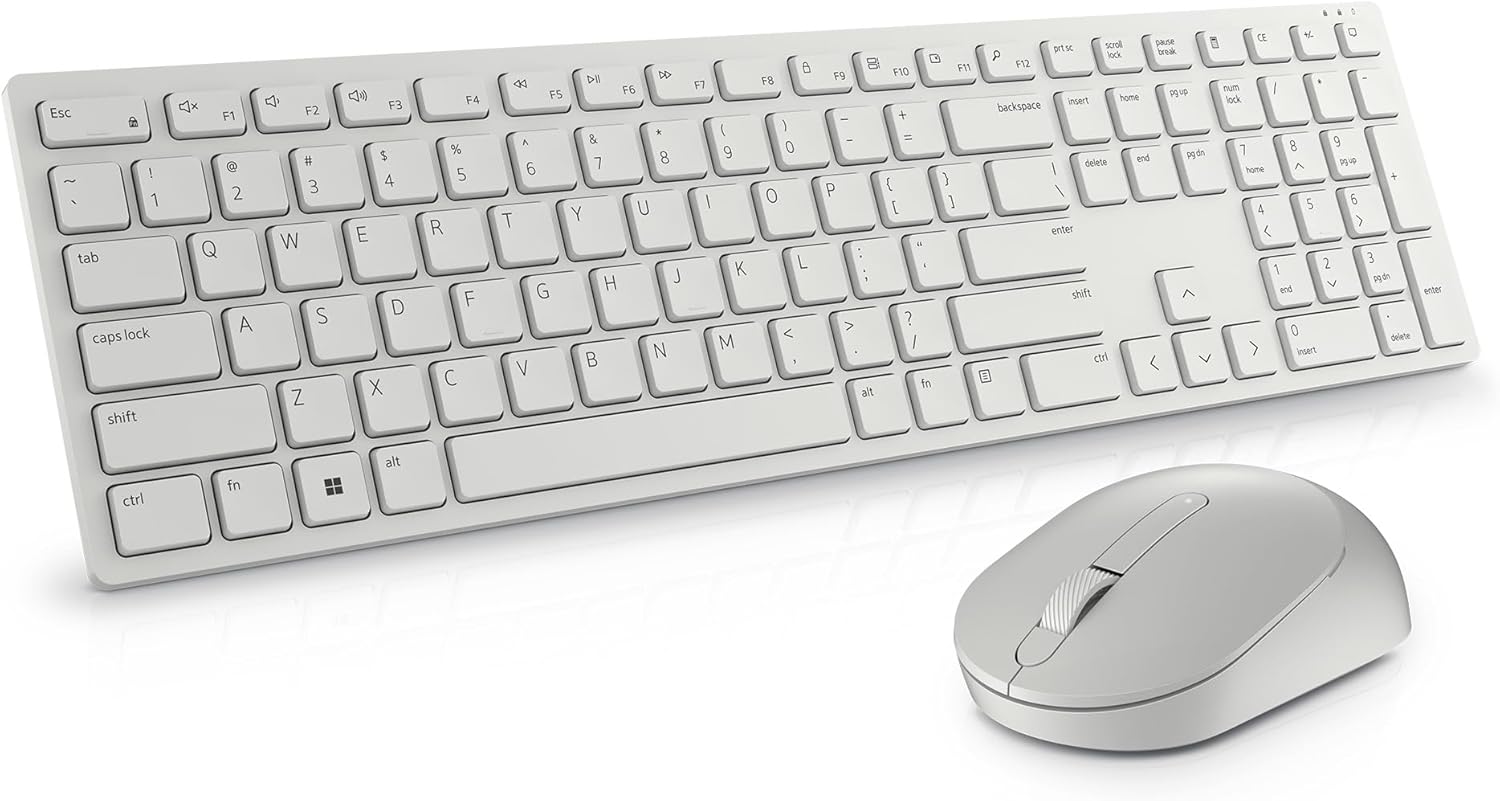
Image: The Dell Pro Wireless Keyboard and Mouse KM5221W in white, showcasing sein elegantes Design.
2. Lieferumfang
Your Dell Pro Wireless Keyboard and Mouse KM5221W package should contain the following items:
- Kabellose Dell Pro-Tastatur
- Dell Pro Wireless Mouse
- USB-Funkempfänger
- 1 AA-Batterie (für die Maus)
- 2 AAA-Batterien (für die Tastatur)
- Dokumentation (Schnellstartanleitung, Sicherheitshinweise)
3. Einrichtungsanweisungen
Follow these steps to set up your Dell Pro Wireless Keyboard and Mouse:
- Batterien einlegen:
- For the mouse: Open the battery compartment cover on the underside of the mouse and insert one AA battery.
- For the keyboard: Open the battery compartment cover on the underside of the keyboard and insert two AAA batteries.
- USB-Empfänger anschließen: Plug the USB wireless receiver into an available USB-A port on your computer.
- Einschalten: Turn on the keyboard and mouse using their respective On/Off switches. The devices should automatically connect to your computer.
- Install Dell Peripheral Manager (Optional): For advanced customization of programmable keys and DPI settings, download and install the Dell Peripheral Manager software from the official Dell support webWebsite.

Image: Labeled diagram of the Dell Pro Wireless Keyboard and Mouse, showing key features like battery indicators and programmable keys.
4. Bedienungsanleitung
Tastaturfunktionen:
- Leises Tippen: The keyboard features plunger key switch technology for a quiet typing experience.
- Programmierbare Tasten: Utilize 12 programmable keys for quick access to frequently used applications, folders, and functions. Customize these using Dell Peripheral Manager.
- Einstellbare Neigung: The keyboard includes tilt legs on the underside, offering two adjustable angles for a preferred typing position.
- Spill-Resistant: Designed with spill-resistant keys for added protection against accidental liquid spills.
- Sichere Verbindung: Features 128-bit AES (Advanced Encryption Standard) encryption to protect data transmission.

Image: Hands typing on the Dell Pro Wireless Keyboard, illustrating the ease of use for productivity.
Mausfunktionen:
- Optische Nachführung: The mouse uses optical LED technology for precise and smooth movements.
- Einstellbare DPI: Customize the mouse sensitivity (DPI) to 1000, 1600, 2400, or 4000 using Dell Peripheral Manager.
- Programmable Scroll Wheel: The scroll wheel includes a programmable middle click function.
- Ergonomisches Design: The mouse is designed to fit comfortably in hand for extended use.

Image: Close-up of the Dell Pro Wireless Mouse next to the keyboard's numeric keypad, highlighting its design.
5. Wartung
Batteriewechsel:
When the battery indicator light on your keyboard or mouse signals low power, replace the batteries:
- Maus: Replace with one AA battery.
- Tastatur: Replace with two AAA batteries.
Reinigung:
To clean your keyboard and mouse, use a soft, lint-free cloth lightly dampMit Wasser oder einer milden Reinigungslösung reinigen. Scharfe Chemikalien oder scheuernde Materialien vermeiden.
6. Fehlerbehebung
If you encounter issues with your Dell Pro Wireless Keyboard and Mouse, try the following solutions:
- Keine Konnektivität: Ensure the USB wireless receiver is securely plugged into a working USB port. Check that both the keyboard and mouse are powered on.
- Verzögerung oder Verbindungsabbruch: Move the keyboard and mouse closer to the USB receiver. Ensure there are no large metal objects or other wireless devices interfering with the 2.4 GHz signal.
- Tasten/Maus reagieren nicht: Tauschen Sie die Batterien in Tastatur und Maus aus.
- No Indicator Lights (Num Lock, Caps Lock): Please note that this model does not feature dedicated indicator lights for Num Lock or Caps Lock on the keyboard itself.
- Probleme mit der Mausbewegung: Clean the optical sensor on the underside of the mouse. Ensure you are using the mouse on a suitable surface.
7. Spezifikationen
| Besonderheit | Detail |
|---|---|
| Marke | Dell |
| Modellnummer | KM5221W |
| Konnektivitätstechnologie | Drahtlos (2.4 GHz) |
| Schnittstelle | USB-Funkempfänger |
| Tastaturtyp | Plunger Key Switch |
| Maustyp | Optical (LED) |
| Maus-DPI | Adjustable (1000, 1600, 2400, 4000) |
| Batterien für Tastaturen | 2 x AAA (im Lieferumfang enthalten) |
| Mausbatterien | 1x AA (im Lieferumfang enthalten) |
| Betriebssystemkompatibilität | Windows |
| Farbe | Weiß |
| Artikelgewicht | 1.59 Pfund |
| Technische Daten | 17.8 x 5.4 x 2.9 Zoll |
| Besonderheit | Ergonomic, Spill-resistant keys, 128-bit AES Encryption |
8. Garantie und Support
Your Dell Pro Wireless Keyboard and Mouse KM5221W comes with a 3-Year Advanced Exchange Service. For warranty claims, technical support, or additional product information, please visit the official Dell support website or contact Dell customer service.
Dell-Support WebWebsite: www.dell.com/support


