1. Einleitung
This manual provides essential instructions for the installation, operation, and maintenance of your Qubo Car DashCam Pro 2K QHD. Please read this manual thoroughly before using the device to ensure proper functionality and safety.

Image 1.1: Qubo Car DashCam Pro 2K QHD. This image shows the compact design of the dashcam, highlighting its lens and mounting bracket.
2. Lieferumfang
Überprüfen Sie, ob alle Artikel im Paket vorhanden sind:
- Qubo Car DashCam Pro 2K QHD (1 unit)
- Adapter with cable (5V 2AMP) (1 unit)
- Double Sided Adhesive Tape (1 unit)
- Pry Tool (1 unit)
- QR card (Digital Warranty & User Manual) (1 unit)
3. Einrichtung und Installation
Follow these steps for proper installation of your dashcam:
- Bereiten Sie die Montagefläche vor: Clean the area on your windshield where you intend to mount the dashcam. Ensure it is free from dust and grease for optimal adhesive tape performance.
- Attach the Dashcam: Remove the protective film from the double-sided adhesive tape on the dashcam mount. Firmly press the dashcam onto the cleaned windshield surface. Ensure the camera lens has an unobstructed view der Straße.
- Strom anschließen: Connect the provided power cable to the dashcam and route it discreetly along the windshield edge and pillar using the pry tool. Plug the other end into your car's 12V power outlet using the included adapter.
- Einschalten und Erstkonfiguration: Once connected, the dashcam will power on automatically when the car starts. Download the QuboPro App on your smartphone (available for Android and iOS).
- Pair with QuboPro App: Open the QuboPro App, select 'Add Device', and follow the on-screen instructions to connect to your dashcam's Wi-Fi network. Create a new password for your dashcam's Wi-Fi for security.

Image 3.1: Dashcam mounted on windshield. This image illustrates the dashcam's position on the car's windshield, capturing a wide-angle view der vor uns liegenden Straße.
4. Bedienungsanleitung
4.1 Aufnahmemodi
- Kontinuierliche Aufnahme: The dashcam automatically starts recording when the vehicle's ignition is turned on. Footage is saved in short segments.
- Loop-Aufnahme: When the SD card is full, the oldest unlocked footage is overwritten by new recordings. Ensure important footage is saved or locked.
- Notfallaufzeichnung (G-Sensor): The built-in G-Sensor detects sudden impacts or collisions. In such events, the current recording segment is automatically locked and saved to a protected folder, preventing it from being overwritten by loop recording.
- Journey Time-Lapse: Create condensed videos of your entire journey directly from the QuboPro App.

Image 4.1: Multiple Recording Modes. This image illustrates the different recording functionalities of the dashcam, including continuous, emergency, loop, and clip & snap modes.
4.2 360° drehbares Design
The dashcam features a 360° rotatable design, allowing you to adjust the camera angle to record either the road ahead or the interior of your vehicle. This flexibility is useful for capturing in-cabin events or for personal vlogging.
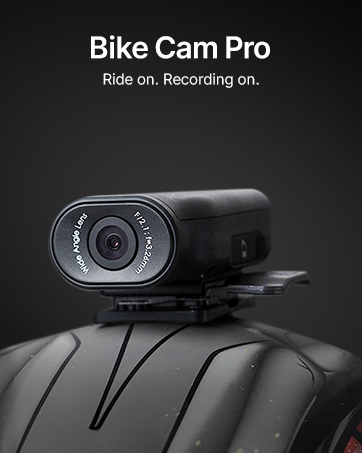
Image 4.2: 360° Rotatable Design. This image shows the dashcam's ability to rotate, allowing for both forward-facing and in-cabin recording.
5. QuboPro App Features
The QuboPro App provides comprehensive control and access to your dashcam's features:
- Live-Feed: View Echtzeit footage from your dashcam on your smartphone.
- Aufnahmeverwaltung: Access, download, and manage recorded videos and images.
- Einstellungen: Adjust dashcam settings such as recording resolution, G-Sensor sensitivity, and parking mode.
- Reiseprotokolle: Review trip details and time-lapse videos.

Image 5.1: QuboPro App Interface. This image displays the user-friendly interface of the QuboPro App on a smartphone, showing live feed and various control options.
6. Wartung
- Reinigen Sie die Linse: Reinigen Sie die Kameralinse regelmäßig mit einem weichen, fusselfreien Tuch, um eine klare Aufnahmequalität zu gewährleisten.
- SD-Kartenverwaltung: Format the SD card periodically (e.g., once a month) through the QuboPro App to maintain optimal performance and prevent data corruption. Use only compatible V30 high-speed SD cards.
- Firmware-Updates: Check for and install firmware updates via the QuboPro App to ensure your dashcam has the latest features and bug fixes.
- Temperatur: The dashcam is designed to operate in temperatures from -20°C to 85°C. Avoid exposing it to extreme temperatures outside this range for prolonged periods.

Image 6.1: Compatible SD Cards. This image displays the types of SD cards compatible with the Qubo Dashcam, emphasizing the requirement for V30 high-speed cards and warning against non-compatible types.
7. Fehlerbehebung
| Problem | Mögliche Ursache | Lösung |
|---|---|---|
| Dashcam not powering on | Loose power connection, faulty adapter, car power outlet issue. | Check power cable connection. Ensure the car's 12V outlet is functional. Try a different adapter if available. |
| Recording quality is poor | Dirty lens, incorrect resolution settings, low light conditions. | Clean the camera lens. Check recording resolution in the QuboPro App. Ensure windshield is clean. |
| Probleme mit der Wi-Fi-Verbindung | Incorrect password, too far from dashcam, app issues. | Verify Wi-Fi password. Ensure your phone is close to the dashcam. Restart the app and dashcam. |
| SD-Kartenfehler | Incompatible SD card, corrupted card, full card. | Use a compatible V30 high-speed SD card. Format the SD card via the app. Replace the SD card if issues persist. |
8. Spezifikationen
| Besonderheit | Detail |
|---|---|
| Modell | NG-HCAGR001 |
| Technische Daten | 9.5 x 4 x 3.5 cm |
| Artikelgewicht | 80 g |
| Auflösung der Videoaufnahme | 2K QHD (1296p) |
| Bereich View | 120 Grad |
| Konnektivitätstechnologie | W-lan |
| Besondere Merkmale | Time Lapse, G-Sensor, Supercapacitor Powered, 360° Rotatable Design |
| Speicherunterstützung | Up to 1 TB SD Card (SD card not included) |
| Betriebstemperatur | -20°C bis 85°C |
| Stromquelle | Car Charger (USB Input) |
9. Garantie und Support
Your Qubo Car DashCam Pro 2K QHD comes with a standard brand warranty. For detailed warranty terms and conditions, please refer to the QR card included in your package or visit the official Qubo webWebsite.
Kundendienst:
For any technical assistance, installation support, or service-related queries, please contact Qubo customer support. Qubo offers dedicated On-Call & Field support across India, with installation and service support available in over 70 cities.
- Online-Ressourcen: Refer to the digital user manual via the provided QR card.
- Kontaktinformationen: Please refer to the product packaging or the official Qubo website for the latest contact details for customer support.
10. Sicherheitshinweise
- Do not operate the dashcam while driving if it distracts you.
- Ensure the dashcam is securely mounted and does not obstruct your view der Straße.
- Use only the provided power adapter and cable to prevent damage to the device.
- Vermeiden Sie es, das Gerät bei Nichtgebrauch über längere Zeiträume direkter Sonneneinstrahlung auszusetzen, insbesondere in heißen Klimazonen.
- Halten Sie das Gerät von Wasser und Feuchtigkeit fern.
- Versuchen Sie nicht, die Dashcam selbst zu zerlegen oder zu reparieren. Wenden Sie sich an den Kundendienst.


