1. Einleitung
Der Cisco Webex Desk Pro is an all-in-one collaboration device designed for video conferencing, content creation, and productivity. It features a 27-inch 4K multitouch display, an integrated HD camera, and an advanced microphone array for clear audio. This manual provides instructions for setting up, operating, and maintaining your Webex Desk Pro system.
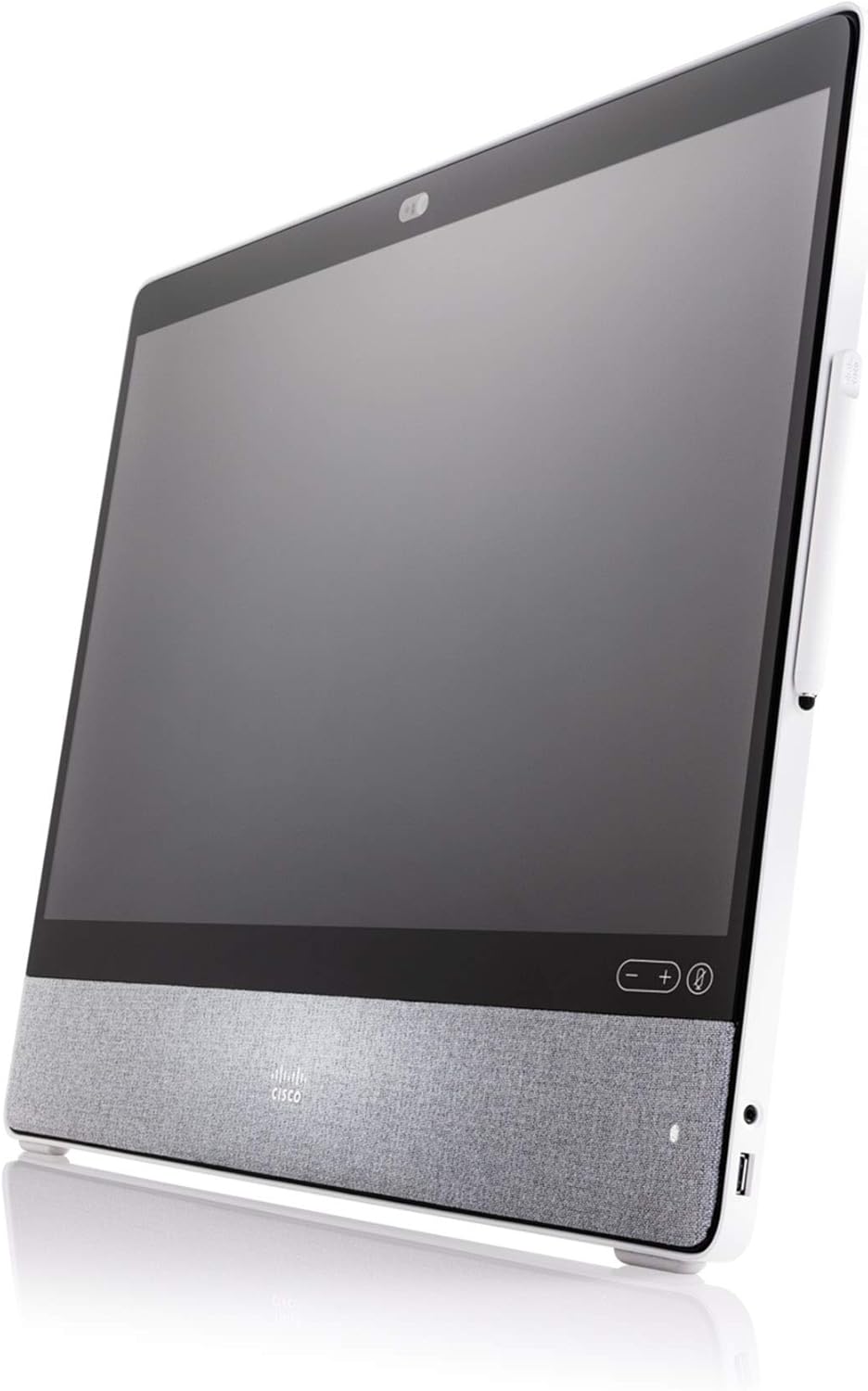
Abbildung 1.1: Abgewinkelt view of the Cisco Webex Desk Pro, showcasing its sleek design and integrated speaker fabric.
Hauptmerkmale:
- 27-inch 4K Multitouch Display: Provides a high-resolution interactive surface for video calls and content.
- Integrated HD Camera: Captures clear video for conferencing.
- Überragendes Soundsystem: Delivers high-quality audio output.
- Advanced Noise-Cancelling Microphone Array: Ensures clear voice pickup by minimizing background noise.
- Kognitive Zusammenarbeit: AI-powered features enhance the meeting experience.
- Digitales Whiteboard: Allows for co-creation using a dedicated stylus or finger.
- USB-C-Konnektivität: Functions as a docking station and external display for laptops.
2. Einrichtung
Führen Sie diese Schritte aus, um Ihr Cisco-Gerät einzurichten. Webex Desk Pro system.
2.1 Auspacken
- Entfernen Sie vorsichtig die Webex Desk Pro aus der Verpackung.
- Stellen Sie sicher, dass alle Komponenten vorhanden sind: Webex Desk Pro unit, power adapter, power cable, and any included accessories (e.g., stylus).
2.2 Stromversorgung anschließen
- Connect the power adapter to the power input port on the back of the Webex Desk Pro.
- Plug the power cable into the power adapter and then into a suitable electrical outlet.
2.3 Netzwerkverbindung
Der Webex Desk Pro requires an internet connection for full functionality.
- Kabelverbindung: Connect an Ethernet cable from your network router or switch to the Ethernet port on the Webex Desk Pro.
- Drahtlose Verbindung: Upon initial power-on, you will be prompted to configure Wi-Fi settings through the on-screen interface.
2.4 Connecting Peripherals (Optional)
You can connect a laptop to the Webex Desk Pro using a USB-C cable to use it as an external display and docking station.
- Connect a USB-C cable from your laptop to the USB-C port on the Webex Desk Pro. This connection can provide video, audio, and data transfer.
2.5 Erstes Einschalten
Once power and network are connected, the device should power on automatically or can be powered on using the power button (if available).
- Follow the on-screen prompts to complete the initial setup, which may include language selection, network configuration, and WebAnmeldung zum Ex-Konto.

Abbildung 2.1: Front view of the Cisco Webex Desk Pro, showing the 27-inch display, camera, and speaker grille.
3. Bedienungsanleitung
Der Webex Desk Pro is optimized for WebEx-Meetings. A Webex device subscription is required for full functionality and must be purchased separately.
3.1 Videoconferencing
The device seamlessly integrates with Webex for video calls. It can also be used with other video-conferencing solutions by connecting to your laptop via USB-C.
- Initiate or join Webex meetings directly from the device's interface.
- Utilize the integrated camera and microphone for clear communication.
3.2 Digital Whiteboarding
The multitouch screen supports interactive whiteboarding, allowing for collaborative content creation.
- Use the dedicated stylus or your finger to draw, write, and annotate on the screen.
- Content created on the whiteboard is automatically saved to a Webex Teams virtual space for easy access and sharing.

Abbildung 3.1: A user interacting with the Webex Desk Pro screen using a stylus, demonstrating the digital whiteboarding feature during a collaborative session.
3.3 Using as a Laptop Display and Docking Station
Connect your laptop via USB-C to extend your workspace and utilize the Desk Pro's display and peripherals.
- Der Webex Desk Pro acts as a primary monitor with touch-redirect capabilities.
- It can also function as a docking station, providing power and connectivity for your laptop through the single USB-C cable.
3.4 Cognitive Collaboration Features
AI-powered features are integrated to provide a streamlined meeting experience and contextual insights.
- Funktionen wie Webex Assistant and facial recognition contribute to a frictionless collaboration environment.

Abbildung 3.2: Ein Überview of the Cisco Webex Desk Pro's core functionalities, including videoconferencing, productivity features, digital whiteboarding, and cognitive collaboration capabilities.
4. Wartung
Durch sachgemäße Wartung wird die Langlebigkeit und optimale Leistung Ihres Geräts sichergestellt. Webex Desk Pro.
4.1 Gerät reinigen
- Bildschirm: Mit einem weichen, fusselfreien Tuch leichtampMit Wasser oder einem Siebreinigungsmittel abspülen. Scharfe Chemikalien oder scheuernde Materialien vermeiden.
- Körper: Wipe the exterior surfaces with a soft, dry cloth. Do not allow liquids to enter openings.
- Stellen Sie vor der Reinigung sicher, dass das Gerät ausgeschaltet und vom Stromnetz getrennt ist.
4.2 Softwareaktualisierungen
Regular software updates are crucial for security, performance, and new features.
- Der Webex Desk Pro typically receives automatic software updates when connected to the internet.
- Check the device settings for manual update options or to verify update status.
4.3 Umweltaspekte
- Betreiben Sie das Gerät innerhalb der empfohlenen Temperatur- und Feuchtigkeitsbereiche.
- Setzen Sie das Gerät keiner direkten Sonneneinstrahlung, übermäßiger Hitze oder Feuchtigkeit aus.
- Sorgen Sie für ausreichende Belüftung rund um das Gerät.
5. Fehlerbehebung
Dieser Abschnitt behandelt häufige Probleme, die bei Ihrem Gerät auftreten könnten. Webex Desk Pro.
5.1 Kein Strom
- Verify that the power cable is securely connected to the device and the electrical outlet.
- Prüfen Sie die Funktionsfähigkeit der Steckdose, indem Sie ein anderes Gerät anschließen.
- Stellen Sie sicher, dass das Netzteil korrekt angeschlossen ist.
5.2 Keine Anzeige
- Bestätigen Sie, dass das Gerät eingeschaltet ist.
- If using as a laptop display, ensure the USB-C cable is properly connected and the laptop's display settings are configured to extend or duplicate the display.
- Versuchen Sie, das Gerät neu zu starten.
5.3 Audioprobleme
- Check the volume settings on the device and within any active applications (e.g., Webex Meetings).
- Stellen Sie sicher, dass das Mikrofon nicht stummgeschaltet ist.
- Verify that the correct audio input/output devices are selected in the system settings.
5.4 Probleme mit der Netzwerkverbindung
- For wired connections, ensure the Ethernet cable is securely connected to both the device and the router/switch. Check router status.
- For wireless connections, verify the Wi-Fi network is available and you have entered the correct password. Try reconnecting to the network.
- Restart your router/modem if other devices are also experiencing network issues.
6. Spezifikationen
Detailed technical specifications for the Cisco Webex Desk Pro (CS-DESKPRO-K9).
| Besonderheit | Spezifikation |
|---|---|
| Markenname | Cisco |
| Artikelmodellnummer | CS-DESKPRO-K9 |
| Artikelgewicht | 42.8 Pfund |
| Technische Daten | 30.7 x 30.7 x 8.6 Zoll |
| Farbname | Schwarz |
| Besondere Merkmale | Low Light Camera Performance |
| Bildschirmgröße | 27 Zoll |
| Auflösung | 4K UHD 2160p |
| Seitenverhältnis | 16:9 |
| Beschreibung der Bildschirmoberfläche | Glänzend |
7. Garantie und Support
7.1 Amazon Renewed-Garantie
This product is part of the Amazon Renewed program. Renewed products are eligible for replacement or refund under the Amazon Renewed Guarantee if you are not satisfied with your purchase. Please refer to the Amazon Renewed Guarantee terms and conditions for full details regarding return policy and coverage.
7.2 Technischer Support
For technical assistance, software-related inquiries, or advanced troubleshooting beyond this manual, please refer to the official Cisco support resources or contact your Webex service provider. Ensure you have your device's model number (CS-DESKPRO-K9) and serial number available when seeking support.


