Produkt überview
The typecase Touch Keyboard Case is designed to enhance the functionality and protection of your iPad Air. It features a full-size keyboard with a multi-gesture trackpad, offering a laptop-like experience. The case boasts a 360° rotatable hinge, allowing for multiple viewing angles and usage modes. An adjustable 11-color RGB LED backlight provides comfortable typing in various lighting conditions. Integrated smart features like auto sleep/wake help conserve battery life, and a dedicated holder keeps your Apple Pencil secure.
Hauptmerkmale:
- Kompatibilität: Specifically designed for iPad Air 11-inch (M3 2025 / M2 2024), iPad Air 5th Gen (2022, 10.9"), and iPad Air 4th Gen (2020, 10.9").
- Integriertes Trackpad: Supports multi-gesture controls for precise navigation.
- Tastatur mit Hintergrundbeleuchtung: 11 adjustable RGB backlight colors with laser-etched keys and a full row of iPadOS shortcuts.
- Versatile Use Modes: 360° rotatable hinge for 7 different viewing modes (Laptop, Stand, Tent, Tablet, Corner, Share, Protect).
- Intelligenter Schutz: Premium hardshell design protects all sides of your iPad, with auto sleep/wake function.
- Stiftehalter: Conveniently stores your Apple Pencil.
Packungsinhalt
Bitte überprüfen Sie, ob alle Artikel im Paket vorhanden sind:
- 1 x typecase Touch Keyboard Case for iPad Air 5th/4th Gen (10.9 inch)
- 1 x USB-C Ladekabel
- 1 x Benutzerhandbuch
Installationshandbuch
1. Charging the Keyboard Case
Before initial use, fully charge the keyboard case. Connect the provided USB-C charging cable to the charging port on the keyboard and to a USB power adapter (not included).
Charging indicator: The LED indicator will show charging status. Refer to the keyboard's specific LED behavior for full charge indication.
2. Einsetzen Ihres iPads in die Hülle
Carefully align your iPad with the protective shell of the keyboard case. Gently press the iPad into place, ensuring all corners are securely seated. The case is designed to protect all sides of your iPad.
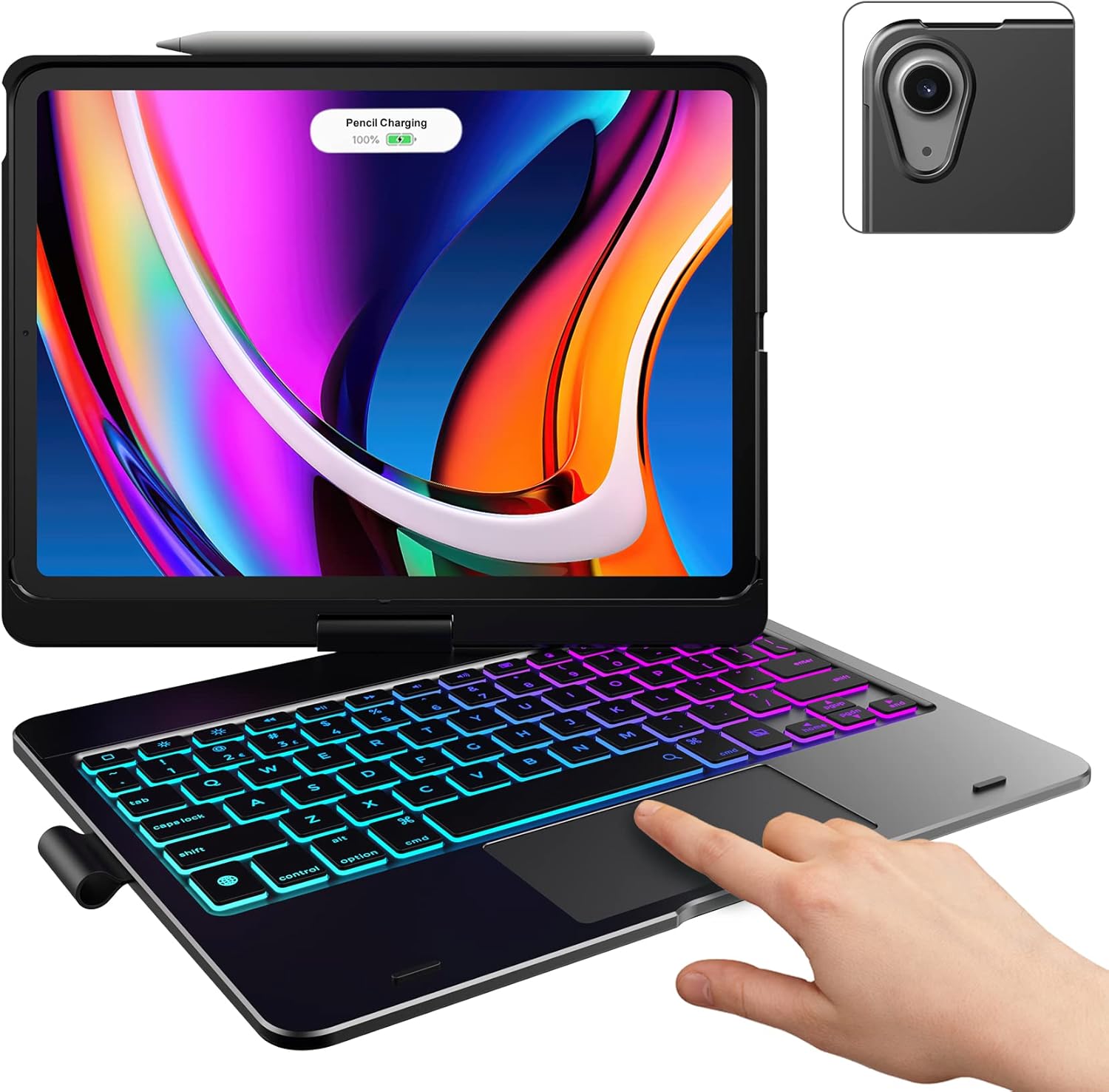
Image: The typecase keyboard case with an iPad securely inserted, ready for use. Note the integrated trackpad and backlit keys.

Image: Visual representation of the 7 versatile modes supported by the 360° rotatable hinge, including Laptop, Stand, and Tablet modes.
3. Pairing with Your iPad (Bluetooth)
- Schalten Sie die Tastatur ein, indem Sie den Netzschalter in die Position „ON“ schieben.
- Drücken Sie die Verbinden button (or a similar Bluetooth pairing button, usually indicated by a Bluetooth icon) on the keyboard. The Bluetooth indicator light will start blinking.
- Gehen Sie auf Ihrem iPad zu Einstellungen > Bluetooth.
- Stellen Sie sicher, dass Bluetooth eingeschaltet ist. On.
- Locate "typecase Keyboard" or a similar name in the "Other Devices" list and tap on it to pair.
- Once paired, the Bluetooth indicator light on the keyboard will stop blinking and remain solid, or turn off.
Note: The keyboard will automatically enter sleep mode after a period of inactivity to conserve battery. Press any key to wake it up.
Bedienungsanleitung
Tastaturfunktionen
The keyboard features a standard layout with 78 comfortably spaced keys and a dedicated row of iPadOS shortcut keys.

Bild: Detailliert view of the backlit keyboard, highlighting the iPadOS shortcut keys and the vibrant 11-color RGB backlight.
iPadOS-Tastenkombinationen:
| Schlüsselsymbol | Funktion |
|---|---|
| Heim | Kehrt zum Startbildschirm zurück. |
| Helligkeit runter | Verringert die Bildschirmhelligkeit. |
| Helligkeit erhöhen | Erhöht die Bildschirmhelligkeit. |
| Keyboard Hide/Show | Schaltet die Bildschirmtastatur ein/aus. |
| Suche | Activates iPad search. |
| Vorheriger Titel | Springt zum vorherigen Medientrack. |
| Abspielen/Pause | Spielt Medien ab oder pausiert sie. |
| Nächster Titel | Springt zum nächsten Medientitel. |
| Stumm | Schaltet den Ton stumm oder hebt die Stummschaltung auf. |
| Lautstärke verringern | Verringert die Audiolautstärke. |
| Lautstärke erhöhen | Erhöht die Lautstärke. |
| Sperrbildschirm | Sperrt den iPad-Bildschirm. |
Trackpad-Nutzung
The integrated multi-gesture trackpad allows for precise control and navigation of your iPad. Ensure the trackpad is enabled in your iPad's settings if you experience issues.
Gängige Trackpad-Gesten:
- Tippen mit einem Finger: Klicken/Auswählen.
- Scrollen mit zwei Fingern: Scrollen Sie nach oben oder unten.
- Zum Zoomen zusammenziehen: Inhalte vergrößern oder verkleinern.
- Drei-Finger-Wischgeste nach oben: Gehen Sie zum Startbildschirm.
- Wischen mit drei Fingern nach links/rechts: Wechseln Sie zwischen geöffneten Apps.

Image: A hand demonstrating the use of the multi-touch trackpad for precise cursor control on the iPad screen.
Hintergrundbeleuchtung anpassen
The keyboard features 11 adjustable RGB backlight colors and 3 levels of brightness. Use the dedicated backlight keys on the keyboard to cycle through colors and adjust brightness levels.
Video: This video demonstrates the 360-degree rotation feature of the typecase Touch Keyboard Case, showcasing its versatility in different viewing-Modi.
Video: This video provides a step-by-step guide on how to properly install and remove your iPad from the typecase Touch Keyboard Case, ensuring a secure fit and preventing damage.
Wartung und Pflege
- Reinigung: Verwenden Sie ein weiches,amp cloth to clean the exterior of the case and keyboard. Avoid harsh chemicals or abrasive materials.
- Lagerung: When not in use for extended periods, store the keyboard case in a cool, dry place. Ensure the iPad is removed if storing for very long durations.
- Akkulaufzeit: To maximize battery life, turn off the keyboard when not in use. The auto sleep/wake function helps conserve power.
- Vermeiden Sie Flüssigkeiten: Do not expose the keyboard case to excessive moisture or liquids.
- Vorsichtig handhaben: While durable, avoid dropping the case or applying excessive force to the hinge or keyboard.
Fehlerbehebung
If you encounter any issues with your typecase Touch Keyboard Case, please refer to the following common solutions:
Tastatur verbindet sich nicht/gibt nicht ein:
- Stellen Sie sicher, dass die Tastatur eingeschaltet und vollständig aufgeladen ist.
- Check your iPad's Bluetooth settings to confirm the keyboard is paired and connected. If not, try re-pairing.
- Starten Sie sowohl Ihr iPad als auch die Tastatur neu.
- Stellen Sie sicher, dass keine anderen Bluetooth-Geräte die Verbindung stören.
Trackpad reagiert nicht:
- Überprüfen Sie, ob die Tastatur per Bluetooth verbunden ist.
- iPad-Einstellungen prüfen: Einstellungen > Zugänglichkeit > Berühren > AssistiveTouch. Ensure "Mouse Keys" is off if it's causing interference.
- Reinigen Sie die Oberfläche des Trackpads, um eventuelle Verunreinigungen zu entfernen.
Hintergrundbeleuchtung funktioniert nicht:
- Stellen Sie sicher, dass die Tastatur ausreichend geladen ist.
- Press the backlight adjustment keys to cycle through brightness levels and colors.
iPad Not Entering Sleep/Wake Mode:
- Stellen Sie sicher, dass das iPad korrekt im Gehäuse sitzt.
- iPad-Einstellungen prüfen: Einstellungen > Anzeige & Helligkeit > Sperren/Entsperren. Ensure this feature is enabled.
If problems persist, please contact typecase customer support for further assistance.
Technische Daten
| Besonderheit | Detail |
|---|---|
| Modell | B09WVRD5JD |
| Kompatibilität | iPad Air 11-inch (M3 2025 / M2 2024), iPad Air 5th Gen (2022, 10.9"), iPad Air 4th Gen (2020, 10.9") |
| Konnektivität | Bluetooth |
| Tastaturlayout | 78-key standard with iPadOS shortcuts |
| Hintergrundbeleuchtung | 11-Farben-RGB, 3 Helligkeitsstufen |
| Trackpad | Multi-functional, multi-gesture |
| Hinge Rotation | 360° (20,000-cycle stress tested) |
| Stromquelle | Batteriebetrieben (1 Lithium-Polymer-Akku im Lieferumfang enthalten) |
| Artikelgewicht | 1.52 Pfund |
| Produktabmessungen (L x B x H) | 11.02 x 8.66 x 0.79 Zoll |
| Material | Premium hardshell design |
Garantie und Support
typecase offers a comprehensive warranty and support for your product:
- 1-Jahres-Austauschservice: Enjoy worry-free after-sales support with a 1-year replacement service for manufacturing defects.
- 30-Tage-Rückerstattungsrecht: If you are not satisfied with your purchase, you may be eligible for a refund within 30 days of purchase.
- Kundendienst: For any questions, technical assistance, or warranty claims, please contact typecase customer service. Refer to the contact information provided in the product packaging or on the official typecase webWebsite.

Bild: Überview of typecase's customer support and warranty policy, including 1-year replacement and 30-day refund.


