1. Einleitung
The ACT AC7049 Dual Monitor Docking Station transforms your laptop into a complete workstation. This versatile 11-in-1 docking station allows you to connect up to two Full HD displays (max. 2048 x 1152 resolution) to your laptop via HDMI, using a single USB-C/A cable. It expands your laptop's connectivity with a Gigabit LAN port, microphone and headphone jacks, and six additional USB ports. Featuring DisplayLink® technology, it ensures advanced screen display on both MacOS and Windows computers.
2. Hauptmerkmale
- Unterstützung für zwei Monitore: Connect up to two external displays with HDMI ports, supporting resolutions up to 2048x1152@60Hz.
- Universelle Kompatibilität: Works with laptops featuring a USB-C or USB-A 3.2 Gen1 (USB 3.0) port, compatible with MacOS and Windows thanks to DisplayLink technology.
- Umfangreiche Konnektivität: Includes 2x HDMI, 1x Gigabit Ethernet, 3x USB-A 3.2 Gen 1 (one with fast charging), 4x USB-A 2.0, and 3.5mm audio jacks for microphone and headphones.
- Flexible Platzierung: Designed for both vertical and horizontal placement to optimize desk space and port accessibility.
- USB Ladeanschluss: Dedicated USB port for charging smartphones and tablets.
3. Packungsinhalt
Bitte prüfen Sie das Paket auf folgende Artikel:
- ACT AC7049 Docking Station
- USB-C/A 3.2 Gen1 Connection Cable (USB-A to USB-C)
- Netzteil
- Vertikale Ständer
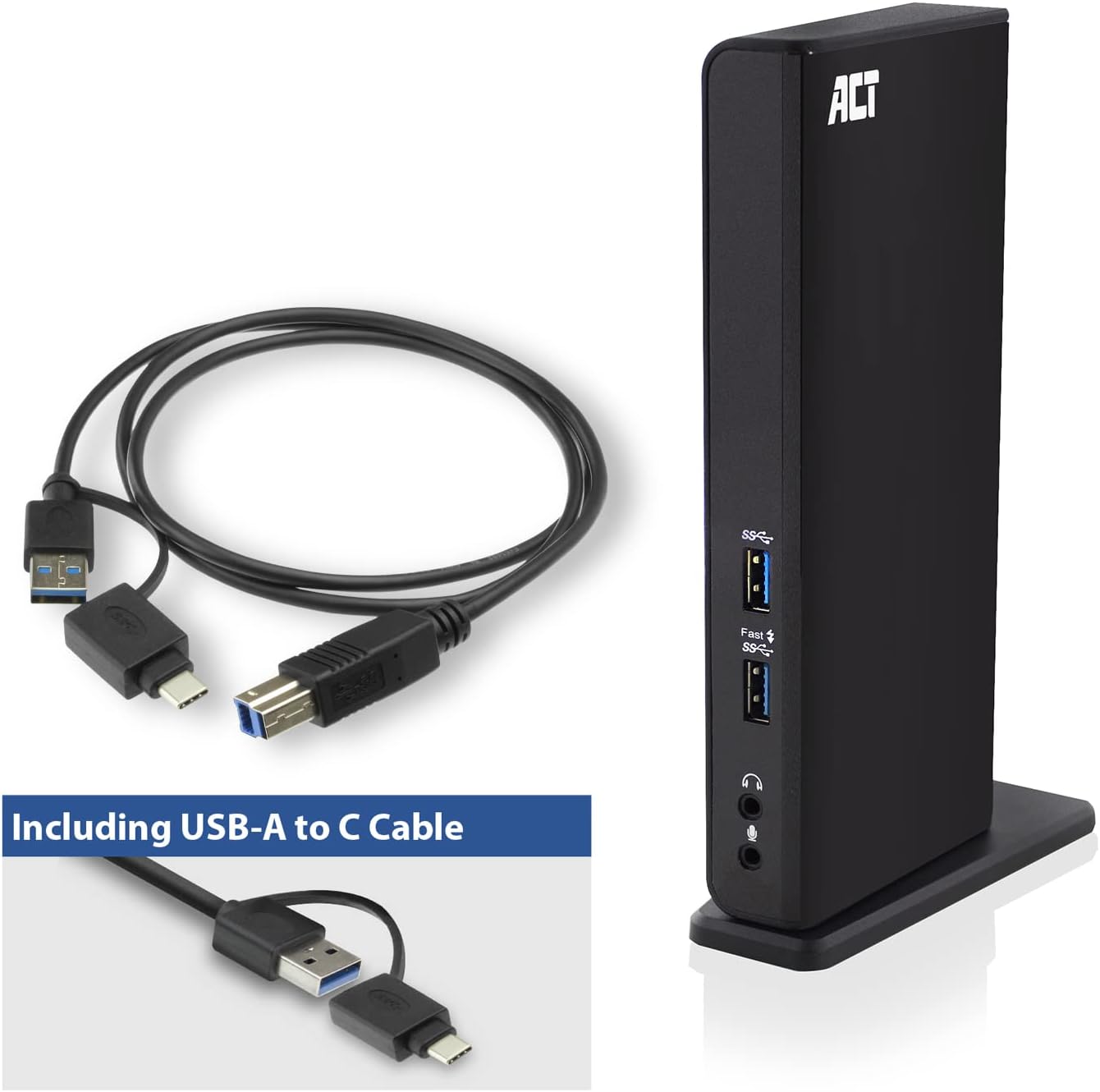
Image: The ACT AC7049 Docking Station shown with its included USB-A to USB-C connection cable and power adapter, highlighting the components provided in the package.
4. Installationsanleitung
4.1. Anschließen des Netzteils
- Connect the power adapter to the DC 5V input port on the back of the AC7049 docking station.
- Plug the power adapter into a wall outlet. The docking station will power on.
4.2. Verbindung mit Ihrem Laptop herstellen
- Use the provided USB-C/A 3.2 Gen1 connection cable. Connect the USB-B end to the corresponding port on the docking station.
- Connect the other end (USB-A or USB-C, depending on your laptop's port) to an available USB 3.2 Gen1 (USB 3.0) or USB-C port on your laptop.
4.3. Treiberinstallation (DisplayLink)
The AC7049 utilizes DisplayLink technology for extended monitor functionality. Drivers are typically installed automatically on most operating systems. If not, please follow these steps:
- Besuchen Sie die offizielle DisplayLink-Website. webSeite? ˅ (www.displaylink.com/downloads) to download the latest drivers for your operating system (Windows or MacOS).
- Install the downloaded driver package and follow the on-screen instructions.
- Starten Sie Ihren Computer neu, wenn Sie dazu aufgefordert werden.

Image: The official DisplayLink 'Plug and Display' logo, indicating the technology used for multi-monitor support.
5. Bedienungsanleitung
5.1. Externe Displays anschließen
- Connect your HDMI monitors to the two HDMI ports on the back of the docking station.
- Once connected, your operating system should detect the new displays. You can configure display settings (extend, mirror, primary display) through your computer's display settings.

Image: A visual representation of the docking station enabling both 'Mirror your content' and 'Extend your content' display modes across a laptop and two external monitors.
5.2. Anschließen von USB-Peripheriegeräten
- USB-Anschlüsse vorne: Two USB-A 3.2 Gen1 ports (one with fast charging capability) are located on the front for easy access to frequently used devices like USB drives, smartphones, or tablets.
- Rear USB Ports: Four USB-A 2.0 ports are located on the back for connecting peripherals such as keyboards, mice, printers, or other less frequently connected devices.
5.3. Netzwerkverbindung
Connect an Ethernet cable from your router or network switch to the Gigabit Ethernet port on the docking station. Your laptop will automatically gain wired network access.
5.4. Audioverbindungen
Connect your headphones and/or microphone to the dedicated 3.5mm audio jacks on the front of the docking station.

Image: An isometric diagram showcasing the comprehensive connectivity of the ACT AC7049, demonstrating how a laptop, two monitors, a keyboard, mouse, network cable, headphones, and a smartphone can all be connected simultaneously.
6. Platzierungsoptionen
The ACT AC7049 docking station offers flexible placement options to suit your workspace:
- Vertikale Platzierung: Use the included stand to position the docking station vertically. This saves desk space and provides easy access to all ports.
- Horizontale Platzierung: The docking station can also be placed horizontally if preferred.

Image: The ACT AC7049 Docking Station positioned vertically on its stand, highlighting its compact design and accessible ports.
7. Wartung
To ensure optimal performance and longevity of your ACT AC7049 Docking Station, follow these maintenance guidelines:
- Reinigung: Reinigen Sie die Außenseite der Dockingstation mit einem weichen, trockenen Tuch. Vermeiden Sie die Verwendung von flüssigen Reinigern oder Sprays, da diese das Gerät beschädigen können.
- Belüftung: Stellen Sie sicher, dass die Dockingstation in einem gut belüfteten Bereich aufgestellt wird, um eine Überhitzung zu vermeiden. Blockieren Sie keine Lüftungsöffnungen.
- Lagerung: Bei längerer Nichtbenutzung sollte die Dockingstation an einem kühlen, trockenen Ort, geschützt vor direkter Sonneneinstrahlung und extremen Temperaturen, aufbewahrt werden.
- Kabelmanagement: Halten Sie die Kabel ordentlich und achten Sie darauf, dass sie nicht geknickt oder übermäßig gebogen werden, um Beschädigungen an den Kabeln und Anschlüssen zu vermeiden.
8. Fehlerbehebung
If you encounter issues with your ACT AC7049 Docking Station, please refer to the following common troubleshooting steps:
- Keine Anzeigeausgabe:
- Ensure the docking station is powered on and correctly connected to your laptop.
- Verify that the HDMI cables are securely connected to both the docking station and the monitors.
- Überprüfen Sie die Anzeigeeinstellungen Ihres Laptops, um sicherzustellen, dass die externen Monitore erkannt und korrekt konfiguriert sind (z. B. erweitert oder gespiegelt).
- Reinstall or update the DisplayLink drivers from www.displaylink.com/downloads.
- Um das Problem einzugrenzen, versuchen Sie, jeweils nur einen Monitor anzuschließen.
- USB-Geräte funktionieren nicht:
- Ensure the docking station is properly connected to your laptop and powered.
- Versuchen Sie, das USB-Gerät direkt an Ihren Laptop anzuschließen, um zu überprüfen, ob es funktioniert.
- Connect the USB device to a different USB port on the docking station.
- Starten Sie Ihren Laptop neu.
- Keine Netzwerkverbindung:
- Vergewissern Sie sich, dass das Ethernet-Kabel sowohl an die Dockingstation als auch an Ihren Router/Switch fest angeschlossen ist.
- Überprüfen Sie die Netzwerkeinstellungen Ihres Laptops, um sicherzustellen, dass die kabelgebundene Verbindung aktiviert ist.
- Testen Sie das Ethernet-Kabel nach Möglichkeit mit einem anderen Gerät.
- Audio funktioniert nicht:
- Ensure headphones/microphone are fully plugged into the correct 3.5mm jacks.
- Check your laptop's sound settings to ensure the docking station's audio output/input is selected as the default device.
9. Spezifikationen
| Besonderheit | Spezifikation |
|---|---|
| Modellnummer | AC7049 |
| Marke | AKT |
| Farbe | Schwarz |
| Konnektivitätstechnologie | USB-A, USB-C |
| Videoausgang | 2 x HDMI (Max. 2048 x 1152 @ 60Hz) |
| USB-Anschlüsse | 3 x USB-A 3.2 Gen 1 (5Gbps, 1x Fast Charging), 4 x USB-A 2.0 (480Mbps) |
| Netzwerkport | 1 x Gigabit-Ethernet (RJ45) |
| Audio-Anschlüsse | 1 x 3.5mm Headphone Jack, 1 x 3.5mm Microphone Jack |
| Kompatible Geräte | Laptop, Computer (with USB 3.2 Gen1 / USB 3.0 or USB-C port) |
| Betriebssystemunterstützung | Windows, MacOS (via DisplayLink) |
| Abmessungen (L x B x H) | 10.9 x 6 x 18.1 cm (ca.) |
| Artikelgewicht | 317 Gramm |
10. Garantie und Support
ACT products are designed for reliability and adhere to international standards and EU legislation. The ACT AC7049 Docking Station comes with a manufacturer's warranty, typically ranging from 2 to 5 years. For specific warranty details and support, please refer to the official ACT webWebsite oder wenden Sie sich an Ihren Händler.
For technical support or further inquiries, please visit the official ACT connectivity webWebsite: www.act-connectivity.com


