Einführung
This manual provides detailed instructions for the setup, operation, and maintenance of your PUSAT One Shot Pro Wireless Gaming Mouse. Please read this manual thoroughly before using the product to ensure optimal performance and longevity.
Packungsinhalt
Bitte überprüfen Sie, ob alle unten aufgeführten Artikel in Ihrem Paket enthalten sind:
- PUSAT One Shot Pro Kabellose Gaming-Maus
- USB-Funkempfänger
- USB-C zu USB-A Ladekabel
- Additional Side Buttons (interchangeable)
- Benutzerhandbuch (dieses Dokument)

Abbildung 1: PUSAT One Shot Pro mouse, charging cable, and interchangeable side buttons, displayed with its retail packaging.
Produkt überview
Familiarize yourself with the various components and controls of your PUSAT One Shot Pro Wireless Gaming Mouse.
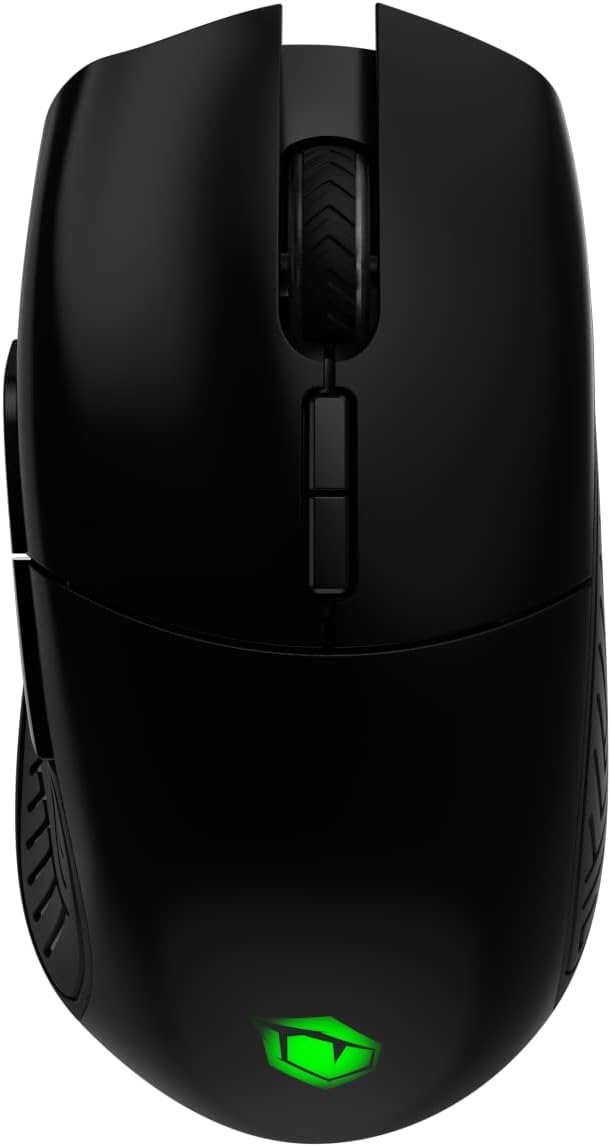
Abbildung 2: Spitze view of the PUSAT One Shot Pro mouse, showing the left and right click buttons, scroll wheel, and DPI switch buttons.

Abbildung 3: Linke Seite view of the PUSAT One Shot Pro mouse, highlighting the two programmable side buttons and textured grip.

Abbildung 4: Unten view of the PUSAT One Shot Pro mouse, showing the optical sensor, ON/OFF switch, user profile switch, and the compartment for the USB receiver.
Tastenfunktionen:
- Linksklick-Taste: Standardmäßige primäre Klickfunktion.
- Rechtsklick-Schaltfläche: Standardmäßige Sekundärklickfunktion.
- Scrollrad: Scrolls content up/down, also functions as a middle click button.
- DPI Switch Buttons: Adjusts the mouse's sensitivity (DPI) on the fly.
- Programmable Side Buttons (8 total): Customizable buttons for various functions, often used for macros or in-game actions.
- Benutzer-Profile Switch (Bottom): Allows switching between different user-defined profiles.
- ON/OFF Switch (Bottom): Schaltet die Maus ein oder aus.
Aufstellen
Anschließen der Maus:
- Locate the USB wireless receiver. It is typically stored in a compartment on the underside of the mouse (refer to Figure 4).
- Remove the USB wireless receiver from its storage slot.
- Plug the USB wireless receiver into an available USB port on your computer (PC or Notebook).
- Flip the ON/OFF switch on the bottom of the mouse to the "ON" position.
- Ihr Computer sollte die benötigten Treiber automatisch erkennen und installieren. Die Maus ist nach Abschluss der Installation einsatzbereit.
For optimal wireless performance, ensure the USB receiver is placed in a location with minimal interference and a clear line of sight to the mouse.
Bedienungsanleitung
Grundlegende Verwendung:
- Move the mouse on a flat surface to control the cursor on your screen.
- Use the left and right click buttons for primary and secondary actions.
- Rotate the scroll wheel to navigate through documents or web Seiten.
DPI-Anpassung:
The PUSAT One Shot Pro mouse features adjustable DPI (Dots Per Inch) settings, allowing you to change cursor sensitivity. Use the dedicated DPI switch buttons, usually located near the scroll wheel, to cycle through preset DPI levels (1,000 to 16,000 DPI). Each change typically corresponds to a visual indicator, such as an RGB lighting color change, though specific indicators may vary.
Programmierbare Tasten:
The mouse is equipped with 8 programmable buttons. To customize these buttons, you will typically need to download and install the official PUSAT software from the manufacturer's website. This software allows you to assign macros, keyboard functions, or other commands to each programmable button.
Laden
The PUSAT One Shot Pro mouse is equipped with a rechargeable Lithium Ion battery (700 mAh) and supports both wired and wireless charging.
Kabelgebundenes Laden:
- Connect the USB-C end of the charging cable to the port on the front of the mouse.
- Verbinden Sie das USB-A-Ende des Ladekabels mit einem freien USB-Anschluss an Ihrem Computer oder einem USB-Netzteil.
- The mouse's RGB lighting or an indicator light will typically show the charging status.

Abbildung 5: The PUSAT One Shot Pro mouse connected via its USB-C charging cable.
Kabelloses Laden:
The PUSAT One Shot Pro supports wireless charging. To charge wirelessly, place the mouse on a compatible wireless charging pad. Ensure the mouse is correctly positioned on the charging pad for the charging process to initiate. The mouse's indicator lights will typically confirm that wireless charging is active.
Note: A wireless charging pad is sold separately and is not included with the mouse.
Wartung
Reinigung:
- Stellen Sie sicher, dass die Maus vor der Reinigung ausgeschaltet ist.
- Mit einem weichen, fusselfreien Tuch leichtampWischen Sie die Oberfläche der Maus mit Wasser oder einer milden Reinigungslösung ab.
- Vermeiden Sie die Verwendung von aggressiven Chemikalien, Scheuermitteln oder Lösungsmitteln.
- Use compressed air to remove dust and debris from crevices and around buttons.
- Reinigen Sie den optischen Sensor an der Unterseite der Maus regelmäßig mit einem Wattestäbchen, um eine genaue Abtastung zu gewährleisten.
Batteriepflege:
- Vermeiden Sie häufiges vollständiges Entladen des Akkus.
- Bewahren Sie die Maus an einem kühlen, trockenen Ort auf, wenn Sie sie längere Zeit nicht verwenden.
- Bei längerer Lagerung sollte der Akku auf etwa 50 % aufgeladen werden, um seine Lebensdauer zu verlängern.
Fehlerbehebung
| Problem | Mögliche Ursache | Lösung |
|---|---|---|
| Maus reagiert nicht |
|
|
| Verzögerungen oder unregelmäßige Cursorbewegung |
|
|
| Buttons not working or programmable features not active |
|
|
| Kabelloses Laden funktioniert nicht |
|
|
Technische Daten
| Besonderheit | Detail |
|---|---|
| Marke | CENTER |
| Modell | One Shot Pro |
| Konnektivität | 2.4 GHz kabellos (USB-Empfänger) |
| DPI-Bereich | 1,000 - 16,000 DPI |
| Anzahl der Tasten | 8 (Programmierbar) |
| Sensortyp | Optisch |
| Akku-Typ | 1 Lithium Ion Battery (Included) |
| Batteriekapazität | 700 mAh |
| Laden | USB-C Wired, Wireless Charging Compatible |
| Abmessungen (L x B x H) | 12.5 x 6.6 x 4.2 cm |
| Gewicht | 110 g |
| Farbe | Schwarz |
| Hardware-Plattform | PC, Notebook |
Sicherheitshinweise
- Setzen Sie die Maus keinen extremen Temperaturen, hoher Luftfeuchtigkeit oder direkter Sonneneinstrahlung aus.
- Vermeiden Sie, die Maus fallen zu lassen oder starken Stößen auszusetzen.
- Do not attempt to disassemble or modify the mouse. This may void the warranty and cause damage.
- Keep the mouse away from liquids. If liquid enters the device, discontinue use immediately and contact support.
- Dispose of the battery according to local regulations. Do not dispose of batteries in general household waste.
Garantie und Support
For warranty information and technical support, please refer to the warranty card included with your product or visit the official PUSAT website. If you encounter any issues not covered in this manual, please contact PUSAT customer service for assistance.


