Einführung
This manual provides detailed instructions for the setup, operation, maintenance, and features of your SteelSeries Apex 9 Mini keyboard. Please read this guide thoroughly to ensure optimal performance and longevity of your device.
Lieferumfang
- SteelSeries Apex 9 Mini Keyboard
- USB-Kabel
- Tastenkappenabzieher
Aufstellen
- Schließen Sie die Tastatur an: Plug the provided USB cable into the USB-C port on the keyboard and the other end into an available USB-A port on your computer.
- Treiberinstallation: Your operating system (Windows 10 or later, macOS) should automatically detect and install the necessary drivers. For advanced customization, download and install the SteelSeries GG software from the official SteelSeries webWebsite.
- Tastaturwinkel anpassen: The keyboard features adjustable feet on the underside. Flip out the feet to achieve your preferred typing angle.
For optimal performance, ensure your operating system is up to date.
Hauptmerkmale
OptiPoint Optical Switches
The Apex 9 Mini utilizes custom OptiPoint optical switches, designed for rapid actuation and durability. These switches actuate 33% faster than leading optical keyboards, offering a lightning-fast 0.2ms response time with zero debounce.

Bild: Detailliert view of the custom OptiPoint optical switch mechanism.
2-Point Actuation
Customize your keystroke sensitivity with 2-point actuation. You can adjust the registration depth between a fast 1mm for gaming and a more deliberate 1.5mm for typing, adapting to various tasks and preferences.
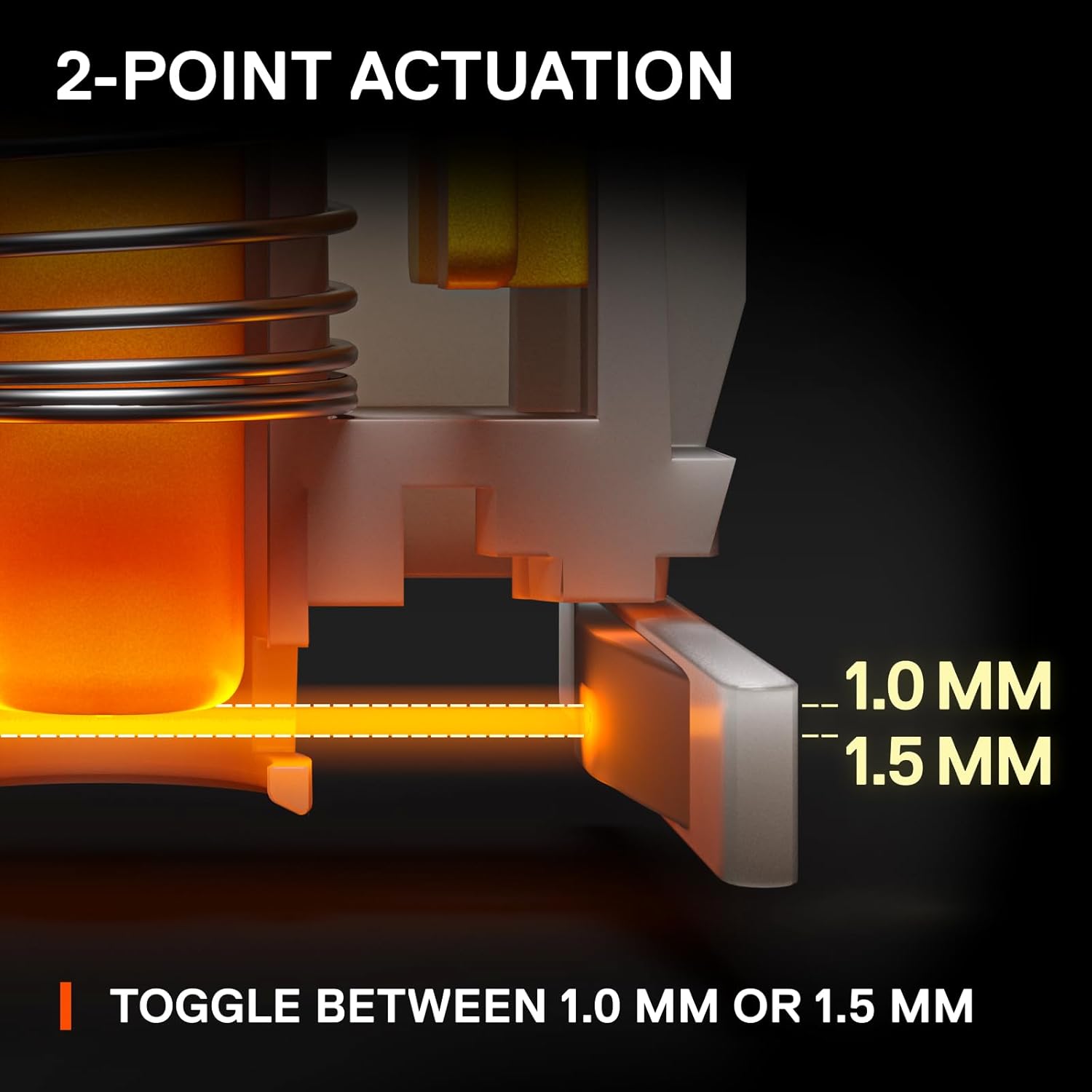
Image: Visual representation of adjustable 1.0mm and 1.5mm actuation points.
Austauschbare Schalter
The OptiPoint switches are swappable, allowing for customization, upgrades, and easy repairs. You can replace switches with your preferred type of OptiPoint switch.

Image: Keyboard with keycaps removed, highlighting the swappable optical switches.
Kompakter 60%-Formfaktor
The streamlined 60% compact design saves desk space, providing more room for mouse movement. Despite its size, it retains full-size keyboard capabilities through side-printed functions on keycaps.

Image: Comparison showing the compact 60% form factor saving desk space.
Langlebige PBT-Tastenkappen
The keyboard features long-lasting and fade-proof double shot PBT keycaps. These provide a high-quality texture for enhanced keystroke feel and improved typing accuracy.

Bild: Detailliert view of a double shot PBT keycap construction.
Bedienungsanleitung
Betätigungspunktverstellung
The actuation point of the OptiPoint switches can be adjusted via the SteelSeries GG software. This allows you to fine-tune the sensitivity of each key to your preference, switching between 1mm for quick responses and 1.5mm for more deliberate presses.
RGB-Anpassung
The keyboard features per-key RGB illumination. Customize lighting effects, colors, and patterns using the SteelSeries GG software. You can choose from various presets, create custom animations, or set static colors to match your setup.
Media Controls and Function Keys
Due to the 60% form factor, many functions are accessed via secondary key presses. Refer to the side-printed legends on the keycaps for these functions. The SteelSeries GG software allows for remapping and creating custom macros for enhanced control.
Wartung
Reinigung der Tastatur
- Trennen Sie die Tastatur vor der Reinigung vom Computer.
- Benutzen Sie ein weiches, fusselfreies Tuch, dampAnschließend mit Wasser oder einer milden Reinigungslösung abwischen, um die Tastenkappen und den Rahmen zu reinigen.
- Für eine gründlichere Reinigung verwenden Sie Druckluft, um Staub und Schmutz zwischen den Tastenkappen zu entfernen.
Tastenkappen- und Schalterentfernung
The included keycap puller can be found in a hidden compartment on the underside of the keyboard. Use it to carefully remove keycaps for cleaning or to access the swappable switches. When removing switches, use a switch puller (not included unless specified) to gently dislodge them.
Video: A closer look at the SteelSeries Apex 9 Mini, demonstrating its features and components.
Fehlerbehebung
- Tastatur reagiert nicht: Ensure the USB cable is securely connected to both the keyboard and the computer. Try a different USB port or restart your computer.
- Beleuchtungsprobleme: Check the SteelSeries GG software for lighting settings. Ensure no conflicting profiles are active. Update the keyboard firmware if available.
- Key Actuation Problems: Verify actuation point settings in the SteelSeries GG software. If a specific switch is faulty, it can be replaced due to the hot-swappable design.
- Software erkennt Tastatur nicht: Reinstall the SteelSeries GG software. Ensure your operating system is fully updated.
For further assistance, visit the official SteelSeries support webWebsite.
Technische Daten
| Besonderheit | Detail |
|---|---|
| Marke | SteelSeries |
| Modellnummer | 64837 |
| Betriebssystemkompatibilität | Windows 10, PC |
| Artikelgewicht | 1.9 Pfund |
| Technische Daten | 4.02 x 11.53 x 1.58 Zoll |
| Farbe | RGB |
| Stromquelle | Kabelgebundene Elektrik |
| Konnektivitätstechnologie | Verdrahtet |
| Tastaturbeschreibung | Spiele |
| Empfohlene Verwendung | Spiele |
| Besonderheit | Spiele |
| Tastatur Hintergrundbeleuchtung | RGB |
| Stil | Esports Mini |
Garantie und Support
For warranty information and detailed support resources, please visit the official SteelSeries webBewahren Sie Ihren Kaufbeleg für eventuelle Garantieansprüche auf.
Online resources often include FAQs, driver downloads, and community forums for additional assistance.


