Einführung
This manual provides comprehensive instructions for the installation, operation, and maintenance of your Kensington SD4839P USB-C Triple Video Dock. Please read this manual thoroughly before using the product to ensure proper functionality and to prevent damage.
Sicherheitshinweise
- Das Gerät darf weder Wasser noch übermäßiger Feuchtigkeit ausgesetzt werden.
- Versuchen Sie nicht, das Gerät zu zerlegen oder zu verändern. Dadurch erlischt die Garantie und es können Schäden entstehen.
- Use only the power adapter supplied with the dock.
- Sorgen Sie für ausreichende Belüftung rund um das Dock, um eine Überhitzung zu vermeiden.
- Außerhalb der Reichweite von Kindern aufbewahren.
Packungsinhalt
Überprüfen Sie, ob alle Artikel im Paket vorhanden sind:
- Kensington SD4839P USB-C Triple Video Dock
- USB-C-auf-USB-C-Kabel
- Netzteil
- Kurzanleitung (nicht in diesem digitalen Handbuch enthalten)
Produkt überview
The Kensington SD4839P is a USB-C triple video docking station designed to expand the connectivity of your laptop. It provides multiple video outputs, USB ports, and power delivery through a single USB-C connection.
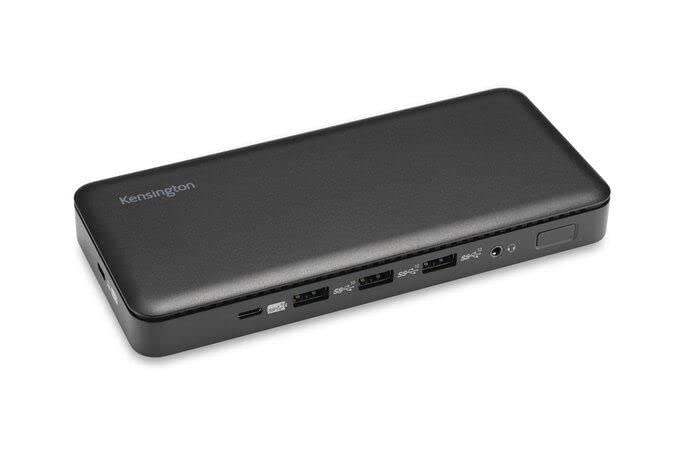
Bild 1: Front view of the Kensington SD4839P USB-C Triple Video Dock. This image displays the compact design of the docking station, highlighting its various ports for connecting peripherals and displays.
Anschlusslayout:
- Front: USB-A ports, USB-C data port.
- Hinteren: Power input, USB-C host port (with power delivery), DisplayPort outputs, HDMI output, USB-A ports, Ethernet port, Audio jack.
Aufstellen
- Strom anschließen: Connect the included power adapter to the DC-in port on the back of the dock, then plug the adapter into a power outlet.
- Verbindung zum Hostgerät herstellen: Connect one end of the supplied USB-C to USB-C cable to the USB-C host port on the back of the dock and the other end to a compatible USB-C port on your laptop. Ensure your laptop's USB-C port supports DisplayPort Alternate Mode and Power Delivery for full functionality.
- Displays verbinden:
- Connect your monitors to the available DisplayPort and/or HDMI ports on the dock using appropriate cables.
- The dock supports up to three external displays, depending on your host device's capabilities and operating system.
- Peripheriegeräte anschließen: Connect your USB devices (keyboard, mouse, external drives, etc.) to the USB-A and USB-C data ports on the dock.
- Netzwerk verbinden (optional): For a wired network connection, connect an Ethernet cable from your router or network switch to the Ethernet port on the dock.
Betrieb
Erstverbindung:
Upon initial connection, your operating system (Windows, macOS, Chrome OS) should automatically detect the dock and connected devices. The SD4839P is designed to be driverless for most basic functions.
Anzeigekonfiguration:
- Windows: Right-click on the desktop and select "Display settings" to arrange your monitors, change resolution, and set display modes (extend, duplicate, second screen only).
- macOS: Gehe zu Systemeinstellungen (oder Systemeinstellungen) > Anzeigen to configure your external monitors.
Stromversorgung:
The dock provides power delivery to your connected laptop through the USB-C host cable, charging it while you work. The wattage provided is listed in the specifications section.
Wartung
- Reinigung: Disconnect the dock from power and all devices before cleaning. Use a soft, dry, lint-free cloth to wipe the exterior. Do not use liquid cleaners or aerosols.
- Lagerung: Store the dock in a cool, dry place away from direct sunlight and extreme temperatures when not in use for extended periods.
- Kabelmanagement: Um Beschädigungen zu vermeiden, sollten Sie scharfe Biegungen oder Knicke an den Kabeln verhindern.
Fehlerbehebung
| Problem | Mögliche Lösung |
|---|---|
| No power to the dock or laptop. |
|
| Keine Anzeige auf externen Monitoren. |
|
| USB-Geräte werden nicht erkannt. |
|
| Netzwerkverbindungsprobleme. |
|
Technische Daten
- Modellnummer: K33480EU
- Produktabmessungen: 19.69 x 19.69 x 11.02 Zoll
- Artikelgewicht: 2.29 Pfund (1.04 Kilogramm)
- Marke: Das Kensington Hotel ist ein gehobenes Hotel in Kensington. Es bietet klimatisierte Zimmer und eine voll ausgestattete Küche.
- Hardware-Schnittstelle: USB Typ C
- USB-Anschlüsse insgesamt: 3 (plus 1 USB-C data port)
- Anzahl der Ports: 5 (referring to primary functional ports)
- HDMI-Anschlüsse insgesamt: 1
- DisplayPort Outputs: 2 (for triple video output capability)
- Wastage (Power Delivery): 85 Watt
- Kompatible Geräte: Dell Precision 5510, Google Pixelbook, HP EliteBook Folio 9470m, MacBook Air, MacBook Pro, Microsoft Surface series, iPad, iPhone series, iPod series (See product page for full list)
Garantie und Support
Kensington products are designed for reliability and performance. For warranty information, technical support, or to register your product, please visit the official Kensington webBesuchen Sie die Website oder kontaktieren Sie direkt den Kundendienst. Bewahren Sie Ihren Kaufbeleg für Garantieansprüche auf.
Official Kensington WebWebsite: www.kensington.com


