1. Produktüberschreitungview
The HP Pavilion 14" 2-in-1 Touchscreen FHD Laptop, Model ek0013dx, is a versatile computing device designed for various tasks. Its innovative 360-degree hinge allows for seamless transitions between laptop, tablet, tent, and stand modes, adapting to your needs. This model features a 14.0-inch Full HD (1920 x 1080) multitouch-enabled IPS display, providing clear visuals with wide-viewwinkeln.
Powered by a 12th Generation Intel Core i3-1215U processor and equipped with 8 GB DDR4-3200 MHz RAM and a 256 GB PCIe NVMe M.2 SSD, the laptop delivers responsive performance for everyday computing. Audio is enhanced by B&O with dual speakers, and connectivity includes 802.11a/b/g/n/ac (2x2) Wi-Fi and Bluetooth combo. The device also supports HP Fast Charge, allowing for quick battery replenishment.

Figure 1: HP Pavilion 14" 2-in-1 Laptop in traditional laptop mode.
Hauptmerkmale:
- Anzeige: 14.0-inch diagonal, FHD (1920 x 1080), multitouch-enabled, IPS, edge-to-edge glass, microedge.
- Prozessor: 12th Generation Intel Core i3-1215U.
- Erinnerung: 8 GB DDR4-3200 MHz RAM (onboard).
- Interner Speicher: 256 GB PCIe NVMe M.2 SSD.
- Grafik: Intel Iris Xe-Grafik.
- Kabellos: 802.11a/b/g/n/ac (2x2) Wi-Fi and Bluetooth combo.
- Kamera: HP Wide Vision 720p HD camera with temporal noise reduction.
- Audio: Audio by B&O with dual speakers.
- Batterie: HP Fast Charge capable.
- Betriebssystem: Windows 11 Home in S mode.
2. Installationsanleitung
2.1 Auspacken und Packungsinhalt
Nehmen Sie alle Komponenten vorsichtig aus der Verpackung. Stellen Sie sicher, dass folgende Teile vorhanden sind:
- HP Pavilion 14" 2-in-1 Laptop
- Netzteil
2.2 Erstes Einschalten
- Schließen Sie das Netzteil an den Stromanschluss des Laptops und anschließend an eine Steckdose an.
- Öffnen Sie den Laptopdeckel.
- Press the power button, typically located on the side or top right of the keyboard deck.
- Folgen Sie den Anweisungen auf dem Bildschirm, um die Ersteinrichtung von Windows 11 abzuschließen.
2.3 Verbindung zu einem drahtlosen Netzwerk
- During Windows setup or after logging in, click the Wi-Fi icon in the taskbar.
- Wählen Sie das gewünschte WLAN-Netzwerk aus der Liste aus.
- Geben Sie bei Aufforderung den Netzwerksicherheitsschlüssel (das Passwort) ein.
- Klicken Sie auf „Verbinden“.
3. Bedienungsanleitung
3.1 Energieverwaltung
- Einschalten: Drücken Sie die Einschalttaste.
- Schlafmodus: Schließen Sie den Deckel oder wählen Sie im Startmenü die Option „Ruhezustand“.
- Abschalten: Wählen Sie im Startmenü die Option „Herunterfahren“.
- Neustart: Wählen Sie im Startmenü „Neustart“.
3.2 Nutzung der 2-in-1-Funktionalität
The HP Pavilion x360 features a 360-degree hinge, allowing it to transform into multiple modes:
- Laptop-Modus: Klassische Laptopnutzung mit Tastatur und Touchpad.
- Zeltmodus: Fold the display back to form an inverted 'V' shape, ideal for watching videos or presentations in confined spaces.
- Standmodus: Fold the display back further, resting the keyboard face down, to use the screen as a display.
- Tablet-Modus: Fold the display completely back against the base, disabling the keyboard and touchpad, for full touchscreen tablet functionality.
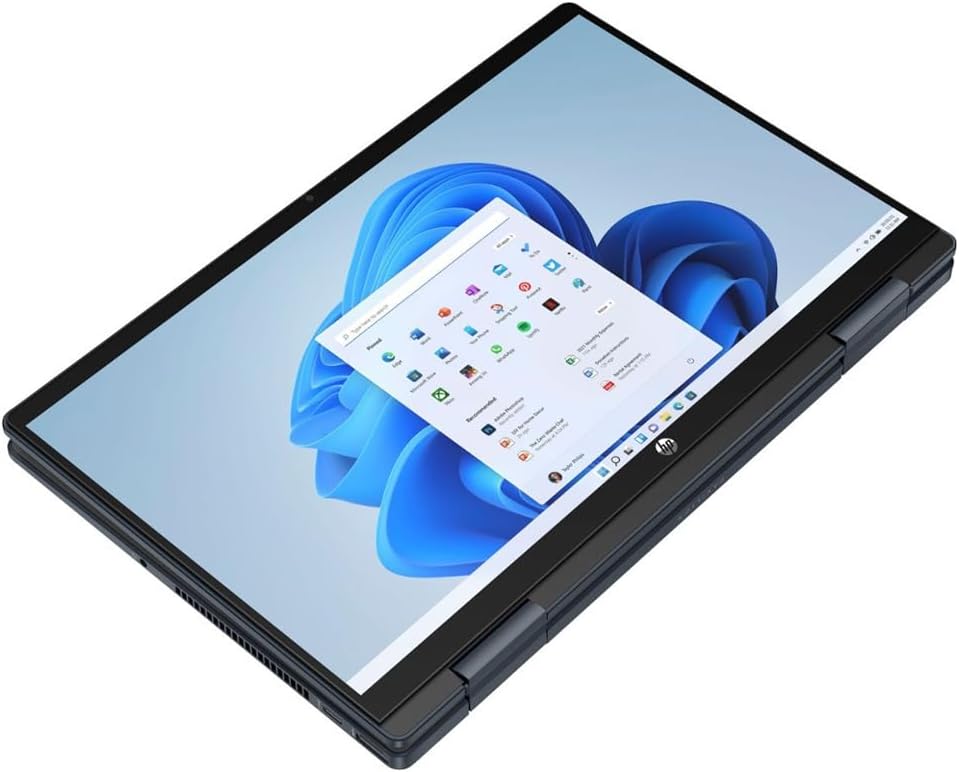
Figure 2: HP Pavilion 14" 2-in-1 Laptop in tablet mode.
3.3 Touchscreen-Bedienung
The touchscreen supports multi-touch gestures for intuitive navigation:
- Klopfen: Entspricht einem Mausklick.
- Tippen und Halten: Entspricht einem Rechtsklick.
- Pinch-to-Zoom: Verwenden Sie zwei Finger zum Vergrößern oder Verkleinern.
- Wischen: Move across the screen to scroll or navigate.
3.4 Anschlüsse und Verbindungen
Familiarize yourself with the available ports for connecting external devices:

Abbildung 3: Seite view of the laptop with ports.
- USB-Anschlüsse: Connect USB devices such as external drives, mice, or keyboards.
- HDMI-Anschluss: Schließen Sie einen externen Monitor oder Fernseher an.
- Kombinierte Kopfhörer-/Mikrofonbuchse: Für Audio-Ein-/Ausgabe.
- SD-Kartenleser: Legen Sie SD-Karten zum Datentransfer ein.
4. Wartung
4.1 Reinigung des Laptops
- Bildschirm: Mit einem weichen, fusselfreien Tuch leichtampMit Wasser oder einem Bildschirmreiniger abspülen. Scharfe Chemikalien vermeiden.
- Tastatur und Gehäuse: Verwenden Sie ein weiches, trockenes Tuch. Bei hartnäckigem Schmutz ein leicht dämpfendes Tuch verwenden.ampened cloth is acceptable. Ensure no liquid enters openings.
4.2 Batteriepflege
- Um die Lebensdauer des Akkus zu verlängern, vermeiden Sie häufiges vollständiges Entladen des Akkus.
- Bewahren Sie den Laptop an einem kühlen, trockenen Ort auf, wenn er längere Zeit nicht benutzt wird.
- Utilize HP Fast Charge for quick power-ups when needed.
4.3 Softwareaktualisierungen
Regularly update your Windows operating system and device drivers to ensure optimal performance, security, and compatibility. Windows Update typically handles this automatically, but you can manually check for updates in the Settings menu.
5. Fehlerbehebung
5.1 Häufige Probleme und Lösungen
- Laptop lässt sich nicht einschalten: Vergewissern Sie sich, dass das Netzteil fest angeschlossen und die Steckdose funktionsfähig ist. Versuchen Sie es mit einer anderen Steckdose.
- Anzeigeprobleme (kein Bild, Flackern): Schließen Sie einen externen Monitor an, um zu überprüfen, ob das Problem am Laptop-Display liegt. Starten Sie den Laptop neu.
- WLAN-Verbindungsprobleme: Check if Wi-Fi is enabled. Restart your router and modem. Ensure correct network password.
- Langsame Leistung: Schließen Sie unnötige Anwendungen. Prüfen Sie, ob Hintergrundaktualisierungen verfügbar sind. Stellen Sie sicher, dass ausreichend Speicherplatz frei ist.
- Touchscreen reagiert nicht: Restart the laptop. Ensure the screen is clean and free of debris.
5.2 Zusätzlicher Support
Bei komplexeren Problemen wenden Sie sich bitte an den HP Support. webBesuchen Sie die Website oder kontaktieren Sie den HP Kundendienst.
6. Spezifikationen
| Besonderheit | Spezifikation |
|---|---|
| Modellname | HP Pavilion (ek0013dx) |
| Anzeigegröße | 14.0 Zoll |
| Bildschirmauflösung | 1920 x 1080 Pixel (FHD) |
| Prozessor | Intel Core i3-1215U der 12. Generation (3.3 GHz) |
| RAM | 8 GB DDR4-3200 MHz |
| Festplatte | 256 GB PCIe NVMe M.2 SSD |
| Grafik-Coprozessor | Intel Iris Xe-Grafik |
| Kabelloser Typ | 802.11a/b/g/n/ac (2x2) Wi-Fi, Bluetooth |
| Betriebssystem | Windows 11 Home im S-Modus |
| Artikelgewicht | 3.3 Pfund |
| Technische Daten | 12.68 x 8.27 x 0.74 Zoll |
| Farbe | Blau |
| Batterien | 1 Lithium-Ionen-Akku (im Lieferumfang enthalten) |
7. Garantie und Support
7.1 Produktgarantie
This HP Pavilion laptop is covered by a manufacturer's warranty. For detailed information regarding warranty terms, duration, and coverage, please refer to the warranty documentation included with your product or visit the official HP support webWebsite.
7.2 Kundendienst
Should you require technical assistance, troubleshooting guidance, or service, please contact HP customer support. Support options typically include online resources, phone support, and authorized service centers. Have your product model number (ek0013dx) and serial number ready when contacting support.
8. Produktvideos
8.1 Laptop Overview
Video 1: Ein allgemeiner Überblickview of the HP Pavilion x360 laptop, highlighting its design and features. This video provides a visual introduction to the product's capabilities and physical attributes.