Produkt überview
The memzuoix Ergonomic Wireless Mouse is designed to provide a comfortable and natural hand position, reducing wrist and arm strain during extended computer use. This 2.4G optical cordless mouse features adjustable DPI settings and multiple buttons for improved productivity.

Figure 1: memzuoix Ergonomic Wireless Mouse (Red model shown)
Hauptmerkmale:
- Ergonomisches Design: Promotes a natural "handshake" wrist and arm position to minimize strain.
- 2.4-GHz-Funkverbindung: Provides a stable and reliable connection via a USB receiver.
- Einstellbare DPI: Three sensitivity levels (800/1200/1600 DPI) for precise tracking.
- 6-Button Functionality: Includes left/right click, scroll wheel, DPI switch, and forward/back buttons (note: forward/back buttons not compatible with Mac OS).
- Energiesparmodus: Schaltet nach 7 Minuten Inaktivität automatisch in den Schlafmodus.
- Breite Kompatibilität: Supports Windows 8/9/10/XP, Windows Vista, and Linux (requires software setup for Linux).
Lieferumfang
- memzuoix Ergonomic Wireless Mouse
- USB 2.0 Receiver
Hinweis: Es werden 2 AAA-Batterien benötigt, diese sind jedoch nicht im Lieferumfang enthalten.
Installationsanweisungen
- Batterien installieren:
Locate the battery compartment on the underside of the mouse. Open the compartment and insert two (2) AAA dry cell batteries, ensuring correct polarity. Close the battery compartment securely.

Figure 2: Battery compartment and USB receiver location.
- USB-Empfänger anschließen:
Remove the USB receiver from its storage slot within the battery compartment. Plug the USB receiver into an available USB 2.0 port on your computer (PC, Laptop, Desktop, Mac).
Figure 3: USB receiver connected to a computer.
- Einschalten:
Turn on the mouse using the power switch located on the underside. The mouse is plug-and-play and should be recognized by your operating system automatically.
- Linux System Setup:
For Linux systems, you may need to set up related software for the mouse to function normally. Refer to your Linux distribution's documentation for peripheral device configuration.
Bedienungsanleitung
Maustasten und Funktionen:
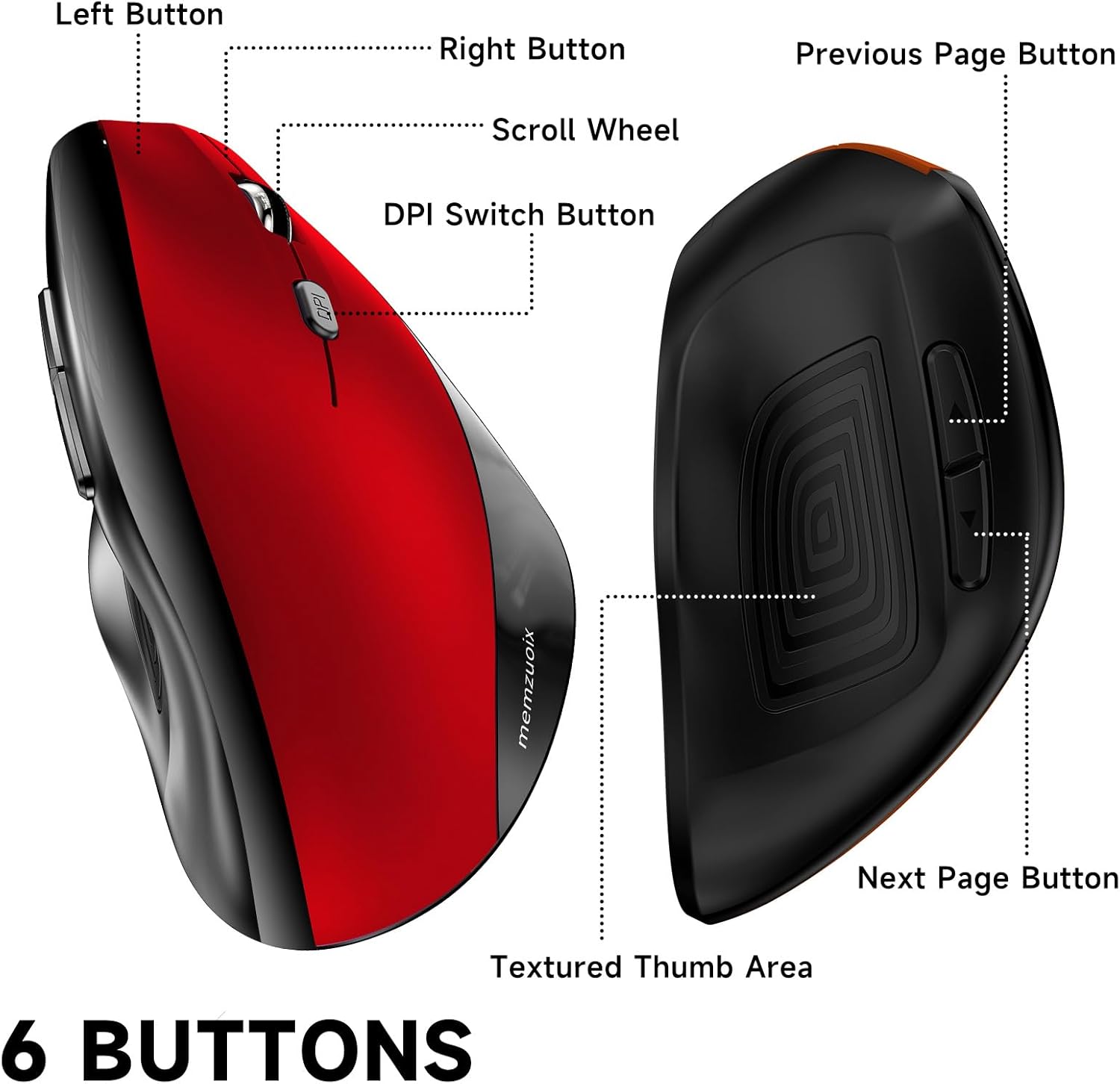
Figure 4: memzuoix Ergonomic Wireless Mouse button layout.
- Linke Taste: Standardmäßige primäre Klickfunktion.
- Rechter Knopf: Standardmäßige Sekundärklickfunktion.
- Scrollrad: Scrollen Sie in den Dokumenten nach oben oder unten und web Seiten.
- DPI-Umschalttaste: Press to cycle through DPI settings (800/1200/1600).
- Schaltfläche „Vorherige Seite“: Navigiert zurück in web Browser bzw file explorers (not compatible with Mac OS).
- Schaltfläche „Nächste Seite“: Navigiert vorwärts in web Browser bzw file explorers (not compatible with Mac OS).
Adjusting DPI Sensitivity:
The mouse offers three adjustable DPI (Dots Per Inch) settings: 800, 1200, and 1600. Press the DPI switch button, located near the scroll wheel, to cycle through these settings. Each press will change the cursor speed and precision, allowing you to select the optimal setting for your task.

Figure 5: DPI switch button and sensitivity levels.
Energiesparmodus:
To conserve battery life, the mouse automatically enters a sleep mode after 7 minutes of inactivity. To reactivate the mouse, simply click any button.
Ergonomic Benefits
The vertical design of the memzuoix mouse positions your hand and arm in a more natural "handshake" posture. This design aims to reduce pronation of the forearm and alleviate pressure on the wrist, which can contribute to discomfort or repetitive strain injuries associated with traditional mouse usage.

Figure 6: Ergonomic vs. Traditional Mouse Hand Position.
Video 1: Endeview of the memzuoix Ergonomic Wireless Mouse, highlighting its vertical design and features.
Wartung
- Reinigung: Reinigen Sie die Maus mit einem weichen, trockenen Tuch. Vermeiden Sie die Verwendung von scharfen Chemikalien oder scheuernden Materialien.
- Batteriewechsel: Replace AAA batteries when the mouse performance degrades or stops responding.
- Lagerung: When not in use for extended periods, turn off the mouse and store the USB receiver in its designated slot to prevent loss.
Fehlerbehebung
| Problem | Lösung |
|---|---|
| Maus reagiert nicht |
|
| Die Cursorbewegung ist unregelmäßig oder langsam. |
|
| Die Vor-/Zurück-Tasten funktionieren unter Mac OS nicht. | The forward/back buttons are not compatible with Mac OS. This is a design limitation. |
| Die Maus wechselt zu schnell in den Schlafmodus. | The mouse is designed to enter sleep mode after 7 minutes of inactivity to conserve battery. This is normal operation. Click any button to wake it up. |
Technische Daten
| Besonderheit | Detail |
|---|---|
| Marke | Abonnieren |
| Modellnummer | HLY-JP-WM791 |
| Konnektivitätstechnologie | 2.4-GHz-Funk (USB-Empfänger) |
| Bewegungserkennungstechnologie | Optisch |
| DPI-Einstellungen | 800 / 1200 / 1600 |
| Anzahl der Tasten | 6 |
| Stromquelle | 2 x AAA-Batterien (nicht enthalten) |
| Technische Daten | 4.84 x 3.54 x 0.04 Zoll |
| Artikelgewicht | 2.82 Unzen |
| Kompatibilität | PC, Laptop, Computer, Desktop (Windows 8/9/10/XP, Windows Vista, Linux) |
| Besondere Merkmale | Ergonomic Design, Lightweight, Portable, Touch Scroll, Wireless |
Garantie und Support
For warranty information or technical support, please refer to the product packaging or contact memzuoix customer service. Keep your purchase receipt for warranty claims.


