1. Einleitung
Vielen Dank für Ihren Einkauf.asing the Yifeng Wireless Keyboard. This keyboard offers versatile connectivity options, supporting both 2.4 GHz USB wireless and Bluetooth connections. It is designed for multi-device use, allowing simultaneous pairing with up to four devices and quick switching between them. Featuring a comfortable scissor-switch mechanism and an integrated stand, it enhances productivity across various platforms including Windows, iOS, and Android devices.
2. Sicherheitshinweise
- Setzen Sie die Tastatur keinen Flüssigkeiten oder extremen Temperaturen aus.
- Avoid disassembling or attempting to repair the device yourself.
- Außerhalb der Reichweite von Kindern aufbewahren.
- Verwenden Sie zum Aufladen ausschließlich das mitgelieferte USB-Kabel.
3. Packungsinhalt
Bitte überprüfen Sie, ob alle Artikel vorhanden sind:
- Yifeng Wireless Keyboard
- USB-Ladekabel
- 2.4 GHz USB Receiver (may be stored in the keyboard's battery compartment)
- Benutzerhandbuch (dieses Dokument)
4. Einrichtung
4.1. 2.4 GHz USB Wireless Connection
- Locate the 2.4 GHz USB receiver. It is often stored in a dedicated slot on the keyboard.
- Stecken Sie den USB-Empfänger in einen freien USB-Anschluss Ihres Computers oder Geräts.
- Schalten Sie die Tastatur mit dem Netzschalter ein (normalerweise an der Seite oder Rückseite).
- The keyboard should automatically connect to your device. If not, press the dedicated 2.4GHz connection key (often labeled with a '4' or '2.4G' icon) to activate pairing mode.
4.2. Bluetooth-Verbindung
- Stellen Sie sicher, dass die Tastatur geladen und eingeschaltet ist.
- Press and hold one of the Bluetooth channel keys (e.g., Bluetooth 1, Bluetooth 2, oder Bluetooth 3Halten Sie den Knopf 3-5 Sekunden lang gedrückt, bis die Kontrollleuchte blinkt und damit den Kopplungsmodus anzeigt.
- Gehen Sie auf Ihrem Gerät (Tablet, Smartphone, PC) zu den Bluetooth-Einstellungen und aktivieren Sie Bluetooth.
- Suchen nach available devices. The keyboard should appear as "Yifeng Keyboard" or similar.
- Wählen Sie die zu koppelnde Tastatur aus. Befolgen Sie die Anweisungen auf dem Bildschirm, z. B. die Eingabe eines Kopplungscodes.
- Nach erfolgreicher Kopplung hört die Kontrollleuchte auf zu blinken und leuchtet einige Sekunden lang dauerhaft.
4.3. Multi-Device Pairing
This keyboard supports connecting up to 4 devices simultaneously: one via 2.4 GHz USB and three via Bluetooth. Follow the steps above to pair each device to a different channel (2.4GHz, Bluetooth 1, Bluetooth 2, Bluetooth 3).
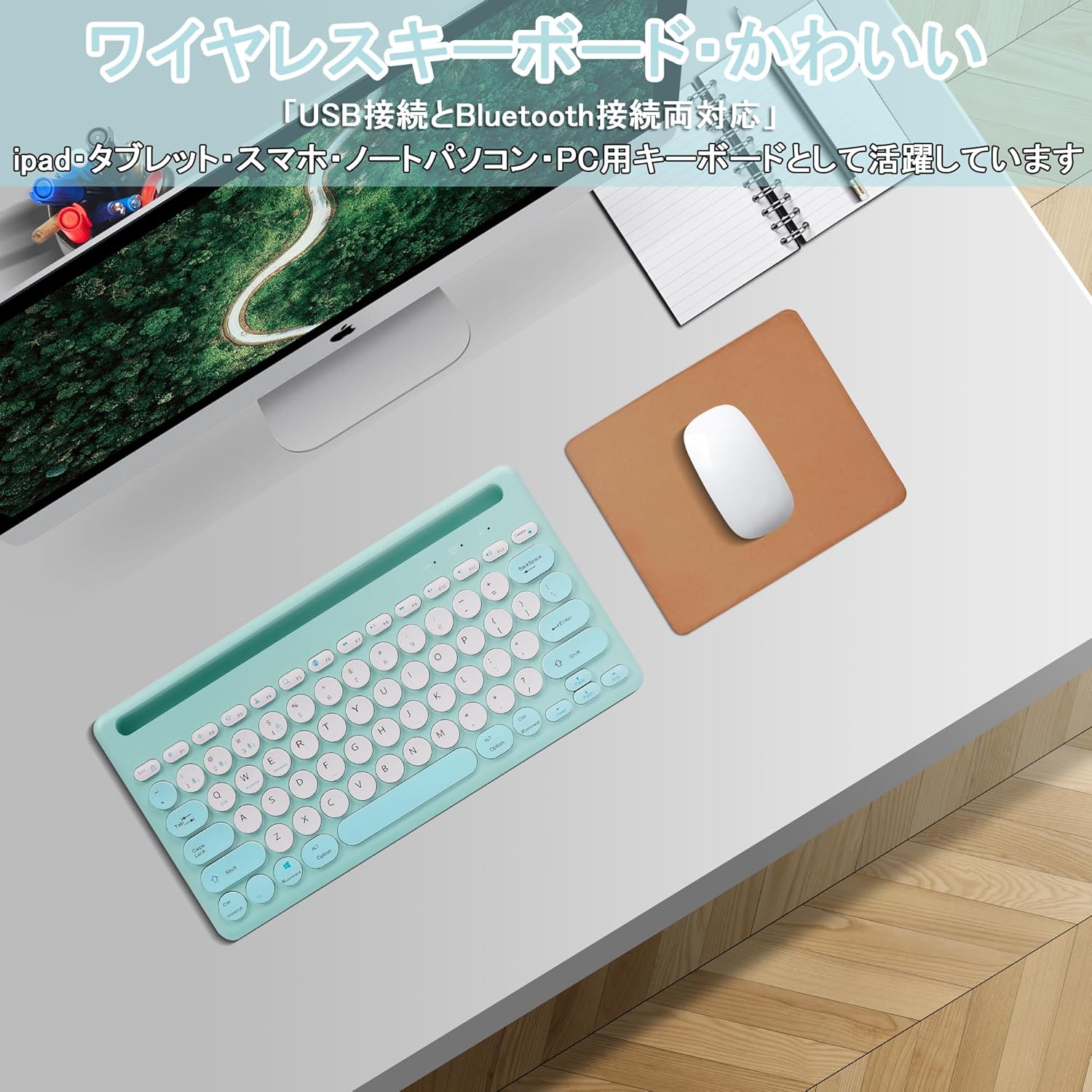
Image: The Yifeng Wireless Keyboard connected to a tablet, smartphone, and laptop, demonstrating its multi-device pairing capability.
5. Bedienungsanleitung
5.1. Wechseln zwischen verbundenen Geräten
To switch between your paired devices, simply press the corresponding connection key:
- Drücken Bluetooth 1 zum ersten Bluetooth-Gerät wechseln.
- Drücken Bluetooth 2 zum zweiten Bluetooth-Gerät wechseln.
- Drücken Bluetooth 3 to switch to the third Bluetooth device.
- Drücken Sie die 2.4 GHz key (often labeled with a '4' or '2.4G' icon) to switch to the USB wireless device.
5.2. Umschaltung der Systemkompatibilität
The keyboard supports Windows, iOS, and Android operating systems. Use the dedicated system keys to optimize key functions for your current device:
- Drücken Fn + Q für iOS.
- Drücken Fn + W für Android.
- Drücken Fn + E für Windows.
5.3. Aufladen der Tastatur
The keyboard features a built-in rechargeable lithium-ion battery. A single full charge provides approximately 30 days of continuous use.
- Connect the included USB charging cable to the charging port on the keyboard.
- Stecken Sie das andere Ende des USB-Kabels in eine USB-Stromquelle (z. B. USB-Anschluss am Computer, USB-Netzteil).
- Die Ladeanzeigeleuchte leuchtet während des Ladevorgangs und erlischt, sobald der Akku vollständig geladen ist.

Image: The Yifeng Wireless Keyboard connected to a power strip via its USB charging cable, indicating the rechargeable feature.
5.4. Verwendung des integrierten Ständers
The keyboard includes an integrated stand slot at the top, designed to hold your tablet or smartphone upright. This allows for comfortable viewing and typing, making it ideal for document creation, chatting, or watching media while commenting.
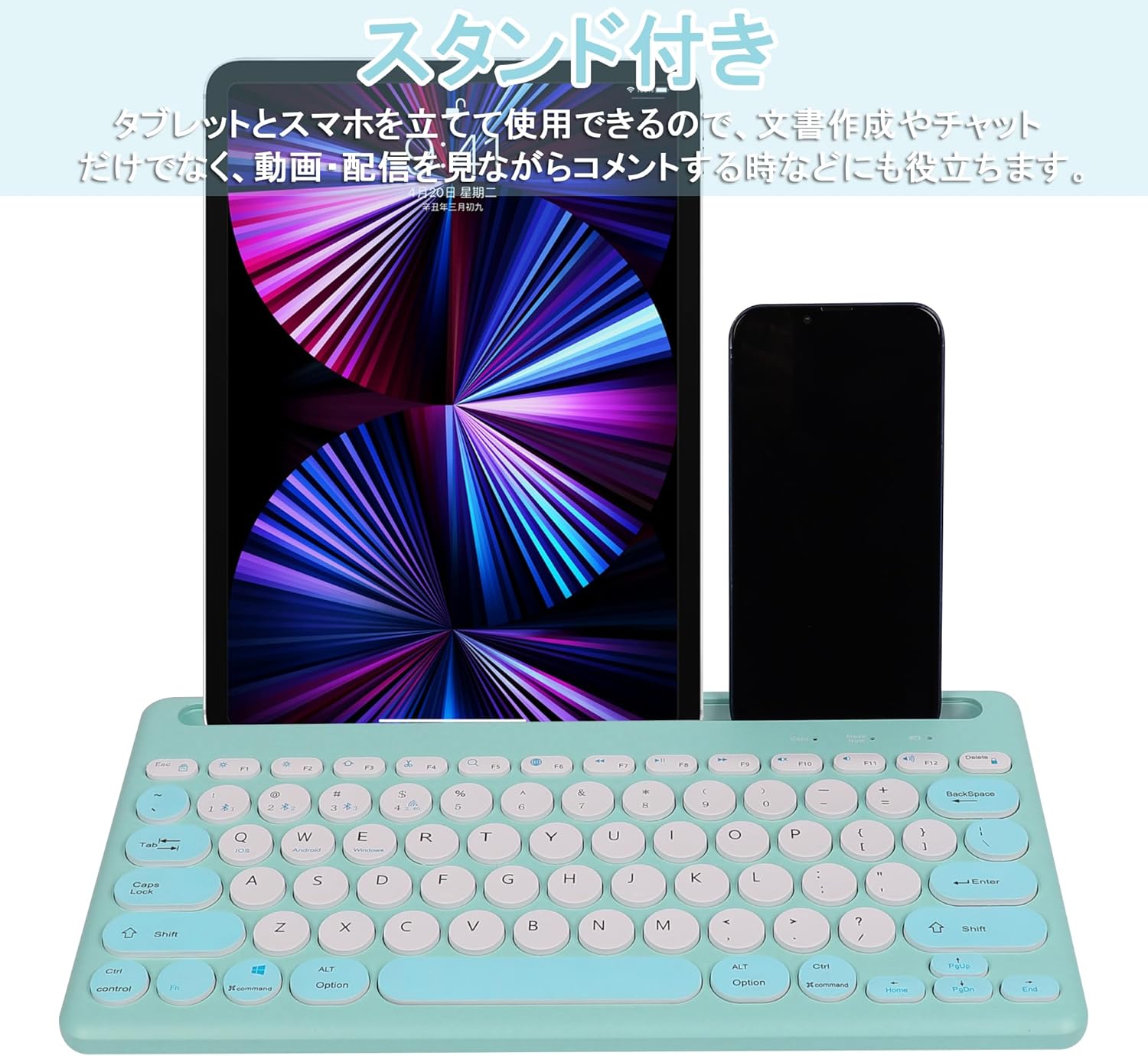
Image: The Yifeng Wireless Keyboard with a tablet and smartphone securely positioned in its integrated stand, demonstrating its utility for multi-device setups.
6. Wartung
- Clean the keyboard regularly with a soft, dry cloth. For stubborn dirt, a slightly damp Ein Tuch kann verwendet werden, um sicherzustellen, dass keine Feuchtigkeit in die Tastatur eindringt.
- Vermeiden Sie die Verwendung aggressiver Chemikalien oder Scheuermittel.
- Bewahren Sie die Tastatur bei Nichtgebrauch an einem kühlen, trockenen Ort auf.
- The keyboard features anti-slip pads on the back for stable use. Ensure these pads are clean and intact for optimal stability.

Image: The underside of the Yifeng Wireless Keyboard, highlighting the four anti-slip pads designed for stable placement on various surfaces.
7. Fehlerbehebung
7.1. Tastaturverbindung wird nicht hergestellt
- Überprüfen Sie die Leistung: Stellen Sie sicher, dass die Tastatur eingeschaltet ist und über ausreichend Akkuladung verfügt.
- Reparatur: For Bluetooth, delete the keyboard from your device's Bluetooth list and attempt to pair again. For 2.4 GHz USB, try plugging the receiver into a different USB port.
- Kanäle wechseln: Ensure you have selected the correct channel (Bluetooth 1/2/3 or 2.4GHz) for your device.
- Bluetooth-Gerät: Verify that Bluetooth is enabled on your device and that it is discoverable.
7.2. Tasten reagieren nicht
- Batteriestand: Laden Sie die Tastatur auf, wenn der Akku schwach ist.
- Systemmodus: Ensure the keyboard is set to the correct operating system mode (Windows, iOS, Android) using Fn + Q/W/E.
- Interferenz: Bringen Sie die Tastatur näher an Ihr Gerät und weg von anderen drahtlosen Geräten, die Störungen verursachen könnten.
7.3. Ladeprobleme
- Kabelprüfung: Ensure the USB charging cable is securely connected to both the keyboard and the power source.
- Energiequelle: Versuchen Sie es mit einem anderen USB-Anschluss oder Netzteil.
- Kontrollleuchte: If the charging indicator light does not turn on, the cable or power source may be faulty.
8. Spezifikationen
| Marke | Yifeng |
| Modellnummer | AMWS0584A-L |
| Konnektivitätstechnologie | Bluetooth, 2.4 GHz Wireless (USB) |
| Kompatible Geräte | Tablets, Smartphones, PCs, Laptops (Windows, iOS, Android) |
| Tastaturlayout | QWERTY (US Layout) |
| Schlüsselmechanismus | Scherenschalter |
| Besonderheit | Rechargeable, Integrated Stand, Multi-Pairing (4 devices) |
| Akku-Typ | 1 Lithium-Ionen-Akku (im Lieferumfang enthalten) |
| Akkulaufzeit | Ca. 30 Tage (pro Ladung) |
| Maße | 33.7 x 16.7 x 2.9 cm |
| Gewicht | 820 g |
| Im Lieferumfang enthaltene Komponenten | USB-Kabel |
9. Garantie und Support
Dieses Produkt wird mit einem 1 Jahre Qualitätsgarantie from the date of purchase. In case of initial defects or malfunctions occurring within the warranty period, we offer return or exchange services.
Should you encounter any issues or require assistance, please contact us directly through your purchase platform:
- Gehen Sie zu Ihrem Bestellverlauf.
- Select the order for this product.
- Klicken Sie auf Verkäufer kontaktieren.
Our support team will be happy to assist you.


