Einführung
This manual provides detailed instructions for the setup, operation, maintenance, and troubleshooting of your MageGee Star98 Wired Mechanical Gaming Keyboard. This keyboard features a 98-key layout, Red mechanical switches, and customizable backlighting, designed for an enhanced typing and gaming experience.
Lieferumfang
- MageGee Star98 Mechanical Keyboard
- USB-Kabel
- Additional Red Keycaps (quantity may vary)
Installationsanweisungen
- Schließen Sie die Tastatur an: Plug the provided USB cable into the USB port on the keyboard and then into an available USB port on your computer.
- Treiberinstallation: The keyboard is plug-and-play and does not require additional driver installation for basic functionality. Your operating system (Windows, Mac, Linux, Android) will automatically recognize the device.
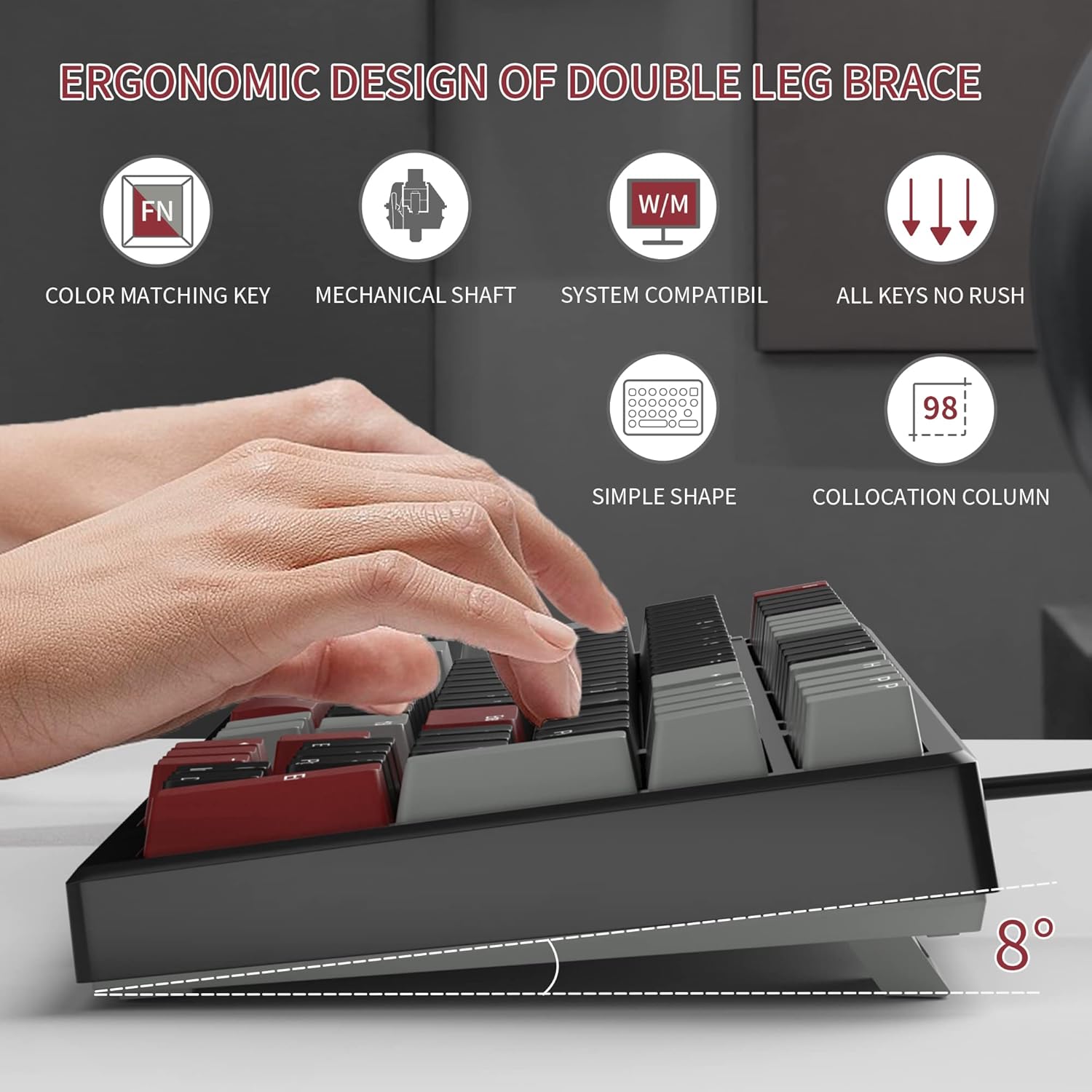
- Adjust Tilt Legs: For ergonomic comfort, you can extend the adjustable tilt legs located on the underside of the keyboard.
Bedienungsanleitung
Hauptmerkmale
- 98-Tasten-Layout: This compact layout retains most standard keyboard functionality while saving desk space.
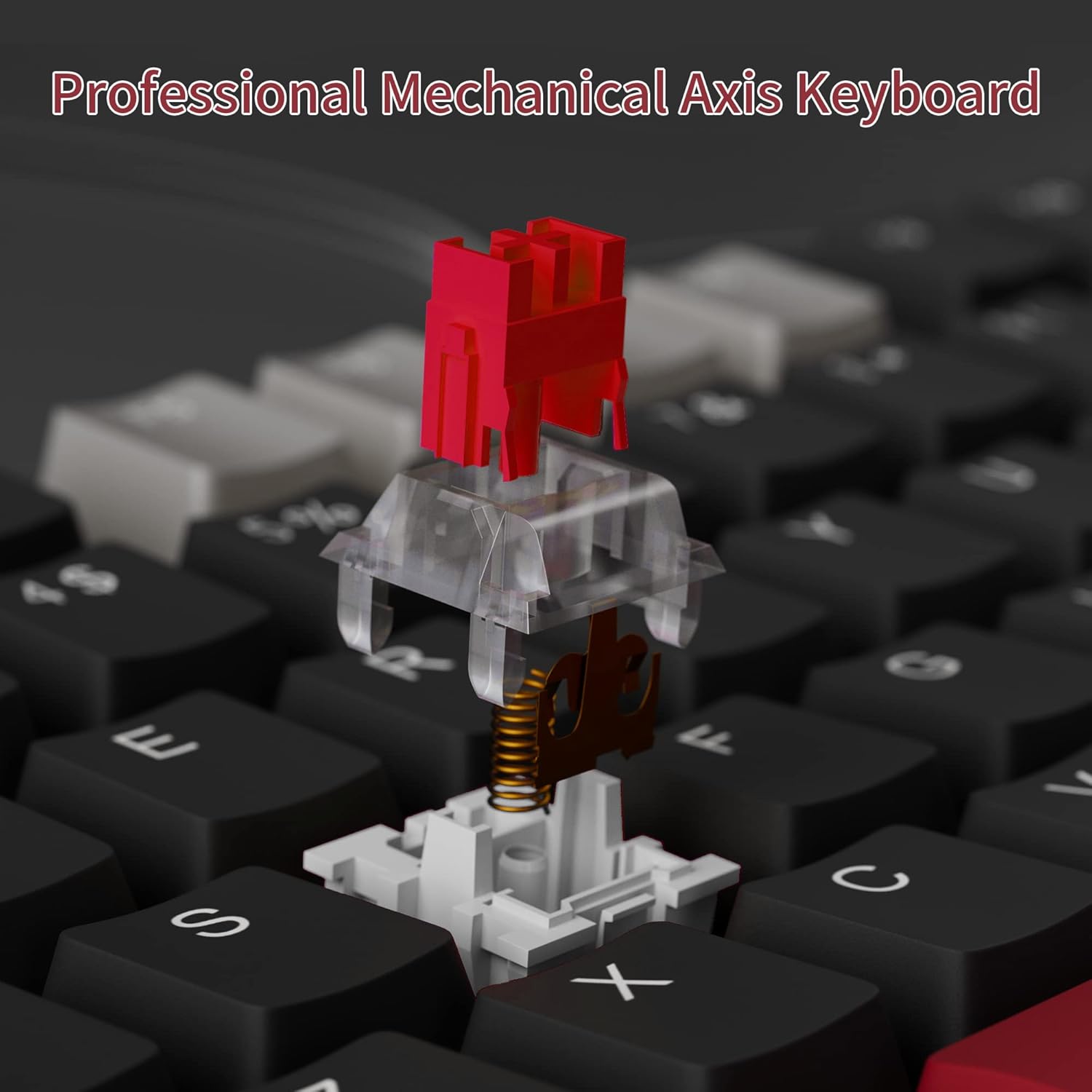
- Rote mechanische Schalter: Provides a fast response with tactile feedback for typing and gaming.
- Anti-Ghosting: All 98 keys support anti-ghosting for simultaneous key presses.
- Hot-Swap-fähiges Design: Compatible with most 3-pin and 5-pin mechanical switches, allowing for customization.
- Hintergrundbeleuchtung: Features solid sea blue backlighting with multiple operational modes.
- WIN-Tastensperre: Function to prevent accidental presses of the Windows key during gaming.
Hintergrundbeleuchtungsmodi
The keyboard's backlight has multiple operational modes. Refer to the keyboard's function key combinations (usually Fn + specific keys) for cycling through modes or turning the backlight off. Specific key combinations are typically printed on the keycaps or detailed in a quick start guide.
Hot-Swap-fähige Schalter
The MageGee Star98 keyboard features a hot-swappable design, allowing users to change mechanical switches without soldering. This feature supports most 3-pin and 5-pin switches available on the market.
- Tastenkappe entfernen: Use a keycap puller to gently remove the desired keycap.
- Schalter entfernen: Use a switch puller to carefully extract the mechanical switch from its socket.
- Neuen Schalter einfügen: Richten Sie die Pins des neuen Schalters an den Löchern auf der Platine aus und drücken Sie ihn fest, bis er einrastet. Achten Sie darauf, dass die Pins nicht verbogen sind.
- Tastenkappe austauschen: Setzen Sie die Tastenkappe wieder auf den neuen Schalterschaft.


Wartung
- Reinigung der Tastenkappen: Verwenden Sie ein weiches,amp cloth to wipe down keycaps. For deeper cleaning, keycaps can be removed using a keycap puller and washed with mild soap and water, then thoroughly dried before reattaching.
- Reinigung unter den Tastenkappen: Use compressed air to remove dust and debris from between the switches and under the keycaps.
- Kabelpflege: Um Beschädigungen zu vermeiden, sollten Sie das USB-Kabel nicht scharf biegen oder übermäßig daran ziehen.
Fehlerbehebung
- Tastatur reagiert nicht:
- Stellen Sie sicher, dass das USB-Kabel sowohl mit der Tastatur als auch mit dem Computer fest verbunden ist.
- Versuchen Sie, die Tastatur an einen anderen USB-Anschluss Ihres Computers anzuschließen.
- Testen Sie die Tastatur an einem anderen Computer, um systemspezifische Probleme auszuschließen.
- Tasten werden nicht registriert oder es werden Doppeleingaben getätigt:
- Remove the keycap and switch for the affected key. Inspect for any debris or bent pins on the switch.
- If the switch is damaged, replace it with a new one (utilizing the hot-swappable feature).
- Stellen Sie sicher, dass der Schalter vollständig in seiner Fassung eingerastet ist.
- Backlight not working or incorrect mode:
- Refer to the keyboard's function key combinations to cycle through backlight modes or turn it on/off.
- Stellen Sie sicher, dass die Tastatur über den USB-Anschluss ausreichend mit Strom versorgt wird.
Technische Daten
| Besonderheit | Detail |
|---|---|
| Marke | MageGee |
| Modell | Star98 |
| Konnektivitätstechnologie | Kabelgebunden (USB) |
| Tastaturbeschreibung | Mechanisch |
| Schaltertyp | Rote Schalter |
| Anzahl der Schlüssel | 98 Tasten |
| Hintergrundbeleuchtung | Solid Sea Blue (Single Color) |
| Kompatibilität | Windows 2000, Windows XP, Windows ME, Vista, Windows 7, Windows 8, Windows 10, Android, Linux, Mac |
| Material | Acrylnitril-Butadien-Styrol (ABS) |
| Artikelgewicht | 2.16 Pfund |
| Verpackungsabmessungen | 16.14 x 6.97 x 1.77 Zoll |
Garantie und Support
For warranty information and customer support, please refer to the official MageGee webSie können die Website besuchen oder sich direkt an den Kundenservice wenden. Detaillierte Informationen finden Sie in der Regel auf der Produktverpackung oder auf der Herstellerseite. webWebsite.


