1. Einleitung
The TP-Link Archer AX80/A is a high-performance AX6000 WiFi 6 router designed to deliver ultra-fast wireless speeds and enhanced network capacity. Featuring advanced technologies like OFDMA, MU-MIMO, and 8-stream connectivity, it ensures a stable and efficient network experience for numerous connected devices, including smartphones, tablets, and IoT devices. This manual provides detailed instructions for setting up, operating, and maintaining your Archer AX80/A router.


2. Packungsinhalt
Überprüfen Sie, ob Ihr Paket die folgenden Artikel enthält:
- TP-Link Archer AX80/A AX6000 WiFi 6 Router
- Netzteil
- Ethernet-Kabel
- Kurzanleitung zur Installation
3. Körperliche Übergriffeview
3.1 Anschlüsse und Tasten
The Archer AX80/A router features various ports and buttons for connectivity and control.

- 2.5Gbps WAN/LAN Port: One port for high-speed internet connection or LAN device.
- Gigabit-WAN/LAN-Anschluss: One port for standard internet connection or LAN device.
- Gigabit-LAN-Anschlüsse: Three ports for connecting wired devices.
- USB 3.0-Anschluss: One port for connecting external storage devices for network sharing.
- Ein- / Ausschalter: To power the router on or off.
- Reset-Taste: To restore factory default settings (use a pin to press and hold).

3.2 Platzierungsoptionen
The Archer AX80/A offers flexible placement options to suit your environment.

4. Installationsanleitung
4.1 Hardware-Anschluss
- Power off your modem and remove the backup battery if it has one.
- Connect the modem to the router's WAN port (usually the 2.5Gbps port) using an Ethernet cable.
- Power on the modem, then power on the router.
- Wait for the router's LED indicators to stabilize, indicating a successful connection.
4.2 Easy Setup via TP-Link Tether App
The TP-Link Tether app provides an intuitive way to set up and manage your router from your smartphone or tablet.
- Laden Sie die TP-Link Tether-App aus dem App Store oder von Google Play herunter.
- Verbinden Sie Ihr Mobilgerät mit dem Standard-WLAN-Netzwerk des Routers (SSID und Passwort befinden sich auf dem Etikett des Routers).
- Open the Tether app and follow the on-screen instructions to complete the initial setup, including creating a TP-Link ID, setting up your Wi-Fi name and password, and configuring internet settings.

5. Bedienungsanleitung
5.1 Geräte anschließen
- Drahtlose Verbindung: Suchen nach your Wi-Fi network name (SSID) on your device and enter the password you set during setup.
- Kabelverbindung: Connect your computer or other wired devices to the router's LAN ports using Ethernet cables.

5.2 Netzwerkverwaltung
You can manage your router settings through the TP-Link Tether app or by accessing the web Managementschnittstelle über eine web browser (typically at http://tplinkwifi.net or http://192.168.0.1).
- Ändern Sie die WLAN-Einstellungen (SSID, Passwort, Sicherheitstyp).
- Überwachen Sie angeschlossene Geräte.
- Konfigurieren Sie erweiterte Netzwerkeinstellungen.
6. Erweiterte Funktionen
6.1 OneMesh™ Support
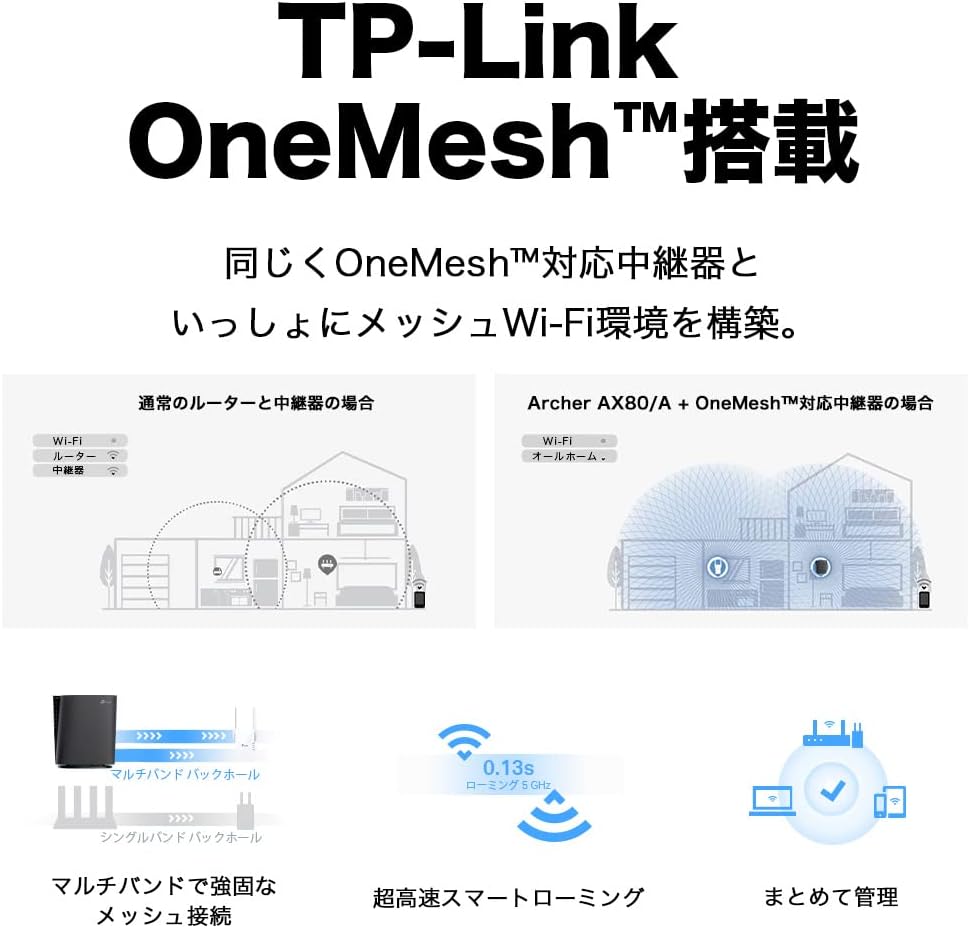
The Archer AX80/A supports TP-Link OneMesh™, allowing you to create a seamless whole-home Wi-Fi network by connecting to OneMesh-compatible range extenders. This eliminates Wi-Fi dead zones and provides uninterrupted roaming.
6.2 VPN Client Functionality
The router includes VPN client functionality, enabling you to establish a secure VPN connection without needing additional VPN software on each device. It supports OpenVPN, PPTP VPN, and L2TP VPN protocols.

6.3 IPv6 IPoE Support
The Archer AX80/A supports IPv6 IPoE (IPv4 over IPv6), including v6 Plus, OCN Virtual Connect, and DS-Lite, ensuring compatibility with modern internet service provider configurations for optimal performance.
6.4 Kindersicherung
Manage and control internet access for family members with robust parental control features available through the Tether app. Set time limits, block inappropriate content, and monitor usage.

6.5 WPA3-Sicherheit
The router supports WPA3, the latest Wi-Fi security protocol, providing enhanced encryption and protection against cyber threats for a more secure home network.

6.6 US-Based Security Standards
TP-Link adheres to US government cybersecurity and infrastructure security agency (CISA) promoted "Secure-by-Design" principles, ensuring high-level security throughout design, development, and maintenance.

7. Wartung
7.1 Firmware-Updates
Regularly update your router's firmware to ensure optimal performance, security, and access to new features. Firmware updates can be performed via the Tether app or the web Verwaltungsschnittstelle.
- Open the Tether app or log in to the web Verwaltungsschnittstelle.
- Navigieren Sie zu Systemtools > Firmware-Upgrade.
- Follow the instructions to check for and install available updates.
7.2 Rebooting the Router
If you experience network issues, a simple reboot can often resolve them. You can reboot the router through the Tether app, web management interface, or by unplugging and replugging the power adapter.
8. Fehlerbehebung
8.1 Kein Internetzugang
- Prüfen Sie, ob Ihr Modem ordnungsgemäß funktioniert.
- Stellen Sie sicher, dass alle Kabel fest mit den richtigen Anschlüssen verbunden sind.
- Starten Sie sowohl Ihr Modem als auch Ihren Router neu.
- Verify your internet settings in the router's management interface.
8.2 Schwaches WLAN-Signal
- Relocate the router to a central location, away from obstructions and interference sources.
- Consider adding a TP-Link OneMesh™ compatible range extender to expand coverage.
- Adjust Wi-Fi channel settings in the router's management interface to avoid interference.
8.3 Forgotten Wi-Fi Password or Login Password
- Das Standard-WLAN-Passwort ist auf dem Etikett an der Unterseite des Routers aufgedruckt.
- If you changed it and forgot, you can retrieve or reset it via the Tether app or web Verwaltungsschnittstelle.
- If you forgot the router's login password, you may need to perform a factory reset (see Section 3.1) and reconfigure the router.
9. Spezifikationen
| Besonderheit | Beschreibung |
|---|---|
| Marke | TP-Link |
| Modellname | Archer AX80/A |
| Wireless-Standard | 802.11ax (WLAN 6) |
| Frequenzbandklasse | Dualband |
| Datenübertragungsrate | AX6000 (4804 Mbps on 5GHz + 1148 Mbps on 2.4GHz) |
| Häfen | 1x 2.5Gbps WAN/LAN, 1x Gigabit WAN/LAN, 3x Gigabit LAN, 1x USB 3.0 |
| Antennentyp | Intern |
| Security Protocol | WPA3 |
| Managementmethode | Tether-App, Web UI |
| Kompatible Geräte | Smartphones, Tablets, Laptops |
| Abmessungen (L x B x H) | 18.9 cm x 5.9 cm x 20 cm |
10. Garantie und Support
10.1 Garantieinformationen
The TP-Link Archer AX80/A router comes with a 3 Jahr HerstellergarantieBitte bewahren Sie Ihren Kaufbeleg für Garantieansprüche auf. Die Garantie deckt Material- und Verarbeitungsfehler bei normalem Gebrauch ab.
10.2 Technischer Support
For technical support, firmware updates, and additional resources, please visit the official TP-Link website or contact TP-Link customer support. You can find contact information and FAQs on the TP-Link support page:


