1. Einleitung
Thank you for choosing the typecase Touch iPad Keyboard Case. This manual provides detailed instructions for setting up, operating, and maintaining your keyboard case to ensure optimal performance and longevity. Please read this manual thoroughly before use.
2. Kompatibilität
This keyboard case is designed for specific iPad models. Please verify your iPad model number to ensure compatibility.
- iPad 10th Generation (10.9-inch, 2022): Modelle A2696, A2757, A2777
- iPad A16 (11th Generation, 2025): Modelle A3354, A3355, A3356
To verify your iPad model:
- Methode 1: Check the back of your iPad for the model number (e.g., A2696).
- Methode 2: Go to iPad Settings > General > About > Model Number. Tap the model number to display the A-number.
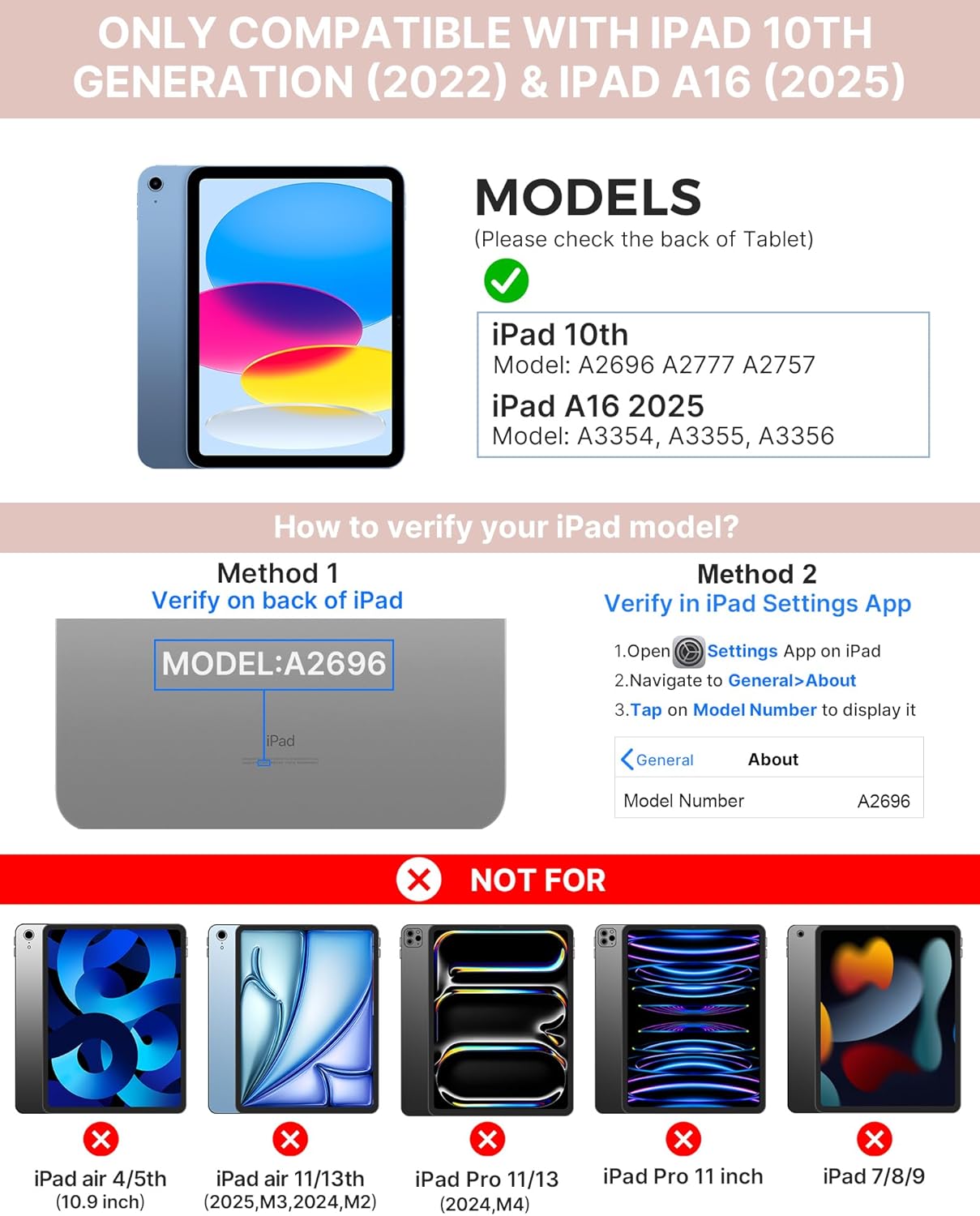
Image: Visual guide for identifying compatible iPad models and verifying the model number on the device or through settings.
3. Packungsinhalt
Das Paket beinhaltet:
- 1 x typecase Touch iPad Keyboard Case
- 1 x USB-C Ladekabel
- 1 x Benutzerhandbuch
4. Einrichtungsanweisungen
4.1 Aufladen der Tastatur
Laden Sie die Tastatur vor der ersten Verwendung vollständig auf. Verbinden Sie das mitgelieferte USB-C-Ladekabel mit dem Ladeanschluss der Tastatur und einer Stromquelle. Die Ladeanzeigeleuchte zeigt den Ladestatus an.
- Stehen zu: Bis zu 1 Jahr
- Daytime use (2 hours/day with backlight off): Bis zu 3 Monate
- Nighttime use (2 hours/day with backlight on): Bis zu 2 Wochen

Image: Close-up of the keyboard's USB-C charging port and battery life specifications.
4.2 Koppeln mit dem iPad
- Stellen Sie sicher, dass die Tastatur aufgeladen ist.
- Turn on the keyboard by pressing the power button. The Bluetooth indicator light will flash.
- Gehen Sie auf Ihrem iPad zu Einstellungen > Bluetooth.
- Schalten Sie Bluetooth ein. Ihr iPad sucht dann nach verfügbaren Geräten.
- Select "typecase Keyboard" from the list of devices.
- Follow any on-screen prompts to complete the pairing process. The Bluetooth indicator light on the keyboard will turn solid when successfully paired.
5. Bedienungsanleitung
5.1 Installation auf Ihrem iPad
Gently insert your iPad into the case, ensuring all edges are securely seated. The case provides full protection for your device.
5.2 Tastaturfunktionen
The keyboard features a standard 78-key layout with a dedicated row of iPadOS shortcut keys for enhanced productivity.

Bild: Draufsicht view of the keyboard layout, highlighting the 78-key design and iPadOS shortcuts.
Hintergrundbeleuchtete Tasten
The keyboard features 11-color RGB LED backlighting with adjustable brightness levels. This allows for comfortable typing in various lighting conditions.
- Drücken Sie die Glühbirnenschlüssel um die Hintergrundbeleuchtungsfarben durchzuschalten.
- Drücken Fn + Glühbirnentaste um die Helligkeit der Hintergrundbeleuchtung anzupassen.
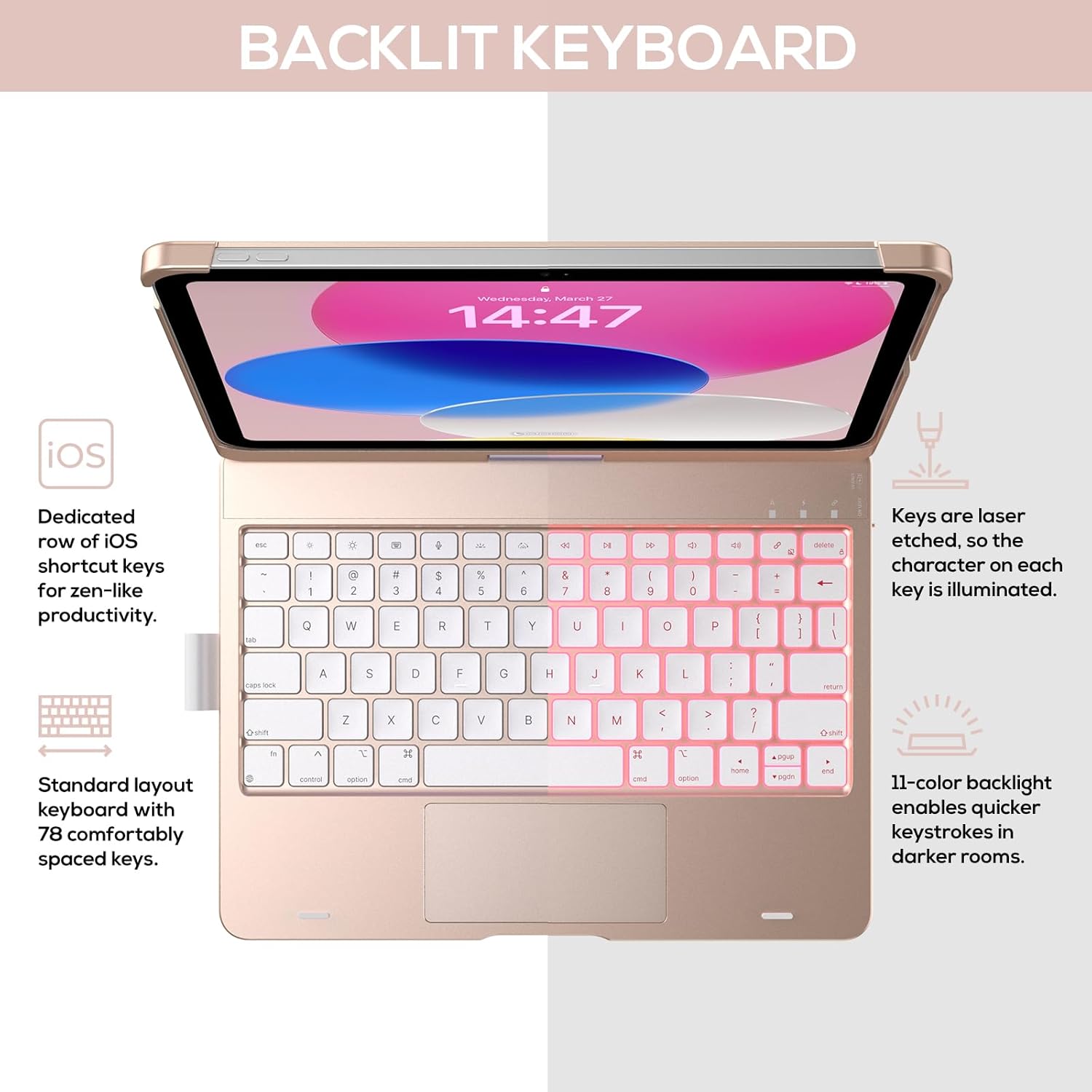
Image: The keyboard with illuminated keys, demonstrating the 11-color backlight and dedicated iOS shortcut keys.
5.3-Zoll-Multi-Touch-Trackpad
The integrated precision trackpad supports multi-gesture controls, enhancing productivity for tasks like document editing, web Stöbern und Erstellen von Präsentationen.
- Tippen mit einem Finger: Klicken/Auswählen
- Scrollen mit zwei Fingern: Scrollen Sie nach oben/unten oder nach links/rechts
- Zum Zoomen zusammenziehen: Vergrößern/Verkleinern
- Drei-Finger-Wischgeste nach oben: Öffnen Sie den App Switcher
- Mit drei Fingern nach unten wischen: Zurück zum Startbildschirm

Image: Diagram showing common multi-touch gestures for the trackpad, including managing files, web Surfen und Wechseln zwischen Apps.
5.4 360° Rotatable Hinge and Use Modes
The patented 360° hinge allows for versatile use of your iPad in 7 unique modes, adapting to various tasks from typing to viewing.
- Laptop-Modus: Traditional laptop setup for typing.
- Standmodus: Ideal für viewInhalt.
- Zeltmodus: Stable for touch interaction or presentations.
- Tablet-Modus: Fold the keyboard behind the iPad for tablet use. Keys are protected in this mode.
- Eckmodus: Angled for comfortable drawing or writing.
- Freigabemodus: Rotate the screen to share content with others.
- Protect Mode: Close the case to fully protect the iPad.
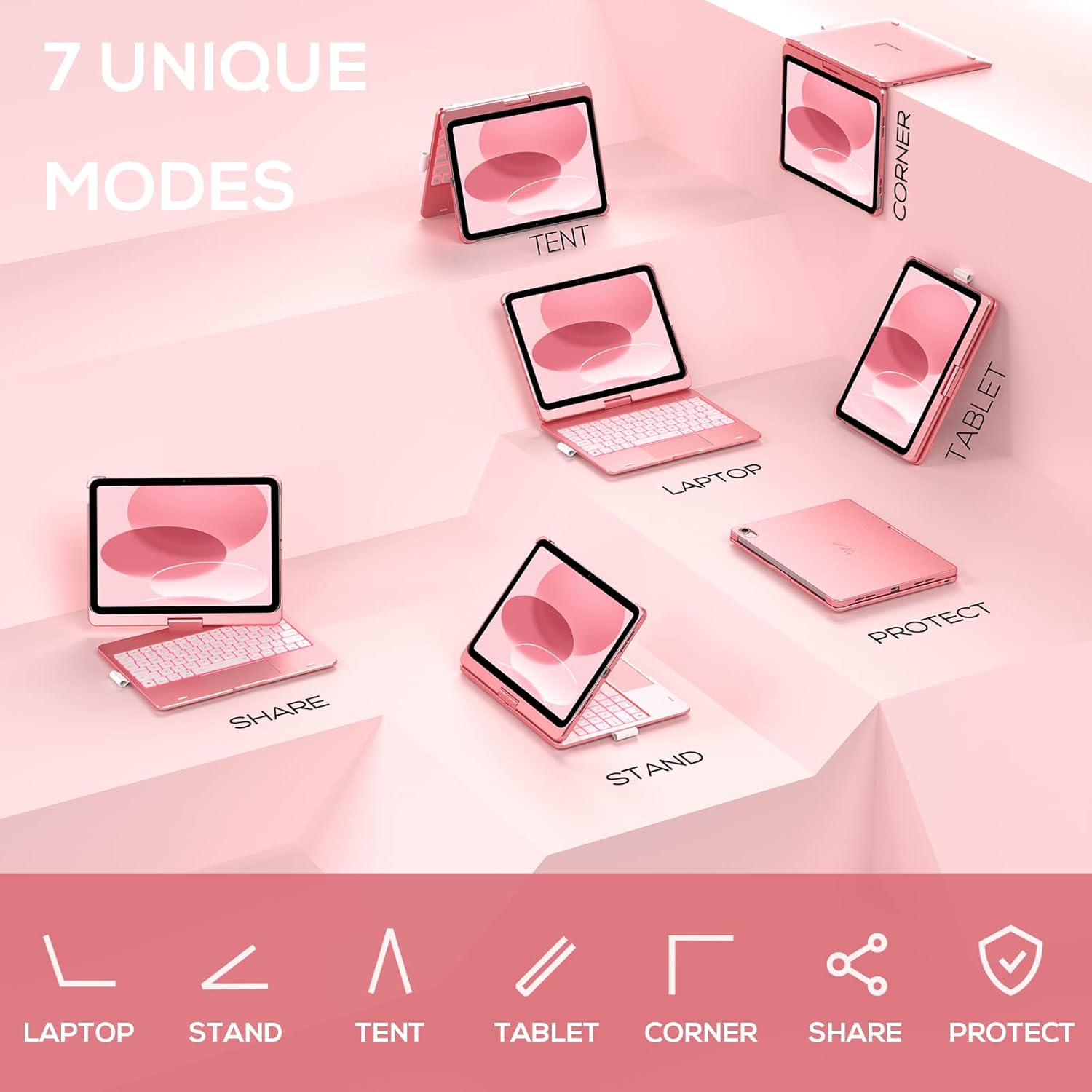
Image: A visual representation of the seven different configurations the keyboard case can be used in, including laptop, stand, and tablet modes.
5.5 Automatische Schlaf-/Wachfunktion
The case features an auto sleep/wake function. Opening the case will wake your iPad, and closing it will put your iPad to sleep, helping to conserve battery life for both the iPad and the keyboard.

Image: A user's hand on the trackpad, illustrating the built-in trackpad and the auto sleep/wake feature that activates when the case is opened or closed.
5.6 Apple Pencil Halter
An integrated holder is provided for your Apple Pencil, ensuring it is securely stored and easily accessible.
6. Wartung
6.1 Reinigung
To clean the keyboard case, use a soft, damp cloth. Avoid using harsh chemicals or abrasive materials, as these may damage the surface. Ensure the charging port is dry before charging.
6.2 Speicherung
Bewahren Sie die Tastaturhülle bei längerer Nichtbenutzung an einem kühlen, trockenen Ort auf. Um die Akkuleistung zu erhalten, empfiehlt es sich, die Tastatur vor längerer Lagerung vollständig aufzuladen.
7. Fehlerbehebung
7.1 Tastatur verbindet sich nicht
- Stellen Sie sicher, dass die Tastatur eingeschaltet und aufgeladen ist.
- Prüfen Sie, ob Bluetooth auf Ihrem iPad aktiviert ist.
- Entkoppeln Sie das Gerät in den Bluetooth-Einstellungen Ihres iPads und versuchen Sie, es erneut zu koppeln.
- Starten Sie sowohl Ihr iPad als auch die Tastatur neu.
7.2 Tasten reagieren nicht
- Stellen Sie sicher, dass die Tastatur ordnungsgemäß über Bluetooth verbunden ist.
- Überprüfen Sie den Batteriestand der Tastatur.
- Entfernen Sie jeglichen Schmutz um die Tasten herum.
7.3 Trackpad funktioniert nicht
- Stellen Sie sicher, dass die Tastatur angeschlossen ist.
- Überprüfen Sie die iPad-Einstellungen auf Trackpad-Funktionalität (Einstellungen > Allgemein > Trackpad).
- Starten Sie die Tastatur und das iPad neu.
7.4 Hintergrundbeleuchtung funktioniert nicht
- Stellen Sie sicher, dass die Tastatur eingeschaltet ist.
- Press the backlight control keys (light bulb key, Fn + light bulb key) to activate or adjust.
- Prüfen Sie den Batteriestand; ein niedriger Batteriestand kann die Hintergrundbeleuchtung deaktivieren.
8. Spezifikationen
| Modellnummer | KB201T-100 |
| Technische Daten | 11 x 8.6 x 1.5 Zoll (11"L x 8.6"B x 1.5"H) |
| Artikelgewicht | 1.43 Pfund |
| Konnektivitätstechnologie | Bluetooth |
| Tastaturbeschreibung | Flexible, 78-key layout with iPadOS shortcuts |
| Besondere Merkmale | 360° Rotatable, 11-Color Backlit, Ergonomic, Lightweight, Multi-Touch Trackpad, Auto Sleep/Wake, Apple Pencil Holder |
| Tastatur Hintergrundbeleuchtung | RGB (11-Farben) |
| Akku-Typ | 1 Lithium-Polymer-Akku (im Lieferumfang enthalten) |
9. Garantie und Support
typecase is committed to product quality and customer satisfaction. This product comes with the following support:
- Ersatzservice: Within 1 year of purchase.
- Rückerstattungsrichtlinie: Innerhalb von 30 Tagen nach dem Kauf.
For any issues or inquiries, please contact typecase customer support for quick feedback and assistance.

Image: Information on typecase's after-sales service, including replacement, refund, and customer support.


