1. Einleitung
Thank you for choosing the DELTACO Gaming PM80 Wireless Optical Gaming Mouse. This manual provides essential information for setting up, operating, and maintaining your new gaming mouse. Please read these instructions carefully before use to ensure optimal performance and longevity of your device.
2. Packungsinhalt
- DELTACO Gaming PM80 Wireless Optical Gaming Mouse
- USB-Funkempfänger
- USB-Ladekabel
- Bedienungsanleitung
3. Produktüberschreitungview
The DELTACO Gaming PM80 is a high-performance wireless optical gaming mouse designed for precision and comfort. It features 7 programmable buttons, adjustable DPI up to 4800, and customizable illumination. The mouse is rechargeable, ensuring uninterrupted gaming sessions.
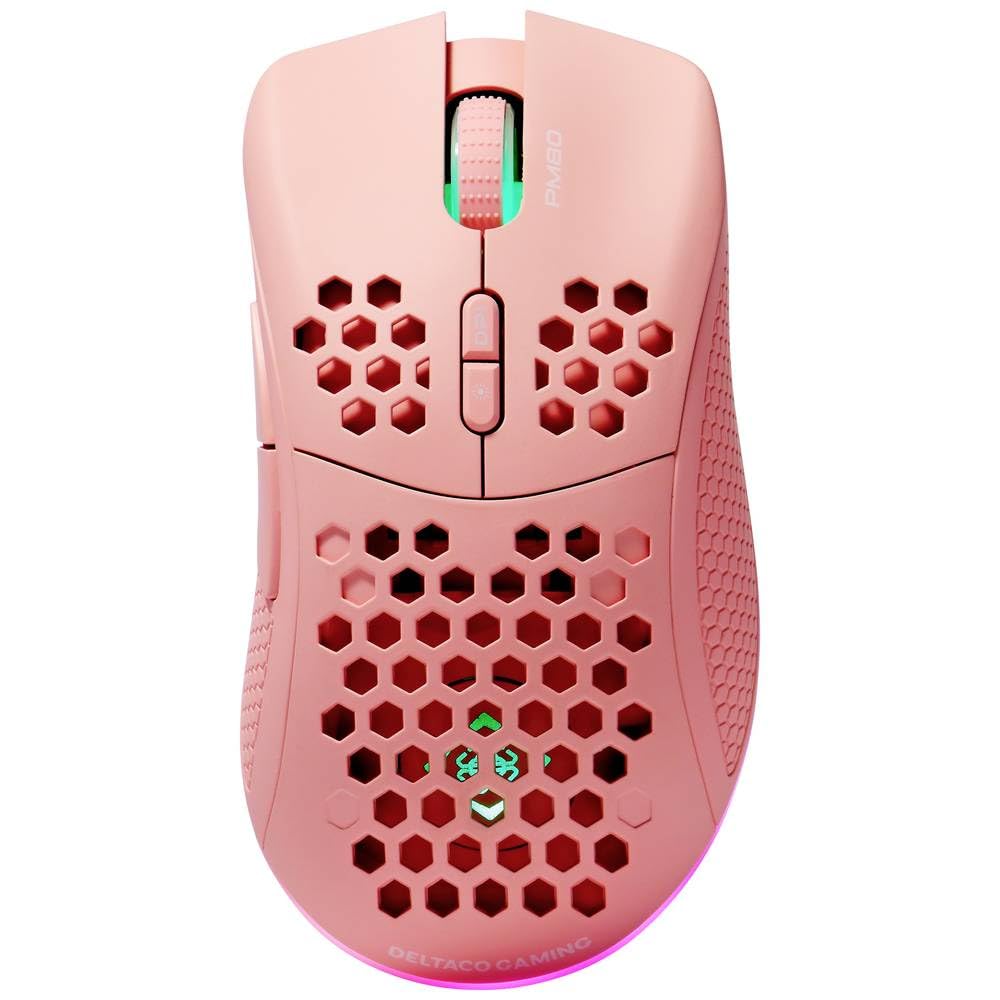
Image: DELTACO Gaming PM80 Wireless Optical Gaming Mouse. This image displays the mouse from a top-down perspective, highlighting its ergonomic design, the central scroll wheel, and the arrangement of its seven buttons.
Tastenfunktionen:
- Linksklick-Taste: Standardmäßige primäre Klickfunktion.
- Rechtsklick-Schaltfläche: Standardmäßige Sekundärklickfunktion.
- Scrollrad: Scrollt nach oben/unten und fungiert als mittlere Maustaste.
- DPI-Zyklus-Taste: Changes the mouse's sensitivity (DPI).
- Vorwärts-Taste: Navigiert vorwärts in web Browser bzw file Entdecker.
- Rückwärts-Taste: Navigiert rückwärts in web Browser bzw file Entdecker.
- Illumination Mode Button: Cycles through different lighting effects or turns illumination on/off.
4. Einrichtung
4.1. Aufladen der Maus
- Connect the small end of the USB charging cable to the charging port on the front of the mouse.
- Connect the larger end of the USB charging cable to an available USB port on your computer or a USB wall adapter.
- The mouse's illumination will indicate charging status (e.g., breathing effect, specific color). A full charge typically takes 2-3 hours.
- Once fully charged, the illumination may change or turn off. Disconnect the charging cable.
4.2. Anschließen des USB-Funkempfängers
- Locate the USB wireless receiver, usually stored in a compartment on the underside of the mouse.
- Nehmen Sie den Empfänger aus seinem Aufbewahrungsfach.
- Stecken Sie den USB-Funkempfänger in einen freien USB-Anschluss Ihres Computers.
- Ihr Computer sollte die benötigten Treiber automatisch erkennen und installieren. Dies kann einige Augenblicke dauern.
4.3. Ein-/Ausschalten
- Suchen Sie den Netzschalter auf der Unterseite der Maus.
- Slide the switch to the 'ON' position to power on the mouse. The illumination will light up.
- To conserve battery life, slide the switch to the 'OFF' position when the mouse is not in use for extended periods.
5. Bedienungsanleitung
5.1. Grundlegende Verwendung
Once connected and powered on, the mouse is ready for use. Move the mouse on a flat surface to control the cursor on your screen. Use the left and right click buttons for primary and secondary actions, and the scroll wheel for navigation.
5.2. DPI-Anpassung
The DPI (Dots Per Inch) setting determines the sensitivity of your mouse. The DELTACO Gaming PM80 offers multiple DPI levels up to 4800 DPI. To adjust the DPI:
- Drücken Sie die DPI-Zyklus-Taste (typically located behind the scroll wheel).
- Each press will cycle through the available DPI settings. The mouse's illumination may change color or flash to indicate the current DPI level.
- Select the DPI setting that best suits your preference for gaming or general use.
5.3. Beleuchtungssteuerung
The DELTACO Gaming PM80 features customizable illumination. To change the lighting effects:
- Drücken Sie die Illumination Mode Button (siehe Produkt Over)view für den Standort).
- Each press will cycle through different lighting modes, such as static colors, breathing effects, or off.
6. Wartung
6.1. Reinigung
- Stellen Sie sicher, dass die Maus vor der Reinigung ausgeschaltet ist.
- Verwenden Sie ein weiches, trockenes, fusselfreies Tuch, um die Oberfläche der Maus abzuwischen.
- Bei hartnäckigen Verschmutzungen leicht dampBefeuchten Sie das Tuch mit Wasser oder einem milden, nicht scheuernden Reinigungsmittel. Vermeiden Sie übermäßige Feuchtigkeit.
- Verwenden Sie keine aggressiven Chemikalien, Lösungsmittel oder Scheuermittel, da diese die Oberfläche der Maus beschädigen können.
- Verwenden Sie ein Wattestäbchen oder Druckluft, um die Spalten um das Scrollrad und die Tasten zu reinigen.
6.2. Speicherung
When not in use for extended periods, store the mouse in a cool, dry place away from direct sunlight and extreme temperatures. Ensure the power switch is in the 'OFF' position to preserve battery life.
7. Fehlerbehebung
- Maus reagiert nicht:
- Stellen Sie sicher, dass die Maus eingeschaltet ist.
- Prüfen Sie, ob der USB-Funkempfänger fest an einen funktionierenden USB-Anschluss angeschlossen ist.
- Verify the mouse battery is charged. Connect the charging cable and try again.
- Versuchen Sie, den Empfänger an einen anderen USB-Anschluss anzuschließen.
- Starten Sie Ihren Computer neu.
- Verzögerung oder zeitweise Verbindungsunterbrechung:
- Ensure the mouse is within close proximity to the USB receiver (ideally within 10 meters).
- Avoid placing the receiver near other wireless devices or sources of interference (e.g., Wi-Fi routers, cordless phones).
- Stellen Sie sicher, dass die Maus vollständig aufgeladen ist.
- Die Cursorbewegung ist unregelmäßig oder ungenau:
- Reinigen Sie den optischen Sensor an der Unterseite der Maus mit einem weichen, trockenen Tuch.
- Verwenden Sie die Maus auf einer geeigneten Oberfläche (z. B. einem Mauspad). Vermeiden Sie stark reflektierende oder transparente Oberflächen.
- Stellen Sie die DPI-Einstellung auf eine niedrigere Empfindlichkeit ein, wenn der Cursor zu schnell ist.
- Beleuchtung funktioniert nicht:
- Stellen Sie sicher, dass die Maus eingeschaltet ist.
- Press the Illumination Mode Button to cycle through modes, ensuring it's not set to 'off'.
- Check battery level; low battery might disable illumination.
8. Spezifikationen
| Besonderheit | Detail |
|---|---|
| Marke | DELTACO-SPIELE |
| Modellnummer | GAM-120-P |
| Konnektivität | Kabellos (USB-Empfänger) |
| Sensortyp | Optisch |
| DPI | Bis zu 4800 DPI (einstellbar) |
| Anzahl der Tasten | 7 |
| Handausrichtung | Rechts |
| Beleuchtung | Ja |
| Wiederaufladbar | Ja |
| Batterien erforderlich | Nein (intern wiederaufladbar) |
9. Garantie und Support
For warranty information and technical support, please refer to the warranty card included with your product or visit the official DELTACO Gaming webBewahren Sie Ihren Kaufbeleg für eventuelle Garantieansprüche auf.


