1. Einleitung
This manual provides detailed instructions for the setup, operation, and maintenance of your Microware Ezcap350 HD Pro Video Capture Card. The Ezcap350 HD Pro is a versatile device designed for high-quality video recording and live streaming, supporting 4K HDMI loop-through and 1080p Full HD recording. It offers both PC-free recording to USB storage and UVC capture functionality for computer-based streaming.
2. Hauptmerkmale
- 1080p Recording with 4K Gaming: Record 1080p Full HD video while enjoying 4K Ultra HD gaming with HDMI loop-through.
- PC-Free Recording: Save recorded video directly to a USB flash drive or USB HDD without requiring a computer.
- PC-Free Live Streaming (RTMP): Stream directly to platforms like YouTube, Facebook, or Twitch with a single button, eliminating complex software or hardware setup on a computer.
- UVC Video Capture Card Functionality: Connect to a computer via USB 3.0 Type-C to capture and stream using software such as OBS or VMix.
- Smartphone Video Capture and Streaming: Capture and stream mobile game video from compatible smartphones (iPhone and iPad) to your computer.
- Local Network Streaming (RTSP): Stream video within a local network by connecting the device to your network.
- Microphone Input and Earphone Output: Integrated audio ports for commentary and monitoring.
3. Einrichtungsanweisungen
3.1 Packungsinhalt
Bevor Sie fortfahren, vergewissern Sie sich, dass alle Teile vorhanden sind:
- Microware Ezcap350 HD Pro Video Capture Card
- AV-Adapter
- TF Card Reader (if included)
- USB-Kabel
- HDMI-Kabel

Image: The Ezcap350 HD Pro device shown with its retail packaging and included accessories, such as cables and adapters.
3.2 Gerät überview und Anschlüsse

Image: A diagram illustrating the various ports on the Ezcap350 HD Pro, including HDMI In, HDMI Out, USB, Ethernet, Microphone In, and Line Out. It also shows connection scenarios for PC-free recording, PC-based capture, and smartphone input.
Familiarize yourself with the ports on the Ezcap350 HD Pro:
- HDMI-IN: Connect your video source (game console, camera, etc.).
- HDMI-AUSGANG: Connect to a display (TV, monitor) for HDMI loop-through.
- USB-Anschluss: For connecting USB storage (for PC-free recording) or connecting to a computer (for UVC capture).
- Ethernet Anschluss: For network streaming (RTMP/RTSP).
- MIC-EINGANG: Connect an external microphone for audio commentary.
- LINE-OUT: Schließen Sie Kopfhörer oder Lautsprecher zur Audioüberwachung an.
3.3 Connecting for PC-Free Recording/Streaming
- Connect your video source (e.g., game console, camcorder, DSLR) to the HDMI IN port on the Ezcap350 HD Pro using an HDMI cable.
- Schließen Sie Ihr Anzeigegerät (Fernseher oder Monitor) an den HDMI-Ausgang port on the Ezcap350 HD Pro using an HDMI cable for 4K pass-through.
- Insert a USB flash drive or USB HDD into the USB-Anschluss zur Aufnahme.
- For PC-free live streaming, connect an Ethernet cable from the Ethernet-Anschluss to your network router.
- Connect the power adapter (not explicitly listed but implied for operation) to the device and a power outlet.
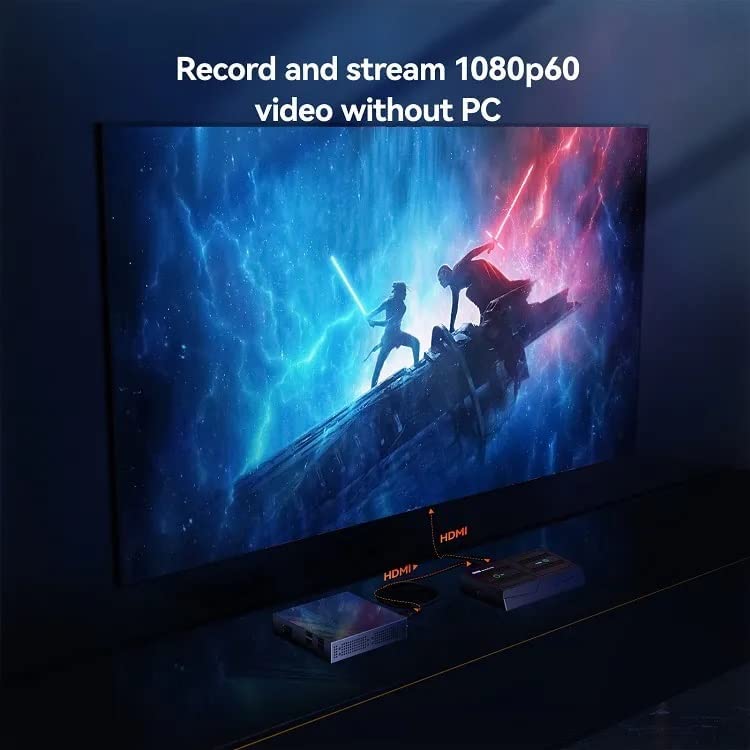
Image: The Ezcap350 HD Pro connected to a gaming console and a large display, illustrating a PC-free setup for recording and streaming.
3.4 Connecting for Computer-Based Capture/Streaming (UVC)
- Connect your video source to the HDMI IN Hafen.
- Connect the Ezcap350 HD Pro to your computer's USB 3.0 Type-C port using the provided USB cable.
- Optionally, connect your display to the HDMI-Ausgang port for monitoring.
- Install necessary streaming/capture software (e.g., OBS Studio, VMix, ezcap Link) on your computer.
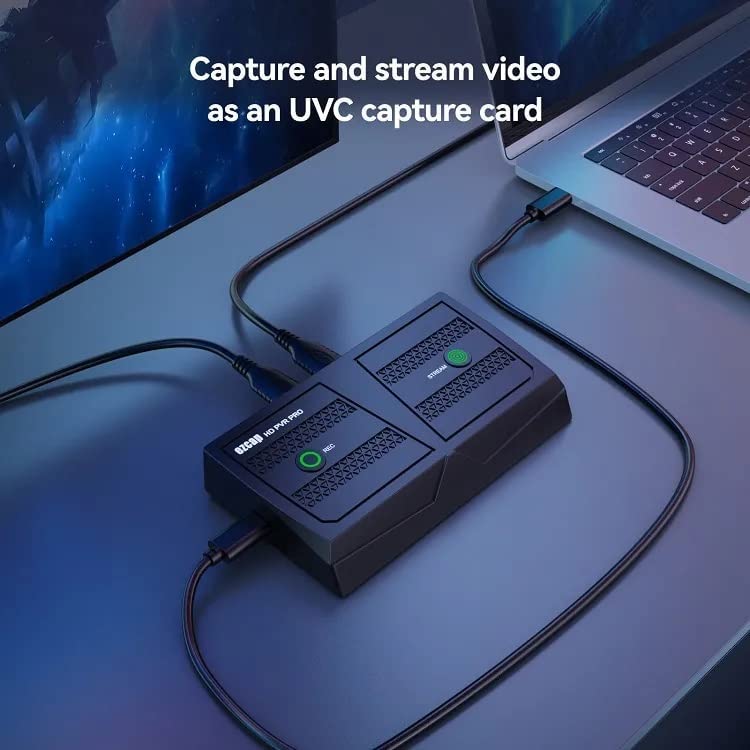
Image: The Ezcap350 HD Pro connected to a laptop via USB, demonstrating its use as a UVC capture card for computer-based video capture and streaming.
3.5 Connecting for Smartphone Video Capture/Streaming
- Connect your smartphone (iPhone or iPad only) to the Ezcap350 HD Pro using an appropriate adapter and HDMI cable (not included).
- Connect the Ezcap350 HD Pro to your computer's USB 3.0 Type-C port.
- Use compatible software on your computer to capture and stream the smartphone's video output.
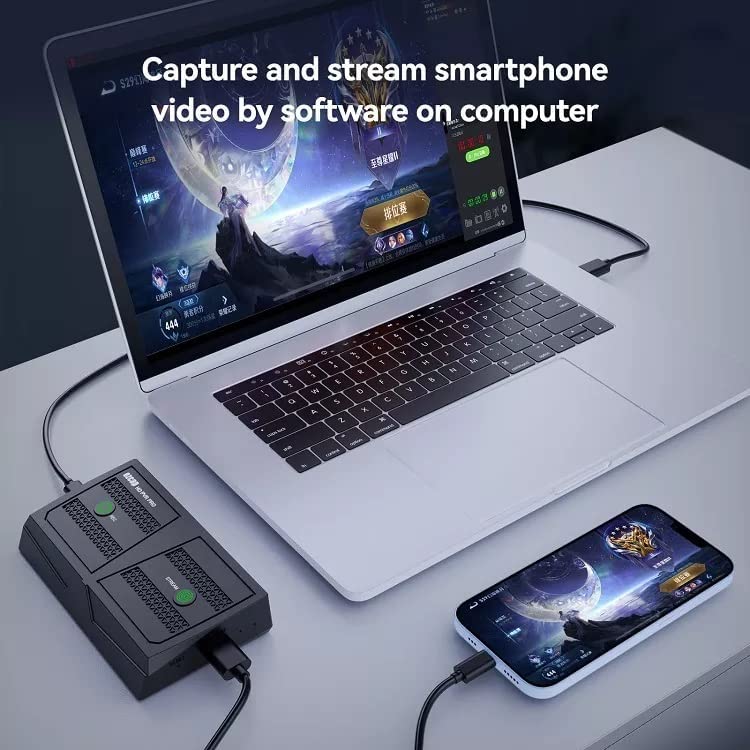
Image: The Ezcap350 HD Pro connected to both a smartphone and a laptop, illustrating the setup for capturing and streaming mobile video content via computer software.
4. Bedienungsanleitung
4.1 PC-Free Recording
- Stellen Sie sicher, dass alle Verbindungen wie in Abschnitt 3.3 beschrieben sicher sind.
- Power on the Ezcap350 HD Pro.
- Drücken Sie die AUFNAHME button on the device to start recording. The indicator light will change to confirm recording is active.
- Drücken Sie die AUFNAHME button again to stop recording. The recorded video will be saved to the connected USB storage device.

Image: A television screen showing a high-definition video, with the Ezcap350 HD Pro device positioned below, indicating its capability for 1080p60 HD video recording.
4.2 PC-Free Live Streaming (RTMP)
- Ensure network and video source connections are secure as described in Section 3.3.
- Power on the Ezcap350 HD Pro.
- Configure your streaming platform (e.g., YouTube, Twitch) to accept an RTMP stream from the device. Refer to your platform's documentation for specific RTMP URL and stream key setup.
- Drücken Sie die STROM button on the device to begin live streaming. The indicator light will change to confirm streaming is active.
- Drücken Sie die STROM button again to stop streaming.
4.3 Computer-Based Capture and Streaming (UVC)
- Ensure connections to your computer and video source are secure as described in Section 3.4.
- Power on the Ezcap350 HD Pro.
- Open your preferred capture/streaming software (e.g., OBS Studio).
- Add the Ezcap350 HD Pro as a video source within the software. It should be recognized as a standard UVC device.
- Configure video and audio settings within the software as needed.
- Start recording or streaming from within your software.
4.4 Local Network Streaming (RTSP)
- Connect the Ezcap350 HD Pro to your local network via the Ethernet port.
- Connect your video source to the HDMI IN Hafen.
- Zugriff auf das Gerät web interface or use a compatible media player (e.g., VLC) on a computer within the same local network to view the RTSP stream. Refer to the device's network settings for the specific RTSP URL.

Image: A diagram illustrating how the Ezcap350 HD Pro can stream video within a local network (RTSP) to a computer via a router, suitable for internal meetings or teaching.
4.5 Using Microphone Input and Earphone Output
- Verbinden Sie Ihr Mikrofon mit dem MIC IN port for adding commentary to your recordings or streams.
- Connect headphones or speakers to the LINE-OUT port to monitor audio during recording or streaming.
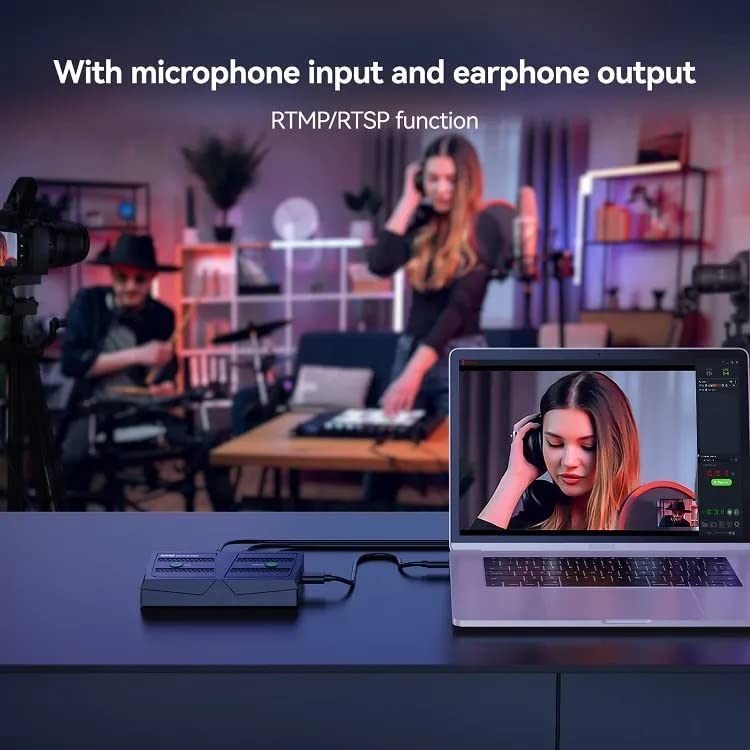
Image: The Ezcap350 HD Pro connected to a laptop, with a microphone and headphones in use, highlighting its microphone input and earphone output features for live streaming or recording with commentary.
5. Wartung
To ensure the longevity and optimal performance of your Microware Ezcap350 HD Pro Video Capture Card, follow these maintenance guidelines:
- Reinigung: Reinigen Sie die Außenseite des Geräts mit einem weichen, trockenen Tuch. Vermeiden Sie flüssige Reinigungsmittel oder Scheuermittel.
- Lagerung: Bewahren Sie das Gerät an einem kühlen, trockenen Ort fern von direkter Sonneneinstrahlung und extremen Temperaturen auf.
- Handhabung: Behandeln Sie das Gerät vorsichtig, um Beschädigungen zu vermeiden. Vermeiden Sie es, es fallen zu lassen oder starken Stößen auszusetzen.
- Belüftung: Sorgen Sie während des Betriebs für ausreichende Belüftung des Geräts, um eine Überhitzung zu vermeiden. Blockieren Sie die Belüftungsöffnungen nicht.
6. Fehlerbehebung
If you encounter issues with your Ezcap350 HD Pro, refer to the following common problems and solutions:
| Problem | Mögliche Ursache | Lösung |
|---|---|---|
| No video output on display (HDMI OUT) | Loose HDMI cable connection; Incorrect input selected on TV; HDCP issues. | Check all HDMI cable connections. Ensure the TV is on the correct HDMI input. Some sources with strong HDCP encryption may not pass through. |
| No recording to USB storage | USB drive not formatted correctly; USB drive full; USB drive not detected. | Ensure USB drive is formatted to FAT32 or NTFS. Check available space. Reinsert USB drive. Try a different USB drive. |
| No video/audio in streaming software (UVC mode) | Incorrect software settings; USB cable issue; Driver issue. | Verify the Ezcap350 HD Pro is selected as the video/audio source in your software. Ensure USB 3.0 port is used. Try a different USB port or cable. Restart computer and device. |
| PC-free streaming not working | No network connection; Incorrect RTMP settings; Firewall blocking. | Check Ethernet cable connection. Verify RTMP URL and stream key are correctly configured on the streaming platform. Ensure no firewall is blocking the connection. |
| Mikrofoneingang funktioniert nicht | Microphone not connected properly; Microphone faulty; Volume too low. | Ensure microphone is securely plugged into the MIC IN port. Test with another microphone. Adjust audio levels. |
7. Spezifikationen
| Besonderheit | Detail |
|---|---|
| Marke | MIKROWARE |
| Modellname | Ezcap350 Capture Card |
| Technische Daten | 16 x 6 x 6 cm |
| Artikelgewicht | 100 g |
| Hardware-Schnittstelle | Ethernet, HDMI, USB 2.0 (Note: USB 3.0 Type-C for UVC capture) |
| Auflösung der Videoaufnahme | 1080p |
| Kompatible Geräte | Personal Computers (Desktops and Laptops), Smartphones (iPhone and iPad) |
| Betriebssystem | Windows 10/11 64bit, Mac OS X 10.14 and above |
| Besondere Merkmale | Lightweight, Portable, 4K HDMI Loop-through, PC-Free Recording, RTMP/RTSP Streaming, UVC Capture, Microphone Input, Earphone Output |
| Ursprungsland | China |
8. Garantieinformationen
For specific warranty terms and conditions, please refer to the documentation included with your product or visit the official Microware website. Typically, products come with a limited manufacturer's warranty covering defects in materials and workmanship under normal use.
9. Kundendienst
If you require further assistance or have questions not covered in this manual, please contact Microware customer support:
- Hersteller: Microware Multimedia Private Limited
- Kundendienst-Hotline: +91 9867245665
- Adresse: Shop No. 2, Ground Floor, Sayeed Ebrahim Mansion, Dr Bhadkamkar Road, Near Minerva Cinema, Grant road(E), Mumbai - 400007
Sie können auch die folgende besuchen: MICROWARE Store on Amazon für zusätzliche Produktinformationen und Ressourcen.


