1. Einleitung
This manual provides detailed instructions for the installation, operation, and maintenance of the Binardat Gigabit PoE Extender (1000M Indoor 4 Port). This device is designed to extend Power over Ethernet (PoE) and data transmission distances, allowing for flexible deployment of PoE-powered devices such as IP cameras, wireless access points, and IP phones.

Figure 1: The Binardat Gigabit PoE Extender demonstrating its compact size (85mm x 58mm x 23mm).
2. Hauptmerkmale
- Gigabit PoE Passthrough: Features 1 PoE input and 3 Gigabit PoE output ports, supporting 10/100/1000Mbps speeds.
- PoE Powered: Operates without an external AC power supply, drawing power directly from the PoE network.
- IEEE 802.3af/at Compliant: Supports standard PoE, with a maximum input of 30W and a maximum output of 24W (average 8W per port). PoE pin configuration: Inputs 1/2(+), 3/6(-), 4/5(+) and 7/8(-); Outputs 1/2(+), 3/6(-).
- Plug-and-Play: Automatic detection of power equipment; no configuration required. LED indicators display port status. (Note: Does not support 24V passive PoE).
- Flexible Installation: Supports both wall mounting and DIN-rail mounting for versatile placement.
- Daisy-Chain-Unterstützung: Allows for cascading up to 3 levels of extenders, extending PoE coverage up to 300 meters (1000 feet).
- Portbasiertes VLAN: When enabled, ports 2-4 are isolated and communicate only with the upstream interface, enhancing network stability.
3. Packungsinhalt
- Binardat Gigabit PoE Extender (1000M Indoor 4 Port)
- Bedienungsanleitung
4. Einrichtung und Installation
The Binardat Gigabit PoE Extender is designed for easy setup with no complex configuration required. Follow these steps for installation:
4.1 Connecting the Extender
- Connect a PoE-enabled network switch or injector to the PoE-Eingang port of the extender using an Ethernet cable. This port provides both power and data to the extender.
- Connect your PoE-powered devices (e.g., IP cameras, wireless APs, IP phones) to the PoE AUS ports (1, 2, 3) of the extender using Ethernet cables. The extender will automatically detect and power these devices.
- Ensure all connections are secure. The LED indicators on the extender will show the status of each port.
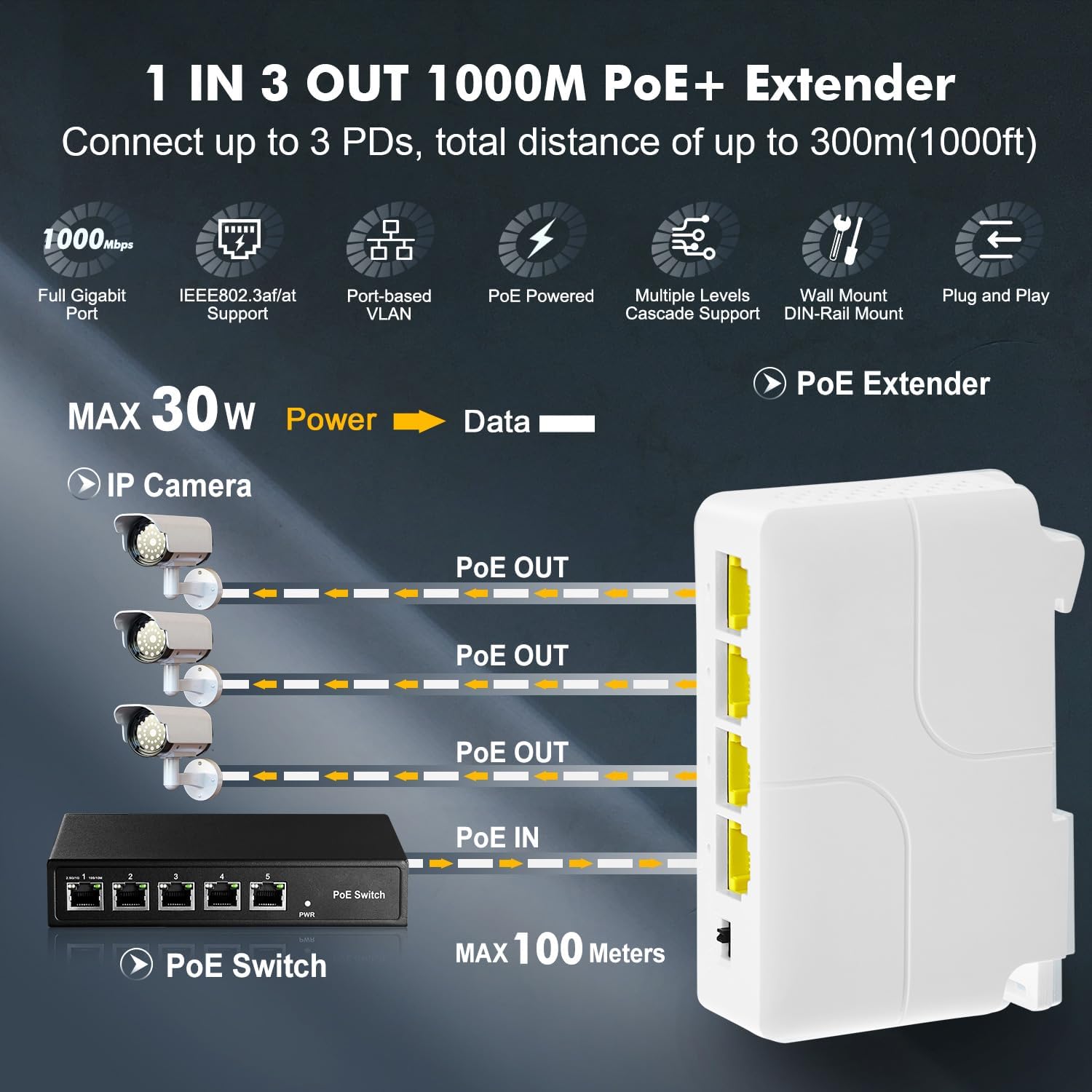
Figure 2: Connection diagram for the Binardat Gigabit PoE Extender, illustrating one PoE input and three PoE outputs to IP cameras.

Figure 3: The PoE extender supporting IEEE 802.3af/at standards, connecting to various PoE devices.
4.2 Montagemöglichkeiten
The extender supports both wall mounting and DIN-rail mounting.
- DIN-Rail Mount: Attach the extender to a standard DIN rail using its integrated clip mechanism.
- Wandhalterung: Use appropriate screws (not included) to secure the extender to a wall through the designated mounting holes.
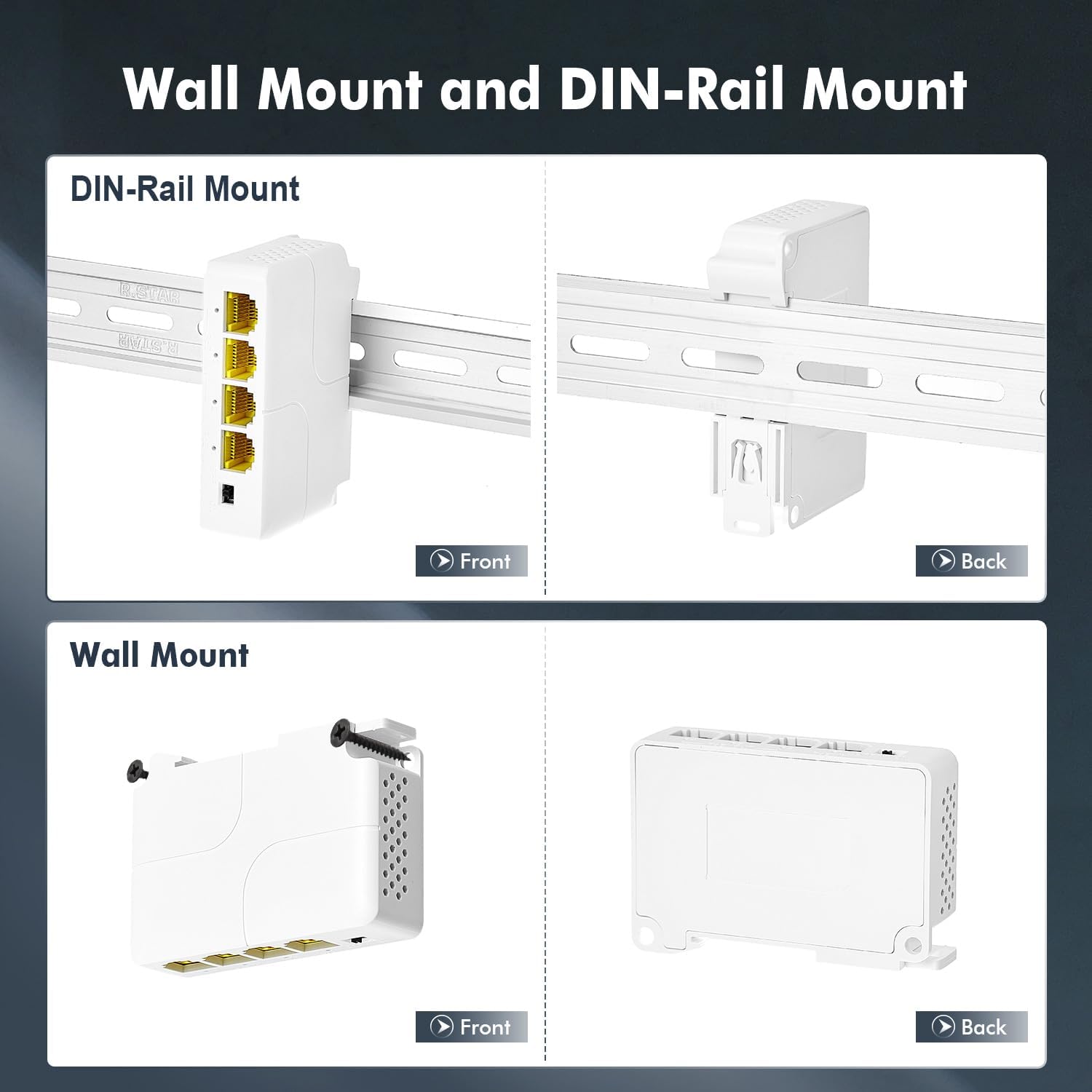
Figure 4: Illustrations of the DIN-Rail mounting and Wall mounting options for the PoE extender.
5. Bedienungsanleitung
Once connected, the Binardat Gigabit PoE Extender operates automatically. No software configuration is typically required for basic PoE extension.
5.1 LED-Anzeigen
The device features LED indicators for each port, providing visual feedback on connection status and activity. Refer to the device itself for specific LED patterns and their meanings (e.g., solid green for link, blinking for activity).
5.2 Port-based VLAN Mode
The extender includes a physical switch to enable or disable Port-based VLAN mode. When VLAN mode is enabled, the output ports (2, 3, and 4) are isolated from each other and can only communicate with the upstream PoE IN port. This feature can improve network stability and security by preventing direct communication between connected devices on the output ports.

Figure 5: Explanation of Port-based VLAN mode, showing how output ports are isolated from each other.
5.3 Daisy Chain Configuration
For extending the PoE distance further, multiple Binardat PoE Extenders can be daisy-chained. Up to three levels of extenders are supported, allowing for a total extension distance of up to 300 meters (1000 feet) from the original PoE source.

Figure 6: Daisy chain configuration, demonstrating how to connect multiple PoE extenders for extended range.
6. Wartung
To ensure optimal performance and longevity of your PoE Extender, follow these maintenance guidelines:
- Keep the device in a clean, dry environment, away from excessive heat, humidity, and dust.
- Belüftungsöffnungen nicht blockieren.
- Clean the exterior with a soft, dry cloth. Avoid using liquid or aerosol cleaners.
- Stellen Sie sicher, dass alle Kabelverbindungen fest sitzen und unbeschädigt sind.
7. Fehlerbehebung
If you encounter issues with your Binardat Gigabit PoE Extender, refer to the following common troubleshooting steps:
| Problem | Mögliche Ursache | Lösung |
|---|---|---|
| No power to connected PoE devices. |
|
|
| Keine Datenverbindung. |
|
|
| VLAN mode not working as expected. |
|
|
8. Spezifikationen
| Besonderheit | Beschreibung |
|---|---|
| Modellnummer | 1000M Indoor 4 Port |
| Marke | Binardat |
| Häfen | 1 PoE IN, 3 PoE OUT (Gigabit Ethernet) |
| Ethernet-Geschwindigkeit | 10/100/1000 Mbit/s |
| PoE-Standard | IEEE 802.3af / at |
| Max PoE Input | 30 W |
| Max PoE Output | 24W (Average 8W per port) |
| PoE-Pin-Zuweisung | Input: 1/2(+), 3/6(-), 4/5(+) and 7/8(-); Output: 1/2(+), 3/6(-) |
| Bandtage | 57 Volt (Betriebsspannung) |
| Datenübertragungsrate | 1000 Megabit pro Sekunde |
| Schnittstellentyp | RJ45 |
| Gehäusematerial | Plastik |
| Farbe | Weiß |
| Betriebstemperatur | Bis zu 60 Grad Celsius |
| Kompatible Geräte | IP Camera, Access Point, Mobile Phone (PoE-compatible) |
| Montage | Wall Mount, DIN-Rail Mount |
| Abmessungen (L*B*H) | 85 mm * 58 mm * 23 mm |
9. Garantie und Support
For warranty information and technical support, please refer to the product packaging or contact Binardat customer service through their official webDie Website oder der Händler, bei dem das Produkt gekauft wurde, ist für Sie bestimmt. Bewahren Sie Ihren Kaufbeleg für Garantieansprüche auf.


