1. Einleitung
This manual provides detailed instructions for the ENDORFY Thock Wireless Mechanical Keyboard, model EY5A078. It covers setup, operation, maintenance, and troubleshooting to ensure optimal performance and longevity of your device. Please read this manual thoroughly before using the keyboard.

Image 1.1: The ENDORFY Thock Wireless Mechanical Keyboard EY5A078. This image displays the full QWERTY layout with illuminated keys, showcasing the keyboard's design and RGB capabilities.
2. Packungsinhalt
Überprüfen Sie, ob alle Artikel im Paket vorhanden sind:
- ENDORFY Thock Wireless Mechanical Keyboard EY5A078
- USB-C to USB-A Cable (detachable)
- 2.4 GHz USB-Empfänger
- Tastenkappenabzieher
- Abzieher wechseln
- Benutzerhandbuch (dieses Dokument)
3. Einrichtung und Verbindung
The ENDORFY Thock Wireless Mechanical Keyboard offers three connection modes: wired, 2.4 GHz wireless, and Bluetooth.
3.1. Kabelgebundene Verbindung
- Locate the USB-C port on the keyboard (typically on the back or top edge).
- Connect the provided USB-C to USB-A cable to the keyboard.
- Verbinden Sie das USB-A-Ende des Kabels mit einem freien USB-Anschluss an Ihrem Computer.
- Die Tastatur wird automatisch erkannt und ist sofort einsatzbereit.
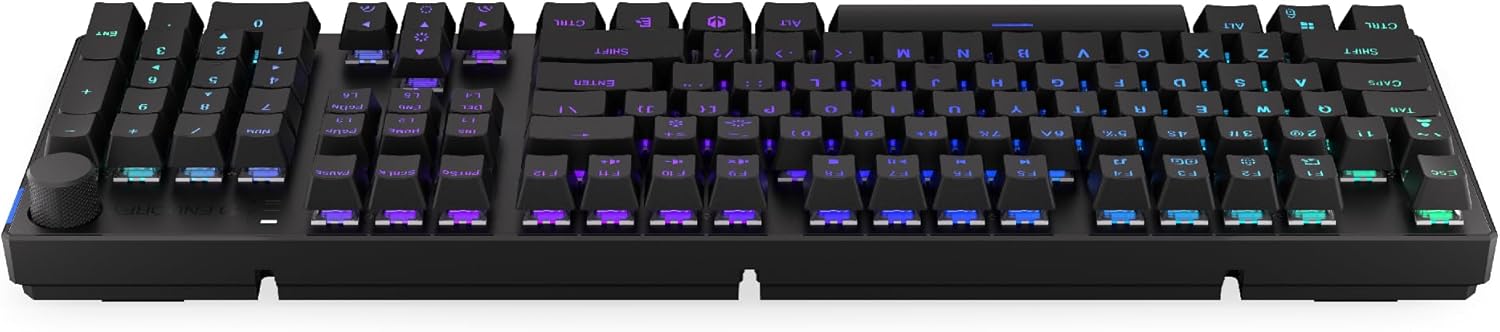
Abbildung 3.1: Seite view of the keyboard, highlighting the USB-C port for wired connection and charging.
3.2. 2.4-GHz-Funkverbindung
- Locate the 2.4 GHz USB receiver. It may be stored in a compartment on the underside of the keyboard.
- Plug the 2.4 GHz USB receiver into an available USB port on your computer.
- On the keyboard, locate the mode switch (usually on the back or side) and set it to the 2.4 GHz wireless mode (often indicated by a specific icon or "2.4G").
- The keyboard should automatically connect. An indicator light may confirm the connection.

Image 3.2: Underside of the keyboard, showing the compartment for storing the 2.4 GHz USB receiver and adjustable feet.
3.3. Bluetooth-Verbindung
- On the keyboard, set the mode switch to Bluetooth mode (often indicated by a Bluetooth icon or "BT").
- The keyboard may have multiple Bluetooth profiles (e.g., BT1, BT2, BT3). Select one by pressing Fn + 1, Fn + 2, or Fn + 3. The corresponding indicator light will flash.
- Öffnen Sie auf Ihrem Computer oder Gerät die Bluetooth-Einstellungen und suchen Sie nach neuen Geräten.
- Select "ENDORFY Thock Wireless" (or similar name) from the list of available devices.
- Befolgen Sie die Anweisungen auf dem Bildschirm, um den Kopplungsvorgang abzuschließen.
- Nach erfolgreicher Kopplung leuchtet die Kontrollleuchte auf der Tastatur dauerhaft, anstatt zu blinken.
4. Bedienung
4.1. Key Functions and Shortcuts
The keyboard features various function key combinations (Fn + Key) for multimedia control, lighting adjustments, and other settings.
- Fn + F1-F12: Multimedia and system functions (e.g., volume control, media playback, calculator). Refer to the keycap legends for specific functions.
- Fn + Pfeiltasten: Adjust RGB lighting effects (e.g., brightness, speed, direction).
- Fn + 1/2/3: Wechseln Sie zwischen Bluetooth Profiles.
- Fn + 4: Switch to 2.4 GHz wireless mode.
- Fn + 5: Wechseln Sie in den kabelgebundenen Modus.
4.2. RGB-Beleuchtungssteuerung
The ENDORFY Thock keyboard features programmable RGB backlighting. Use the following combinations to customize the lighting:
- Fn + Pfeil nach rechts: Change lighting effect.
- Fn + Pfeil nach links: Change lighting effect direction.
- Fn + Pfeil nach oben: Erhöhen Sie die Helligkeit.
- Fn + Pfeil nach unten: Helligkeit verringern.
- Fn + Einfg: Farbe ändern.
- Fn + Entf: Adjust effect speed.
4.3. Lautstärkeregler
The dedicated volume knob located on the top right of the keyboard allows for quick audio adjustments.
- Im Uhrzeigersinn drehen: Lautstärke erhöhen.
- Gegen den Uhrzeigersinn drehen: Lautstärke verringern.
- Niederdrücken: Audio stummschalten/Stummschaltung aufheben.

Image 4.1: Detail of the volume knob and status indicator lights, located on the upper right side of the keyboard.
4.4. Hot-Swap-fähige Schalter
The ENDORFY Thock keyboard features hot-swappable switches, allowing you to change mechanical switches without soldering. This enables customization of typing feel.
- Tastenkappe entfernen: Verwenden Sie den mitgelieferten Tastenkappenabzieher, um die gewünschte Tastenkappe vorsichtig zu entfernen.
- Schalter entfernen: Verwenden Sie den mitgelieferten Schalterabzieher, um die oberen und unteren Halteklammern des Schalters vorsichtig zu greifen und ihn gerade nach oben zu ziehen.
- Neuen Schalter einfügen: Align the pins of the new switch with the holes on the PCB. Press the switch firmly until it clicks into place. Ensure pins are not bent.
- Tastenkappe austauschen: Setzen Sie die Tastenkappe wieder auf den neuen Schalterschaft.

Bild 4.2: Eine Nahaufnahme view of the Kailh Box Brown mechanical switches, demonstrating the hot-swappable design.
5. Wartung
5.1. Reinigung der Tastatur
Regelmäßige Reinigung trägt dazu bei, die Leistungsfähigkeit und das Aussehen der Tastatur zu erhalten.
- Trennen Sie die Tastatur vor der Reinigung vom Computer.
- Verwenden Sie einen Tastenkappenabzieher, um die Tastenkappen zur gründlichen Reinigung zu entfernen.
- Verwenden Sie Druckluft, um Staub und Schmutz zwischen den Tasten zu entfernen.
- Wischen Sie die Tastenkappen und die Tastaturoberfläche mit einem weichen, fusselfreien Tuch ab.amp Tuch. Vermeiden Sie aggressive Chemikalien.
- Stellen Sie sicher, dass die Tastatur vollständig trocken ist, bevor Sie sie wieder anschließen.
5.2. Austausch von Tastenkappen und Schaltern
Refer to Section 4.4 for detailed instructions on replacing keycaps and switches. Use only compatible keycaps and switches to avoid damage.
6. Fehlerbehebung
| Problem | Mögliche Ursache | Lösung |
|---|---|---|
| Tastatur reagiert nicht (Kabelgebunden) | Lose Kabelverbindung, defekter USB-Anschluss. | Stellen Sie sicher, dass das USB-C-Kabel fest angeschlossen ist. Versuchen Sie es mit einem anderen USB-Anschluss oder Kabel. |
| Tastatur reagiert nicht (drahtlos) | Low battery, incorrect mode, receiver not plugged in, pairing issue. | Charge the keyboard. Ensure mode switch is set correctly (2.4G or BT). Re-pair Bluetooth or re-insert 2.4 GHz receiver. |
| RGB-Beleuchtung funktioniert nicht | Lighting turned off, low battery, software issue. | Check lighting controls (Fn + Arrow keys). Charge the keyboard. Restart computer. |
| Doppeltippen oder Nichtregistrierung der Tasten | Dust/debris under switch, faulty switch. | Clean under keycaps with compressed air. If issue persists, replace the switch (refer to Section 4.4). |
7. Spezifikationen
- Modell: EY5A078
- Marke: UNTERSTÜTZT
- Konnektivität: Wired (USB-C), 2.4 GHz Wireless, Bluetooth
- Schaltertyp: Kailh Box Brown (Hot-swappable)
- Tastenkappen: PBT-Doppelschuss
- Layout: Full-size QWERTY
- Hintergrundbeleuchtung: Programmierbares RGB
- Betriebssysteme: Linux, Mac OS X 10.12 Sierra, Windows 10
- Farbe: Schwarz
- Material: Polybutylenterephthalat (PBT)
- Besondere Merkmale: Detachable cable, Volume knob with mute, Hot-swappable switches
- Batterie: Lithium-Ionen (im Lieferumfang enthalten)
8. Garantie und Support
ENDORFY products are covered by a manufacturer's warranty. For detailed warranty information, please refer to the warranty card included with your product or visit the official ENDORFY website. For technical support, product inquiries, or service requests, please contact ENDORFY customer support through their official channels.
Offiziell WebWebsite: www.endorfy.com
9. Sicherheitshinweise
- Halten Sie die Tastatur von Flüssigkeiten und übermäßiger Feuchtigkeit fern.
- Setzen Sie die Tastatur keinen extremen Temperaturen aus.
- Do not attempt to disassemble or modify the keyboard beyond hot-swapping switches and keycaps, as this may void the warranty and cause damage.
- Verwenden Sie ausschließlich das mitgelieferte oder empfohlene Ladekabel.
- Batterie und elektronische Bauteile sind gemäß den örtlichen Vorschriften verantwortungsvoll zu entsorgen.