Einführung
This manual provides instructions for the Matias Wired USB-C Keyboard for Mac with Numeric Keypad, Model FK316CS. It covers setup, operation, maintenance, troubleshooting, and product specifications to ensure optimal use of your keyboard.
Packungsinhalt
- Matias Wired USB-C Keyboard
Aufstellen
The Matias Wired USB-C Keyboard is designed for simple plug-and-play functionality with compatible Mac devices. No additional drivers or software installation is required.
- Locate an available USB-C port on your Mac computer (e.g., MacBook Pro, MacBook Air, iMac).
- Insert the USB-C connector of the keyboard into the USB-C port on your Mac.
- The keyboard should be recognized automatically by your operating system.
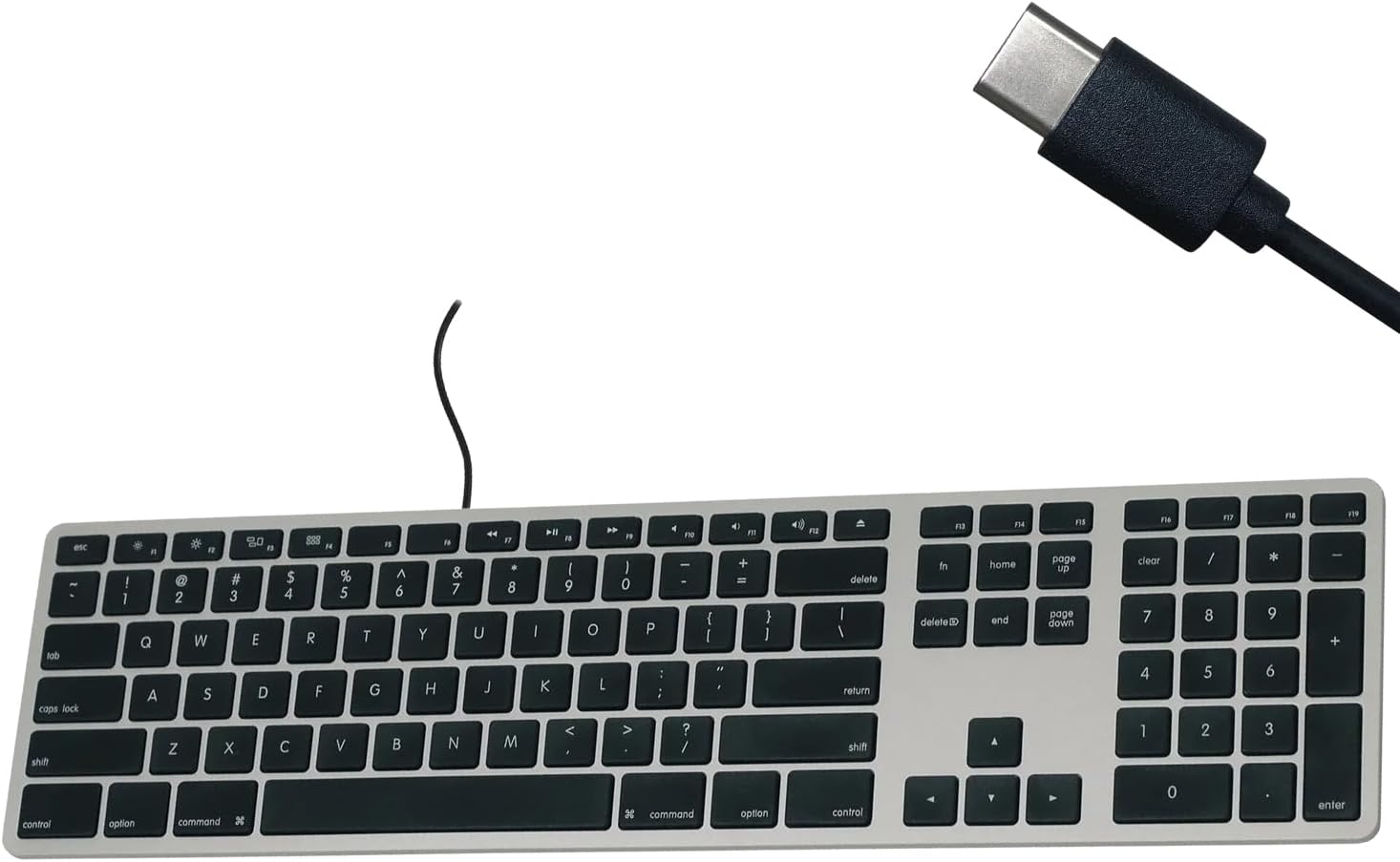
Figure 1: Matias USB-C Keyboard with its USB-C connector, ready for connection.

Figure 2: The keyboard connected to a Mac computer, demonstrating a typical setup.
Bedienungsanleitung
Grundlegendes Tippen
The keyboard features a standard QWERTY layout with a full numeric keypad. Simply begin typing after connecting the keyboard to your Mac.
Numerische Tastatur
The integrated numeric keypad allows for efficient data entry and calculations. Ensure the 'Num Lock' function is active if numbers are not registering (though typically not required on Mac keyboards for the numeric pad).
Mac-Funktionstasten
The top row of keys (F1-F12) provides dedicated Mac-specific functions. These keys allow for quick access to controls such as screen brightness, volume adjustment, media playback, and Mission Control.

Abbildung 3: Nahaufnahme view of the Mac-specific function keys (F1-F12) on the keyboard.
Wartung
To maintain the performance and appearance of your Matias keyboard, follow these guidelines:
- Reinigung: Mit einem weichen, fusselfreien Tuch leichtampened with water or a mild, non-abrasive cleaner to wipe the surface of the keyboard. Avoid spraying liquids directly onto the keyboard.
- Staubentfernung: Verwenden Sie Druckluft, um Staub und Schmutz zwischen den Tasten zu entfernen.
- Lagerung: Store the keyboard in a clean, dry environment when not in use.
Fehlerbehebung
If you encounter issues with your Matias Wired USB-C Keyboard, consider the following steps:
- Tastatur reagiert nicht:
- Ensure the USB-C cable is securely connected to both the keyboard and your Mac.
- Try connecting the keyboard to a different USB-C port on your Mac.
- Starten Sie Ihren Mac-Computer neu.
- Test the keyboard on another compatible Mac computer, if available, to determine if the issue is with the keyboard or the computer.
- Tasten funktionieren nicht richtig:
- Prüfen Sie, ob sich unter den betroffenen Tasten physische Hindernisse oder Ablagerungen befinden.
- Stellen Sie sicher, dass das Betriebssystem Ihres Macs auf dem neuesten Stand ist.
Sollten diese Schritte das Problem nicht beheben, konsultieren Sie bitte den Support-Bereich für weitere Hilfe.
Technische Daten
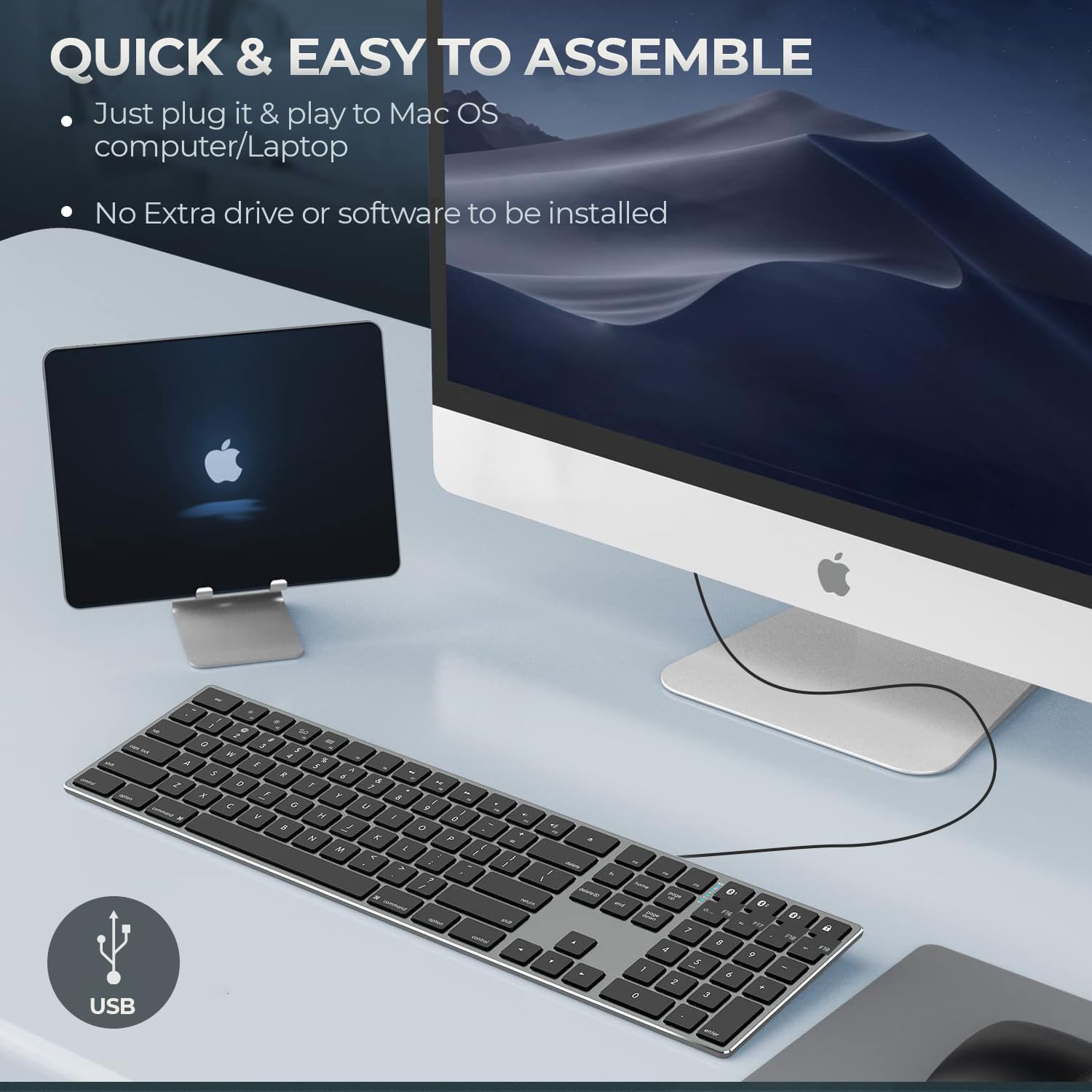
Figure 4: Key specifications of the Matias USB-C Keyboard.
| Besonderheit | Detail |
|---|---|
| Modellnummer | FK316CS |
| Konnektivitätstechnologie | USB-C (kabelgebunden) |
| Kompatible Geräte | MacBook Pro, MacBook Air, iMac, Mac OS X v.10.6.8 and later |
| Technische Daten | 17.35 x 4.58 x 0.75 Zoll (44.07 x 11.63 x 1.91 cm) |
| Artikelgewicht | 1.35 Pfund (612 Gramm) |
| Kabellänge | 5 Fuß (1.5 Meter) |
| Material | Plastic keyframe |
| Farbe | Space Grau |

Figure 5: Keyboard dimensions and ergonomic tilt angle.
Garantieinformationen
Matias products are covered by a manufacturer's warranty. For specific details regarding the warranty period and terms, please refer to the warranty card included with your product or visit the official Matias webWebsite.
Unterstützung
For further assistance, technical support, or to inquire about replacement parts, please contact Matias customer service through their official webWebsite:
- Matias Official WebWebsite: www.matias.ca
Please have your product model number (FK316CS) and purchase information ready when contacting support.


