1. Einleitung
Thank you for choosing the BoxWave SlimKeys Bluetooth Keyboard. This portable, backlit keyboard is designed to enhance your typing experience across various devices, including tablets and PCs. This manual provides detailed instructions on setting up, operating, and maintaining your keyboard to ensure optimal performance.
2. Packungsinhalt
- BoxWave SlimKeys Bluetooth Keyboard
- USB-Ladekabel
- Benutzerhandbuch (dieses Dokument)
3. Produktüberschreitungview
The BoxWave SlimKeys Bluetooth Keyboard is engineered for portability and functionality. Key features include a vibrant LED backlight, multi-platform compatibility, and a slim, lightweight design.

Figure 3.1: BoxWave SlimKeys Bluetooth Keyboard with a tablet, showcasing its compact design and compatibility.
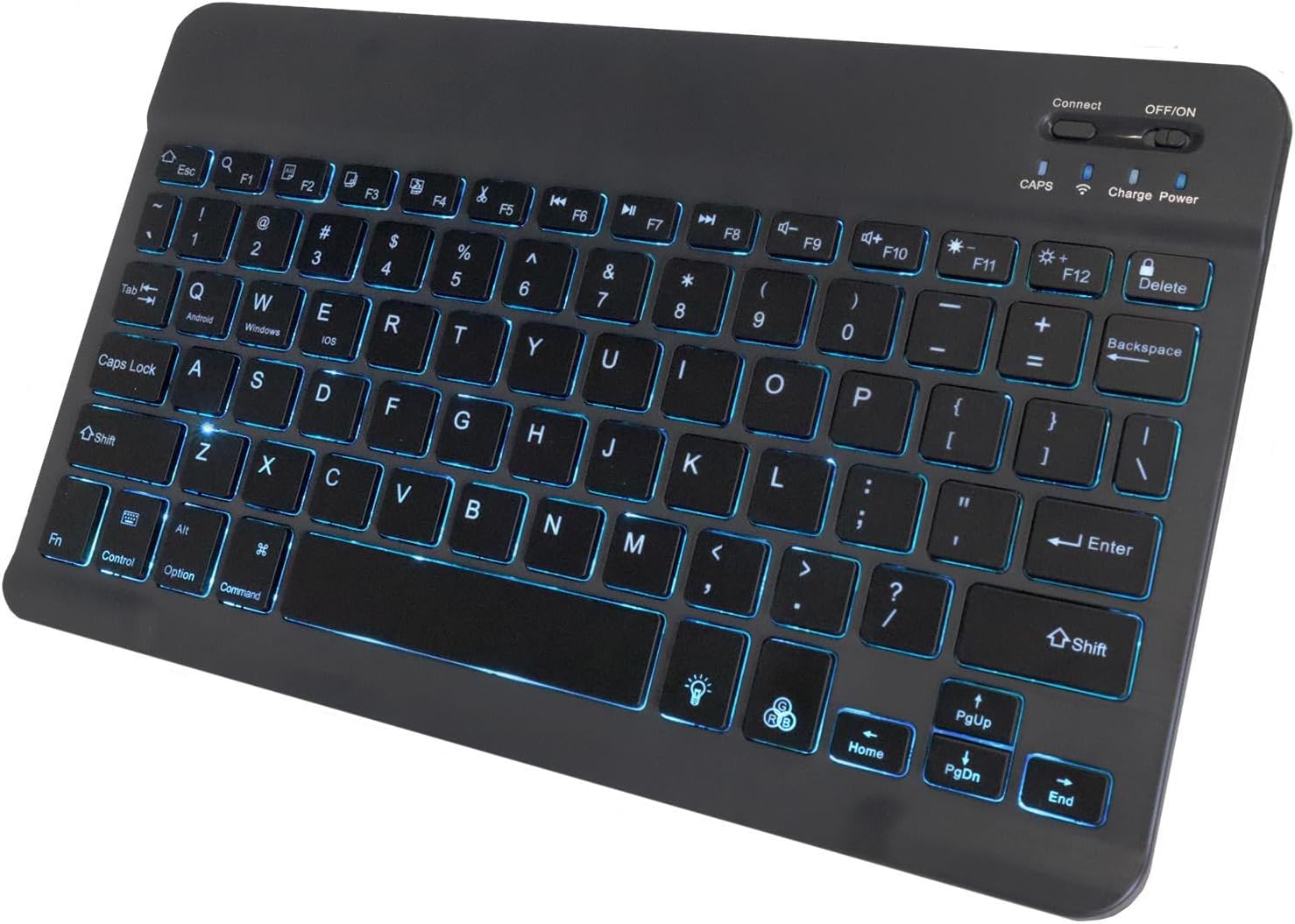
Abbildung 3.2: Oben view of the keyboard, highlighting the illuminated keys and control switches.
Hauptmerkmale:
- Von hinten beleuchtete Tasten: Integrated LED backlight with seven customizable colors for typing in low-light conditions.
- Zuverlässige drahtlose Verbindung: Connects quickly and easily via Bluetooth 3.0.
- Schlank und tragbar: Compact and lightweight design, ideal for travel and easy storage.
- Chiclet-Schlüssel: Niedrigprofile keys designed for quiet and comfortable typing.
- Battery-Saving Power Switch: Dedicated on/off switch to conserve battery life.
4. Einrichtung
4.1 Aufladen der Tastatur
Before first use, ensure the keyboard is fully charged. Connect the included USB charging cable to the keyboard's charging port and the other end to a USB power source (e.g., computer USB port, USB wall adapter). The charging indicator light will illuminate during charging and turn off when fully charged.

Figure 4.1: Keyboard connected to a charging cable, illustrating the charging process.
4.2 Bluetooth-Kopplung
- Einschalten: Locate the ON/OFF switch on the keyboard and slide it to the "ON" position. The power indicator light will briefly illuminate.
- Pairing-Modus aktivieren: Drücken Sie die "Verbinden" button on the keyboard. The Bluetooth indicator light will begin to flash, indicating the keyboard is in pairing mode.
- Aktivieren Sie Bluetooth auf Ihrem Gerät: On your tablet, PC, or smartphone, navigate to the Bluetooth settings and ensure Bluetooth is enabled.
- Suchen nach Geräte: Your device will scan for available Bluetooth devices. Look for "SlimKeys Keyboard" or a similar name in the list of found devices.
- Paar: Select "SlimKeys Keyboard" from the list. Your device may prompt you to enter a pairing code displayed on your screen. Type this code on the SlimKeys keyboard and press Eingeben.
- Bestätigung: Once successfully paired, the Bluetooth indicator light on the keyboard will stop flashing and remain solid or turn off, and your device will show the keyboard as connected.
The keyboard supports multi-platform compatibility, including Android, Windows, and iOS devices.

Figure 4.2: Multi-platform compatibility icons.
5. Bedienungsanleitung
5.1 Backlight Features
The SlimKeys keyboard features an integrated LED backlight with seven customizable colors to enhance visibility in various lighting conditions.
- Turning On/Off Backlight: Drücken Sie die Glühbirne key (usually located near the bottom right of the keyboard) to toggle the backlight on or off.
- Ändern der Hintergrundbeleuchtungsfarbe: Drücken Sie die Glühbirne key repeatedly to cycle through the seven available colors.
- Anpassen der Helligkeit: Verwenden Sie die Fn + Glühbirne key combination to adjust the backlight brightness levels.

Abbildung 5.1: Tastaturdarstellungasing the seven available backlight colors.
5.2 Specialized Function Keys
The keyboard includes specialized function keys (F1-F12) that provide quick access to common commands. These functions are typically accessed by pressing the Fn gleichzeitig die gewünschte Funktionstaste drücken.
| Tastenkombination | Funktion | Beschreibung |
|---|---|---|
| Fn + Esc (Home) | Heim | Returns to the home screen or main page. |
| Fn + F1 (Search) | Suche | Activates the search function. |
| Fn + F2 (Select All) | Alles auswählen | Selects all content. |
| Fn + F3 (Copy) | Kopie | Copies selected content. |
| Fn + F4 (Paste) | Paste | Pastes copied content. |
| Fn + F5 (Cut) | Schneiden | Cuts selected content. |
| Fn + F6 (Skip Back) | Zurück überspringen | Springt zum vorherigen Titel/Medium. |
| Fn + F7 (Play/Pause) | Abspielen/Pause | Spielt Medien ab oder pausiert sie. |
| Fn + F8 (Skip Forward) | Vorwärts springen | Springt zum nächsten Titel/Medium. |
| Fn + F9 (Volume Down) | Lautstärke verringern | Verringert die Audiolautstärke. |
| Fn + F10 (Volume Up) | Lautstärke erhöhen | Erhöht die Lautstärke. |
| Fn + F11 (Brightness Down) | Helligkeit runter | Verringert die Bildschirmhelligkeit. |
| Fn + F12 (Brightness Up) | Helligkeit erhöhen | Erhöht die Bildschirmhelligkeit. |
| Fn + Delete (Lock) | Sperren | Sperrt den Gerätebildschirm. |

Figure 5.2: Layout of specialized function keys.
6. Wartung
- Reinigung: Reinigen Sie die Tastatur mit einem weichen, trockenen und fusselfreien Tuch. Bei hartnäckigem Schmutz leicht andrücken.ampBefeuchten Sie das Tuch mit Wasser oder einer milden Reinigungslösung. Vermeiden Sie übermäßige Feuchtigkeit.
- Lagerung: When not in use for extended periods, turn off the keyboard using the ON/OFF switch to conserve battery life. Store in a cool, dry place.
- Vermeiden Sie Flüssigkeiten: Do not expose the keyboard to liquids. In case of accidental spills, immediately turn off the keyboard and allow it to dry completely before reuse.
- Batteriepflege: To prolong battery life, avoid fully discharging the keyboard frequently. Recharge when the battery low indicator appears.
7. Fehlerbehebung
| Problem | Mögliche Ursache | Lösung |
|---|---|---|
| Die Tastatur lässt sich nicht einschalten. | Batterie ist leer. | Charge the keyboard using the provided USB cable. |
| Verbindung via Bluetooth nicht möglich. | Bluetooth is off on the device or keyboard. Keyboard is not in pairing mode. Device is out of range. Interference. |
|
| Tasten reagieren nicht. | Connection issue. Low battery. |
|
| Die Hintergrundbeleuchtung funktioniert nicht. | Backlight is off. Low battery. |
|
8. Spezifikationen
| Besonderheit | Detail |
|---|---|
| Marke | BoxWave |
| Modell | SlimKeys Bluetooth Keyboard |
| Konnektivitätstechnologie | Bluetooth 3.0 |
| Kompatible Geräte | PC, Tablet (Android, Windows, iOS) |
| Besonderheit | Backlit (7 Colors) |
| Tastaturbeschreibung | Gaming (as per product data, though general use) |
| Farbe | Tiefschwarz |
| Artikelgewicht | 8.6 Unzen (ca. 244 Gramm) |
| Abmessungen (ca.) | 9.5 in (Width) x 5.75 in (Depth) x 0.2 in (Height) |
| Akkulaufzeit | Up to 30 days (usage), 6 months (standby when powered off) |
| Ursprungsland | China |

Figure 8.1: Approximate dimensions of the SlimKeys Bluetooth Keyboard.
9. Garantie und Support
BoxWave products are designed for quality and reliability. While specific warranty details are not provided in this manual, for any technical assistance or inquiries regarding your BoxWave SlimKeys Bluetooth Keyboard, please refer to the support information provided at the point of purchase or on the official BoxWave webWebsite.
Limited 3rd party tech support for your device (up to 3 inquiries via messaging) may be available. Please note this support is not affiliated with or endorsed by DUODUOGO.


