1. Einleitung
The WYRESTORM Halo-COM-MIC is an advanced 360° omnidirectional stereo conference USB microphone designed to enhance audio pickup in various meeting environments. It features Acoustic Echo Cancellation (AEC), Automatic Gain Control (AGC), and noise suppression technologies to deliver clear and consistent audio. This microphone can also be cascaded up to three times with the APO-60-UC for extended voice pickup range in larger spaces. This manual provides essential information for setting up, operating, maintaining, and troubleshooting your Halo-COM-MIC.
2. Produktüberschreitungview
2.1 Hauptmerkmale
- Built-in MEMS Microphone Array: Incorporates AEC (Acoustic Echo Cancellation), AGC (Automatic Gain Control), and noise-cancelling for superior sound pickup.
- Cascade Functionality: Allows cascading up to 3 units for extended voice pickup range when used with the APO-60-UC.
- Easy and Flexible Installation: Compact design with minimal footprint, supporting various cable routing options.
- One-button Mute: Convenient mute toggle button with an LED indicator for quick control.
- 360°-Sprachaufnahme: Round design with 4 microphones ensures comprehensive sound capture within a 10-16ft radius.
2.2 Produktkomponenten
The Halo-COM-MIC package includes the microphone unit and a 3M USB cable.
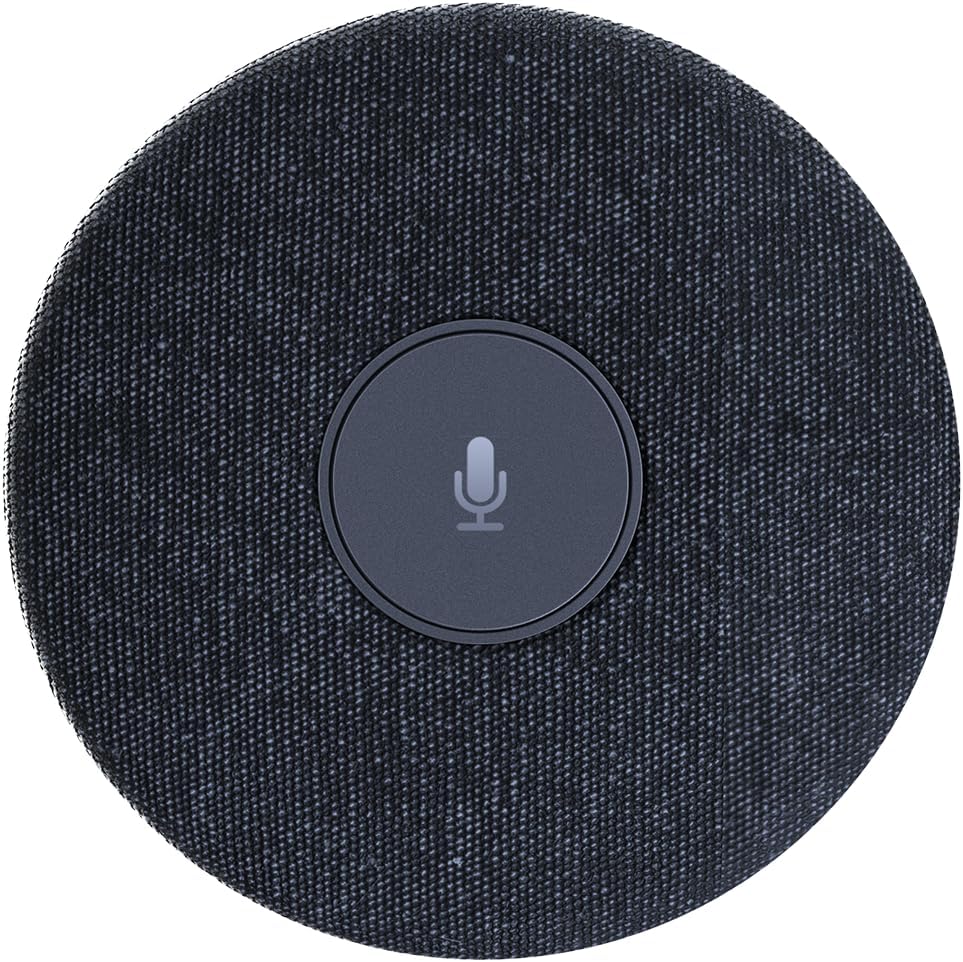
Abbildung 2.2.1: Draufsicht view of the WYRESTORM Halo-COM-MIC microphone, showing its compact, circular design with a central mute button.

Figure 2.2.2: Illustration demonstrating the 360-degree voice pickup capability of the Halo-COM-MIC, covering a 16.4ft (approximately 5-meter) radius in a conference setting.

Abbildung 2.2.3: Nahaufnahme view of a finger pressing the central mute/unmute button on the Halo-COM-MIC, which features an LED indicator.
3. Einrichtung
3.1 Anschließen des Mikrofons
- Place the Halo-COM-MIC on a flat surface in the center of your meeting area for optimal 360° voice pickup.
- Connect the provided 3M USB cable to the USB Type-A port on the Halo-COM-MIC.
- Plug the other end of the USB cable into an available USB port on your computer (laptop or personal computer).
- Das Mikrofon ist Plug-and-Play-fähig und sollte von Ihrem Betriebssystem automatisch erkannt werden.
3.2 Daisy-Chaining Multiple Microphones
For larger conference rooms or extended voice pickup, multiple Halo-COM-MIC units can be daisy-chained using the WyreStorm APO-60-UC. Up to three Halo-COM-MIC units can be connected in a cascade configuration.
- Connect the first Halo-COM-MIC to the APO-60-UC using a USB cable.
- Connect subsequent Halo-COM-MIC units to each other using their respective USB ports, forming a chain.
- Ensure proper cable routing to avoid interference and maintain a tidy setup. The microphone supports both same-direction and opposite-direction cable output.

Figure 3.2.1: Schematic diagram illustrating various configurations for daisy-chaining multiple Halo-COM-MIC units with an APO-60-UC for expanded coverage in large conference rooms.
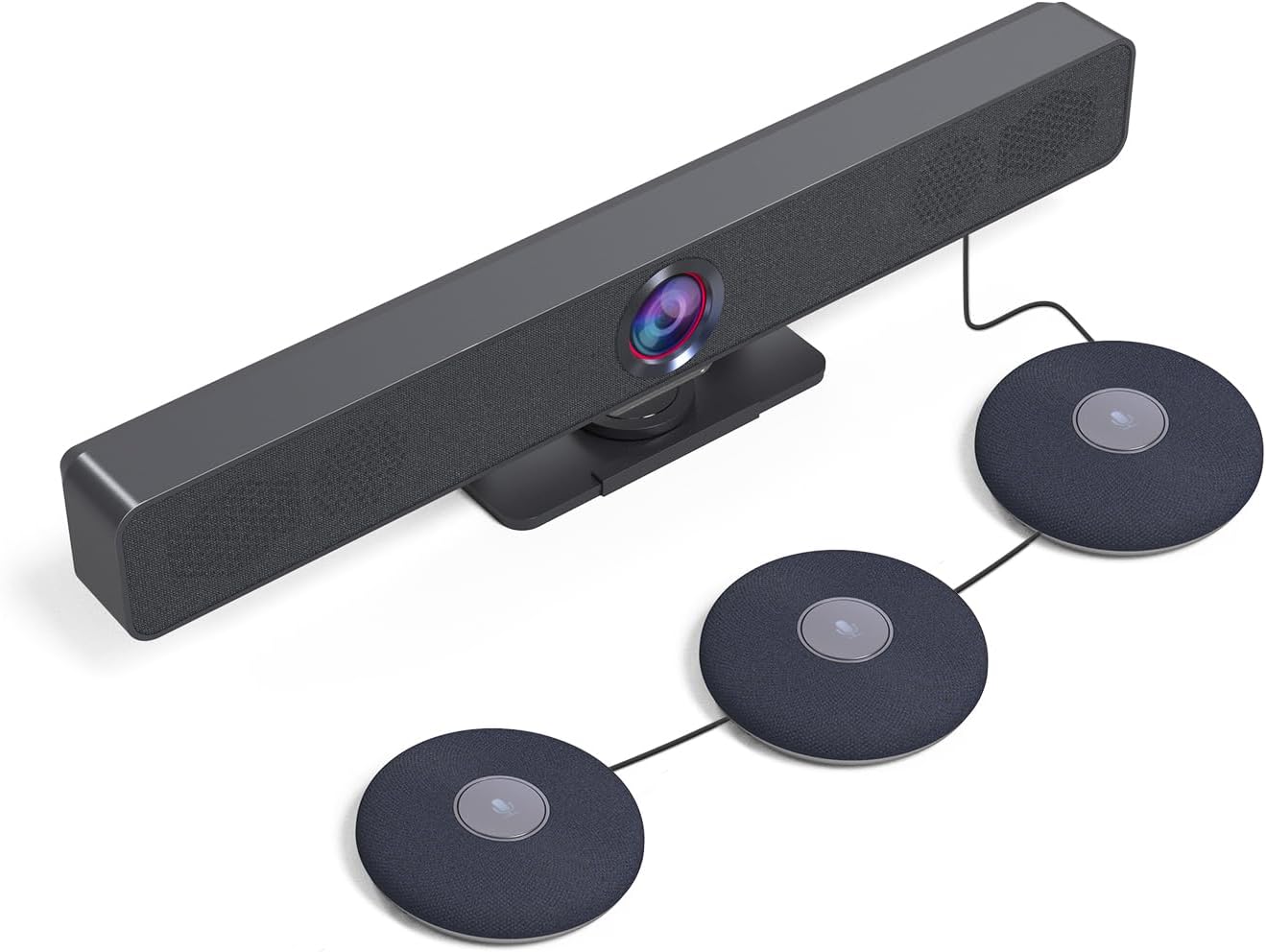
Abbildung 3.2.2: Ein Bspample setup showing a WyreStorm video bar connected to three cascaded Halo-COM-MIC microphones, demonstrating a typical conference room integration.
4. Bedienung
4.1 Grundlegende Verwendung
Once connected to your computer, the Halo-COM-MIC functions as a standard USB audio input device. Select it as your primary microphone in your communication software (e.g., Zoom, Microsoft Teams, Google Meet) settings.
4.2 Mute-Funktion
The central button on the microphone serves as a mute toggle. Press the button once to mute the microphone. The LED indicator will change color (typically red) to indicate that the microphone is muted. Press the button again to unmute the microphone, and the LED will return to its active state (typically blue or green).
4.3 Audio Enhancement Technologies
- Acoustic Echo Cancellation (AEC): Eliminates echoes that can occur when microphone picks up audio from speakers in the same room, ensuring clear two-way communication.
- Automatische Verstärkungsregelung (AGC): Automatically adjusts the microphone's sensitivity to ensure consistent volume levels for all participants, regardless of their distance from the microphone.
- Rauschunterdrückung: Reduces background noise, such as keyboard clicks, air conditioning hum, or general room ambiance, to focus on speech.
5. Wartung
5.1 Reinigung
To maintain the appearance and functionality of your Halo-COM-MIC, follow these cleaning guidelines:
- Disconnect the microphone from the power source (USB port) before cleaning.
- Verwenden Sie ein weiches, trockenes, fusselfreies Tuch, um die Außenflächen abzuwischen.
- Bei hartnäckigen Flecken leicht dampBefeuchten Sie das Tuch mit Wasser. Vermeiden Sie die Verwendung von scharfen Chemikalien, Scheuermitteln oder Lösungsmitteln.
- Es darf kein Wasser in die Öffnungen gelangen.
5.2 Speicherung
When not in use for extended periods, store the microphone in a cool, dry place, away from direct sunlight and extreme temperatures. Protect it from dust and physical damage.
6. Fehlerbehebung
6.1 Häufige Probleme und Lösungen
| Problem | Mögliche Ursache | Lösung |
|---|---|---|
| No sound pickup / Microphone not detected | USB cable loose or disconnected; Incorrect audio input selected; Driver issue. |
|
| Schlechte Tonqualität / Hintergrundgeräusche | Microphone too far from speakers; Excessive ambient noise; Software settings. |
|
| Mute button LED not responding | Vorübergehender Softwarefehler; Stromproblem. |
|
| Daisy-chaining not working | Incorrect connection order; Faulty cable; APO-60-UC not detected. |
|
7. Spezifikationen
| Besonderheit | Detail |
|---|---|
| Modellname | HALO-COM-MIC |
| Mikrofon-Formfaktor | Table Array, Boundary |
| Richtcharakteristik | Omnidirektional |
| Sprachaufnahmebereich | 10-16 feet (360°) |
| Besondere Merkmale | 4 Noise-canceling Mics, Acoustic Echo Cancellation (AEC), Automatic Gain Control (AGC), Built-in Microphone |
| Konnektivitätstechnologie | USB |
| Steckertyp | USB Typ-A |
| Kompatible Geräte | Laptop, Personalcomputer |
| Stromquelle | Kabelgebunden (USB-betrieben) |
| Anzahl der Kanäle | 2 |
| Artikelabmessungen (L x B x H) | 4 x 4 x 0.86 Zoll (10.16 x 10.16 x 2.18 cm) |
| Artikelgewicht | 1.1 Pfund (0.5 kg) |
| Im Lieferumfang enthaltene Komponenten | 3 m USB-Kabel |
| Hersteller | WYRESTORM |
| Ursprungsland | Hongkong |
8. Garantie und Support
8.1 Produktgarantie
WYRESTORM products are manufactured to high standards and are designed for reliable performance. Specific warranty terms and conditions may vary by region and retailer. Please refer to the warranty information provided at the time of purchase or visit the official WYRESTORM webAuf dieser Website finden Sie detaillierte Informationen zur Garantie.
8.2 Technischer Support
For technical assistance, troubleshooting beyond this manual, or inquiries regarding your WYRESTORM Halo-COM-MIC, please contact WYRESTORM customer support. Contact information can typically be found on the official WYRESTORM webauf der Website oder auf Ihrer Produktverpackung.


