1. Einleitung
Thank you for choosing the UrbanX Wireless Bluetooth Keyboard and Mouse Combo. This manual provides detailed instructions for setting up, operating, and maintaining your new peripheral devices. Please read this manual thoroughly before use to ensure optimal performance and longevity of your product.
2. Packungsinhalt
Bitte überprüfen Sie den Packungsinhalt, um sicherzustellen, dass alle Artikel vorhanden sind:
- UrbanX Bluetooth Wireless Keyboard
- UrbanX Wireless Mouse
- Shared USB Receiver (stored in the mouse battery compartment)
- USB-Ladekabel
- Benutzerhandbuch
3. Produktüberschreitungview
The UrbanX Keyboard and Mouse Combo is designed for versatility and comfort, featuring dual-mode connectivity (Bluetooth and 2.4GHz wireless) and long-lasting rechargeable batteries.
3.1 Tastaturfunktionen
- Layout in voller Größe: Includes a numeric keypad and arrow keys for comprehensive functionality.
- Low-Profile Tasten: Designed for a quiet and comfortable typing experience.
- Tastenkombinationen: Dedicated keys for Windows functions such as volume control, playback, and copy/paste.
- Dual-Mode-Konnektivität: Supports Bluetooth (BT1, BT2) and 2.4GHz wireless connection.
- Unterstützung mehrerer Geräte: Easily switch between up to three connected devices.

Image: The UrbanX keyboard highlighting the BT1, BT2, and 2.4G connection buttons for multi-device pairing.

Image: The UrbanX keyboard and mouse, illustrating the low-profile, scissor-switch keys designed for quiet and comfortable typing.
3.2 Mausfunktionen
- Ergonomisches Design: Shaped to reduce hand strain during extended use.
- DPI-Schalter: Allows adjustment of cursor speed for precision or rapid movement.
- Dual-Mode-Konnektivität: Supports Bluetooth (BT1, BT2) and 2.4GHz wireless connection.
- USB-Empfängerspeicher: The nano USB receiver is conveniently stored within the mouse.

Image: The underside of the UrbanX mouse, indicating its Bluetooth and 2.4GHz dual-mode wireless capabilities.
4. Einrichtungsanweisungen
The UrbanX combo offers two connection methods: 2.4GHz wireless via USB receiver or Bluetooth.
4.1 2.4-GHz-Funkverbindung (USB-Empfänger)
- Locate the nano USB receiver stored in the battery compartment of the mouse.
- Stecken Sie den USB-Empfänger in einen freien USB-Anschluss Ihres Computers oder Geräts.
- Schalten Sie Tastatur und Maus mit den jeweiligen Netzschaltern ein.
- The devices should connect automatically. No additional drivers are required.
4.2 Bluetooth-Verbindung
The keyboard and mouse can connect to up to two Bluetooth devices each (BT1 and BT2 channels).
4.2.1 Bluetooth-Kopplung der Tastatur
- Schalten Sie die Tastatur ein.
- Halten Sie die BT1 or BT2 Die Taste 3-5 Sekunden lang gedrückt halten, bis die Kontrollleuchte blinkt. Dies signalisiert den Kopplungsmodus.
- Gehen Sie auf Ihrem Gerät (z. B. Laptop, Tablet, Smartphone) zu den Bluetooth-Einstellungen und suchen Sie nach neuen Geräten.
- Select "UrbanX Keyboard" from the list of available devices.
- Follow any on-screen prompts to complete the pairing.
- Repeat for a second Bluetooth device using the other BT channel (BT2 if BT1 was used first).
4.2.2 Bluetooth-Kopplung der Maus
- Schalten Sie die Maus ein.
- Halten Sie die BT1 or BT2 button (usually on the bottom of the mouse) for 3-5 seconds until the indicator light flashes.
- Öffnen Sie auf Ihrem Gerät die Bluetooth-Einstellungen und suchen Sie nach neuen Geräten.
- Select "UrbanX Mouse" from the list.
- Follow any on-screen prompts to complete the pairing.
- Wiederholen Sie den Vorgang für ein zweites Bluetooth-Gerät mit dem anderen BT-Kanal.

Image: An illustration showing the UrbanX keyboard and mouse connected to a tablet (Channel 1), a laptop (Channel 2), and a smartphone (Channel 3), demonstrating multi-device connectivity.
5. Bedienungsanleitung
5.1 Umschalten zwischen Geräten
So wechseln Sie zwischen verbundenen Geräten:
- Tastatur: Drücken Sie die BT1, BT2, oder 2.4 G button briefly to switch to the corresponding connected device.
- Maus: Drücken Sie die BT1, BT2, oder 2.4 G button (usually on the bottom) briefly to switch to the corresponding connected device.
5.2 Tastaturkürzel
The keyboard features dedicated hotkeys for quick access to common functions. These are typically located on the F-keys row and activated by pressing the Fn key in combination with the desired F-key, or directly depending on the operating system.
| Tastenkombination | Funktion |
|---|---|
| Fn + F1 | Media Player |
| Fn + F2 | Lautstärke verringern |
| Fn + F3 | Lautstärke erhöhen |
| Fn + F4 | Stumm |
| Fn + F5 | Vorheriger Titel |
| Fn + F6 | Nächster Titel |
| Fn + F7 | Abspielen/Pause |
| Fn + F8 | Stoppen |
| Fn + F9 | Startseite |
| Fn + F10 | |
| Fn + F11 | Mein Computer |
| Fn + F12 | Kalkulator |
| Fn + Esc | Sperrbildschirm |
Note: Some hotkey functions may vary depending on your operating system (Windows, macOS, Android, iPadOS).
5.3 Maus-DPI-Anpassung
The mouse features a DPI switch button, usually located near the scroll wheel. Press this button to cycle through different cursor speeds (DPI settings). This allows you to adjust the sensitivity of the mouse to your preference.
6. Ladeanweisungen
Both the keyboard and mouse are equipped with rechargeable Li-polymer batteries.
- Connect the provided USB charging cable to the charging port on the keyboard or mouse.
- Stecken Sie das andere Ende des USB-Kabels in eine USB-Stromquelle (z. B. USB-Anschluss am Computer, USB-Netzteil).
- An indicator light will typically show the charging status. It will turn off or change color when fully charged.
Akkulaufzeit:
- Tastatur: Up to 6 months on a single charge (based on 2 hours of non-stop use per day).
- Maus: Up to 4 months on a single charge (based on 2 hours of non-stop use per day).
- Ladezeit: Ungefähr 2 Stunden für eine vollständige Aufladung.
- Standby-Zeit: Exceeds 2160 hours (90 days).

Image: The UrbanX keyboard and mouse shown connected via USB cables for charging, with indicators for charging time and standby time.
7. Wartung
To ensure the longevity and optimal performance of your UrbanX Keyboard and Mouse Combo:
- Reinigung: Use a soft, dry cloth to wipe the surfaces. For stubborn dirt, a slightly damp Man kann ein Tuch verwenden, um sicherzustellen, dass keine Feuchtigkeit in das Gerät eindringt.
- Lagerung: Lagern Sie die Geräte an einem kühlen, trockenen Ort, geschützt vor direkter Sonneneinstrahlung und extremen Temperaturen.
- Vermeiden Sie Flüssigkeiten: Do not expose the devices to water or other liquids.
- Vorsichtig handhaben: Vermeiden Sie es, die Geräte fallen zu lassen oder starken Stößen auszusetzen.
8. Fehlerbehebung
If you encounter issues with your UrbanX Keyboard and Mouse Combo, please refer to the following common solutions:
| Problem | Mögliche Lösung |
|---|---|
| Devices not connecting via 2.4GHz |
|
| Devices not connecting via Bluetooth |
|
| Tastatur/Maus reagiert nicht |
|
| Die Cursorbewegung ist unregelmäßig oder langsam. |
|
9. Spezifikationen
| Besonderheit | Detail |
|---|---|
| Modellnummer | UXM030 |
| Konnektivitätstechnologie | Bluetooth, 2.4-GHz-Funk |
| Kompatible Geräte | HP ENVY 17t CG Laptop, Mobile Phone, Tablet, Laptop, Smartphone, PC, Mac (Windows, macOS, iPadOS, Android, Chrome OS) |
| Tastaturbeschreibung | US Layout, Full-Size, Low-Profile, Scissor-Switch |
| Besondere Merkmale | Ergonomic, Rechargeable, Multi-Device Switching |
| Stromquelle | Battery Powered (Built-in Li-polymer) |
| Akkulaufzeit der Tastatur | Up to 6 months (2 hours/day usage) |
| Akkulaufzeit der Maus | Up to 4 months (2 hours/day usage) |
| Ladezeit | Ca. 2 Stunden |
| Betriebsbereich | Bis zu 33 Fuß (10 Meter) |
| Produktabmessungen (Tastatur) | 17.1 x 5.1 x 0.7 Zoll (ungefähr) |
| Produktabmessungen (Maus) | 4.5 x 2.2 x 1 Zoll (ungefähr) |
| Artikelgewicht | 1.54 ounces (Mouse only, approximate) |
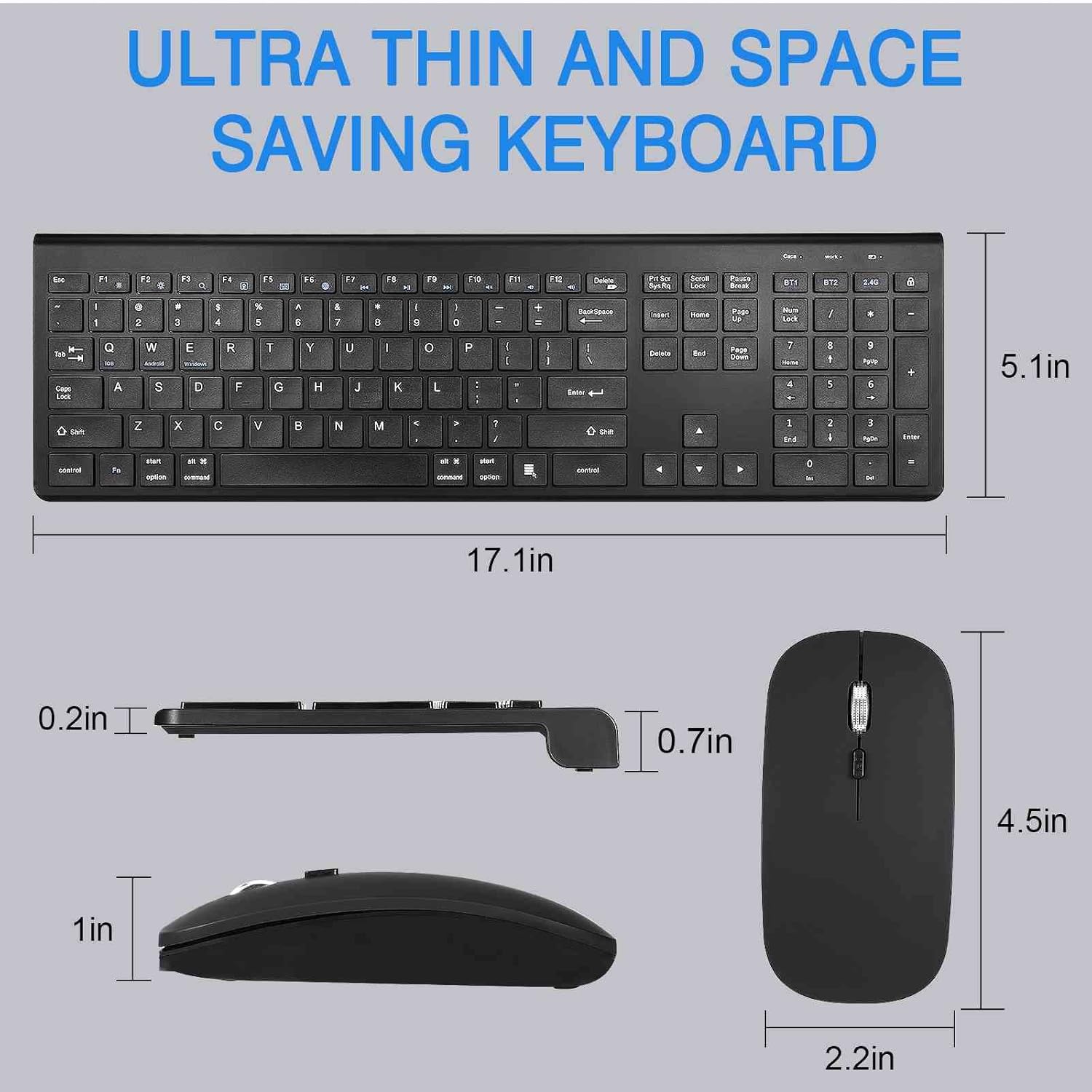
Image: Detailed dimensions of the UrbanX keyboard and mouse, showing their ultra-thin and space-saving design.
10. Garantie und Support
The UrbanX Keyboard and Mouse Combo comes with a 1 Jahr Garantie ab Kaufdatum.
For technical support, warranty claims, or any questions regarding your product, please contact UrbanX customer support. Refer to the contact information provided on the product packaging or the UrbanX official webWebsite.


