1. Einleitung
The CHUWI Hi10 XPro is a versatile 10.1-inch Android 14 tablet designed for both productivity and entertainment. Featuring an Unisoc T606 Octa-Core processor, 8GB RAM, and 128GB ROM (expandable up to 1TB), it offers smooth performance for various applications. This tablet supports 4G LTE and 5G WiFi connectivity, includes a 7000mAh battery, and comes with 13MP rear and 5MP front cameras. This manual provides essential information for setting up, operating, and maintaining your device.

Abbildung 1.1: Vorder- und Rückseite view of the CHUWI Hi10 XPro Tablet.
2. Lieferumfang
Überprüfen Sie, ob alle Artikel im Paket vorhanden sind:
- CHUWI Hi10 XPro Tablet
- 5V/2A adapter (PSE, CE, UL, FCC certified)
- Multi-language manual
- Konformitätsbescheinigung
- Qualitätszertifikat
- Garantiekarte
- 128 GB Micro SD-Karte
3. Einrichtung
3.1 Erstaufladung
Before first use, fully charge the tablet using the provided 5V/2A adapter and Type-C cable. The battery indicator on the screen will show charging progress.
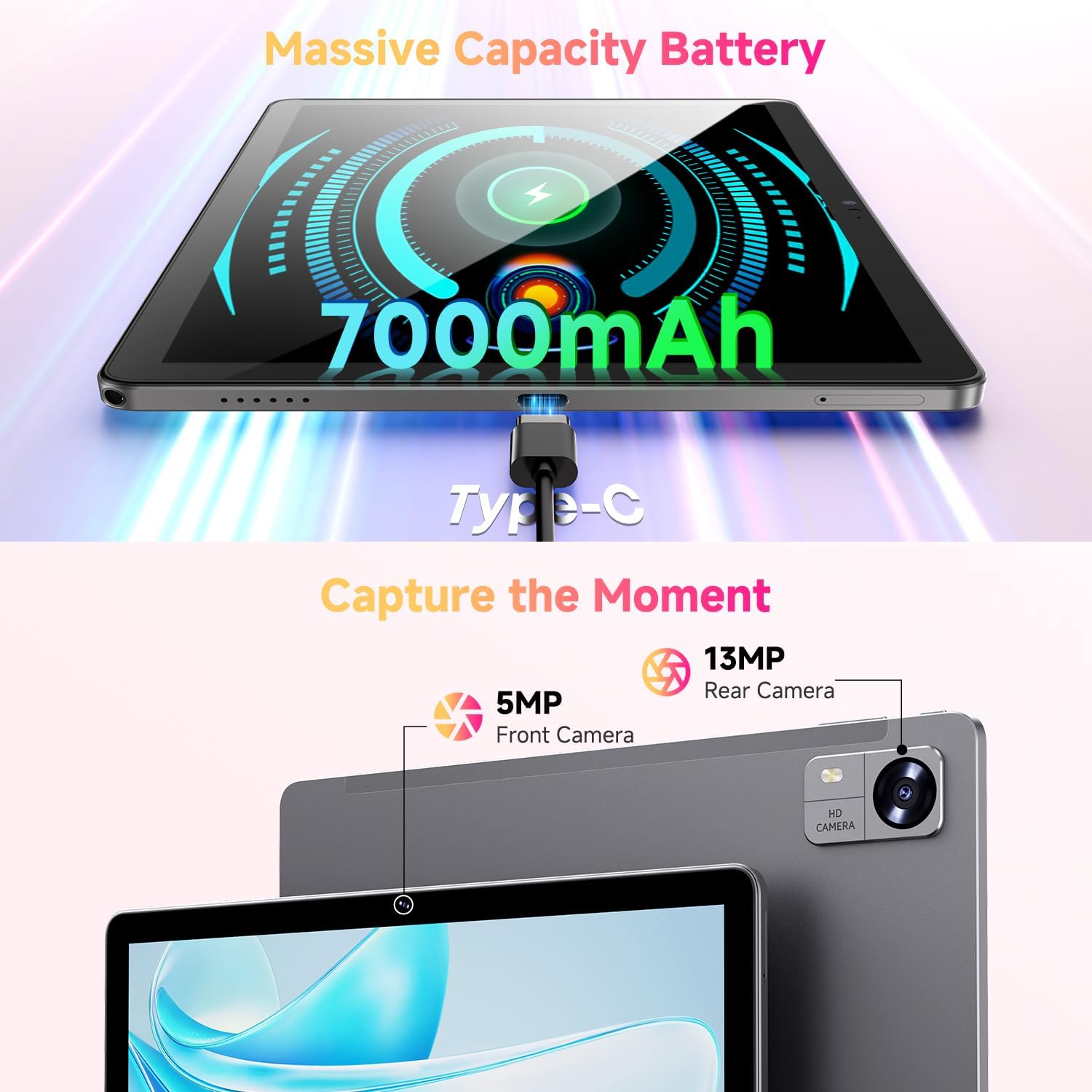
Figure 3.1: Charging the tablet via Type-C port.
3.2 Ein-/Ausschalten
- Einschalten: Press and hold the Power button on the side of the tablet until the CHUWI logo appears.
- Ausschalten: Halten Sie die Ein-/Aus-Taste gedrückt, bis ein Ausschaltmenü erscheint. Wählen Sie „Ausschalten“, um das Gerät herunterzufahren.
- Neustart: Wählen Sie im Ausschaltmenü die Option „Neustart“, um das Gerät neu zu starten.
3.3 Installation der SIM-Karte und der TF-Karte
The tablet supports dual SIM cards and a TF (MicroSD) card for expanded storage. Use the provided SIM ejector tool to open the tray.
- Suchen Sie den SIM-/TF-Kartensteckplatz an der Seite des Tablets.
- Führen Sie das SIM-Auswurfwerkzeug in die kleine Öffnung neben dem Fach ein und drücken Sie vorsichtig, bis das Fach herausspringt.
- Legen Sie Ihre Nano-SIM-Karten und/oder Ihre MicroSD-Karte in die dafür vorgesehenen Schlitze des Kartenfachs ein und achten Sie dabei auf die richtige Ausrichtung.
- Schieben Sie die Schublade vorsichtig wieder in das Tablet, bis sie einrastet.
*Important Note for Cellular Functionality: Please register the IMEI number of your device with local carriers before using cellular network functions. Failure to do so may result in the SIM card functions (network and calls) being disabled by the carriers after a period of use.
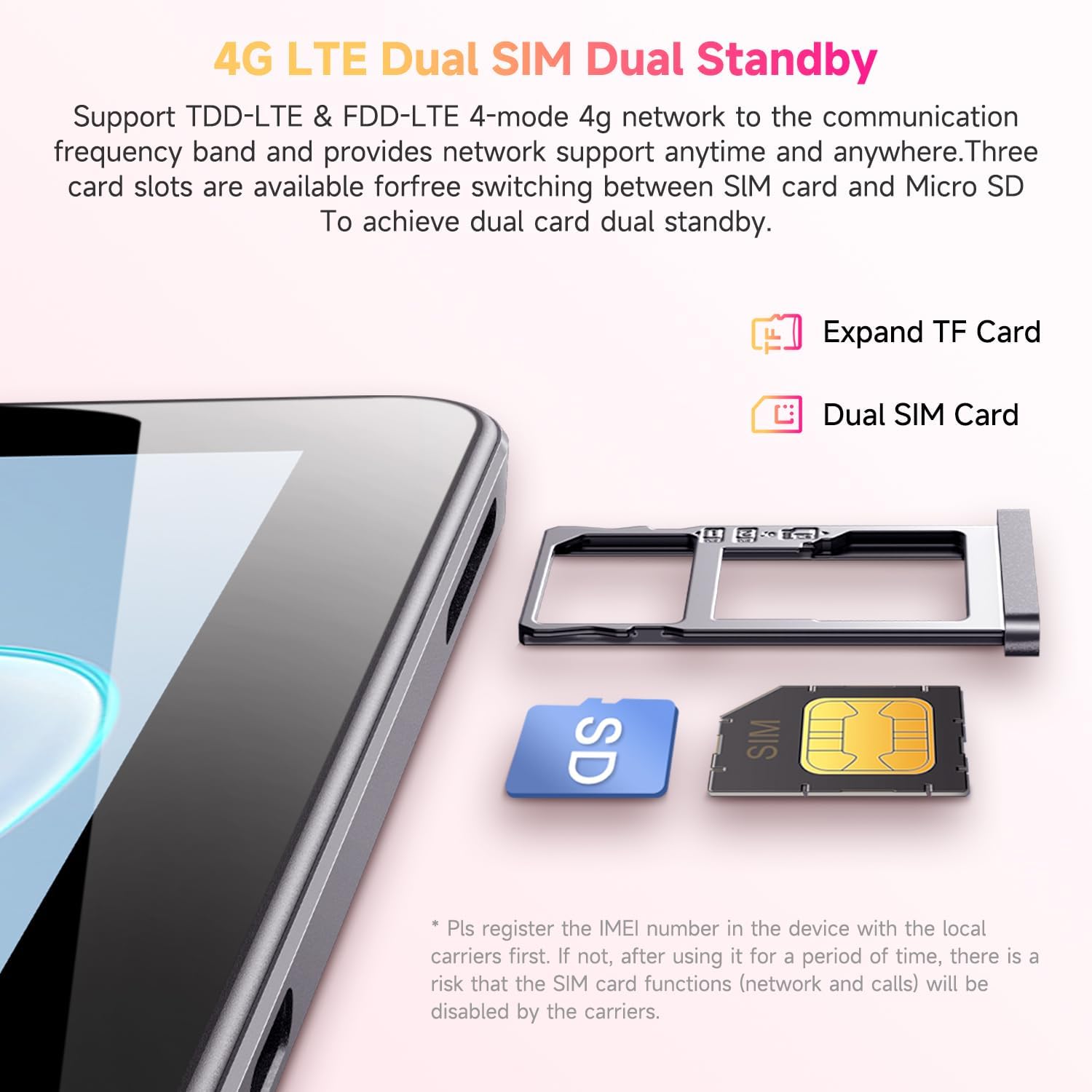
Figure 3.2: Inserting SIM and TF cards into the tray.
3.4 Ersteinrichtungsassistent
Beim ersten Einschalten führt Sie das Tablet durch die Ersteinrichtung. Folgen Sie den Anweisungen auf dem Bildschirm, um:
- Wählen Sie Ihre Sprache.
- Stellen Sie eine Verbindung zu einem Wi-Fi-Netzwerk her.
- Melden Sie sich mit Ihrem Google-Konto an oder erstellen Sie ein neues.
- Bildschirmsperre einrichten (PIN, Muster, Passwort).
- Review und die Allgemeinen Geschäftsbedingungen akzeptieren.
4. Bedienungsanleitung
4.1 Anzeige und Navigation
The CHUWI Hi10 XPro features a 10.1-inch HD IPS touchscreen with a resolution of 1280x800 pixels, providing clear and vibrant visuals. Navigation is primarily touch-based, with gestures and on-screen buttons for home, back, and recent apps.

Figure 4.1: The tablet's 10.1-inch HD IPS display.
4.2 Leistung und Speicherung
Equipped with a 1.6GHz Unisoc T606 Octa-Core processor and Mali-G57 GPU, the tablet ensures smooth operation for daily tasks, browsing, and light gaming. It comes with 8GB RAM (4GB physical + 4GB virtual) and 128GB of internal storage, expandable up to 1TB via a MicroSD card.

Figure 4.2: Illustration of the Unisoc T606 Octa-Core Processor.

Figure 4.3: Visual representation of storage and connectivity options.
4.3 Konnektivität
The tablet supports dual-band 2.4G+5G WiFi (802.11ac) for stable and fast internet connections, and Bluetooth 5.0 for connecting wireless accessories. Dual 4G LTE support allows for mobile data and calls (with proper SIM registration).
4.4 Kamerafunktionen
Halten Sie Momente mit der 13-MP-Rückkamera fest und machen Sie klare Selfies oder Videoanrufe mit der 5-MP-Frontkamera.
4.5 Akkulaufzeit
The built-in 7000mAh battery provides approximately 8-10 hours of usage on a full charge, depending on usage patterns.
4.6 Android 14 Betriebssystem
The CHUWI Hi10 XPro runs on Android 14, offering enhanced privacy controls, efficient memory management, and multitasking capabilities. It supports Widevine L1 for high-definition streaming on platforms like Netflix, Prime Video, and Disney+.
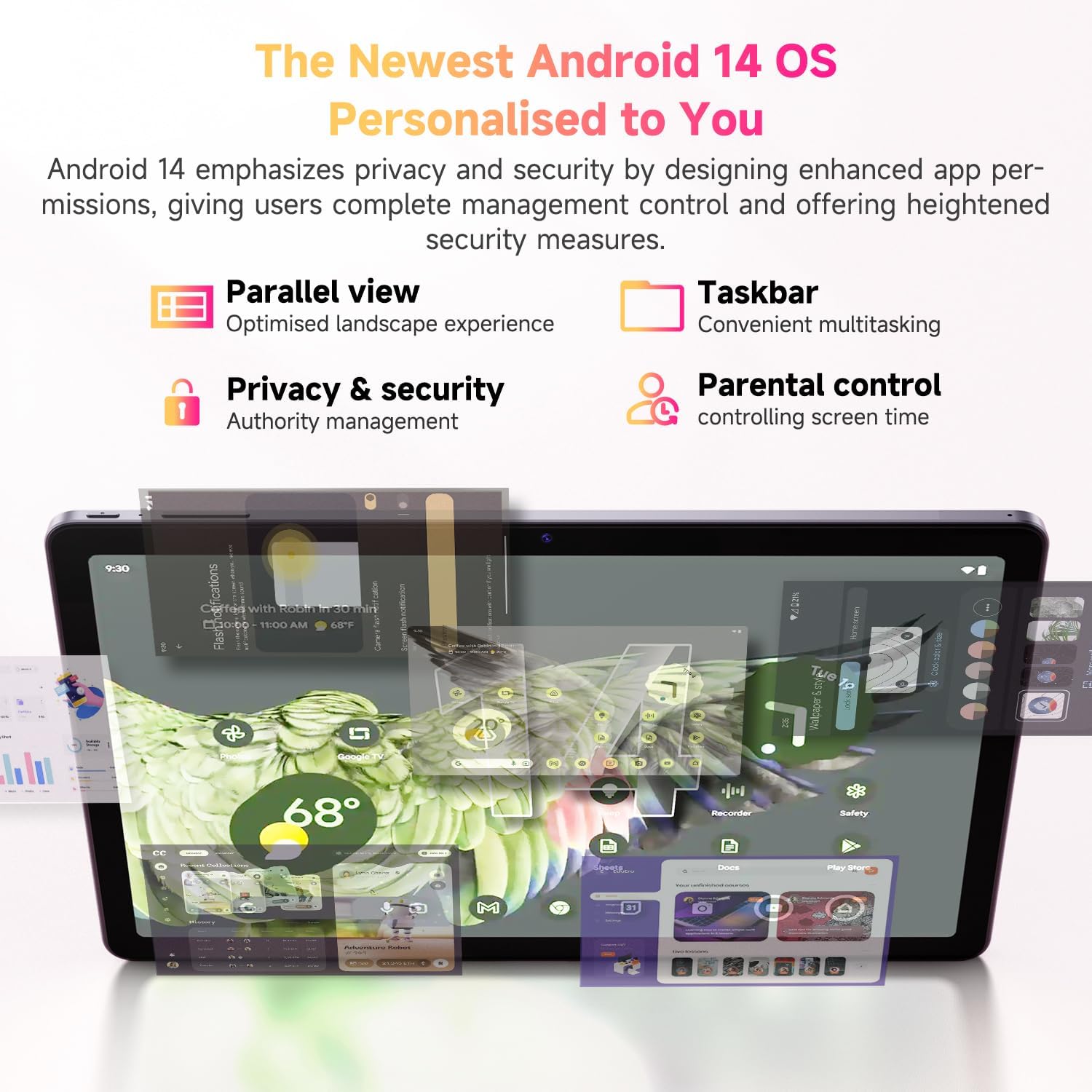
Abbildung 4.4: Hauptmerkmale des Betriebssystems Android 14.
4.7 Offizielles Produktvideo
Video 4.1: Ein offizielles Produktvideoasing the CHUWI Android 13 Tablet Hi10 XPro Tablet 10.1 Inch 8+128GB. This video highlights various features and usage scenarios of the tablet, including its sleek design, display quality, and performance capabilities.
5. Spezifikationen
| Besonderheit | Spezifikation |
|---|---|
| Marke | CHUWI |
| Modellname | Hi10 XPro |
| Stehbildschirm Displaygröße | 10.1 Zoll |
| Bildschirmauflösung | 1280 x 800 Pixel |
| Prozessor | 1.6 GHz Unisoc T606 Octa-Core |
| Grafik-Coprozessor | Mali-G57 |
| RAM | 8GB (4GB+4GB virtual) |
| Festplatten-/Flash-Speichergröße | SSD mit 128 GB |
| Erweiterbarer Speicher | Up to 1TB with MicroSD card |
| Betriebssystem | Android 14 |
| Kabelloser Typ | 802.11ac (2.4G+5G WiFi), Bluetooth 5.0 |
| Mobilfunkverbindung | Dual 4G LTE |
| Hinteren Webcam Auflösung | 13 Megapixel |
| Auflösung der Frontkamera | 5 Megapixel |
| Batteriekapazität | 7000 mAh Lithium-Polymer |
| Durchschnittliche Akkulaufzeit | 8-10 Stunden |
| Artikelgewicht | 15.5 Unzen (ca. 438 g) |
| Technische Daten | 9.41 x 6.2 x 0.29 Zoll (ca. 239.3 x 158 x 7.5 mm) |
| Farbe | Schwarz |
| GPS-Funktion | Supported (GPS, Glonass, Galileo, Beidou) |
| Widevine-Zertifizierung | L1 Supported |
6. Wartung
- Reinigung: Reinigen Sie Bildschirm und Gehäuse des Tablets mit einem weichen, fusselfreien Tuch. Vermeiden Sie die Verwendung aggressiver Chemikalien oder scheuernder Materialien.
- Software-Updates: Periodically check for system updates in the tablet's settings to ensure optimal performance and security.
- Batteriepflege: Um die Batterielebensdauer zu verlängern, vermeiden Sie extreme Temperaturen und lassen Sie die Batterie nicht häufig vollständig entladen.
- Speicherverwaltung: Regelmäßig unnötige Dinge entfernen files und Apps, um ausreichend freien Speicherplatz für einen reibungslosen Betrieb zu gewährleisten.
- Schutz: Consider using a screen protector and a protective case to guard against scratches and accidental damage.
7. Fehlerbehebung
7.1 Tablet lässt sich nicht einschalten
- Stellen Sie sicher, dass das Tablet ausreichend geladen ist. Schließen Sie es mindestens 30 Minuten lang an das Ladegerät an.
- Um einen Neustart zu erzwingen, halten Sie den Netzschalter 10-15 Sekunden lang gedrückt.
7.2 Probleme mit der WLAN-Verbindung
- Prüfen Sie, ob WLAN in den Einstellungen des Tablets aktiviert ist.
- Starten Sie Ihren WLAN-Router neu.
- Vergessen Sie das Netzwerk in den Tablet-Einstellungen und stellen Sie die Verbindung erneut her.
- Stellen Sie sicher, dass Sie sich in Reichweite des WLAN-Signals befinden.
7.3 Langsame Leistung
- Schließen Sie nicht benötigte Hintergrundanwendungen.
- Löschen Sie Cache und Daten häufig verwendeter Apps.
- Sorgen Sie für ausreichend freien Stauraum.
- Starten Sie das Tablet neu.
7.4 Apps stürzen ab oder reagieren nicht
- Force close the app from recent apps or app settings.
- Löschen Sie den Cache und die Daten der App.
- Deinstallieren Sie die App und installieren Sie sie erneut.
- Stellen Sie sicher, dass die Software des Tablets auf dem neuesten Stand ist.
8. Garantie und Support
CHUWI offers a One-year reassuring quality assurance for the Hi10 XPro tablet. This includes long-term technical support and 24-hour online customer service.
For technical assistance or warranty claims, please contact CHUWI customer service. You can typically find contact information by logging into your Amazon account, finding your order, and selecting "Contact the seller."
For more information, visit the official CHUWI website or refer to the warranty card included in your product package.


