1. Einleitung
This manual provides essential instructions for setting up, operating, maintaining, and troubleshooting your Google Pixel 7 Pro GE2AE smartphone. Please read this guide thoroughly to ensure proper use and to maximize your device's capabilities.

Image: Google Pixel 7 Pro smartphone.
2. Lieferumfang
Upon unboxing your Google Pixel 7 Pro, verify that the following items are included:
- Google Pixel 7 Pro Smartphone
- Netzteil
- SIM-Karten-Auswurfwerkzeug
- USB-Kabel (USB-C auf USB-C)
Note: As a renewed product, accessories may be generic but are fully functional.
3. Einrichtung
3.1. SIM-Karte einlegen
- Locate the SIM card tray on the side of your Pixel 7 Pro.
- Führen Sie das SIM-Karten-Auswurfwerkzeug in die kleine Öffnung neben dem Fach ein und drücken Sie fest, bis das Fach herausspringt.
- Legen Sie Ihre Nano-SIM-Karte mit den goldenen Kontakten nach unten in den Kartenhalter ein.
- Setzen Sie den SIM-Kartenhalter vorsichtig wieder in das Telefon ein.
3.2. Einschalten und Ersteinrichtung
- Press and hold the Power button (located on the right side) until the Google logo appears.
- Folgen Sie den Anweisungen auf dem Bildschirm, um Ihre Sprache auszuwählen, eine WLAN-Verbindung herzustellen und die Allgemeinen Geschäftsbedingungen zu akzeptieren.
- Sign in with your Google Account or create a new one. This is essential for accessing Google services and the Play Store.
- Datenübertragung von einem alten Gerät (optional) oder Einrichtung als neues Gerät.
- Set up security features such as fingerprint unlock or face unlock.
4. Bedienung Ihres Geräts
4.1. Grundlegende Navigation
- Startbildschirm: Swipe up from the bottom to access the app drawer. Swipe left or right to navigate between home screens.
- Benachrichtigungen & Schnelleinstellungen: Wischen Sie vom oberen Bildschirmrand nach unten zu view Benachrichtigungen und Schnellzugriff auf die Einstellungen.
- Multitasking: Vom unteren Rand nach oben wischen und gedrückt halten view recent apps. Swipe left or right to switch between them, or swipe up on an app to close it.
- Zurückgeste: Swipe inward from the left or right edge of the screen to go back.
4.2. Kamerafunktionen
The Pixel 7 Pro features an advanced camera system with a telephoto lens and various modes:
- Macro Focus: Automatically engages when you get close to a subject, allowing for detailed close-up shots.
- Cinematic Blur: Adds a shallow depth of field effect to videos, blurring the background for a professional look.
- Nachtsicht: Verbessert Fotos, die bei schwachen Lichtverhältnissen aufgenommen wurden.
- Fotoentzerrung: Improves blurry photos using Google Tensor G2 processing.
4.3. Batteriemanagement
The Pixel 7 Pro is equipped with a 5000 mAh battery. To optimize battery life:
- Enable Adaptive Battery in Settings > Battery.
- Reduzieren Sie die Bildschirmhelligkeit oder aktivieren Sie die adaptive Helligkeit.
- Limit background app activity for less frequently used applications.
- Use Battery Saver mode when battery is low.
5. Wartung
5.1. Reinigen Ihres Geräts
- Verwenden Sie ein weiches, fusselfreies Tuch, um Bildschirm und Gehäuse zu reinigen.
- Vermeiden Sie abrasive Materialien oder aggressive Chemikalien.
- Bei hartnäckigen Flecken leicht dampspülen Sie das Tuch mit Wasser aus.
5.2. Software-Updates
Prüfen Sie regelmäßig, ob Software-Updates verfügbar sind, und installieren Sie diese, um sicherzustellen, dass Ihr Gerät über die neuesten Funktionen, Sicherheitspatches und Leistungsverbesserungen verfügt. Gehen Sie zu Einstellungen > System > Systemaktualisierung.
5.3. Batteriepflege
Um die Lebensdauer des Akkus zu verlängern, vermeiden Sie extreme Temperaturen und lassen Sie das Gerät nicht über längere Zeiträume vollständig geladen oder vollständig entladen.
6. Fehlerbehebung
6.1. Häufige Probleme
- Gerät reagiert nicht: Halten Sie den Netzschalter etwa 30 Sekunden lang gedrückt, um einen Neustart zu erzwingen.
- Verbindungsprobleme (WLAN/5G): Try toggling Wi-Fi or cellular data off and on. Restart your device. For Wi-Fi, forget the network and reconnect.
- App stürzt ab: Löschen Sie den Cache und die Daten der App unter Einstellungen > Apps. Sollte das Problem weiterhin bestehen, deinstallieren Sie die App und installieren Sie sie anschließend neu.
- Batterie entlädt sich schnell: Review battery usage in Settings > Battery to identify apps consuming excessive power. Adjust settings as needed.
6.2. Werksreset
Sollten weiterhin Probleme auftreten, kann ein Zurücksetzen auf die Werkseinstellungen diese möglicherweise beheben. Warnung: This will erase all data on your device. Back up important information before proceeding. Go to Settings > System > Reset options > Erase all data (factory reset).
7. Spezifikationen
| Besonderheit | Detail |
|---|---|
| Modellname | Google Pixel 7 Pro |
| Betriebssystem | Android |
| Bildschirmgröße | 6.7 Zoll |
| Auflösung | 3120 x 1440 |
| Bildwiederholrate | 120 Hz |
| RAM | 8 GB |
| Interner Speicher | 128 GB |
| Zellulartechnologie | 5G |
| Mobilfunkanbieter | T-Mobile (gesperrt) |
| Batterieleistung | 5000 Milliamp Std |
| Telefongesprächszeit | 31 Stunden |
| Konnektivitätstechnologien | WLAN, GPS |
| Weitere Kamerafunktionen | Front, Rear (with Telephoto lens, Macro Focus, Cinematic Blur) |
| Audio-Buchse | Kein Kopfhöreranschluss |
| Formfaktor | Smartphone |
| Farbe | Obsidian |
8. Product Condition (Renewed)
This Google Pixel 7 Pro is an Amazon Renewed product. All Amazon Renewed products are fully functional and come with generic or original accessories and packaging. The condition of renewed products is categorized as follows:
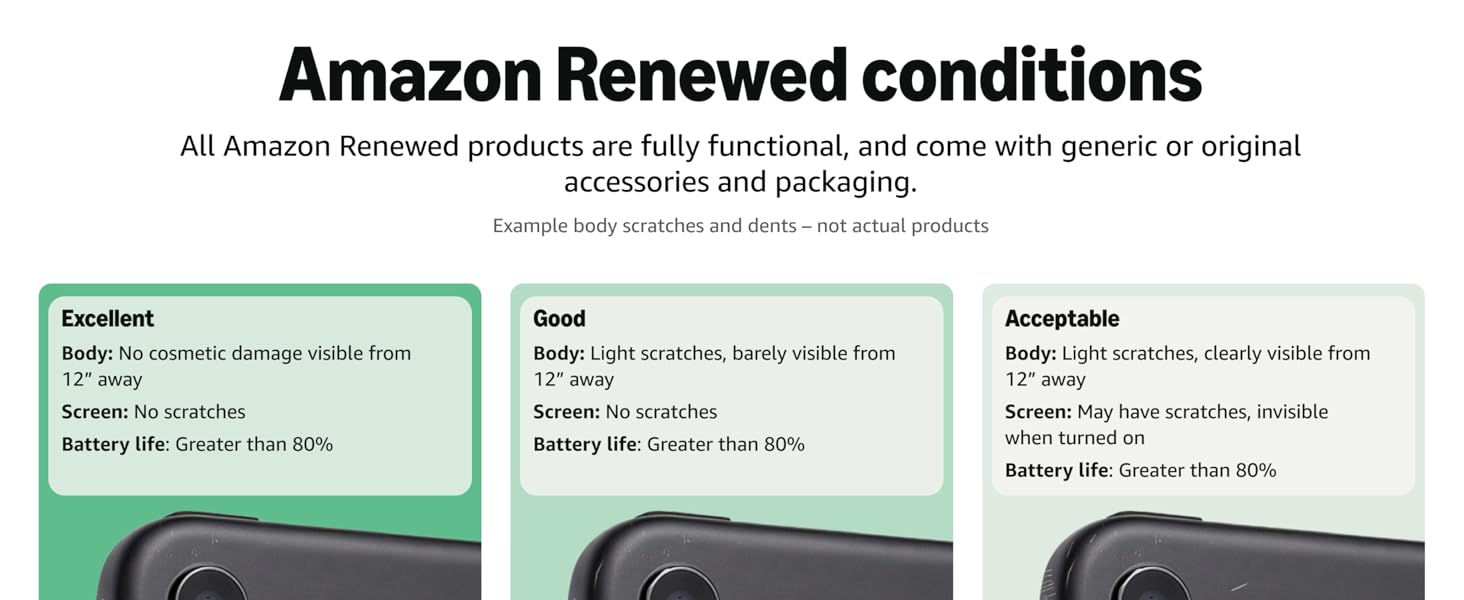
Image: Amazon Renewed conditions for electronic devices.
- Ausgezeichnet: No cosmetic damage visible from 12 inches away. Screen has no scratches. Battery life is greater than 80%.
- Gut: Light scratches, barely visible from 12 inches away. Screen has no scratches. Battery life is greater than 80%.
- Akzeptabel: Light scratches, clearly visible from 12 inches away. Screen may have scratches, invisible when turned on. Battery life is greater than 80%.
9. Garantie und Support
For information regarding warranty coverage for your renewed Google Pixel 7 Pro, please refer to the documentation provided at the time of purchase or contact the seller directly. For technical support and further assistance with your Google Pixel device, visit the official Google Support webWebsite.


