1. Einleitung
This manual provides detailed instructions for the setup, operation, maintenance, and troubleshooting of your Xprinter XP-233B Thermal Barcode Printer. The XP-233B is designed for efficient thermal printing of barcodes and labels, utilizing heat-sensitive paper without the need for ink or ribbons.
2. Sicherheitshinweise
- Ensure the printer is connected to a power source with the correct voltage as specified on the power adapter.
- Setzen Sie den Drucker weder Wasser noch übermäßiger Feuchtigkeit aus.
- Vermeiden Sie es, den Drucker direkter Sonneneinstrahlung oder der Nähe von Wärmequellen auszusetzen.
- Keep the printer away from dust and debris to prevent damage to internal components.
- Versuchen Sie nicht, den Drucker selbst zu zerlegen oder zu reparieren. Wenden Sie sich an qualifiziertes Servicepersonal.
- Use only recommended thermal label rolls to ensure optimal print quality and printer longevity.
3. Packungsinhalt
Überprüfen Sie, ob alle Artikel im Paket vorhanden sind:
- Xprinter XP-233B Thermal Barcode Printer
- Netzteil
- USB-Kabel
- Kurzanleitung (falls enthalten)
- Driver CD (if included, drivers can also be downloaded online)
4. Produktüberschreitungview
Familiarize yourself with the main components of the XP-233B printer.

Abbildung 4.1: Vorderseite view of the Xprinter XP-233B, showing the power switch, control panel, and label output slot.

Abbildung 4.2: Hinteren view of the Xprinter XP-233B, highlighting the USB, Ethernet, and power input ports.
Funktionen des Bedienfelds:
- FEED-Taste: Press to feed a blank label. Hold to perform a self-test print.
- PAUSE-Taste: Unterbricht oder setzt den Druckvorgang fort.
- ABBRECHEN-Taste: Bricht den aktuellen Druckauftrag ab.
- LED-Anzeigen: Display printer status (e.g., Power, Error, Paper Out). Refer to troubleshooting for specific light patterns.
5. Einrichtung
5.1 Anschließen des Druckers
- Connect the power adapter to the printer's power input port and then plug it into a wall outlet.
- Connect the USB cable from the printer to your computer. For Ethernet connectivity, connect an Ethernet cable from the printer to your network router or switch.
- Schalten Sie den Drucker mit dem seitlichen Netzschalter ein.
5.2 Ladeetiketten
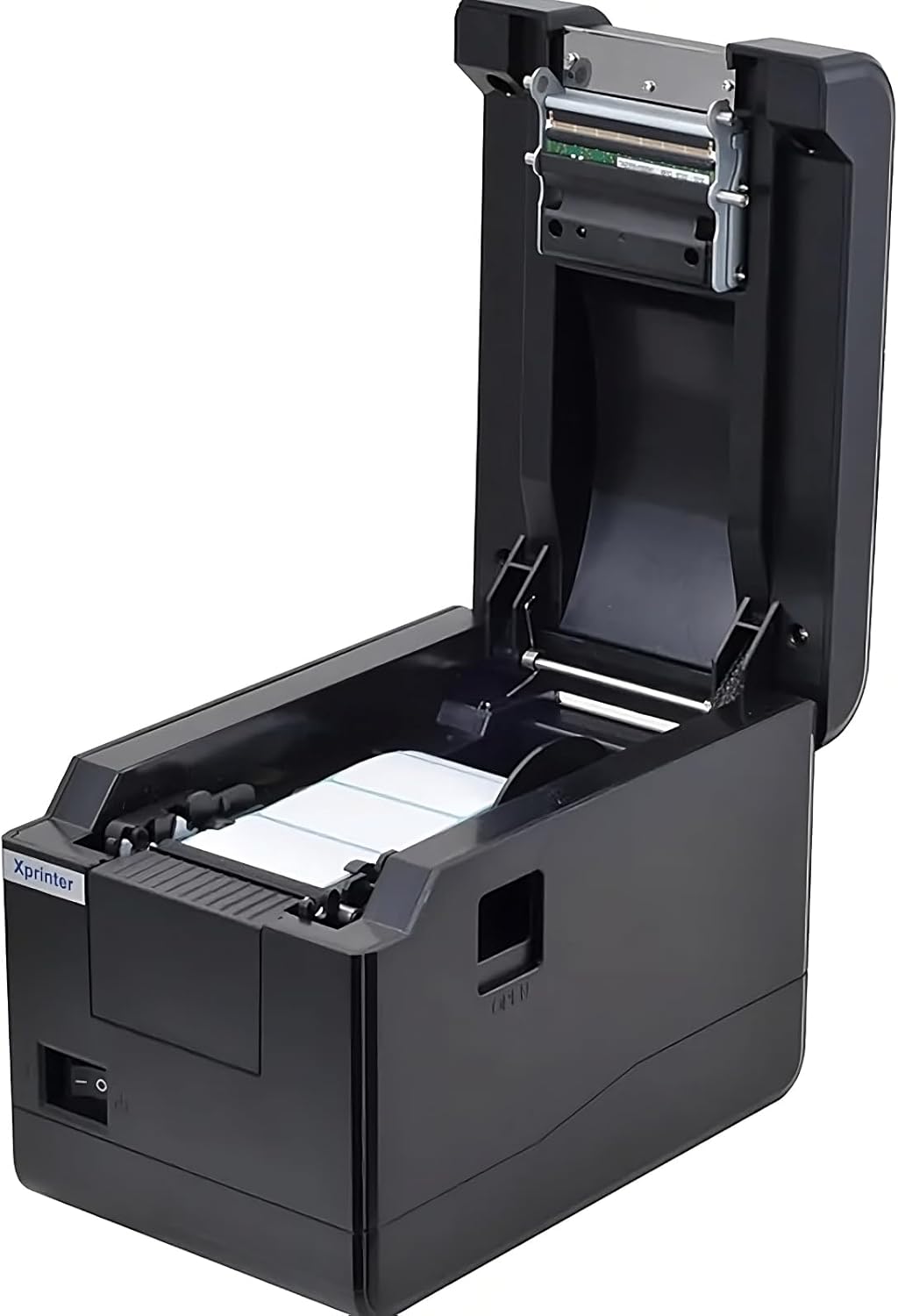
Abbildung 5.1: Von oben nach unten view of the Xprinter XP-233B with the cover open, illustrating the label loading area.
- Press the 'OPEN' button on the side of the printer to open the top cover.
- Place the thermal label roll into the label compartment, ensuring the labels feed from the bottom of the roll and the printable side faces upwards.
- Adjust the movable label guides to fit the width of your label roll snugly, without pinching the labels.
- Pull a few labels past the print head and out through the front slot.
- Schließen Sie den oberen Deckel fest, bis er einrastet.
- The printer will automatically calibrate and feed a few labels to detect the label gap.
5.3 Treiberinstallation
Install the printer drivers on your computer. Drivers can typically be found on the included CD or downloaded from the official Xprinter webFolgen Sie den Anweisungen auf dem Bildschirm zur Installation.
6. Bedienung des Druckers
6.1 Grundlegendes Drucken
Once the printer is set up and drivers are installed, you can print labels from your application (e.g., label design software, shipping software). Ensure the correct printer model (Xprinter XP-233B) is selected in your application's print settings.
6.2 Selbsttestdruck
To perform a self-test print:
- Stellen Sie sicher, dass der Drucker eingeschaltet ist und Etiketten eingelegt sind.
- Halten Sie die FÜTTERN button for approximately 3-5 seconds until the printer starts printing.
- The self-test print will display printer information and a test pattern, confirming basic functionality.
7. Wartung
7.1 Reinigung des Druckkopfes
Regular cleaning of the print head ensures optimal print quality and extends the printer's lifespan. Clean the print head when print quality degrades or after every few rolls of labels.
- Schalten Sie den Drucker aus und trennen Sie das Netzkabel.
- Öffnen Sie die obere Abdeckung.
- Wischen Sie die Oberfläche des Druckkopfs vorsichtig mit einem Wattestäbchen ab.ampened with isopropyl alcohol (70% or higher).
- Allow the print head to dry completely (approximately 2-3 minutes) before closing the cover and turning on the printer.
7.2 Außenreinigung
Wischen Sie die Außenseite des Druckers mit einem weichen, fusselfreien Tuch ab.amp Tuch. Verwenden Sie keine scharfen Chemikalien oder Scheuermittel.
8. Fehlerbehebung
| Problem | Mögliche Ursache | Lösung |
|---|---|---|
| Drucker lässt sich nicht einschalten | Power cord loose; power outlet faulty; power adapter damaged. | Check power connections; try a different outlet; replace power adapter if necessary. |
| No labels feeding | Labels incorrectly loaded; paper out; label guides too tight. | Reload labels correctly; replace label roll; adjust label guides. |
| Schlechte Druckqualität (verblasst, Linien) | Print head dirty; low-quality labels; print head damaged. | Clean print head (refer to Section 7.1); use recommended thermal labels; contact support if print head is damaged. |
| Printer not responding to print commands | Incorrect driver installed; USB/Ethernet cable loose; printer paused. | Reinstall drivers; check cable connections; press PAUSE Schaltfläche, um fortzufahren. |
| Labels skipping or misaligning | Incorrect label sensor calibration; label guides not set correctly. | Perform a self-test print to recalibrate; adjust label guides. |
9. Spezifikationen
| Besonderheit | Spezifikation |
|---|---|
| Modellname | Xprinter - Thermal barcode printer |
| Artikelmodellnummer | XP-233B |
| Druckertechnologie | Thermal |
| Konnektivitätstechnologie | Ethernet, USB |
| Druckerausgabe | Einfarbig |
| Printmedien | Labels |
| Maximale Blattkapazität | 100 (typical for roll capacity, actual sheet capacity depends on label size) |
| Produktabmessungen (T x B x H) | 26.8 x 18 x 17.2 cm |
| Artikelgewicht | 1.2 kg |
| Farbe | Schwarz |
10. Garantieinformationen
Xprinter products typically come with a limited manufacturer's warranty. Please refer to the warranty card included with your product or visit the official Xprinter website for specific warranty terms and conditions, including coverage duration and service procedures. Keep your purchase receipt as proof of purchase for warranty claims.
11. Kundendienst
For technical assistance, driver downloads, or further inquiries regarding your Xprinter XP-233B, please visit the official Xprinter support website or contact their customer service department. Contact information can usually be found on the Xprinter webauf der Website oder in der Ihrem Drucker beiliegenden Dokumentation.


