1. Einleitung
This manual provides detailed instructions for the setup, operation, maintenance, and troubleshooting of your STRONG 4GMIFI150D CAT4/4G LTE Mobile Hotspot. Please read this manual carefully before using the device to ensure optimal performance and safety.
The STRONG 4GMIFI150D is a portable 4G LTE mobile hotspot designed to provide high-speed internet access on the go. It allows you to share a 4G/3G connection with up to 32 Wi-Fi enabled devices, including tablets, mobile phones, laptops, and gaming consoles.
2. Packungsinhalt
Überprüfen Sie, ob alle Artikel im Paket vorhanden sind:
- 1x STRONG 4G Portable Hotspot 150D
- 1x USB cable for power supply
- 1x Kurzanleitung zur Installation
- 1x Safety instructions and warranty card

Image: Contents of the STRONG 4G Portable Hotspot 150D package, including the device, its retail box, a USB charging cable, a quick installation guide, and safety/warranty information.
3. Gerät überview
Familiarize yourself with the physical features and display indicators of your mobile hotspot.

Bild: Vorderseite view of the STRONG 4GMIFI150D Mobile Hotspot. It features a central display screen and a power button below it. The screen shows indicators for 4G signal, LTE Hotspot status, battery level, Wi-Fi signal, SMS reception, current time, and data usage.

Bild: Detailliert view of the STRONG 4GMIFI150D's screen display, illustrating icons for 4G signal strength, battery level, SMS reception information, Wi-Fi signal level, and a section for displaying time and downloaded data.

Abbildung: Verschiedene views of the STRONG 4GMIFI150D Mobile Hotspot, showing its front with the display, side profiles, top, and bottom, highlighting its compact and sleek design.
4. Einrichtung
4.1. Einlegen der SIM-Karte
The STRONG 4GMIFI150D requires a 4G SIM card to establish an internet connection. Ensure the device is powered off before inserting or removing the SIM card.
- Suchen Sie den SIM-Kartensteckplatz am Gerät.
- Carefully insert your 4G SIM card into the slot until it clicks into place. Ensure the SIM card is oriented correctly according to the diagram on the device or in the quick installation guide.
- Schließen Sie gegebenenfalls die Abdeckung des SIM-Kartensteckplatzes.
4.2. Aufladen des Geräts
Before first use, fully charge the device. The 2100 mAh battery provides up to 8 hours of intensive use.
- Connect the provided USB cable to the micro-USB port on the hotspot.
- Verbinden Sie das andere Ende des USB-Kabels mit einem USB-Netzteil (nicht im Lieferumfang enthalten) oder einem USB-Anschluss Ihres Computers.
- The battery indicator on the display will show charging progress.
5. Bedienungsanleitung
5.1. Ein-/Ausschalten
- Zum Einschalten: Halten Sie den Ein-/Ausschalter gedrückt, bis der Bildschirm aufleuchtet.
- Zum Ausschalten: Halten Sie den Netzschalter gedrückt, bis sich das Gerät ausschaltet.
5.2. Connecting Devices to the Hotspot
Once the hotspot is powered on and has established a 4G connection, you can connect your Wi-Fi enabled devices.
- On your Wi-Fi enabled device (e.g., smartphone, laptop), open the Wi-Fi settings.
- Suchen Sie nach verfügbaren WLAN-Netzwerken.
- Select the network name (SSID) of your STRONG 4GMIFI150D hotspot. The SSID and default password (WPA/WPA2) are typically found on a sticker inside the battery compartment or on the device's screen.
- Geben Sie das WLAN-Passwort ein, wenn Sie dazu aufgefordert werden.
- Ihr Gerät sollte nun über den Hotspot mit dem Internet verbunden sein.
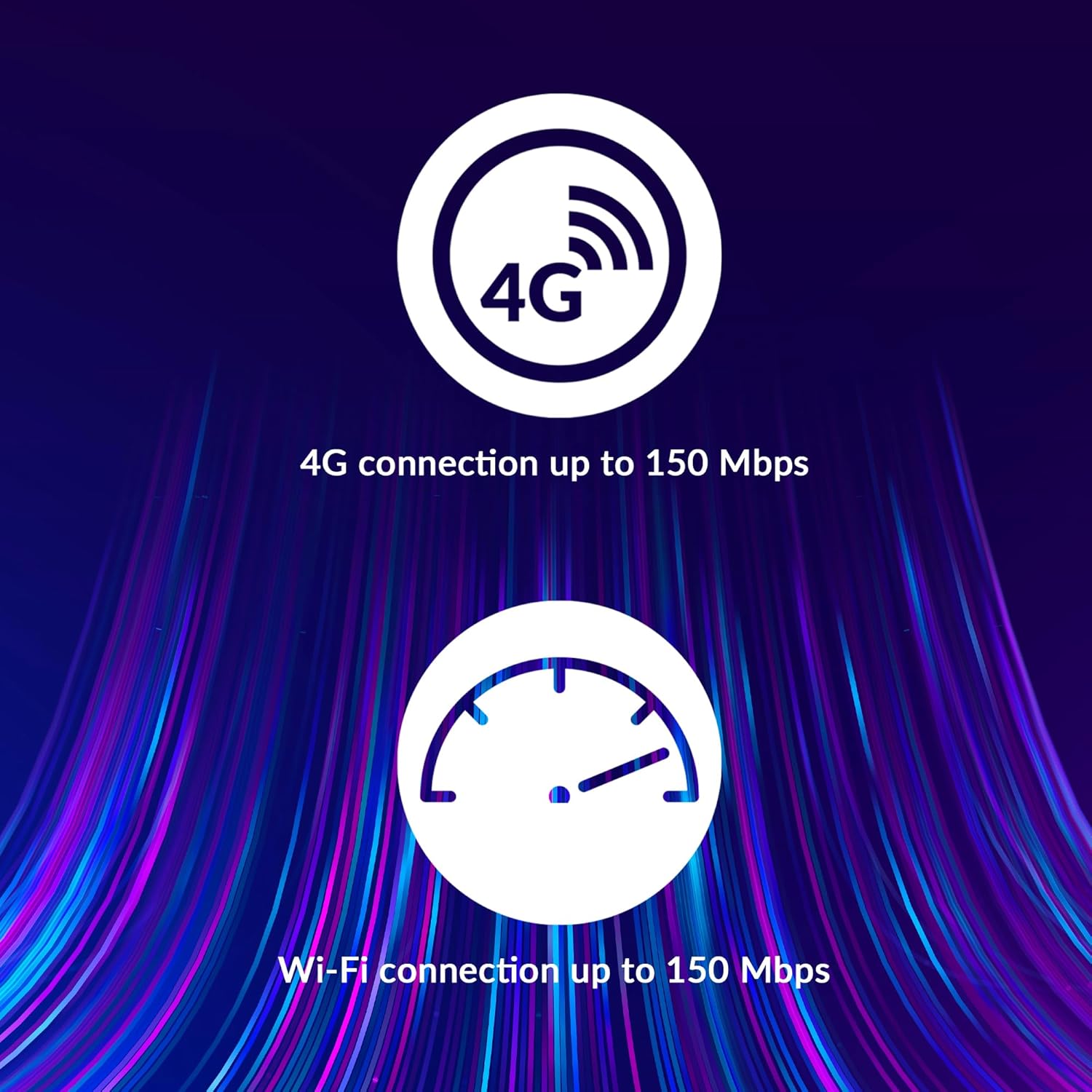
Image: A user holding the STRONG 4GMIFI150D Mobile Hotspot, demonstrating the QR code feature on its screen. This QR code can be scanned by compatible devices to quickly connect to the Wi-Fi network without manually entering the password.
For quick access, you can scan the QR code displayed on the hotspot's screen using a compatible device. This will automatically configure the Wi-Fi connection.
Example QR code content (for reference, actual values vary): WIFI:S:STRONG_XXXX_2.4GHz;T:WPA;P:XXXXXXXXXX;;
5.3. Web Management-Schnittstelle
For advanced settings and monitoring, access the web Verwaltungsschnittstelle:
- Connect your device to the hotspot's Wi-Fi network.
- Öffnen Sie ein web browser and enter the default IP address (usually 192.168.0.1 or 192.168.1.1) found in the Quick Installation Guide or on the device.
- Geben Sie den Standardbenutzernamen und das Standardpasswort ein (z. B. admin/admin).
- From here, you can manage Wi-Fi settings, security protocols (WPA/WPA2), PIN code management, and view Verbindungsstatus.
6. Leistung
The STRONG 4GMIFI150D offers robust performance for various internet activities.
- 4G Connection Speed: Up to 150 Mbps download speed.
- Wi-Fi Connection Speed: Bis zu 150 Mbit/s.
- Geräteunterstützung: Verbinden Sie bis zu 32 WLAN-Geräte gleichzeitig.
- Akkulaufzeit: Up to 8 hours of intensive use with the 2100 mAh battery.

Image: A graphic representation highlighting the performance capabilities of the hotspot, showing a 4G connection speed of up to 150 Mbps and a Wi-Fi connection speed of up to 150 Mbps.

Image: A person working on a laptop outdoors with the STRONG 4GMIFI150D Mobile Hotspot placed on the table next to them, illustrating the device's portability and suitability for remote work or travel.
7. Wartung
7.1. Reinigung
Wischen Sie das Gerät mit einem weichen, trockenen Tuch ab. Verwenden Sie keine flüssigen Reiniger oder Sprays.
7.2. Batteriepflege
- Setzen Sie den Akku keinen extremen Temperaturen aus.
- Charge the battery regularly, even if the device is not in use, to maintain its lifespan.
- If the device will not be used for an extended period, store it with a partial charge (around 50%).
7.3. Firmware-Updates
Überprüfen Sie regelmäßig die Herstellerangaben. webWebsite oder des Geräts web Management-Schnittstelle für verfügbare Firmware-Updates zur Gewährleistung optimaler Leistung und Sicherheit.
8. Fehlerbehebung
| Problem | Mögliche Ursache | Lösung |
|---|---|---|
| Keine Internetverbindung | No SIM card inserted, incorrect APN settings, no 4G signal, data plan exhausted. | Ensure SIM card is correctly inserted. Check APN settings via web interface. Move to an area with better signal. Check data plan with your mobile operator. |
| Keine Verbindung zum WLAN möglich | Incorrect Wi-Fi password, hotspot is off, too many devices connected. | Verify Wi-Fi password. Ensure hotspot is powered on. Disconnect some devices if 32 devices are already connected. |
| Langsame Internetgeschwindigkeit | Weak 4G signal, network congestion, distance from hotspot, too many connected devices. | Relocate the hotspot for better signal. Reduce the number of connected devices. Move closer to the hotspot. |
| Gerät lässt sich nicht einschalten | Battery drained, faulty battery/charger. | Charge the device for at least 30 minutes. Try a different USB cable or power adapter. |
9. Spezifikationen
| Besonderheit | Detail |
|---|---|
| Modell | 4GMIFI150D |
| Marke | Stark |
| Konnektivitätstyp | WLAN, 4G LTE |
| Wireless-Standard | 802.11b |
| 4G Geschwindigkeit | Bis zu 150 Mbit/s (Download) |
| WLAN-Geschwindigkeit | Bis zu 150 Mbit/s |
| Unterstützte Geräte | Bis zu 32 WLAN-Geräte |
| Batteriekapazität | 2100 mAh Lithium-Ionen |
| Akkulaufzeit | Up to 8 hours (intensive use) |
| Technische Daten | 19 x 5.7 x 14 cm |
| Artikelgewicht | 189 g |
| Sicherheit | WPA/WPA2, PIN code management |
| Betriebssystem | RouterOS (internal) |
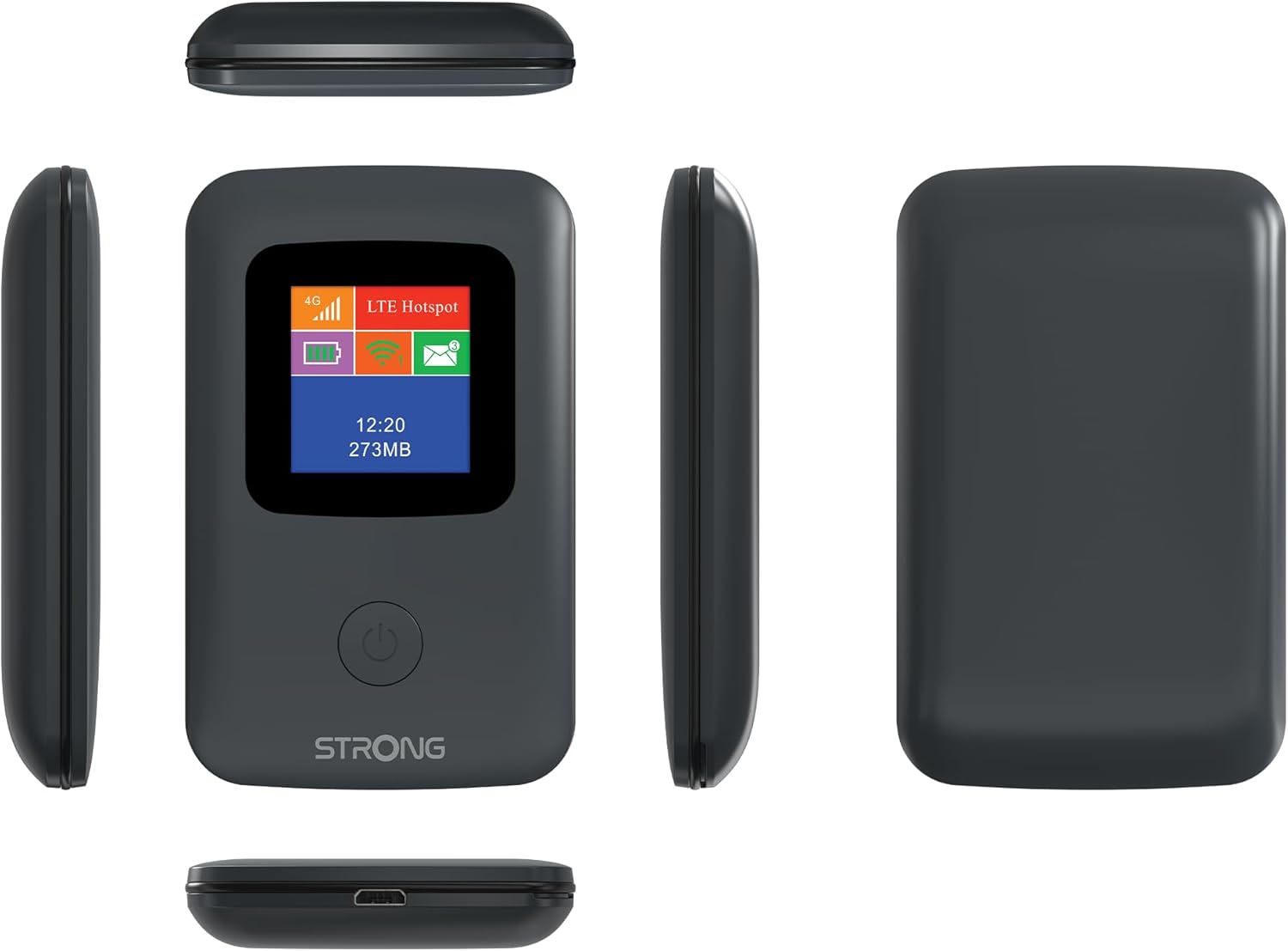
Image: A size comparison showing the STRONG 4GMIFI150D Mobile Hotspot next to a standard credit card, indicating its compact dimensions (92mm height, 58mm width) relative to a credit card (86mm height, 54mm width).
10. Garantie und Support
This product comes with a warranty as detailed in the included warranty card. For technical support, troubleshooting assistance beyond this manual, or warranty claims, please refer to the contact information provided in your product packaging or visit the official Strong webWebsite.
Bitte bewahren Sie Ihren Kaufbeleg für Garantiezwecke auf.
11. Sicherheitshinweise
- Das Gerät darf weder Wasser noch übermäßiger Feuchtigkeit ausgesetzt werden.
- Lassen Sie das Gerät nicht fallen und setzen Sie es keinen starken Stößen aus.
- Versuchen Sie nicht, das Gerät selbst zu zerlegen oder zu reparieren. Wenden Sie sich an qualifiziertes Servicepersonal.
- Verwenden Sie ausschließlich das mitgelieferte oder empfohlene Zubehör.
- Entsorgen Sie das Gerät und die Batterie verantwortungsbewusst gemäß den örtlichen Vorschriften.