1. Einleitung
The Jinvocloud UF-R1 WiFi Smart IR Blaster is a versatile infrared remote control hub designed to integrate your traditional IR-controlled home appliances into a modern smart home ecosystem. This device allows you to control various infrared household appliances such as air conditioners, TVs, fans, projectors, DVD players, and set-top boxes using a mobile application or voice commands through compatible smart speakers like Alexa and Google Assistant. It simplifies your home control by consolidating multiple remotes into one smart solution.
The UF-R1 supports 2.4G WiFi and Bluetooth 4.2 for fast and efficient network distribution. Its 360° all-round signal coverage ensures reliable control without dead angles. Additionally, it features a 'DIY' custom learning function, enabling it to control even unknown brands of infrared appliances.
2. Sicherheitshinweise
- Energiequelle: Only use the provided USB cable for power. Ensure the power adapter (not included) meets the specified voltage (5V) and current (1A) requirements.
- Netzwerkverbindung: This device only supports 2.4GHz WiFi networks. Ensure your router is configured for 2.4GHz or has a mixed mode that includes 2.4GHz.
- Infrared (IR) Limitations: Infrared signals cannot penetrate walls or solid objects. For optimal performance, place the IR Blaster within the line of sight of the appliances you wish to control. A single unit is recommended per room for effective IR coverage.
- Bluetooth-Funktionalität: The Bluetooth function is solely for network distribution (pairing). It does not support other Bluetooth functions, such as acting as a Bluetooth remote control.
- Nur zur Verwendung im Innenbereich: This device is intended for indoor use in dry environments. Avoid exposure to moisture, extreme temperatures, or direct sunlight.
- Kinder und Haustiere: Bewahren Sie das Gerät außerhalb der Reichweite von Kindern und Haustieren auf, um versehentliche Beschädigungen oder Verletzungen zu vermeiden.
- Demontage: Do not attempt to disassemble or repair the device yourself. This may void the warranty and pose safety risks. Contact customer support for assistance.
3. Packungsinhalt
Please check the package contents carefully. If any items are missing or damaged, contact your retailer or Jinvocloud customer support.
- Jinvocloud UF-R1 WiFi Smart IR Blaster
- USB-Stromkabel
- Benutzerhandbuch (dieses Dokument)
4. Installationsanleitung
Follow these steps to set up your Jinvocloud UF-R1 IR Blaster:
- Schalten Sie das Gerät ein: Connect the provided USB cable to the UF-R1 and plug the other end into a 5V/1A USB power adapter (not included) or a compatible USB port. The device will power on automatically.
- Laden Sie die Smart Life-App herunter: Suchen nach "Smart Life" in your mobile device's app store (App Store for iOS or Google Play Store for Android) and download the application. Alternatively, scan the QR code usually found in the quick start guide or product packaging to download the app.
- Registrieren/Anmelden: Öffnen Sie die Smart Life App und registrieren Sie sich für ein neues Konto oder melden Sie sich an, falls Sie bereits eines besitzen.
- Gerät hinzufügen:
- Ensure your mobile device is connected to a 2.4GHz WiFi network.
- In the Smart Life App, tap the "+" icon in the top right corner to add a device.
- Select "Infrared Universal Remote Control" or search for "IR Blaster" under the "Electrical" or "Smart Home" category.
- The app will use Bluetooth 4.2 for faster network distribution. Follow the on-screen prompts to connect the UF-R1 to your 2.4GHz WiFi network.
- Geräte hinzufügen: Once the UF-R1 is connected to WiFi, you can start adding your infrared-controlled appliances.
- Select the type of appliance (e.g., TV, AC, Fan).
- Choose the brand from the extensive code library. Test the pre-set codes to ensure functionality.
- If your appliance brand is not listed or the codes do not work, use the 'DIY' custom learning function. Point your original remote control at the UF-R1 and follow the app's instructions to record each button's infrared signal.

Figure 4.1: Bluetooth pairing and app control diagram.
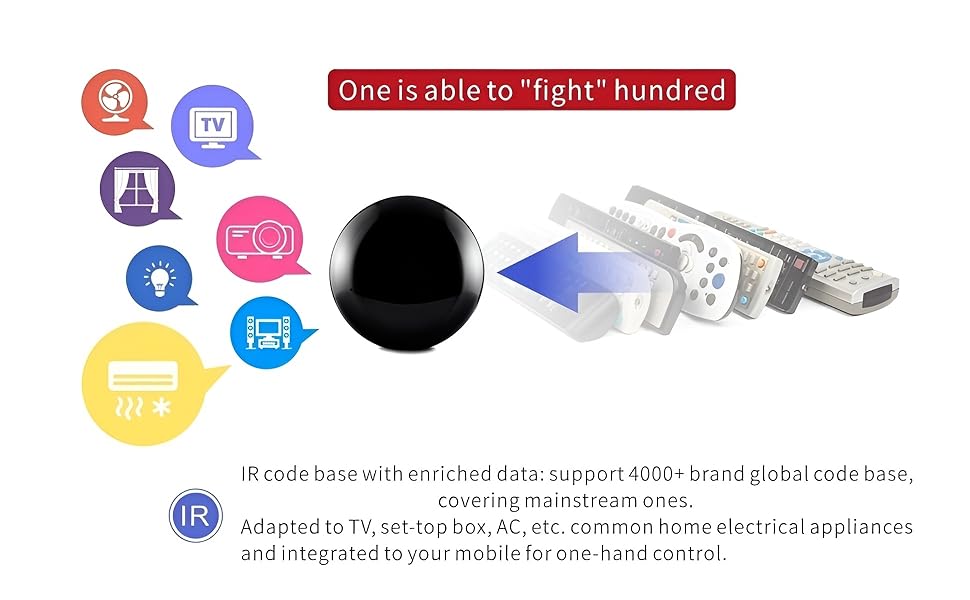
Figure 4.2: The UF-R1's extensive IR code base supports over 4000 brands, allowing control of numerous home electrical appliances.
5. Bedienungsanleitung
Once set up, you can control your appliances using the following methods:
5.1 Steuerung per mobiler App
The Smart Life App allows you to remotely control your appliances from anywhere with an internet connection. You can turn devices on/off, change settings (e.g., AC temperature, TV channels), and create custom scenes.
- Öffne die Smart Life App.
- Select the UF-R1 device.
- Tap on the specific appliance you wish to control.
- Use the virtual remote interface to send commands.
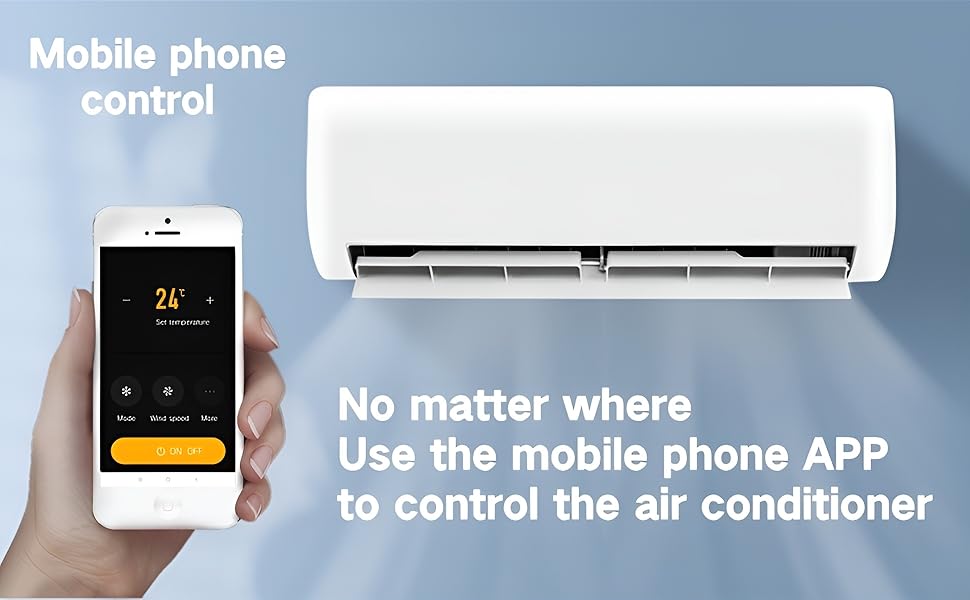
Figure 5.1: Mobile phone app control of an air conditioner.
5.2 Sprachsteuerung
The UF-R1 is compatible with popular voice assistants like Amazon Alexa and Google Assistant, allowing for hands-free control.
- Link Smart Life to Voice Assistant: Follow the instructions within your Alexa or Google Home app to link your Smart Life account.
- Geräte entdecken: Sobald die Verbindung hergestellt ist, bitten Sie Ihren Sprachassistenten, neue Geräte zu erkennen.
- Sprachbefehle: Verwenden Sie Befehle wie:
- "Alexa, schalte den Fernseher ein."
- "Hey Google, stell die Klimaanlage auf 24 Grad ein."
- "Alexa, open the set-top box."
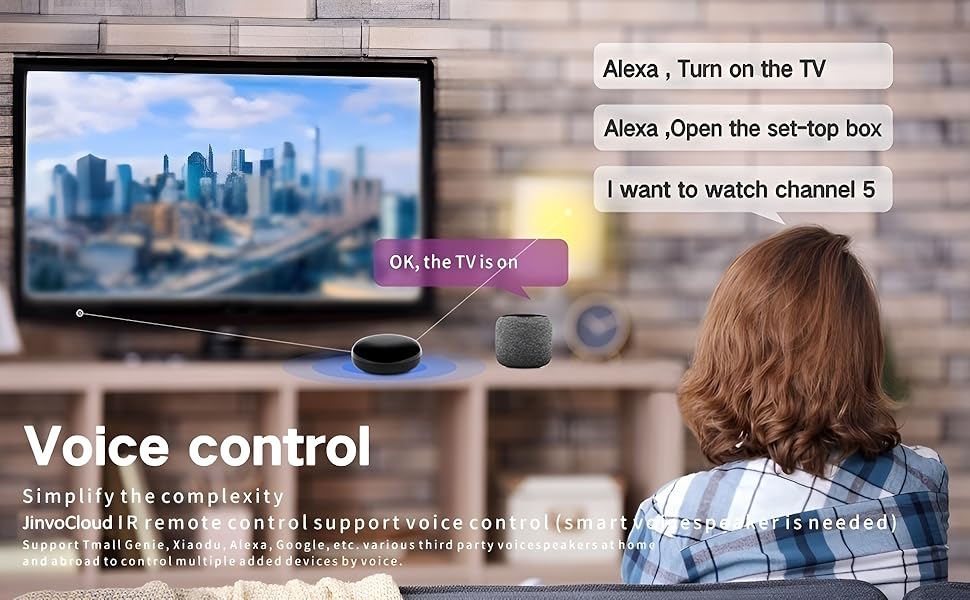
Abbildung 5.2: Integration der Sprachsteuerung mit intelligenten Lautsprechern.
5.3 Gerätefreigabe
The device sharing feature allows multiple users to control the same UF-R1 and its paired appliances simultaneously.
- In the Smart Life App, navigate to the UF-R1 device settings.
- Suchen Sie nach der Option „Gerät teilen“ oder „Gerätefreigabe“.
- Add family members or other users by entering their Smart Life account details. They will then have control over the shared devices.

Figure 5.3: Multiple users can share and control the device.
5.4 'DIY' Custom Learning Function
This feature allows you to teach the UF-R1 commands from any existing infrared remote control, even for devices not in the pre-programmed code library.
- In the Smart Life App, when adding an appliance, select the 'DIY' option.
- Follow the app's instructions to point your original remote at the UF-R1 and press the desired buttons. The UF-R1 will learn and store these infrared signals.
6. Wartung
To ensure the longevity and optimal performance of your Jinvocloud UF-R1 IR Blaster, follow these simple maintenance guidelines:
- Reinigung: Use a soft, dry cloth to wipe the surface of the device. Do not use liquid cleaners, aerosols, or abrasive chemicals, as they may damage the device.
- Platzierung: Place the device on a stable, flat surface away from direct heat sources, strong electromagnetic fields, and areas with high humidity. Ensure it has clear line of sight to the appliances it controls.
- Leistung: Always use the specified USB power cable. Disconnect power during electrical storms or when unused for long periods.
- Firmware-Updates: Periodically check the Smart Life App for any available firmware updates for the UF-R1. Updates can improve performance, add features, and fix bugs.
7. Fehlerbehebung
If you encounter issues with your Jinvocloud UF-R1, refer to the following common problems and solutions:
| Problem | Mögliche Ursache/Lösung |
|---|---|
| Gerät lässt sich nicht einschalten. | Ensure the USB cable is securely connected and the power adapter is working. Try a different USB port or adapter. |
| Verbindung zum WLAN nicht möglich. |
|
| IR Blaster not controlling appliances. |
|
| Voice control not working (Alexa/Google Assistant). |
|
| Bluetooth not working for remote control. | The Bluetooth function on the UF-R1 is exclusively for network distribution (pairing) and does not support general Bluetooth remote control functionality. |
8. Spezifikationen
| Besonderheit | Detail |
|---|---|
| Produktmodell | UF-R1 |
| Technische Daten | 2.67 x 2.67 x 1.06 Zoll (68 x 68 x 27.8 mm) |
| Artikelgewicht | 2.24 Unzen (62 g) |
| Eingangslautstärketage | 5V |
| Eingangsstrom | 1A |
| Wireless-Standard | WiFi IEEE 802.11b/g/n, Bluetooth 4.2 |
| Frequenz | 2.4 GHz |
| Sendeleistung | 20dBm |
| Betriebstemperatur | 0 ~ 50°C |
| Besondere Merkmale | APP Remote Control, Device Sharing, Learning Function, Timing Function, Voice Search |
| Farbe | Schwarz |
| Kompatible Geräte | TV, AC, Fan, Projector, DVD, STB, and other IR-controlled appliances |

Abbildung 8.1: Produktabmessungen und -parameter.
9. Garantie und Support
Jinvocloud is committed to providing high-quality smart home devices. For information regarding warranty coverage, returns, or technical support, please refer to the purchase platform's policies or contact the seller directly.
Hersteller: Shenzhen Tuya Cloud Technology Co.,Ltd
For further assistance, you may visit the Jinvocloud store on Amazon: Jinvocloud Store