1. Einleitung
This manual provides detailed instructions for the safe and efficient operation of your NexiGo Aurora Pro Ultra Short Throw 4K Tri-Color Laser Projector. Please read this manual thoroughly before using the product and retain it for future reference.
The NexiGo Aurora Pro is designed to deliver a high-quality home cinema experience with its 4K resolution, tri-color laser technology, and ultra-short throw capabilities.
2. Sicherheitshinweise
Wichtige Sicherheitshinweise:
- Do not look directly into the projector lens when the projector is on. The laser light source is powerful and can cause eye damage.
- Sorgen Sie für ausreichende Belüftung um den Projektor herum. Blockieren Sie keine Lüftungsöffnungen.
- Verwenden Sie ausschließlich das mit dem Projektor gelieferte Netzteil.
- Setzen Sie den Projektor weder Regen noch Feuchtigkeit aus, um einen Brand oder Stromschlag zu vermeiden.
- Halten Sie den Projektor von Wärmequellen wie Heizkörpern, Heizlüftern, Öfen oder anderen Geräten fern, die Wärme erzeugen.
- Bei Gewittern oder längerer Nichtbenutzung sollte der Projektor vom Stromnetz getrennt werden.
- Überlassen Sie sämtliche Wartungsarbeiten qualifiziertem Servicepersonal.
3. Packungsinhalt
Überprüfen Sie, ob alle Artikel in Ihrem Paket vorhanden sind:
- NexiGo Aurora Pro Projector
- Fernbedienung
- Stromkabel
- Benutzerhandbuch (dieses Dokument)
- Optional: 100/120 Fresnel Screen (if purchased as a bundle)
- Optional: 3D Glasses (if purchased as a bundle)
4. Produktüberschreitungview
4.1 Projektorkomponenten
Familiarize yourself with the main components of your NexiGo Aurora Pro projector.

Bild 1: Front view of the NexiGo Aurora Pro projector, showcasing its sleek design and front speaker grille.

Bild 2: Hinteren view of the NexiGo Aurora Pro projector, highlighting the various input and output ports for connectivity.
The projector features multiple connectivity options including HDMI ports, USB ports, and an Ethernet port for network connectivity. One HDMI port supports eARC.
4.2-Fernbedienung
The included remote control allows for easy navigation and control of the projector's functions. It features backlit keys for use in dark environments.
5. Einrichtung
5.1 Platzierung
The Aurora Pro is an Ultra Short Throw (UST) projector, designed to project a large image from a very short distance to the screen or wall. Proper placement is crucial for optimal image quality.

Bild 3: Diagram illustrating the recommended placement distances for various screen sizes (80-150 inches) for the NexiGo Aurora Pro projector.
Refer to the table below for recommended distances from the screen based on desired image size:
| Bildschirmgröße (Diagonale) | A: Screen to Front | B: Screen to Rear | C: Screen to Top | D: Screen to Foot | E: Y+D |
|---|---|---|---|---|---|
| 80 Zoll | 20.00 | 3.96 | 6.95 | 11.76 | 50.98 |
| 90 Zoll | 21.92 | 5.88 | 7.91 | 12.72 | 56.71 |
| 100 Zoll | 23.84 | 7.80 | 8.87 | 13.68 | 62.66 |
| 110 Zoll | 25.76 | 9.72 | 9.83 | 14.64 | 68.57 |
| 120 Zoll | 27.56 | 11.52 | 10.91 | 15.72 | 74.54 |
| 135 Zoll | 30.44 | 14.40 | 12.35 | 17.16 | 83.35 |
| 150 Zoll | 33.32 | 17.28 | 13.79 | 18.60 | 92.10 |
Note: The unit for values in the table is inches. Measurements do not include the screen border size.
5.2 Stromversorgung anschließen
- Schließen Sie das Netzkabel an den Stromeingang des Projektors an.
- Stecken Sie das andere Ende des Stromkabels in eine geerdete Steckdose.
5.3 Geräte anschließen
The Aurora Pro offers various ports for connecting external devices:
- HDMI: Connect Blu-ray players, gaming consoles, streaming devices, or computers. HDMI 1 supports eARC.
- USB: Schließen Sie USB-Laufwerke zur Medienwiedergabe oder externes Zubehör an.
- Optisches Audio: Anschluss an externe Audiosysteme.
- Ethernet: Für kabelgebundene Netzwerkverbindung.
Stellen Sie sicher, dass alle Kabel fest angeschlossen sind, bevor Sie den Projektor einschalten.
6. Bedienungsanleitung
6.1 Ein-/Ausschalten
- Zum Einschalten drücken Sie den Netzschalter am Projektor oder auf der Fernbedienung.
- To power off, press the power button again. A confirmation prompt may appear.
6.2 Ersteinrichtungsassistent
Upon first power-on, the projector will guide you through an initial setup wizard to configure language, network settings, and image adjustments.
6.3 Bildanpassung
The Aurora Pro features automatic screen adoption and dynamic dimming. Manual adjustments can be made via the settings menu.
- Fokus: Adjust the focus using the remote control or on-screen menu to achieve a sharp image.
- Trapezkorrektur: If the image is not perfectly rectangular, use keystone correction to adjust. Note that excessive keystone correction can reduce image quality.
- Bildschirmausrichtung: Fine-tune the image position to fit your screen perfectly.
6.4 Auswahl der Eingangsquelle
Press the "Input" button on the remote control to select between connected HDMI devices, USB media, or internal smart TV applications.
6.5 Audioeinstellungen
The projector includes built-in 60W stereo speakers with Dolby Atmos support. You can adjust volume and audio modes through the settings menu. For external audio systems, connect via HDMI eARC or optical audio output.

Bild 4: Visual representation of the immersive sound experience provided by the projector's 60W speakers, supporting Dolby Atmos and DTS HD.
6.6 Intelligente Funktionen und Apps
The projector includes a smart TV interface. Navigate using the remote control to access pre-installed applications or download new ones from the app store.
Notiz: Some streaming applications may require specific external devices for 4K content or may have compatibility limitations.
6.7 Gaming-Modus
For an optimized gaming experience, enable Gaming Mode in the settings. This mode reduces input lag to 8ms (tested at 1080p 240Hz) and supports 4K@120Hz input, providing smoother motion.
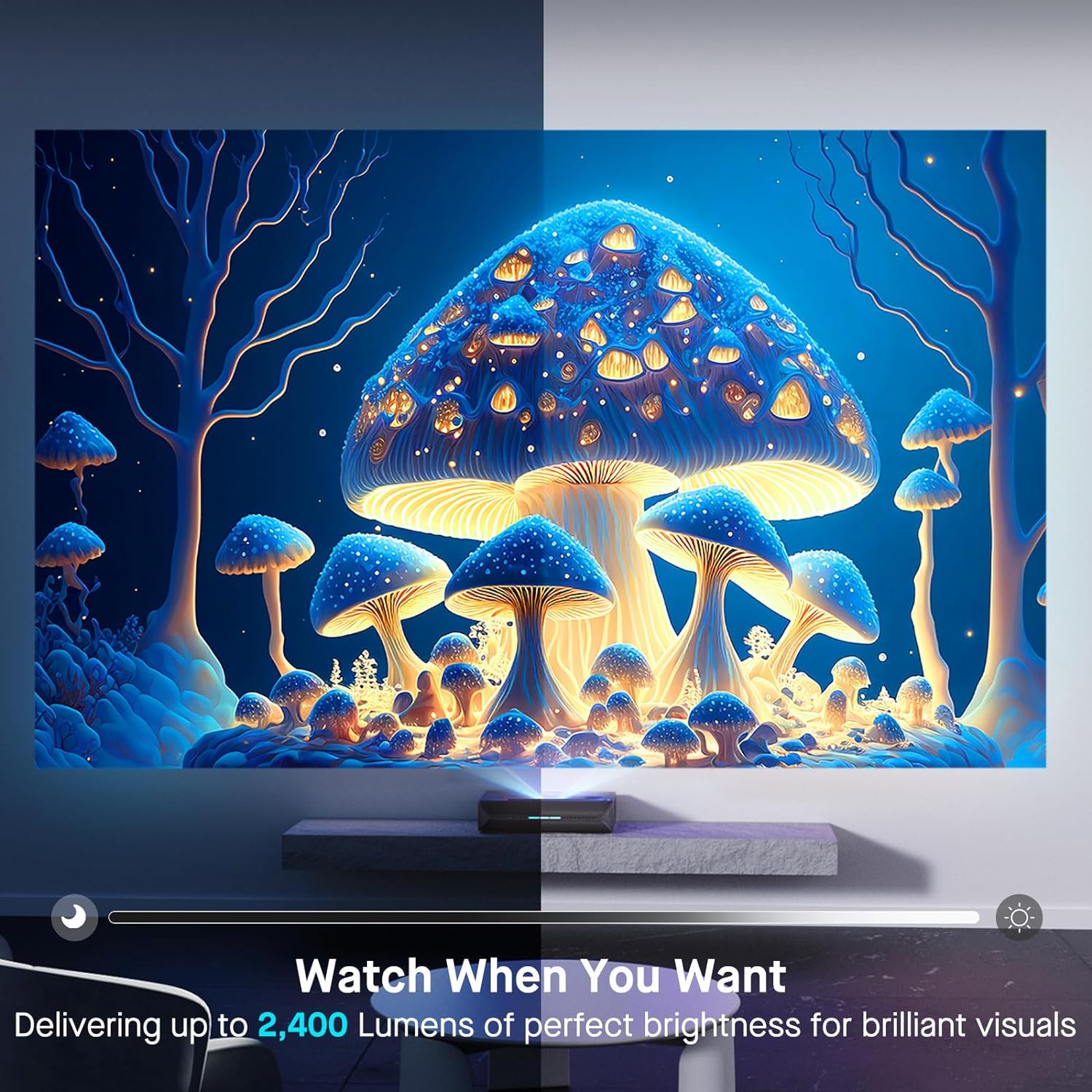
Bild 5: A user engaged in gaming on a large projected screen, demonstrating the projector's low latency and 4K 120Hz input capabilities for a smooth gaming experience.
7. Wartung
7.1 Reinigung des Projektors
- Exterieur: Verwenden Sie ein weiches, trockenes Tuch, um das Gehäuse des Projektors abzuwischen. Verwenden Sie keine Scheuermittel oder Lösungsmittel.
- Linse: Gently clean the projector lens with a lens cleaning cloth specifically designed for optical surfaces. Avoid touching the lens directly with your fingers.
7.2 Air Filter (if applicable)
Check the user manual for specific instructions regarding air filter cleaning or replacement, if your model is equipped with one. Regular cleaning ensures optimal performance and prevents overheating.
7.3 Firmware-Updates
Periodically check for firmware updates through the projector's settings menu. Updates can improve performance, add features, and resolve issues.
8. Fehlerbehebung
Sollten Sie Probleme mit Ihrem Projektor haben, beachten Sie bitte die folgenden häufig auftretenden Probleme und Lösungen:
| Problem | Mögliche Ursache | Lösung |
|---|---|---|
| Kein Bild angezeigt | Power cable loose, incorrect input source, device not connected. | Check power connections. Select correct input source. Ensure source device is on and connected. |
| Bild ist verschwommen | Out of focus, dirty lens, incorrect placement. | Adjust focus. Clean the lens. Verify projector placement according to guidelines. |
| Kein Ton | Volume too low, incorrect audio output setting, external audio system issue. | Increase volume. Check audio output settings on projector and source. Verify external audio system connections. |
| Fernbedienung funktioniert nicht | Niedriger Batteriestand, Hindernis, Fernbedienung nicht gekoppelt. | Replace batteries. Remove obstructions. Re-pair remote if necessary (refer to remote control section in full manual). |
| Smart apps not working or slow | Network connectivity issues, outdated app, insufficient memory. | Check Wi-Fi/Ethernet connection. Update the app. Restart the projector. |
For further assistance, please contact NexiGo customer support.
9. Spezifikationen
| Besonderheit | Detail |
|---|---|
| Modellnummer | PJ92 |
| Bildschirmauflösung | 3840 x 2160 (4K UHD) |
| Helligkeit | 2400 Lumen |
| Lichtquelle | Tri-Color Laser (ALPD 4.0 RGB+) |
| Natives Kontrastverhältnis | 3000:1 |
| Dynamisches Kontrastverhältnis | >6000:1 (with dynamic laser dimming) |
| Farbumfang | 107% Empf.2020 |
| HDR-Unterstützung | Dolby Vision, HDR10+, HLG |
| 3D-Unterstützung | Aktives 3D |
| Eingangsverzögerung | 8ms (tested at 1080p 240Hz) |
| Max Input Resolution/Refresh Rate | 4K bei 120 Hz |
| MEMC | Yes (120Hz) |
| Audioausgang | 60W Stereo Speakers (2x15W Woofers, 2x15W Tweeters), Dolby Atmos, eARC |
| Konnektivität | HDMI (3, one with eARC), USB, Optical Audio, Ethernet |
| Technische Daten | 21.54 x 16.04 x 4.81 Zoll |
| Artikelgewicht | 22 Pfund |
| Sichtbare Bildschirmdiagonale | 80" - 150" (381 cm max) |
| Laser Lifespan | 25,000 Stunden |
10. Garantie und Support
NexiGo provides customer support and warranty services for its products. For specific warranty terms and conditions, please refer to the warranty card included with your product or visit the official NexiGo webWebsite.
Kundendienst:
- For technical assistance, troubleshooting, or product inquiries, please contact NexiGo customer support.
- Contact information can typically be found on the NexiGo webauf der Website oder auf der Produktverpackung.
- NexiGo offers 24-hour customer support and lifetime technical support.
Rückgabe und Umtausch:
- Refer to your purchase agreement or retailer's policy for details on returns and exchanges. NexiGo typically offers a 30-day return or exchange period.


