1. Einleitung
Thank you for choosing the Cherry KW 7100 Mini Multi-Device Compact Keyboard. This manual provides essential information for setting up, operating, and maintaining your new keyboard. Designed for versatility and portability, this keyboard offers seamless connectivity across multiple devices.
2. Lieferumfang
- Cherry KW 7100 Mini Multi-Device Compact Keyboard
- USB-C to USB-A Charging/Connection Cable
- 2x AAA-Batterien
- 2.4 GHz Wireless Nano Receiver (stored magnetically in the keyboard)
- Tragetasche
- Bedienungsanleitung

Abbildung 1: Draufsicht view of the Cherry KW 7100 Mini Keyboard.
3. Einrichtung
3.1. Einlegen der Batterie
- Suchen Sie das Batteriefach an der Unterseite der Tastatur.
- Schieben Sie den Batteriefachdeckel auf.
- Legen Sie die beiden AAA-Batterien ein und achten Sie dabei auf die richtige Polarität (+/-).
- Schließen Sie den Batteriefachdeckel fest.
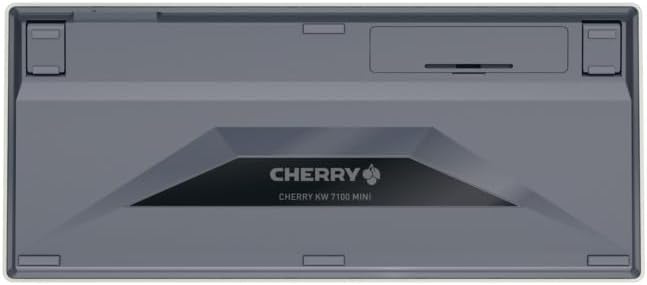
Abbildung 2: Unterseite der Tastatur mit dem Batteriefach.
3.2. Anschließen der Tastatur
The Cherry KW 7100 Mini supports three connection methods: Bluetooth, 2.4 GHz Wireless, and Wired USB-C.
3.2.1. Bluetooth-Verbindung (bis zu 3 Geräte)
- Schalten Sie die Tastatur mit dem seitlich angebrachten Netzschalter ein.
- Press and hold one of the Bluetooth channel keys (F1, F2, or F3) for 3-5 seconds until the corresponding LED indicator blinks rapidly. This indicates pairing mode.
- On your device (laptop, smartphone, tablet), navigate to Bluetooth settings and search for available devices.
- Select "Cherry KW 7100" from the list to pair. The LED will stop blinking and remain solid for a few seconds upon successful connection.
- Repeat for up to two additional devices using the other Bluetooth channel keys (F1, F2, or F3).
3.2.2. 2.4-GHz-Funkverbindung
- Locate the 2.4 GHz wireless nano receiver, typically stored magnetically in a slot on the underside of the keyboard.
- Insert the nano receiver into an available USB-A port on your computer.
- Schalten Sie die Tastatur mit dem Netzschalter ein. Die Tastatur sollte sich automatisch mit dem Empfänger verbinden.
3.2.3. Kabelgebundene USB-C-Verbindung
- Verbinden Sie ein Ende des mitgelieferten USB-C-Kabels mit dem USB-C-Anschluss der Tastatur.
- Connect the other end of the USB-C cable to an available USB-A port on your computer.
- The keyboard will function as a wired keyboard.
Video 1: Demonstrating the setup and typing experience of the Cherry KW 7100 Mini Keyboard.
4. Bedienung der Tastatur
4.1. Wechseln zwischen verbundenen Geräten
To switch between paired Bluetooth devices, simply press the corresponding Bluetooth channel key (F1, F2, or F3) that your device is paired to. The keyboard will automatically connect to the selected device.
4.2. Function Keys (FN)
The keyboard features a dedicated FN key, typically located near the right Shift key. This key, in combination with other keys, activates secondary functions such as media controls, screen brightness, and other system commands. Refer to the keycap legends for specific FN key combinations.
4.3. LED-Anzeigen
LED indicators on the keyboard provide information about its status:
- Bluetooth Channel LEDs (F1, F2, F3): Indicate the currently active Bluetooth connection or pairing mode.
- Feststelltaste-LED: Leuchtet auf, wenn die Feststelltaste aktiviert ist.
- Batteriestatus-LED: Zeigt einen niedrigen Batteriestand an.
4.4. Verstellbare Füße
The keyboard is equipped with stable, fold-out feet on the underside. These allow you to adjust the typing angle for improved ergonomics and comfort.
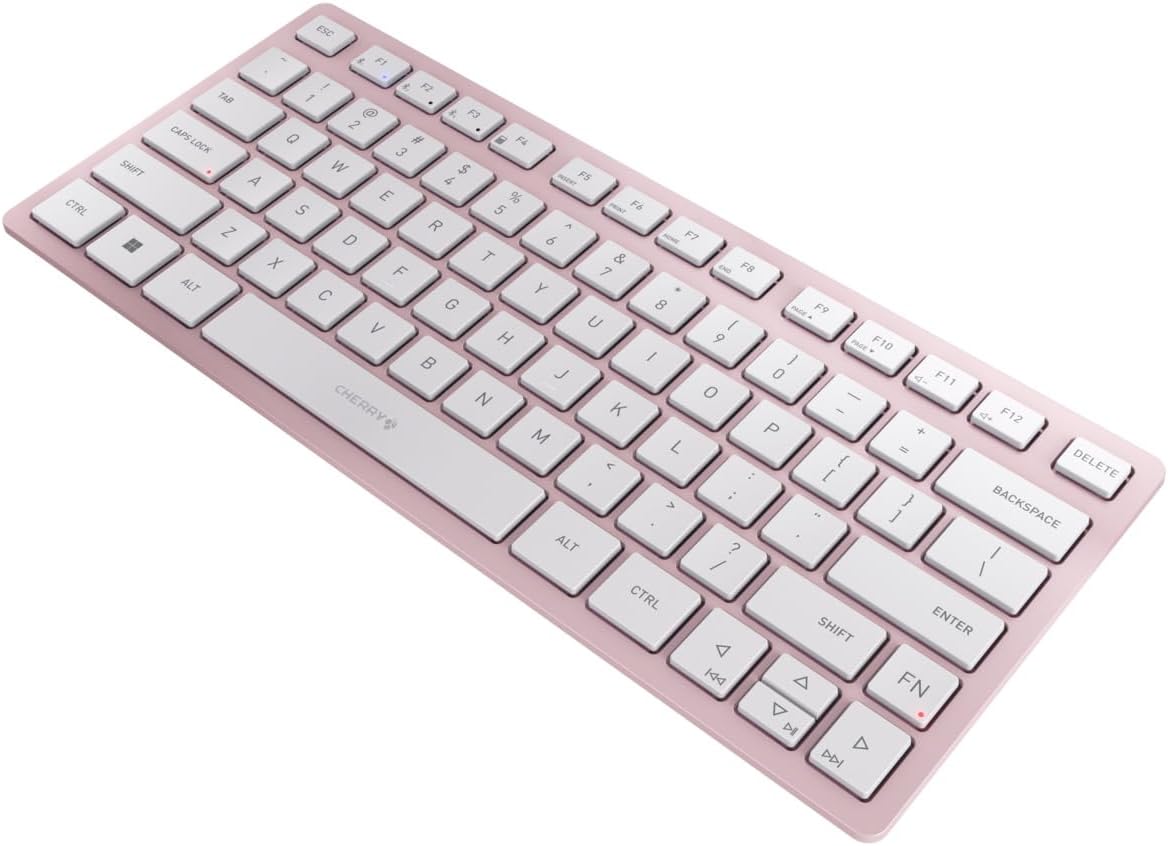
Abbildung 3: Schräg view der Tastatur, wobei deren schlankes Profil hervorgehoben wirdfile.

Abbildung 4: Seite view showing the adjustable feet extended for an ergonomic typing angle.
5. Wartung
5.1. Reinigung
To clean your keyboard, gently wipe the keycaps and surface with a soft, lint-free cloth. For stubborn dirt, slightly dampBefeuchten Sie das Tuch mit Wasser oder einer milden, nicht scheuernden Reinigungslösung. Vermeiden Sie übermäßige Feuchtigkeit und sprühen Sie Reinigungsmittel nicht direkt auf die Tastatur.
5.2. Speicherung
When not in use, especially during travel, store the keyboard in its included carrying case to protect it from dust, scratches, and minor impacts.

Figure 5: The keyboard stored in its protective carrying case.
6. Fehlerbehebung
6.1. Tastaturverbindung wird nicht hergestellt
- Stellen Sie sicher, dass die Tastatur eingeschaltet ist.
- Überprüfen Sie die Batterien und tauschen Sie sie gegebenenfalls aus.
- For Bluetooth, ensure the correct channel (F1, F2, or F3) is selected and the keyboard is in pairing mode (blinking LED).
- For 2.4 GHz wireless, ensure the nano receiver is securely plugged into a USB-A port.
- Versuchen Sie, eine Verbindung über das USB-C-Kabel herzustellen, um Probleme mit der drahtlosen Verbindung auszuschließen.
- Starten Sie Ihr Gerät neu und versuchen Sie es erneut.
6.2. Tasten reagieren nicht
- Check the connection as described above.
- Achten Sie darauf, dass sich keine Fremdkörper unter den Tasten befinden.
- Wenn Sie eine Kabelverbindung verwenden, versuchen Sie es mit einem anderen USB-Anschluss oder Kabel.
6.3. Kurze Akkulaufzeit
- Verwenden Sie unbedingt frische, hochwertige AAA-Batterien.
- Turn off the keyboard when not in use to conserve battery power.
7. Spezifikationen
| Besonderheit | Spezifikation |
|---|---|
| Modellname | KW 7100 |
| Artikelmodellnummer | JK-7100US-19 |
| Marke | Kirsche |
| Konnektivitätstechnologie | Bluetooth 5.1 (3 channels), 2.4 GHz Wireless, USB-C Wired |
| Kompatible Geräte | Laptop, Smartphone, Tablet |
| Tastaturbeschreibung | Compact, Multi-Device |
| Schlüsselmechanismus | CHERRY SX Scissor Mechanism |
| Stromquelle | 2x AAA-Batterien |
| Verschlüsselung | AES-128 |
| Technische Daten | 11.6 x 5.1 x 0.6 Zoll |
| Artikelgewicht | 1.4 Pfund |
| Material | Metall, Kunststoff |
| Farbe | Kirschblüte |
8. Garantie und Support
This product is covered by Cherry's standard manufacturer warranty. For detailed warranty information, technical support, or service inquiries, please visit the official Cherry webBesuchen Sie die Website oder kontaktieren Sie direkt deren Kundendienst.
Hersteller: Kirsche
WebWebsite: www.kirsche.de


