1. Einleitung
Welcome to the user manual for your new SGIN E10P 10-inch Kids Tablet. This guide provides essential information on setting up, operating, maintaining, and troubleshooting your device. Please read this manual thoroughly to ensure proper use and to maximize your tablet's features.
Lieferumfang
Bitte überprüfen Sie beim Auspacken, ob alle unten aufgeführten Artikel vorhanden sind:
- SGIN E10P Kids Tablet (with protective case)
- Bedienungsanleitung
- USB-Typ-C-Kabel
- Netzteil (Ladegerät)
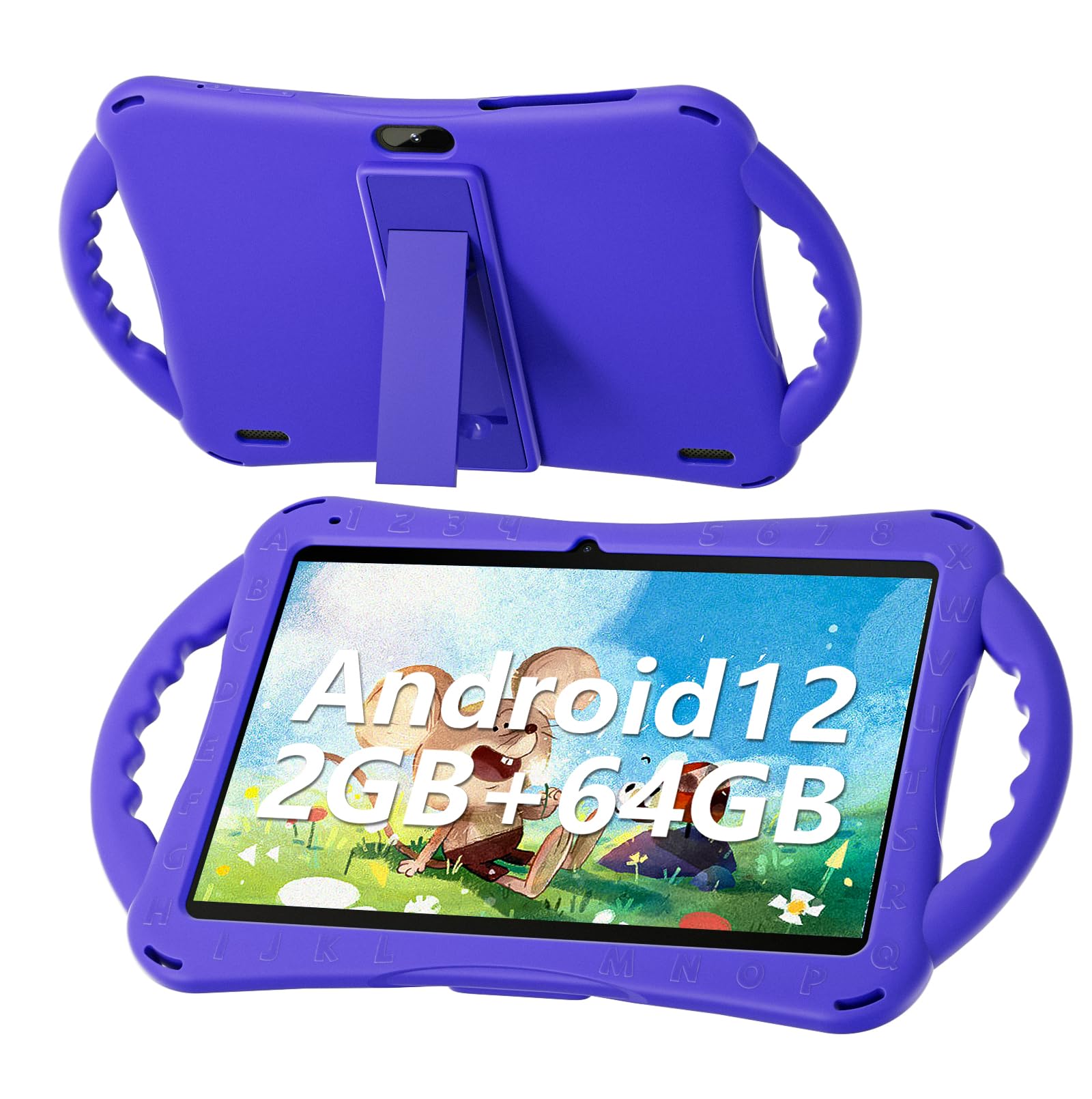
Figure 1: SGIN E10P Kids Tablet with its protective case.
2. Produktüberschreitungview
Familiarize yourself with the physical components of your SGIN E10P Kids Tablet.

Figure 2: Labeled diagram of the SGIN E10P Kids Tablet components.
- Frontkamera: Für Videoanrufe und Selfies.
- Rückfahrkamera: Zum Fotografieren und Filmen.
- Referenten: Audio-Ausgang.
- Typ C-Anschluss: Zum Aufladen und zur Datenübertragung.
- TF-Karten-Slot: Zur Speichererweiterung mit einer microSD-Karte.
- Kopfhöreranschluss: Zum Anschließen von kabelgebundenen Kopfhörern.
- Lautstärke erhöhen: Button to raise the audio level.
- Lautstärke reduzieren: Button to lower the audio level.
- Bracket (Kickstand): Integrierter Ständer für freihändiges Arbeiten viewing.
- Armrest (Handle): Ergonomic handles on the protective case for easy gripping.
3. Einrichtung
3.1 Aufladen des Tablets
Before first use, fully charge the tablet. Connect the USB Type-C cable to the tablet's Type-C port and the other end to the power adapter. Plug the power adapter into a wall outlet. The battery indicator on the screen will show charging status. A full charge typically takes several hours.
3.2 Ein-/Ausschalten
- So schalten Sie das Gerät ein: Press and hold the Power button (usually located on the side or top edge) until the SGIN logo appears on the screen.
- So schalten Sie das Gerät aus: Halten Sie die Ein-/Aus-Taste gedrückt, bis ein Menü erscheint. Wählen Sie dann „Ausschalten“ aus den Optionen.
- Neustarten: Halten Sie die Ein-/Aus-Taste gedrückt, bis ein Menü erscheint. Wählen Sie dann „Neustart“ aus den Optionen.
3.3 Ersteinrichtung
The first time you power on the tablet, you will be guided through an initial setup process:
- Sprachauswahl: Wählen Sie Ihre bevorzugte Sprache.
- Wi-Fi-Verbindung: Wählen Sie Ihr WLAN-Netzwerk aus und geben Sie das Passwort ein, um eine Internetverbindung herzustellen.
- Google Benutzerkonto: Sign in with an existing Google account or create a new one. This is necessary for downloading apps from the Google Play Store.
- Datum und Uhrzeit: Stellen Sie das korrekte Datum und die korrekte Uhrzeit ein oder lassen Sie das Netzwerk diese automatisch einstellen.
- Kindersicherung: Configure Google Kids Space or other parental control features to manage content and screen time for children.
4. Bedienung des Tablets
4.1 Grundlegende Navigation
The SGIN E10P tablet uses a touch-sensitive screen for navigation:
- Klopfen: Berühren Sie den Bildschirm einmal, um eine App zu öffnen, ein Element auszuwählen oder eine Taste zu drücken.
- Berühren und halten: Halten Sie ein Element gedrückt, um auf zusätzliche Optionen zuzugreifen oder es zu verschieben.
- Wischen: Ziehen Sie mit dem Finger über den Bildschirm, um durch Seiten oder Listen zu scrollen.
- Pinch-to-Zoom: Legen Sie zwei Finger auf den Bildschirm und bewegen Sie sie auseinander, um hineinzuzoomen, oder zusammen, um herauszuzoomen.
4.2 WLAN-Konnektivität
To connect or manage Wi-Fi networks:
- Gehe zu Einstellungen > Netzwerk & Internet > W-lan.
- WLAN ein-/ausschalten On.
- Wählen Sie das gewünschte Netzwerk aus der Liste aus und geben Sie gegebenenfalls das Passwort ein.

Figure 3: The tablet supports both 2.4GHz and 5GHz Wi-Fi for stable connections.
4.3 Applications and Content
The tablet runs on Android 12 and comes with access to the Google Play Store, allowing you to download a wide range of applications. It is pre-configured for children's use, supporting apps like YouTube Kids, educational games, and other child-friendly content.

Figure 4: The Android 12 interface with various pre-installed and downloadable kids' apps.
4.4 Kindersicherung
Utilize the built-in parental control features to manage your child's tablet experience. This includes setting screen time limits, filtering content, and approving app downloads. Access these settings through the Google Family Link app or directly in the tablet's settings under "Digital Wellbeing & parental controls."
5. Wartung
5.1 Reinigung
- Bildschirm: Verwenden Sie ein weiches, fusselfreies Tuch, das speziell für Elektronikgeräte entwickelt wurde. Bei hartnäckigen Flecken leicht andrücken.ampen the cloth with water or a screen cleaner solution (do not spray directly onto the screen).
- Fall: The silicone protective case can be wiped with a damp cloth and mild soap if necessary. Ensure it is completely dry before reattaching it to the tablet.
- Häfen: Keep all ports (USB-C, headphone jack, TF card slot) free of dust and debris. Use a soft brush or compressed air if needed.
5.2 Batteriepflege
The tablet is equipped with a 5000mAh battery, providing extended usage time.

Figure 5: The tablet features a 5000mAh battery for prolonged use.
- Vermeiden Sie extreme Temperaturen, da diese die Lebensdauer des Akkus beeinträchtigen können.
- Verwenden Sie ausschließlich das mitgelieferte Ladegerät und Kabel, um Beschädigungen zu vermeiden.
- Um eine optimale Lebensdauer des Akkus zu gewährleisten, vermeiden Sie es, den Akku häufig vollständig zu entladen oder ihn über längere Zeiträume auf 100 % geladen zu halten.
5.3 Speicherung
Store the tablet in a cool, dry place away from direct sunlight and moisture when not in use.
6. Fehlerbehebung
This section addresses common issues you might encounter with your SGIN E10P tablet.
6.1 Tablet lässt sich nicht einschalten
- Stellen Sie sicher, dass das Tablet ausreichend geladen ist. Schließen Sie es mindestens 30 Minuten lang an das Ladegerät an, bevor Sie versuchen, es wieder einzuschalten.
- Um einen Neustart zu erzwingen, halten Sie den Netzschalter 10-15 Sekunden lang gedrückt.
6.2 Probleme mit der WLAN-Verbindung
- Prüfen Sie, ob WLAN in den Einstellungen des Tablets aktiviert ist.
- Überprüfen Sie, ob Ihr WLAN-Router ordnungsgemäß funktioniert und ob andere Geräte eine Verbindung herstellen können.
- Vergessen Sie das Netzwerk in den WLAN-Einstellungen des Tablets und stellen Sie die Verbindung erneut her.
- Restart both the tablet and your Wi-Fi router.
6.3 Abstürzende oder einfrierende Apps
- Schließen Sie die App und öffnen Sie sie erneut.
- Löschen Sie den Cache und die Daten der App in Einstellungen > Apps > [App-Name] > Speicher & Cache.
- Ensure the app is updated to its latest version via the Google Play Store.
- Starten Sie das Tablet neu.
6.4 Langsame Leistung
- Schließen Sie nicht benötigte Hintergrundanwendungen.
- Zwischengespeicherte Daten aus Apps und dem System löschen.
- Ensure there is sufficient storage space available. Delete unused apps or files.
- Führen Sie als letzten Ausweg einen Werksreset durch (Notiz: Dadurch werden alle Daten auf dem Tablet gelöscht. Sichern Sie wichtige Daten. files zuerst).
7. Spezifikationen
Key technical specifications for the SGIN E10P Kids Tablet:
| Besonderheit | Spezifikation |
|---|---|
| Marke | SGIN |
| Modellnummer | E10P |
| Bildschirmgröße | 10 Zoll |
| Bildschirmauflösung | 1280 x 800 |
| Prozessor | 1.5 GHz Allwinner Quad-core A133 |
| RAM | 2 GB |
| Speicher (ROM) | 64 GB |
| Erweiterbarer Speicher | TF Card Slot (for additional expansion) |
| Betriebssystem | Android 12 |
| Hinteren Webcam Auflösung | 5 Megapixel |
| Frontkamera | 2 Megapixel |
| Batteriekapazität | 5000 mAh |
| Konnektivität | 2.4-GHz-/5-GHz-WLAN, Bluetooth 4.2 |
| Abmessungen (LxBxH) | 10.1 x 6 x 0.4 Zoll |
| Artikelgewicht | 2.27 Pfund |
8. Garantie und Support
SGIN provides a 1-year maintenance period from the date of purchase for this product. If you encounter any issues or require assistance, please contact SGIN customer support.
For further support, please refer to the contact information provided with your purchase documentation or visit the official SGIN webWebsite.


