Einführung
The Gainscha B300 is a compact and portable thermal barcode printer designed for various mobile printing scenarios. It supports high-speed printing of thermal stickers and thermal bills up to 120mm/s, offering a 203 DPI resolution for clear output. This manual provides essential information for setting up, operating, and maintaining your B300 printer.
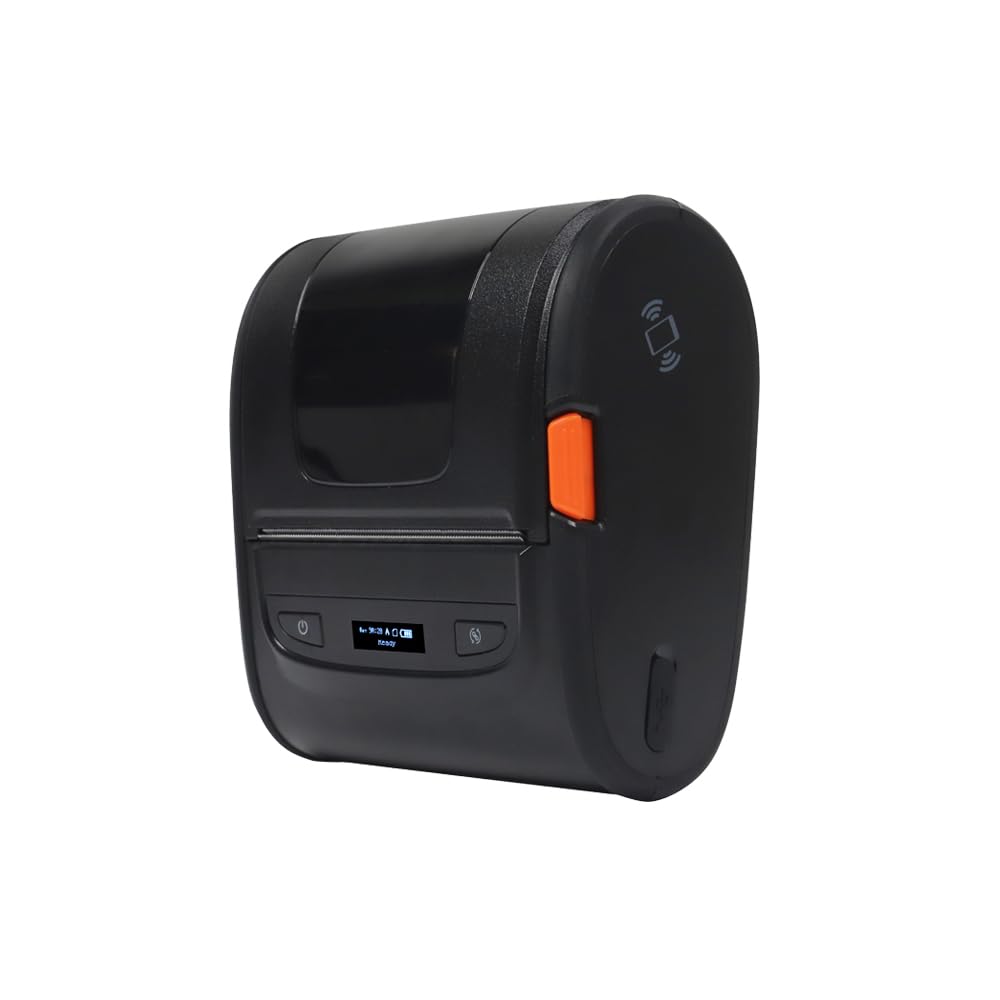
Abbildung 1: Front view of the Gainscha B300 Portable Barcode Printer, showing the power button, feed button, and a small display indicating "ready" status.
Aufstellen
1. Auspacken und Komponenten
Carefully unpack the printer and ensure all components are present. The standard package includes the Gainscha B300 printer unit.
2. Laden von Printmedien
- Open the printer's top cover by gently pressing the release latches on the sides.
- Insert the thermal label roll or thermal bill roll into the media compartment, ensuring the printing surface faces the print head.
- Pull a small length of media out past the print head and close the top cover securely until it clicks into place.
3. Einschalten
Connect the power adapter to the printer and a power outlet. Press and hold the power button (marked with a ⏻ symbol) located on the front panel until the display illuminates.

Abbildung 2: Nahaufnahme view of the Gainscha B300 printer's front panel, highlighting the power button on the left and the feed button (circular arrow symbol) on the right, with the display in the center.
4. Konnektivität
- USB-Verbindung: Connect the printer to your computer using the provided USB cable. Install the necessary drivers (available from the Gainscha website) für Ihr Betriebssystem.
- Bluetooth Verbindung:
- Stellen Sie sicher, dass Bluetooth auf Ihrem Smartphone oder einem kompatiblen Gerät aktiviert ist.
- On your device, search for available Bluetooth devices. The printer should appear as "Gainscha B300" or a similar identifier.
- Select the printer to pair. If prompted for a PIN, enter "0000" or "1234".
- Once paired, you can print directly from compatible applications on your smartphone.
Bedienungsanleitung
1. Grundlegendes Drucken
After connecting the printer via USB or Bluetooth, open your desired application (e.g., label design software, retail POS system, shipping software) on your computer or smartphone. Select the Gainscha B300 as your printer and initiate the print command. The printer will automatically feed and print the data.
2. Druckeinstellungen
- Auflösung: The B300 supports a printing resolution of 203 DPI, suitable for clear text and barcode printing.
- Medientyp: Ensure your software settings match the type of thermal media loaded (e.g., label size, gap settings).
- Besondere Merkmale: The printer supports watermark printing and two-color printing, depending on the media and software capabilities. Refer to your application's documentation for utilizing these features.
3. Feed Button Function
The feed button (circular arrow symbol) on the front panel can be used to advance the print media by one label or a set length, depending on the printer's mode. A quick press typically feeds one label, while holding it down may continuously feed paper.
Wartung
1. Reinigung des Druckkopfes
To maintain print quality, clean the thermal print head regularly. Use a lint-free cloth dampMit Isopropylalkohol abwischen. Die Oberfläche des Druckkopfs vorsichtig abwischen. Stellen Sie sicher, dass der Drucker vor der Reinigung ausgeschaltet und abgekühlt ist.
2. Reinigung der Außenseite
Wischen Sie die Außenseite des Druckers mit einem weichen, trockenen Tuch ab. Vermeiden Sie die Verwendung von scharfen Chemikalien oder Scheuermitteln.
3. Speicherung
When not in use, store the printer in a cool, dry place away from direct sunlight and extreme temperatures. Remove any media rolls if storing for an extended period.
Fehlerbehebung
- Drucker lässt sich nicht einschalten:
Check if the power adapter is securely connected to both the printer and a working power outlet. Ensure the power button is pressed correctly.
- Schlechte Druckqualität:
Clean the print head as described in the Maintenance section. Ensure you are using high-quality thermal media. Check print density settings in your software.
- No Printing/Paper Jam:
Verify that the media roll is loaded correctly and not jammed. Open the cover, clear any obstructions, and re-load the media. Ensure the printer cover is fully closed.
- Probleme mit der Bluetooth-Konnektivität:
Ensure the printer is within range of your device. Turn off and on Bluetooth on both the printer and your device. Re-pair the devices if necessary. Check if other Bluetooth devices are causing interference.
- USB-Verbindung nicht erkannt:
Ensure the USB cable is securely connected. Try a different USB port or cable. Verify that the correct printer drivers are installed on your computer.
If issues persist, consult the Gainscha support webWebsite oder wenden Sie sich an den Kundendienst.
Technische Daten
| Besonderheit | Detail |
|---|---|
| Modell | B300 |
| Marke | Gainscha |
| Drucktechnologie | Thermal |
| Druckerauflösung | 203 x 203 DPI |
| Konnektivität | Bluetooth, USB |
| Kompatible Geräte | Smartphones |
| Printmedien | Labels |
| Maximale Mediengröße | 4 x 6 Zoll |
| Druckerausgabe | Einfarbig |
| Besondere Merkmale | Bluetooth, Watermark Printing, Two-Color Printing (with compatible media) |
| Technische Daten | 12.19 x 10.36 x 0.61 cm |
| Farbe | Schwarz |
Garantie und Support
For warranty information, technical support, or service inquiries, please refer to the official Gainscha webBesuchen Sie die Website oder kontaktieren Sie den Kundendienst. Bewahren Sie Ihren Kaufbeleg als Kaufnachweis auf.


