1. Einleitung
This manual provides comprehensive instructions for the Hyperkin Pixel Art Bluetooth Controller, Tetris™ Edition (Model M01328-TETS). This limited-edition wireless controller is designed for use with various gaming platforms, offering a blend of retro aesthetics and modern functionality. Please read this manual thoroughly before use to ensure proper setup and operation.

Image 1.1: The Hyperkin Pixel Art Bluetooth Controller, Tetris™ Edition, showcasing its unique Tetris-themed design.
2. Packungsinhalt
Überprüfen Sie, ob alle Artikel in Ihrem Paket vorhanden sind:
- Hyperkin Pixel Art Bluetooth Controller (Tetris™ Edition)
- USB-C-Ladekabel
- Benutzerhandbuch (dieses Dokument)
3. Controller-Layout
Familiarize yourself with the buttons and features of your controller:

Bild 3.1: Vorderseite view of the controller, displaying the D-pad, analog sticks, action buttons (A, B, X, Y), SELECT, START, and Tetris™ logo.
- Steuerkreuz: Richtungseingang.
- Linker/Rechter Analogstick: Precise 360-degree movement.
- Aktionsschaltflächen (A, B, X, Y): Primäre Interaktionsschaltflächen.
- Auswahlknopf: Function varies by platform/game.
- Start Knopf: Function varies by platform/game.
- Schulterknöpfe (L1, R1): Oben angebrachte Knöpfe.
- Auslöseknöpfe (L2, R2): Unten angebrachte analoge Trigger.
- Home "Button: Returns to system menu (functionality varies by platform).
- Turbo-Taste: Activates/deactivates turbo function for selected buttons.
- USB-C-Anschluss: Zum Laden und für kabelgebundene Verbindungen.

Abbildung 3.2: Rückseite view of the controller, showing the ergonomic grip and product label.
4. Einrichtung
4.1. Aufladen des Controllers
Before initial use, fully charge the controller. Connect the included USB-C charging cable to the controller's USB-C port and the other end to a USB power source (e.g., computer, USB wall adapter). The charging indicator light will show charging status and turn off when fully charged.
4.2. Bluetooth-Kopplung
The controller supports wireless connection via Bluetooth up to 30 feet. Follow these general steps for pairing:
- Stellen Sie sicher, dass der Controller aufgeladen ist.
- Turn on the controller (specific method may vary, typically holding the Home button).
- Activate pairing mode on the controller (refer to specific platform instructions below, usually a combination of buttons or a dedicated pairing button). The indicator lights will flash rapidly.
- On your device (Nintendo Switch, PC, Mac, Android, iOS), navigate to the Bluetooth settings.
- Suchen nach available devices and select "Hyperkin Pixel Art Controller" or similar.
- Sobald die Kopplung abgeschlossen ist, leuchten die Kontrollleuchten am Controller dauerhaft.
4.2.1. Pairing with Nintendo Switch/OLED Model
- From the HOME Menu, select "Controllers" > "Change Grip/Order."
- While on this screen, press and hold the pairing button on the Hyperkin controller until the indicator lights flash.
- Once paired, the controller will appear on the screen, and the player indicator will light up.
4.2.2. Pairing with PC (Windows 10/11)
- Go to "Settings" > "Devices" > "Bluetooth & other devices."
- Turn on Bluetooth and click "Add Bluetooth or other device."
- Select "Bluetooth" and then choose "Hyperkin Pixel Art Controller" from the list.
4.2.3. Pairing with Mac
- Open "System Settings" (or "System Preferences") > "Bluetooth."
- Ensure Bluetooth is on. The controller should appear in the list of devices.
- Click "Connect" or "Pair" next to "Hyperkin Pixel Art Controller."
4.2.4. Pairing with Android/iOS Devices
- Go to your device's "Settings" > "Bluetooth."
- Turn on Bluetooth. The controller should appear in the list of available devices.
- Tap on "Hyperkin Pixel Art Controller" to pair.

Image 4.1: The controller demonstrating wireless connectivity with a Nintendo Switch console, highlighting its Bluetooth capability.
5. Bedienungsanleitung
5.1. Grundlegende Steuerelemente
The controller functions as a standard gamepad. Button mapping may vary depending on the game and platform. Refer to your game's instructions for specific control schemes.
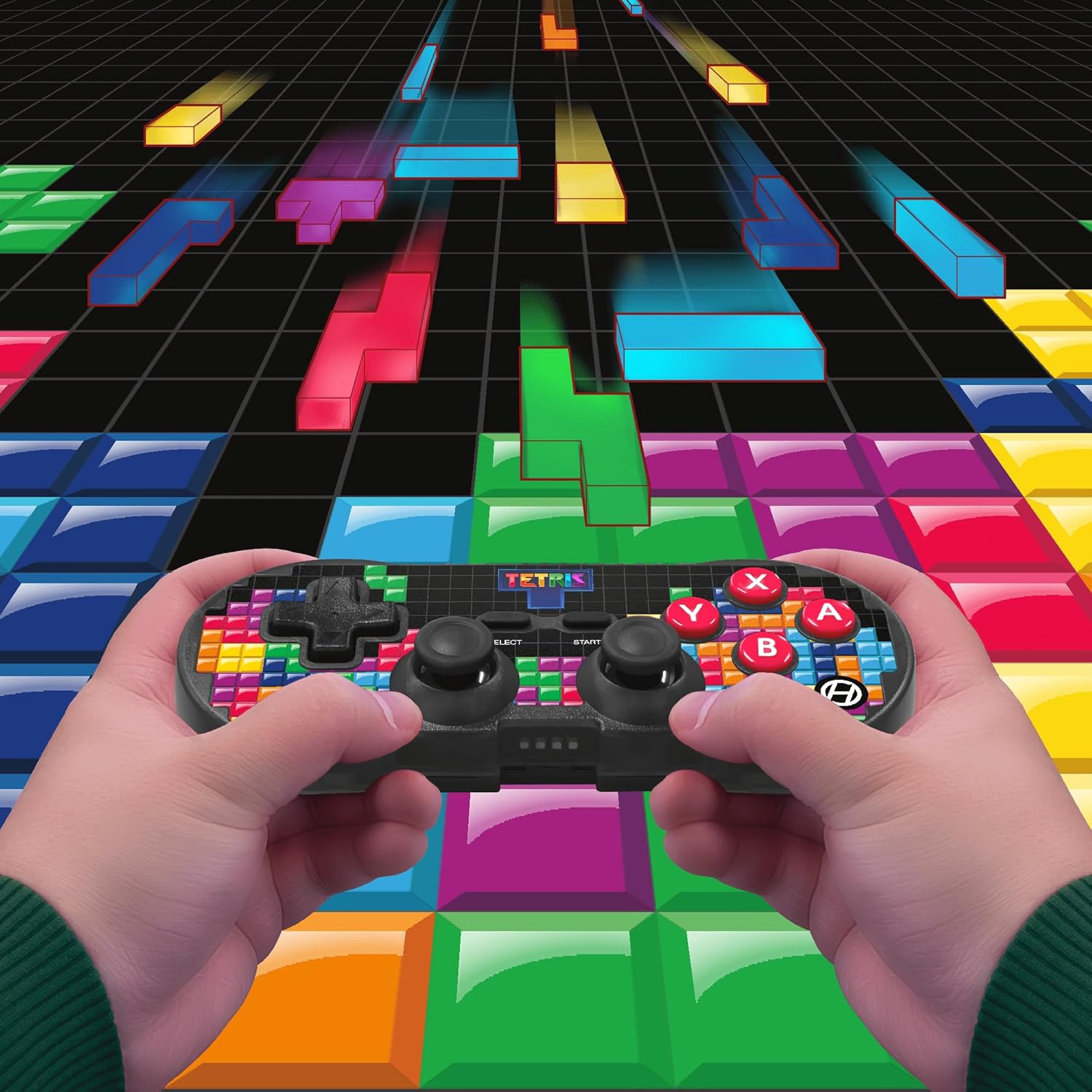
Image 5.1: A user holding the controller, illustrating its use during gameplay.
5.2. Turbofunktion
The controller features a turbo function for rapid button presses. To activate or deactivate turbo for a specific button:
- Halten Sie die Turbo-Taste.
- While holding the Turbo button, press the desired Aktionsschaltfläche (A, B, X, Y, L1, R1, L2, R2) you wish to apply turbo to.
- Release both buttons. The selected action button will now have turbo enabled.
- To disable turbo for that button, repeat the process.
6. Kompatibilität
The Hyperkin Pixel Art Bluetooth Controller is compatible with a wide range of platforms:
- Nintendo-Schalter
- Nintendo Switch OLED-Modell
- Windows 10/11-PC
- Mac
- Android-Geräte
- iOS-Geräte
- Dampf
- Himbeer-Pi
- Amazon Games
- Amazon Luna
- Tesla

Image 6.1: Visual representation of the controller's broad compatibility across multiple gaming and computing platforms.
7. Wartung
Um die Langlebigkeit und optimale Leistung Ihres Controllers zu gewährleisten:
- Reinigung: Reinigen Sie den Controller mit einem weichen, trockenen Tuch. Vermeiden Sie scheuernde Reiniger oder Lösungsmittel.
- Lagerung: Bewahren Sie den Controller an einem kühlen, trockenen Ort fern von direkter Sonneneinstrahlung und extremen Temperaturen auf.
- Batteriepflege: Do not attempt to replace the internal Lithium Polymer battery. Avoid fully discharging the battery for extended periods.
- Vermeiden Sie Tropfen: Schützen Sie den Controller vor Stürzen und Stößen, da diese die internen Komponenten beschädigen können.
8. Fehlerbehebung
Sollten Sie Probleme mit Ihrem Hyperkin Pixel Art Bluetooth-Controller haben, beachten Sie bitte die folgenden häufig auftretenden Probleme und Lösungen:
| Problem | Mögliche Lösung |
|---|---|
| Der Controller lässt sich nicht einschalten. | Stellen Sie sicher, dass der Controller vollständig aufgeladen ist. Verbinden Sie ihn mit dem USB-C-Kabel mit einer Stromquelle. |
| Controller does not pair via Bluetooth. |
|
| Input lag or dropped connection. |
|
| Die Schaltflächen reagieren nicht oder hängen. | Clean around the buttons with a soft, dry cloth. Avoid liquid cleaners. If the issue persists, contact support. |
9. Spezifikationen
| Besonderheit | Detail |
|---|---|
| Modellnummer | M01328-TETS |
| Konnektivität | Bluetooth (Wireless up to 30 ft.), USB-C (Wired) |
| Kompatibilität | Nintendo Switch/OLED, Windows 10/11 PC, Mac, Android, iOS, Steam, Raspberry Pi, Amazon Games, Amazon Luna, Tesla |
| Besondere Merkmale | Turbo function, Retro design with modern ergonomics, High-quality symmetrical sticks, Responsive action buttons, Reliable triggers |
| Akku-Typ | 1 Lithium-Polymer-Akku (intern) |
| Verpackungsabmessungen | 7.24 x 5 x 2.48 Zoll |
| Artikelgewicht | 9.9 Unzen |
| Hersteller | Hyperkin |
10. Garantie und Support
For warranty information and technical support, please visit the official Hyperkin webBesuchen Sie die Website oder kontaktieren Sie den Kundendienst. Bewahren Sie Ihren Kaufbeleg für Garantieansprüche auf.
Hyperkin Offiziell WebWebsite: www.hyperkin.com


