Einführung
Thank you for choosing the MINIX Portable Monitor. This 16-inch Full HD 1200P IPS touch screen display is designed for enhanced productivity and entertainment on the go. Its ultra-slim design and versatile connectivity make it an ideal companion for laptops, PCs, gaming consoles, and mobile devices. This manual provides essential information for setting up, operating, maintaining, and troubleshooting your new portable monitor.
Sicherheitshinweise
- Do not expose the monitor to rain or moisture to prevent fire or electric shock hazards.
- Vermeiden Sie es, den Monitor direktem Sonnenlicht oder in der Nähe von Wärmequellen auszusetzen.
- Use only the power adapter and cables provided or recommended by MINIX.
- Versuchen Sie nicht, den Monitor selbst zu zerlegen oder zu reparieren. Überlassen Sie alle Wartungsarbeiten qualifiziertem Fachpersonal.
- Halten Sie den Monitor von starken Magnetfeldern fern.
- Reinigen Sie den Bildschirm mit einem weichen, fusselfreien Tuch. Verwenden Sie keine flüssigen Reiniger oder Aerosolsprays direkt auf dem Bildschirm.
Lieferumfang
Überprüfen Sie, ob alle Artikel in Ihrem Paket vorhanden sind:
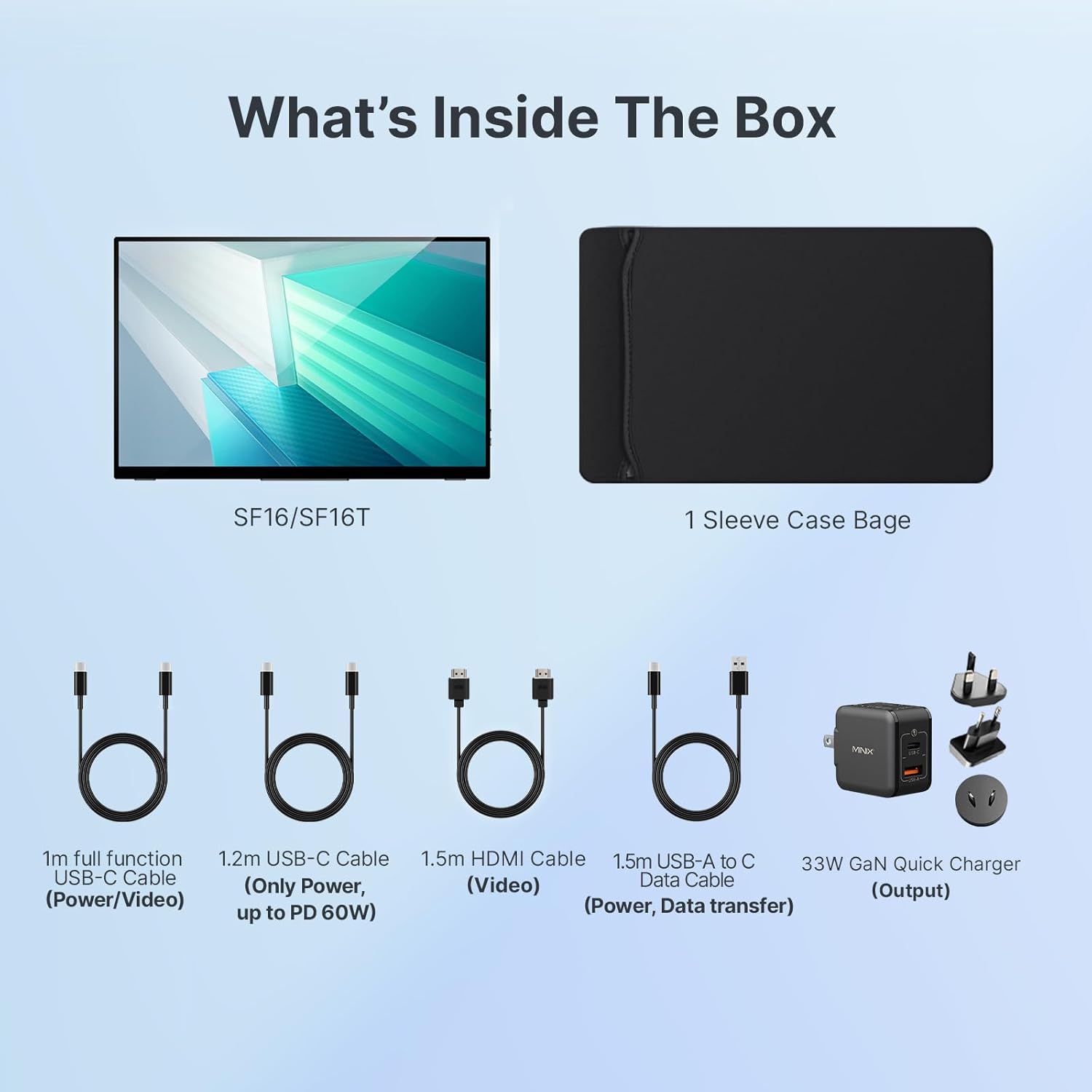
Abbildung 1: Packungsinhalt
- MINIX Portable Monitor (SF16/SF16T)
- Hülle Tasche
- 1m Full Function USB-C to USB-C Cable (Power/Video)
- 1.2m USB-C to USB-C Cable (Power, up to PD 60W)
- 1.5m HDMI to HDMI Cable (Video)
- 1.5m USB-A to C Data Cable (Power, Support Touch for SF16T)
- 33W GaN Quick Charger (Output)
Produkt überview
Familiarize yourself with the ports and controls on your MINIX Portable Monitor.

Abbildung 2: Monitoranschlüsse und Bedienelemente
- USB 2.0-Anschluss: Connects to a keyboard or mouse.
- Netzschalter: Schaltet den Monitor ein/aus.
- Brightness/Up Key: Adjusts screen brightness or navigates menu up.
- Volume/Down Key: Adjusts volume or navigates menu down.
- Standard HDMI Port: Connects to devices via HDMI for video input.
- 3.5-mm-Audiobuchse: Zum Anschluss von Kopfhörern oder externen Lautsprechern.
- Type-C (Full Function) Ports: Two full-featured USB-C ports for power, video, and touch data transfer.

Figure 3: Ultra-Slim Design
Aufstellen
Erstverbindung
The MINIX Portable Monitor offers flexible connectivity options. Ensure your device supports USB 3.1 Type C DP Alt-Mode for full functionality via a single USB-C cable.
- Stromversorgung: Connect the provided 33W GaN Quick Charger to one of the monitor's USB-C ports (or use a power bank with sufficient output).
- Video & Data Connection:
- USB-C (Single Cable Solution): If your laptop or device has a full-featured USB-C port (supporting DisplayPort Alternate Mode and Power Delivery), connect it to one of the monitor's full-function USB-C ports using the 1m full function USB-C cable. This single cable can provide power, video, and touch functionality.
- HDMI + USB-C (for Power/Touch): If your device only has an HDMI output, connect the monitor via the HDMI port using the 1.5m HDMI cable for video. Then, connect a USB-C port on the monitor to a USB-A or USB-C port on your device using the 1.5m USB-A to C data cable for power and touch functionality (if applicable).
- Einschalten: Press the Power Button on the monitor to turn it on.

Abbildung 4: Verbindungsdiagramm
Using the Built-in Stand
The monitor features a built-in kickstand for easy adjustment of viewing angles. Simply extend the stand from the back of the monitor and adjust it to your desired angle between -10° and -35°.
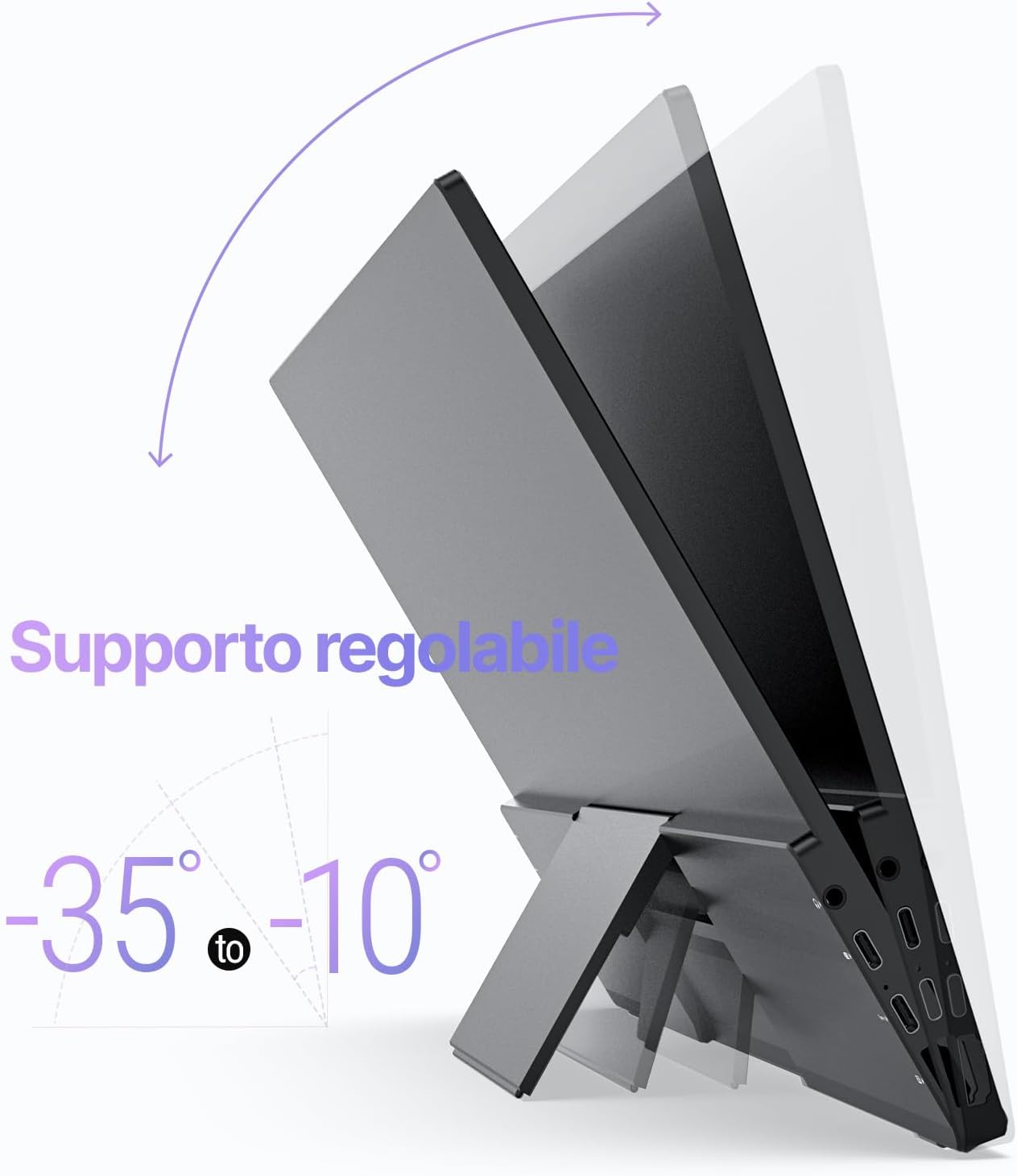
Figure 5: Adjustable Stand
Betrieb
Anzeigeeinstellungen
Use the Brightness/Up and Volume/Down keys on the side of the monitor to access and navigate the On-Screen Display (OSD) menu. Here you can adjust various settings such as brightness, contrast, color temperature, and input source.
Touch Screen Functionality (SF16T Model)
The SF16T model supports ten-point multi-touch and gesture controls across various operating systems including macOS, Windows 10/11, Android, and Linux. Ensure the USB-C connection is properly established for touch functionality.

Figure 6: Multi-Touch Support
Videodemonstration
Watch this official video from MINIX Technology Limited for a visual guide on setting up and using your portable monitor, highlighting its key features like the built-in stand, multi-touch support, and USB-C connectivity.
Video 1: MINIX 16" Portable Touch Monitor Overview
Wartung
- Reinigen des Bildschirms: Wischen Sie den Bildschirm vorsichtig mit einem weichen, trockenen und fusselfreien Tuch ab. Bei hartnäckigen Flecken leicht andrücken.ampen the cloth with water or a screen-specific cleaning solution (apply to cloth, not directly to screen).
- Reinigung des Casing: Verwenden Sie ein weiches, trockenes Tuch, um die Außenseite abzuwischen.asing. Vermeiden Sie scheuernde Reinigungs- und Lösungsmittel.
- Lagerung: When not in use, store the monitor in its provided sleeve case to protect it from dust and scratches. Keep it in a cool, dry place.
- Handhabung: Fassen Sie den Monitor immer an den Kanten an. Vermeiden Sie es, Druck auf den Bildschirm auszuüben.
Fehlerbehebung
| Problem | Mögliche Ursache | Lösung |
|---|---|---|
| Keine Anzeige/„Kein Signal“-Meldung | Falsche Eingangsquelle ausgewählt; Lose Kabelverbindung; Unzureichende Stromversorgung; Gerät gibt kein Signal aus. |
|
| Touch screen not responding (SF16T) | USB-C data cable not connected or not full-featured; Driver issue; OS incompatibility. |
|
| Flackernder Bildschirm | Cable issue; Interference; Refresh rate mismatch. |
|
| Kein Ton aus den Monitorlautsprechern | Lautstärke zu niedrig; Audioausgang nicht auf Monitor eingestellt; Kabelproblem. |
|
Technische Daten
| Besonderheit | Detail |
|---|---|
| Modellnummer | SF16 |
| Bildschirmgröße | 16 Zoll |
| Auflösung | 1920 x 1200 Pixel (FHD 1200P) |
| Seitenverhältnis | 16:10 |
| Panel-Typ | IPS |
| Helligkeit | 300 Candela (Nissen) |
| Touch-Screen | Yes (SF16T model, 10-point touch) |
| Konnektivität | 2x Full-featured USB-C, 1x Standard HDMI, 1x USB 2.0, 1x 3.5mm Audio Jack |
| Abmessungen (L x B x H) | 4.84 x 15.59 x 10.79 Zoll |
| Artikelgewicht | 4.16 Pfund |
| Bildschirmoberfläche | Glänzend |
| Augenpflegefunktionen | Flimmerfrei, Blaulichtfilter |
Garantie und Support
MINIX Technology Limited provides a limited warranty for this product. Please refer to the warranty card included in your package for specific terms and conditions. For technical support, troubleshooting assistance, or warranty claims, please contact MINIX customer service through their official webWebsite oder der Einzelhändler, bei dem Sie das Produkt gekauft haben.
You can visit the official MINIX Store on Amazon for more information and support: MINIX Store


