1. Einleitung
This manual provides detailed instructions for the installation, operation, and maintenance of your Jennov JS7015 5MP Dual-Band Wi-Fi Outdoor Security Camera. Please read this manual thoroughly before using the product to ensure correct usage and optimal performance.

Figure 1: Jennov JS7015 Outdoor Security Camera
The Jennov JS7015 is a 5-megapixel outdoor security camera featuring dual-band Wi-Fi connectivity (2.4GHz and 5GHz). It offers 360-degree viewing capabilities, PIR human detection, auto-tracking, 24/7 recording, and two-way audio for comprehensive outdoor surveillance.
2. Packungsinhalt
Bitte überprüfen Sie den Paketinhalt nach Erhalt. Sollten Artikel fehlen oder beschädigt sein, kontaktieren Sie bitte unseren Kundenservice.
- Jennov JS7015 5MP Dual-Band Wi-Fi Outdoor Security Camera
- Netzteil
- Befestigungsschrauben und Anker
- Benutzerhandbuch (dieses Dokument)
3. Produktüberschreitungview
Machen Sie sich mit den Komponenten der Kamera vertraut.

Figure 2: Camera Pan and Tilt Mechanism
The camera features a motorized pan and tilt mechanism, allowing for a 355° horizontal rotation (pan) and a 60° vertical rotation (tilt). This enables comprehensive coverage of the surveillance area. The camera body houses the lens, infrared LEDs, white light LEDs, microphone, and speaker. Two external antennas provide enhanced Wi-Fi signal reception.
- Kameraobjektiv: Nimmt Videoaufnahmen auftage.
- Infrarot-LEDs: Sorgt für Beleuchtung bei Schwarz-Weiß-Nachtsicht.
- Weiße LEDs: Provide illumination for color night vision and act as a spotlight.
- Mikrofon: Erfasst Audio für die Zwei-Wege-Kommunikation und Aufzeichnung.
- Lautsprecher: Gibt Audiosignale für die Zwei-Wege-Kommunikation und Alarme aus.
- Antennen: Für WLAN-Verbindungen.
- Stromanschluss: Wird mit dem Netzteil verbunden.
- Reset-Taste: Used to reset the camera to factory settings (usually located near the SD card slot or under a cover).
- SD-Kartensteckplatz: Für die lokale Videospeicherung (unterstützt bis zu 128 GB, nicht im Lieferumfang enthalten).
4. Installationsanleitung
4.1 Physische Installation
The camera is designed for outdoor use and is IP66 waterproof. Choose a suitable location for mounting, ensuring a clear view of the area you wish to monitor and proximity to a power source.
- Bohrpositionen markieren: Use the mounting template (if provided) or the camera base to mark the screw holes on the wall.
- Bohrlöcher: Bohren Sie an den markierten Stellen Löcher. Verwenden Sie Wandanker, wenn Sie die Montage auf Mauerwerk vornehmen.
- Sichere Kamera: Attach the camera base to the wall using the provided screws.
- Winkel anpassen: Loosen the adjustment screws (if any) to position the camera for optimal coverage before tightening.

Abbildung 3: Wasserdicht gemäß IP66
The camera is built with waterproof materials and has an IP66 rating, making it suitable for outdoor installation and resistant to dust and water jets.
4.2 Stromanschluss
Connect the provided power adapter to the camera's power port and then plug it into a power outlet. The camera will power on and initiate its startup sequence.
4.3 App-Download und Kontoregistrierung
The Jennov JS7015 camera uses the EseeCloud application for remote access and control.
- Lade App herunter: Suchen nach "EseeCloud" in your smartphone's app store (Google Play Store for Android or Apple App Store for iOS) and download the application.
- Account registrieren: Open the EseeCloud app and follow the on-screen instructions to register a new account using your email address or phone number.
4.4 Hinzufügen der Kamera zur App
Stellen Sie sicher, dass Ihr Smartphone mit demselben WLAN-Netzwerk (2.4 GHz oder 5 GHz) verbunden ist, mit dem Sie die Kamera verbinden möchten.
- Öffne App: Launch the EseeCloud app and log in.
- Gerät hinzufügen: Tippen Sie auf das Symbol "+" oder auf die Option "Gerät hinzufügen".
- Gerätetyp auswählen: Choose "Wi-Fi Camera" or similar option.
- QR-Code scannen: The app may prompt you to scan a QR code located on the camera or its packaging.
- Wi-Fi-Konfiguration: Follow the app's instructions to enter your Wi-Fi network name (SSID) and password. The camera supports both 2.4GHz and 5GHz Wi-Fi bands.
- Verbinden: The camera will attempt to connect to your Wi-Fi network. Once connected, it will appear in your device list within the app.
- Passwort festlegen: Erstellen Sie aus Sicherheitsgründen ein sicheres Passwort für Ihre Kamera.
5. Bedienungsanleitung
5.1 Live View und Schwenk-/Neigesteuerung
From the EseeCloud app, select your camera to access the live view.
- Live-Feed: View real-time video from your camera.
- Schwenken/Neigen: Use the directional controls within the app to remotely adjust the camera's horizontal (pan) and vertical (tilt) angles.
5.2 Automatisches Tracking
Die Kamera kann bewegte Objekte innerhalb ihres Sichtfelds automatisch verfolgen. view.

Abbildung 4: Automatisches Tracking in Aktion
Enable the auto-tracking feature in the app settings. The camera will then detect and follow moving targets until they leave the camera's view.
5.3 Bewegungserkennung und Alarme
The camera features advanced PIR (Passive Infrared) human detection to minimize false alarms.

Figure 5: PIR Human Detection and Alarm Options
When a human thermal profile is detected, the camera can trigger various alarms.
- PIR-Erkennung: Activates recording and sends notifications when a human is detected.
- Tonalarm: Configure the camera to emit a siren sound upon detection.
- Scheinwerferalarm: The integrated spotlight can be activated to deter intruders.
- Benachrichtigungen: Receive instant alerts on your smartphone via the EseeCloud app.
5.4 Zwei-Wege-Audio
Kommunizieren Sie direkt mit Personen in der Nähe der Kamera mithilfe des eingebauten Mikrofons und Lautsprechers.

Abbildung 6: Zwei-Wege-Audiokommunikation
Tap the microphone icon in the app to speak, and listen through the camera's speaker. This feature is useful for interacting with visitors or deterring unwanted guests.
5.5 Aufzeichnung und Speicherung
Die Kamera unterstützt kontinuierliche 24/7-Aufnahmen und bietet flexible Speichermöglichkeiten.
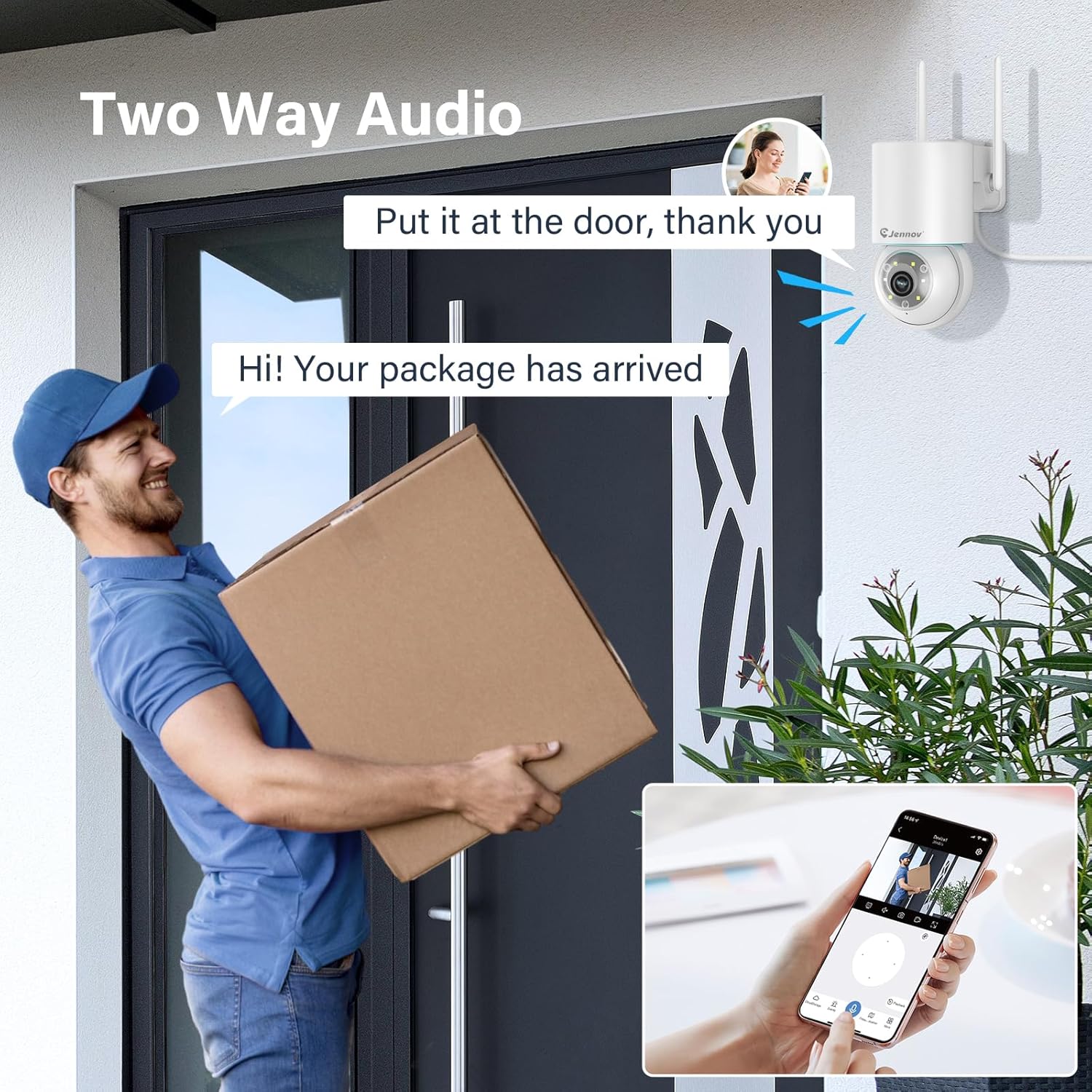
Figure 7: 24/7 Recording and Storage Options
Auf aufgezeichnetes Foo zugreifentage über die Wiedergabefunktion der App.
- 24/7-Aufzeichnung: The camera can continuously record footage, ensuring no vital moments are missed.
- Lokaler Speicher: Insert a microSD card (up to 128GB, not included) into the camera's SD card slot for local storage.
- Cloud-Speicher: Optional cloud storage service is available, often with a free trial period (e.g., 7 days). This provides off-site backup of your recordings.
5.6 Nachtsichtmodi
The camera offers three night vision modes for clear visibility in low-light conditions.

Figure 8: 5MP Color Night Vision
The camera provides clear night vision up to 65 feet (20 meters) with 5MP resolution.
- Vollfarbmodus: Utilizes white LEDs to provide full-color video at night.
- Schwarzweißmodus: Uses infrared LEDs for traditional black and white night vision.
- Smart-Modus: Automatically switches between black and white and full color based on detected motion or light conditions.
You can switch between these modes within the EseeCloud mobile application.
5.7 Customized Detection Area
Definieren Sie spezifische Bereiche innerhalb der Kamera view wo die Bewegungserkennung aktiv sein sollte.

Figure 9: Customized Detection Area Settings
This feature helps reduce unwanted alerts by focusing detection on critical zones. The app typically offers "Area mode" and "Cordon mode" for defining these zones.
6. Wartung
- Reinigung: Reinigen Sie das Kameraobjektiv regelmäßig mit einem weichen, trockenen Tuch, um eine klare Bildqualität zu gewährleisten. Verwenden Sie keine scharfen Chemikalien.
- Firmware-Updates: Check the EseeCloud app periodically for available firmware updates. Keeping your camera's firmware updated ensures optimal performance and security.
- SD-Kartenverwaltung: If using local storage, periodically check the SD card's status in the app. Format the card as needed to maintain recording efficiency.
- Stromversorgung: Vergewissern Sie sich, dass Netzteil und Kabel unbeschädigt und ordnungsgemäß angeschlossen sind.
7. Fehlerbehebung
- Kamera offline:
- Überprüfen Sie die WLAN-Signalstärke.
- Stellen Sie sicher, dass die Kamera eingeschaltet ist.
- Starten Sie die Kamera und Ihren WLAN-Router neu.
- If using 5GHz Wi-Fi, ensure your router supports it and the camera is connected to the correct band.
- Try re-adding the camera to the EseeCloud app.
- Schlechte Bildqualität:
- Reinigen Sie das Kameraobjektiv.
- Ensure sufficient lighting, especially at night.
- Überprüfen Sie Ihre Internetverbindungsgeschwindigkeit.
- Bewegungserkennung funktioniert nicht:
- Verify motion detection settings in the app are enabled.
- Passen Sie die Erkennungsempfindlichkeit an.
- Stellen Sie sicher, dass keine Hindernisse die Sicht der Kamera blockieren. view.
- Check if detection areas are correctly configured.
- Probleme mit der Zwei-Wege-Audioübertragung:
- Ensure microphone and speaker permissions are granted to the EseeCloud app on your smartphone.
- Überprüfen Sie die Lautstärkeeinstellungen sowohl in der App als auch auf Ihrem Telefon.
- Stellen Sie sicher, dass keine physischen Hindernisse das Mikrofon oder den Lautsprecher der Kamera blockieren.
- Cannot Access SD Card Recordings:
- Stellen Sie sicher, dass die SD-Karte ordnungsgemäß eingesetzt ist.
- Prüfen Sie, ob die SD-Karte korrekt formatiert ist (normalerweise FAT32).
- Verify that continuous recording or event recording to SD card is enabled in the app.
- The SD card might be full; consider formatting it or replacing it.
8. Spezifikationen
| Besonderheit | Spezifikation |
|---|---|
| Modellnummer | JS7015 |
| Marke | Jennov |
| Auflösung | 5 Megapixel (1920p video recording) |
| Schwenk- / Neigungswinkel | Pan 355 °, Neigung 60 ° |
| Nachtsicht | Color Night Vision, Black & White Night Vision, Smart Mode (up to 65ft/20m) |
| Wi-Fi-Konnektivität | Dualband (2.4 GHz / 5 GHz) |
| Audio | Zwei-Wege-Audio (eingebautes Mikrofon und Lautsprecher) |
| Bewegungserkennung | PIR-Personenerkennung, automatische Verfolgung |
| Speicheroptionen | MicroSD-Karte (bis zu 128 GB), Cloud-Speicher |
| Wasserdichtigkeit | IP66 |
| Leistungsaufnahme | 5 Volt |
| Energieaufnahme | 24 Watt |
| Abmessungen (L x B x H) | 12 x 8 x 16 cm |
| Material | Plastik |
| Montagetyp | Wandhalterung |
| Kompatible Geräte | Smartphone, Tablet, Computer |
| Steuerungs-App | EseCloud |
9. Garantie und Support
For warranty information and technical support, please refer to the warranty card included with your product or visit the official Jennov webWebsite.
- Kundendienst: Contact Jennov customer support for assistance with product issues, technical questions, or warranty claims.
- Online-Ressourcen: Überprüfen Sie Jennov webWebsite mit häufig gestellten Fragen, aktualisierten Handbüchern und Software-Downloads.


