1. Produktüberschreitungview
The Speedlink LIBERA is a versatile rechargeable wireless mouse designed for comfort and efficiency. It offers dual connectivity options, allowing you to connect via Bluetooth or a 2.4 GHz USB-A nano receiver. Key features include silent main buttons, a thumb scroll wheel for horizontal scrolling, and adjustable DPI settings for precise control.

Image: The Speedlink LIBERA mouse shown with its accompanying USB receiver, highlighting its sleek design and connectivity components.
2. Lieferumfang
Bitte vergewissern Sie sich nach dem Öffnen des Pakets, dass alle folgenden Artikel vorhanden sind:
- Speedlink LIBERA Mouse
- USB-Empfänger
- USB-C zu USB-A Ladekabel
- Benutzerhandbuch (dieses Dokument)
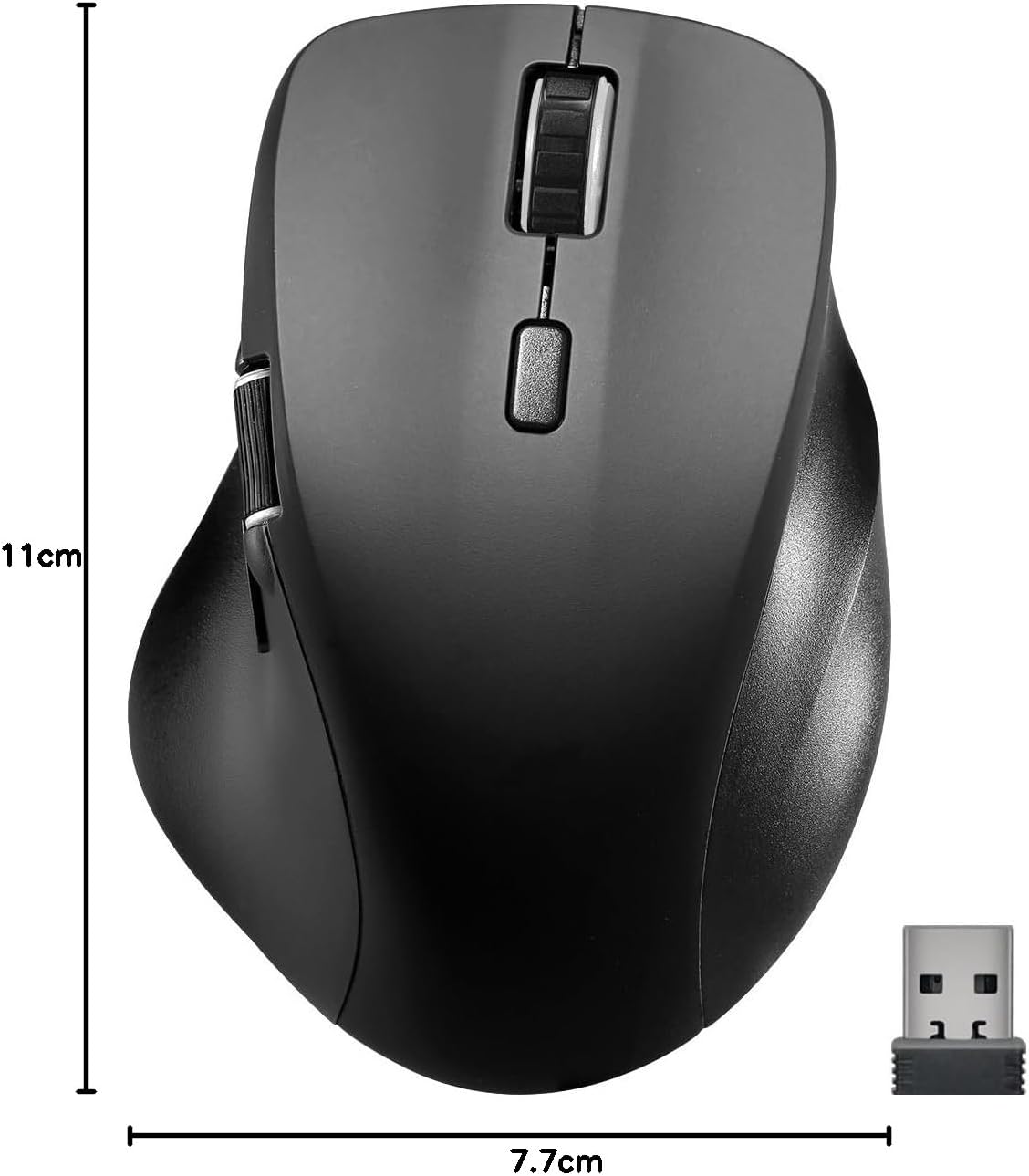
Image: The retail packaging for the Speedlink LIBERA mouse, indicating the contents and key features.
3. Einrichtung
3.1. Aufladen der Maus
Before first use, it is recommended to fully charge the mouse. The mouse can be charged while in use.
- Suchen Sie den USB-C-Anschluss an der Vorderseite der Maus.
- Connect the included USB-C to USB-A charging cable to the mouse.
- Plug the USB-A end of the cable into a powered USB port (e.g., computer, USB wall adapter).
- Die Ladeanzeigeleuchte leuchtet auf. Sie erlischt oder ändert die Farbe, sobald der Akku vollständig geladen ist.

Image: The USB-C to USB-A charging cable included with the mouse, used for recharging the internal battery.
3.2. Anschließen der Maus
The Speedlink LIBERA mouse offers two connection methods: 2.4 GHz USB receiver and Bluetooth.
3.2.1. 2.4 GHz USB Connection
- Locate the USB-A nano receiver, typically stored in a compartment on the underside of the mouse.
- Stecken Sie den USB-Empfänger in einen freien USB-A-Anschluss Ihres Computers.
- Schalten Sie die Maus mit dem Ein-/Ausschalter an der Unterseite ein.
- Die Maus sollte sich automatisch mit Ihrem Computer verbinden.
3.2.2. Bluetooth-Verbindung
The mouse supports up to two Bluetooth profiles.
- Stellen Sie sicher, dass die Maus eingeschaltet ist.
- Press the Bluetooth pairing button (refer to the diagram in Section 4.1 for location) to enter pairing mode. The indicator light will flash.
- Navigieren Sie auf Ihrem Computer zu den Bluetooth-Einstellungen.
- Suchen nach new devices and select "Speedlink LIBERA" from the list.
- Befolgen Sie die Anweisungen auf dem Bildschirm, um den Kopplungsvorgang abzuschließen.
- To switch between Bluetooth profiles or to the 2.4 GHz connection, press the mode switch button on the underside of the mouse.

Image: The Speedlink LIBERA mouse positioned next to its compact USB receiver, illustrating the 2.4 GHz wireless connection method.
4. Bedienungsanleitung
4.1. Tastenfunktionen
The Speedlink LIBERA mouse features multiple buttons for enhanced control:
- Linksklick-Taste: Standard primary click function. (Silent)
- Rechtsklick-Schaltfläche: Standard secondary click function. (Silent)
- Scrollrad: Vertical scrolling. Can also be pressed for middle-click functionality.
- DPI-Umschalttaste: Cycles through DPI settings (1000/1600/2400/3200 DPI).
- Thumb Scroll Wheel: Located on the side, allows for horizontal scrolling of documents and web Seiten.
- Vorwärts-/Rückwärtstasten: Located near the thumb scroll wheel, typically used for navigation in web Browser bzw file Entdecker.

Image: A hand demonstrating the ergonomic grip and use of the Speedlink LIBERA mouse, highlighting the placement of the thumb scroll wheel and side buttons.
4.2. DPI-Anpassung
The mouse's optical sensor resolution can be adjusted to suit your preference and task. Press the DPI switch button (located behind the main scroll wheel) to cycle through the available DPI settings: 1000, 1600, 2400, and 3200 DPI. Each press will change the sensitivity, allowing for faster or slower cursor movement.
4.3. Energieverwaltung
The mouse features an On/Off switch on its underside to conserve battery life when not in use. It also incorporates a smart power-saving mode that activates after a period of inactivity, further extending battery life. To wake the mouse, simply move it or click any button.
5. Wartung
To ensure the longevity and optimal performance of your Speedlink LIBERA mouse, follow these simple maintenance guidelines:
- Reinigung: Verwenden Sie ein weiches, trockenes, fusselfreies Tuch, um die Oberfläche der Maus abzuwischen. Bei hartnäckigem Schmutz leicht andrücken.ampBefeuchten Sie das Tuch mit Wasser. Vermeiden Sie die Verwendung von scharfen Chemikalien, Lösungsmitteln oder Scheuermitteln.
- Sensorpflege: Keep the optical sensor on the underside of the mouse clean and free from dust or debris. A small brush or compressed air can be used carefully.
- Batteriepflege: While the mouse has a rechargeable battery, avoid completely draining it frequently. Recharge it when the low battery indicator appears. Store the mouse in a cool, dry place if not used for extended periods.
- Lagerung: When transporting or storing the mouse, ensure it is protected from impacts and extreme temperatures.
6. Fehlerbehebung
If you encounter issues with your Speedlink LIBERA mouse, please refer to the following common problems and solutions:
| Problem | Mögliche Ursache | Lösung |
|---|---|---|
| Maus reagiert nicht | Mouse is off, low battery, connection issue. | Ensure mouse is on. Charge the mouse. Re-establish 2.4 GHz or Bluetooth connection. Try a different USB port. |
| Die Cursorbewegung ist unregelmäßig oder langsam. | Verschmutzter optischer Sensor, ungeeignete Oberfläche, niedrige DPI-Einstellung. | Clean the optical sensor. Use on a clean, non-reflective mouse pad. Increase DPI setting. |
| Die Bluetooth-Verbindung schlägt fehl | Mouse not in pairing mode, interference, incorrect pairing steps. | Ensure mouse is in Bluetooth pairing mode. Turn off other Bluetooth devices. Remove previous pairings from computer and re-pair. |
| Ladeproblem | Defektes Kabel, Problem mit der Stromversorgung. | Try a different USB port or power adapter. Ensure the charging cable is securely connected. |
| Buttons not clicking or unresponsive | Software issue, physical obstruction. | Restart your computer. Ensure no debris is lodged under the buttons. |
7. Technische Daten
| Besonderheit | Spezifikation |
|---|---|
| Modellnummer | SL-630021-RRBK |
| Konnektivität | Bluetooth, 2.4 GHz Radio Frequency (USB Receiver) |
| Bewegungserkennungstechnologie | Optisch |
| DPI Resolution | 1000 / 1600 / 2400 / 3200 dpi (adjustable) |
| Schaltflächen | 5 buttons + DPI switch + dual scroll wheels (vertical and horizontal) |
| Akku-Typ | 500 mAh Lithium-Ionen-Akku (wiederaufladbar) |
| Ladeanschluss | USB-C |
| Abmessungen (L x B x H) | 110 x 77 x 45 mm |
| Gewicht | 93 g |
| Betriebssystemkompatibilität | Windows 7, Windows 8, Windows 8.1, Windows 10, Windows 11 |
8. Garantie- und Supportinformationen
Speedlink products are manufactured with care and undergo strict quality controls. This product is covered by a manufacturer's warranty. For detailed warranty terms and conditions, please refer to the warranty card included with your purchase or visit the official Speedlink webWebsite.
For technical support, troubleshooting assistance beyond this manual, or warranty claims, please contact Speedlink customer service through their official website or the contact information provided in your product packaging. Please have your product model number (SL-630021-RRBK) and proof of purchase ready when contacting support.