1. Produktüberschreitungview
The Porodo Universal Wireless Remote & Mouse is a compact and versatile input device designed to combine the functionalities of a keyboard and a mouse. It offers convenient control for various devices, including Smart TVs, PCs, laptops, Android projectors, and more. This device features a full QWERTY keyboard, a multi-touch touchpad, and dedicated media control keys, all operating via 2.4GHz wireless technology or Bluetooth.
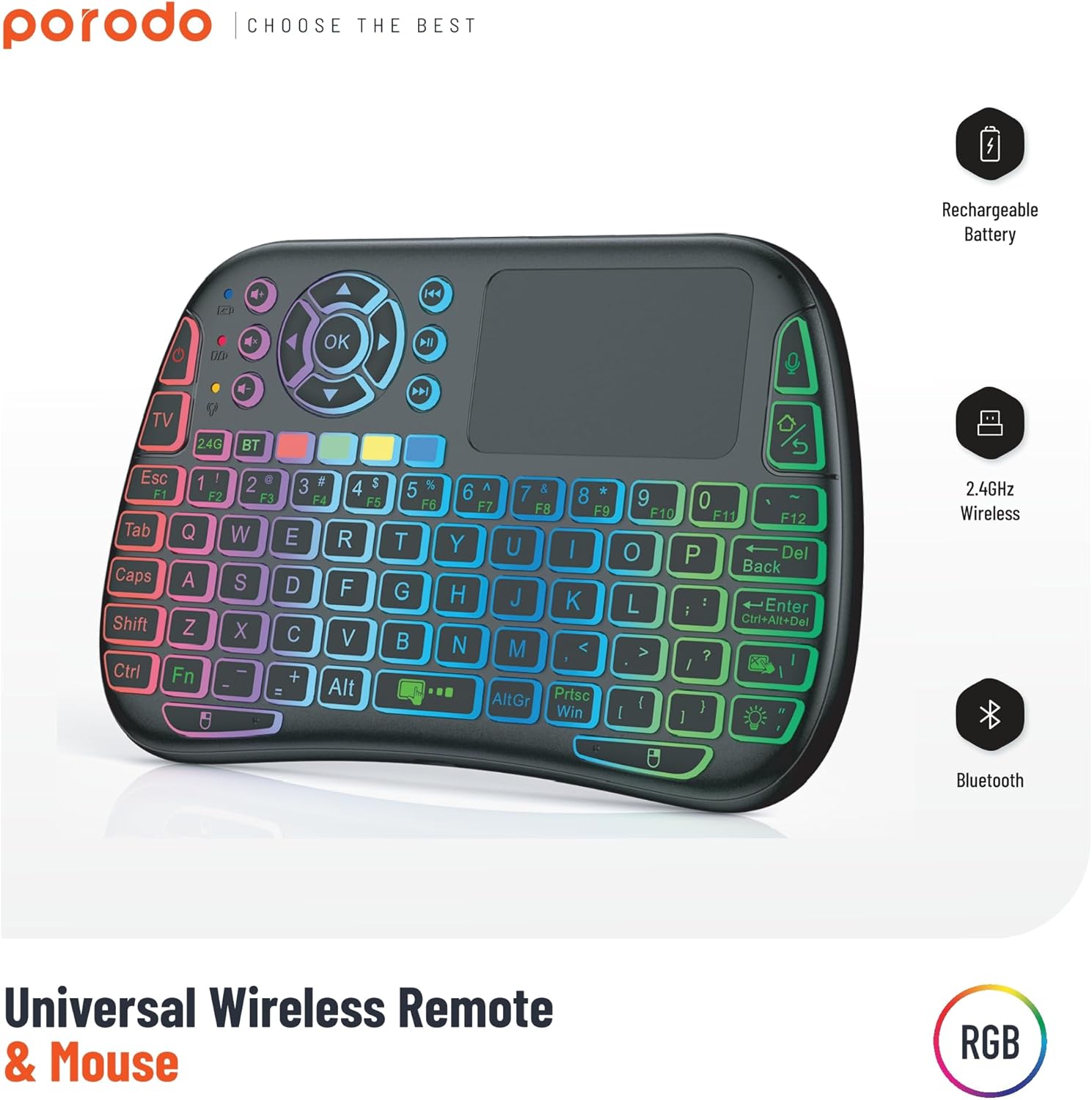
Image 1: The Porodo Universal Wireless Remote & Mouse, highlighting its RGB backlighting, rechargeable battery, 2.4GHz wireless, and Bluetooth connectivity.

Abbildung 2: Vorder- und Rückseite views of the remote and mouse, illustrating its compatibility with various devices such as All-in-one PCs, Computers, Android Projectors, Smart TVs, HTPCs, PADs (OTG), Phones (OTG), and TV Boxes.
2. Installationsanleitung
2.1 Packungsinhalt
- Porodo Universal Wireless Remote & Mouse
- USB Receiver (typically stored in the battery compartment)
- Ladekabel
- Bedienungsanleitung
2.2 Aufladen des Geräts
Before first use, ensure the device is fully charged. Connect the provided charging cable to the charging port on the remote and to a standard USB power source (e.g., computer USB port, USB wall adapter). The charging indicator light will illuminate during charging and turn off when fully charged.
2.3 Connecting the USB Receiver (2.4GHz Wireless Mode)
- Locate the USB receiver, usually found in the battery compartment of the remote.
- Insert the USB receiver into an available USB port on your target device (e.g., Smart TV, PC, Android box).
- Turn on the Porodo Remote & Mouse using the power switch. The device should automatically connect to the receiver.
- The device is plug-and-play; no additional drivers are typically required.
2.4 Connecting via Bluetooth (if applicable)
If your device supports Bluetooth connectivity, you can pair it directly without the USB receiver. Refer to your device's Bluetooth pairing instructions. On the Porodo Remote & Mouse, activate Bluetooth pairing mode (refer to specific key combinations in the operating section if available).

Image 3: The remote and mouse highlighting its dual connectivity options: 2.4 GHz wireless and Bluetooth.
3. Bedienungsanleitung
3.1 Tastaturfunktionen
- Tippen: Verwenden Sie das QWERTY-Layout für die Texteingabe.
- Funktionstasten (F1-F12): These keys often have secondary functions (e.g., media control, volume) accessible by pressing the 'Fn' key simultaneously.
- Hintergrundbeleuchtung: Some models feature RGB backlighting. Press the dedicated backlight key (often indicated by a light bulb icon) to cycle through colors or turn it on/off.
3.2 Touchpad-Funktionalität
- Tippen mit einem Finger: Funktioniert wie ein Linksklick.
- Zwei-Finger-Tipp: Funktioniert wie ein Rechtsklick.
- Zwei-Finger-Schlepp: For scrolling up/down or left/right.
- Ziehen mit einem Finger: Moves the cursor on the screen.
- Dedicated Left/Right Click Buttons: Located below the touchpad for traditional mouse clicks.
3.3 Media Control Keys
Dedicated buttons for volume up/down, mute, play/pause, next/previous track are typically located above the touchpad or integrated into the function keys.
3.4 Voice Control (if applicable)
Some models may include a microphone for voice input. Press the dedicated microphone button to activate voice commands or search functions on compatible devices.
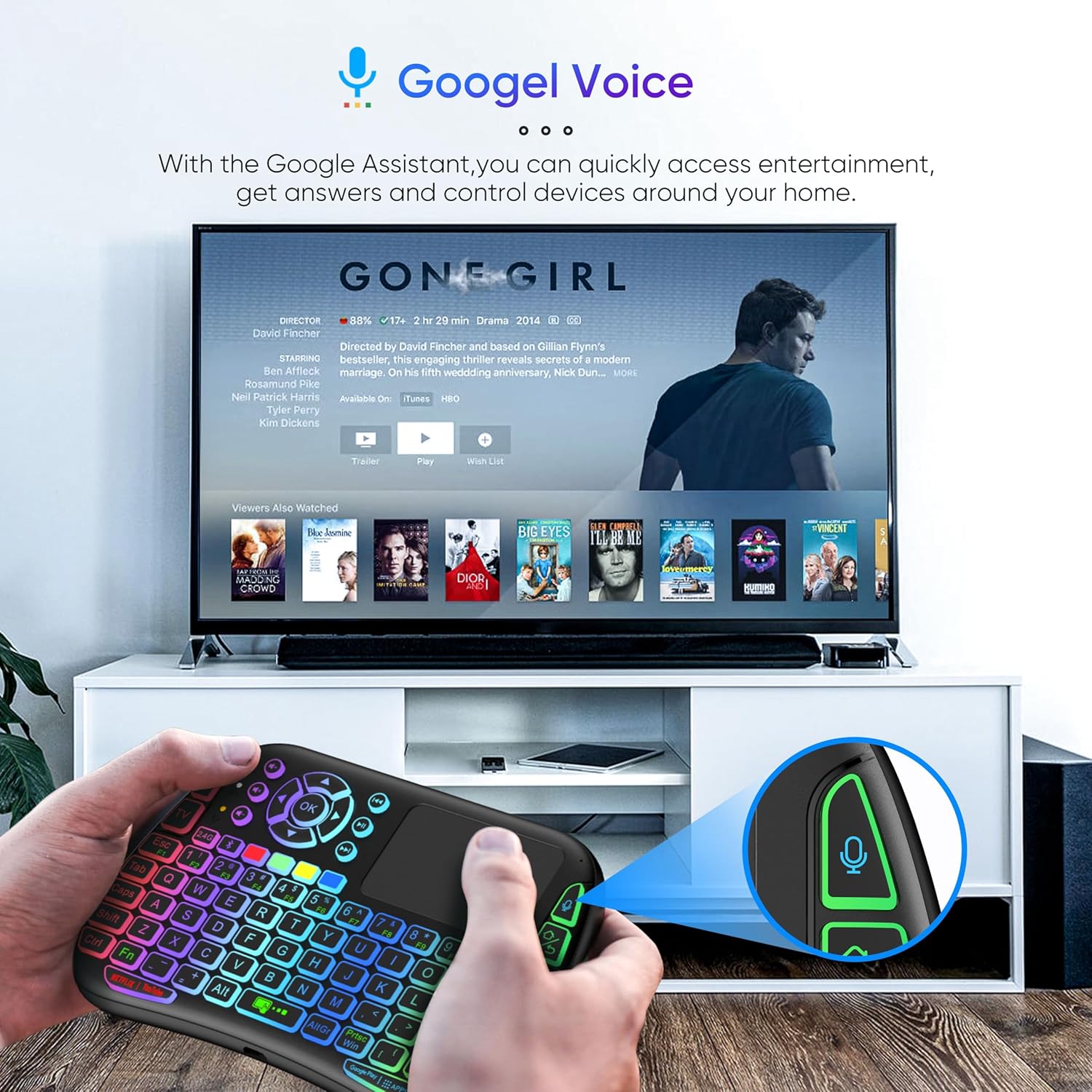
Image 4: The remote and mouse in use, demonstrating its Google Voice integration for controlling entertainment and accessing information on a connected TV.
3.5 Einsatzreichweite
The device offers an extended operational range of up to 10 meters (approximately 33 feet), allowing flexible control from a comfortable distance.
Video 1: Ein Produktdemonstrationsvideoasing the features and ease of use of a similar wireless keyboard with touchpad. This video illustrates comfortable wireless control, long battery life, and plug-and-play connectivity.
4. Wartung
4.1 Reinigung
To clean the device, use a soft, dry cloth. For stubborn dirt, slightly dampen the cloth with water or a mild cleaning solution. Avoid using harsh chemicals, abrasives, or solvents, as these can damage the surface.
4.2 Batteriepflege
- Recharge the device when the battery indicator is low to ensure continuous operation.
- Um die Lebensdauer der Batterie zu verlängern, sollte eine häufige vollständige Entladung vermieden werden.
- Wenn Sie das Gerät über einen längeren Zeitraum lagern, laden Sie es auf etwa 50 % auf und bewahren Sie es an einem kühlen, trockenen Ort auf.
4.3 Speicherung
Store the device in a dry environment, away from extreme temperatures, direct sunlight, and high humidity. Keep it away from liquids and dust.
5. Fehlerbehebung
5.1 Gerät reagiert nicht
- Batterie prüfen: Stellen Sie sicher, dass das Gerät aufgeladen ist. Schließen Sie es an eine Stromquelle an und versuchen Sie es erneut.
- Stromschalter: Verify that the power switch on the device is in the 'ON' position.
- USB-Empfänger: For 2.4GHz mode, ensure the USB receiver is securely plugged into the target device's USB port. Try a different USB port.
- Erneut koppeln: If using Bluetooth, try re-pairing the device with your host system.
- Interferenz: Move the device closer to the receiver/host device and away from other wireless devices that might cause interference.
5.2 Touchpad or Keys Unresponsive
- Saubere Oberfläche: Ensure the touchpad surface and keys are clean and free from debris.
- Neustart: Turn the device off and then on again.
- Host-Gerät: Restart the host device (PC, Smart TV, etc.).
5.3 Kurze Akkulaufzeit
- Volle Ladung: Stellen Sie sicher, dass das Gerät vor der Verwendung vollständig aufgeladen ist.
- Verwendung der Hintergrundbeleuchtung: If your model has a backlight, frequent or continuous use will consume more battery. Turn it off when not needed.
- Automatischer Ruhezustand: The device is designed to enter sleep mode after a period of inactivity to save power. Waking it up should be quick.
6. Spezifikationen
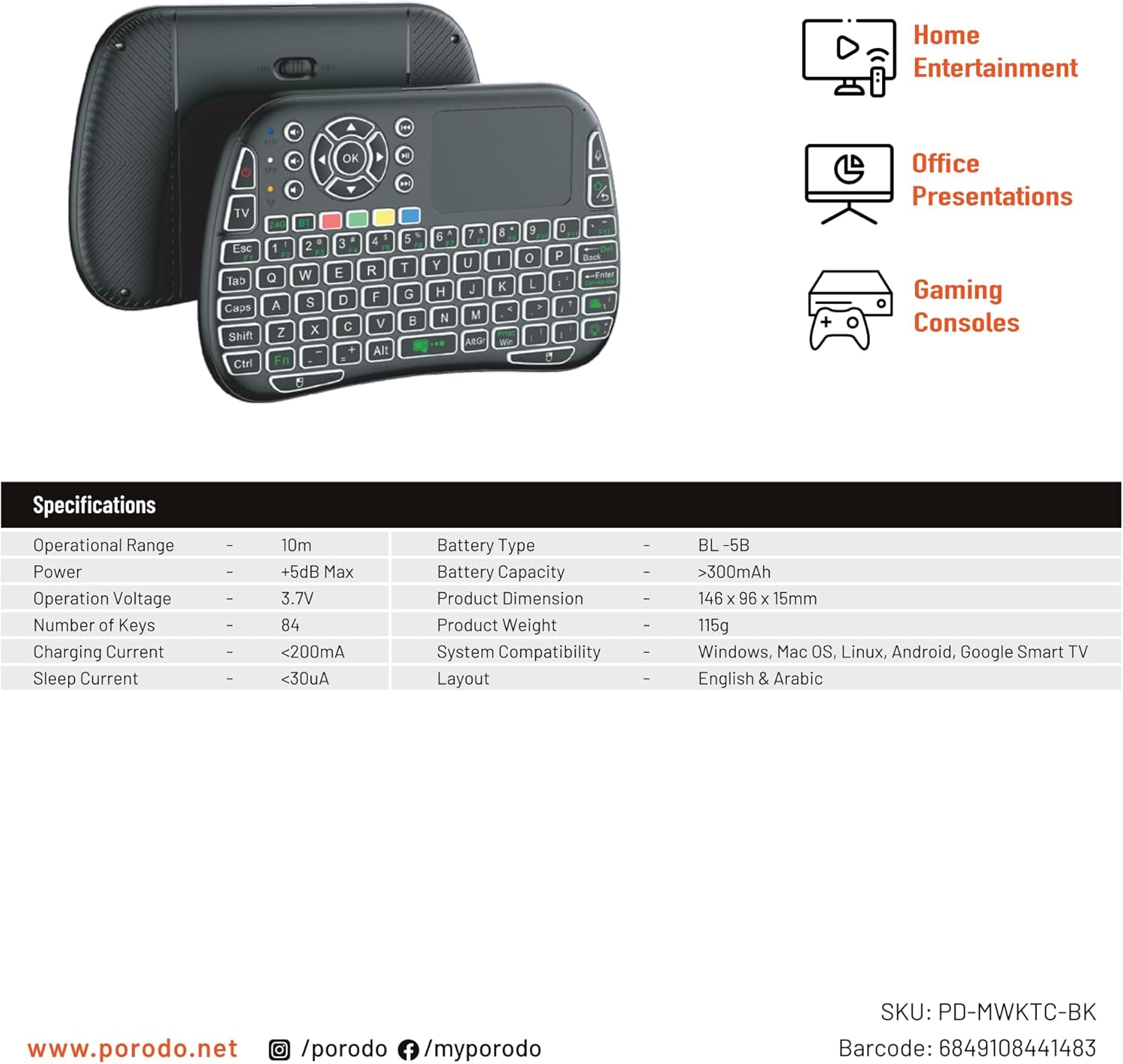
Image 5: The remote and mouse, illustrating its use for home entertainment, office presentations, and gaming consoles, alongside a table of detailed product specifications.
| Besonderheit | Detail |
|---|---|
| Hersteller | Porodo |
| Modellnummer | PD-MWKTC-BK (68491084488) |
| Technische Daten | 14.6 x 9.6 x 1.5 cm |
| Artikelgewicht | 115 Gramm |
| Farbe | Schwarz |
| Konnektivitätstechnologie | Radio Frequency (2.4GHz) / Bluetooth |
| Besonderheit | Programmable Buttons, Touchpad, Backlight |
| Kompatible Geräte | Laptop, PC, Smart TV, Android Box, Projector |
| Tastaturbeschreibung | Internal (Integrated) |
| Bewegungserkennungstechnologie | Optisch |
| Stromquelle | Batteriebetrieben (wiederaufladbar) |
| Batteriekapazität | > 300mAh |
| Einsatzbereich | 10 m |
| Systemkompatibilität | Windows, Mac OS, Linux, Android, Google Smart TV |
| Layout | English & Arabic |
7. Garantie und Support
For warranty information, technical support, or further assistance, please refer to the official Porodo webBesuchen Sie die Website oder kontaktieren Sie direkt den Kundenservice. Bewahren Sie Ihren Kaufbeleg als Kaufnachweis für eventuelle Garantieansprüche auf.