Einführung
The AOC Basic-line 24B3CF2 is a 23.8-inch Full HD (1080p) LED monitor designed for enhanced productivity. It features an IPS panel for vibrant visuals and true-to-life colors, USB-C connectivity for video signal, power delivery, and data transfer, and a height-adjustable stand for ergonomic comfort. This manual provides essential information for setting up, operating, and maintaining your monitor.
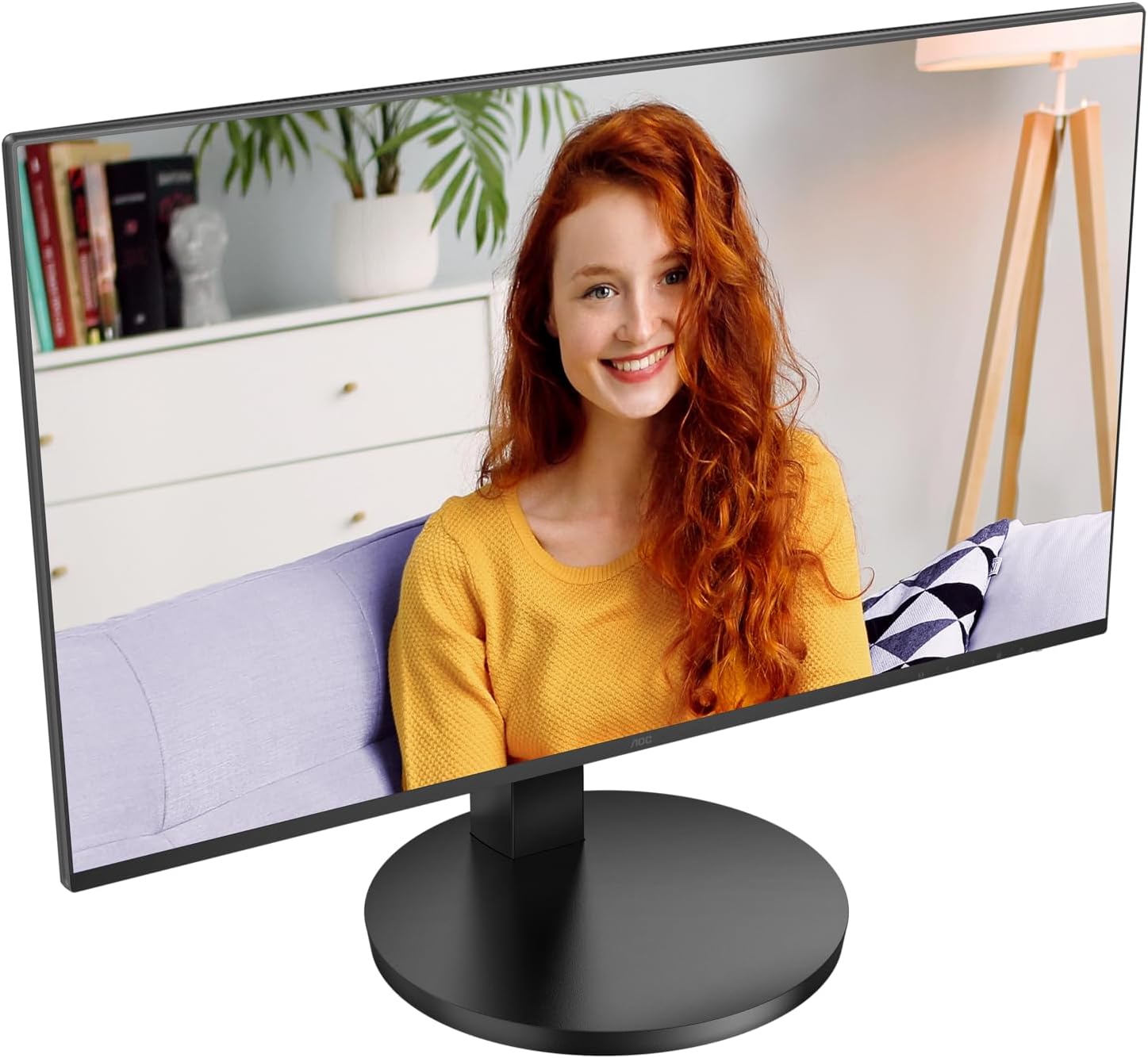
Abbildung 1: Vorderseite view of the AOC Basic-line 24B3CF2 monitor.

Figure 2: Key features of the AOC Basic-line 24B3CF2 monitor.
Sicherheitshinweise
- Stellen Sie den Monitor immer auf eine stabile, ebene Fläche.
- Belüftungsöffnungen nicht blockieren.
- Verwenden Sie ausschließlich das mit dem Monitor gelieferte Netzteil.
- Halten Sie den Monitor von Wasser und übermäßiger Feuchtigkeit fern.
- Führen Sie keine Reparaturen am Monitor selbst durch. Überlassen Sie alle Reparaturen qualifiziertem Servicepersonal.
- Trennen Sie den Monitor vor der Reinigung vom Stromnetz.
Packungsinhalt
Bevor Sie mit der Einrichtung fortfahren, überprüfen Sie bitte, ob alle Artikel im Paket vorhanden sind:
- AOC 24B3CF2 Monitor Display
- Monitorständer (Fuß und Hals)
- Stromkabel
- HDMI-Kabel
- USB-C-Kabel
- Quick Setup Guide
Aufstellen
1. Zusammenbau des Ständers
- Legen Sie den Monitor vorsichtig mit der Vorderseite nach unten auf eine weiche, saubere Oberfläche, um Kratzer zu vermeiden.
- Attach the stand neck to the monitor panel. Ensure it clicks into place or is secured with screws if provided.
- Befestigen Sie den Stativfuß am Stativhals. Ziehen Sie die Rändelschraube(n) an der Unterseite des Fußes fest.

Abbildung 3: Rückseite view of the monitor with stand assembly area.
2. Monitor anschließen
The AOC 24B3CF2 monitor offers multiple connectivity options:
- HDMI-Verbindung: Verbinden Sie ein Ende des HDMI-Kabels mit dem HDMI-Anschluss Ihres Computers und das andere Ende mit dem HDMI-Anschluss des Monitors.
- USB-C-Anschluss: Connect one end of the USB-C cable to the USB-C port on your computer and the other end to the USB-C port on the monitor. This single connection can provide video, data, and power delivery (up to 65W) to your laptop.
- USB-Hub-Funktionalität: The monitor features additional USB ports. Connect the USB-C cable to enable these ports for connecting peripherals like a keyboard or mouse.

Figure 4: Available ports on the AOC 24B3CF2 monitor.
3. Stromanschluss
Connect the power cable to the power input on the monitor and then plug the other end into a grounded electrical outlet.
4. Einschalten
Drücken Sie den Netzschalter am Monitor, um ihn einzuschalten. Die Betriebsanzeigeleuchte leuchtet auf.
Monitor bedienen
1. Grundlegende Steuerelemente
The monitor features several buttons, typically located on the bottom right side or rear, for navigating the On-Screen Display (OSD) menu and adjusting basic settings.
- Netzschalter: Schaltet den Monitor ein oder aus.
- Menü-Schaltfläche: Öffnet das OSD-Menü.
- Navigationstasten (Auf/Ab/Links/Rechts): Used to navigate through OSD options and adjust values.
- Exit-Taste: Exits the OSD menu or returns to the previous level.
2. Bildschirmmenü (OSD)
The OSD menu allows you to configure various display settings. To access the OSD menu, press the Menu button.
Gängige OSD-Menükategorien:
- Leuchtdichte: Adjust brightness, contrast, gamma.
- Bildeinrichtung: Auto-adjust, H. Position, V. Position, Clock, Phase (for analog input).
- Farbeinstellungen: Color temperature, sRGB, User Define.
- OSD-Setup: OSD language, OSD H. Position, OSD V. Position, OSD Timeout, Transparency.
- Extra: Input Select (HDMI, USB-C), Reset, DDC/CI.
3. Höhenverstellung
The AOC 24B3CF2 features a height-adjustable stand. To adjust the height, gently push or pull the monitor panel up or down while holding the base firmly. This allows for optimal ergonomic positioning to reduce strain during extended use.

Abbildung 5: Seite view illustrating the monitor's adjustable stand.
Wartung
Reinigen des Monitors
- Vor der Reinigung immer den Netzstecker des Monitors ziehen.
- Mit einem weichen, fusselfreien Tuch leichtampmit Wasser oder einem nicht scheuernden Bildschirmreiniger abspülen.
- Sprühen Sie den Reiniger nicht direkt auf den Bildschirm.
- Vermeiden Sie die Verwendung von Benzol, Verdünner, Ammoniak oder Scheuermitteln, da diese die Oberfläche des Monitors beschädigen können.
Fehlerbehebung
| Problem | Mögliche Ursache | Lösung |
|---|---|---|
| Kein Bild auf dem Bildschirm | Stromkabel nicht angeschlossen; Videokabel nicht angeschlossen; Falsche Eingangsquelle ausgewählt. | Ensure power cable is securely connected and power outlet is active. Check video cable connection (HDMI/USB-C) to both monitor and computer. Press the input select button to cycle through input sources. |
| Das Bild ist unscharf oder verzerrt. | Falsche Auflösung; loses Videokabel. | Set the display resolution to the monitor's native resolution (1920x1080). Ensure video cable is securely connected. |
| Kein Ton aus den Monitorlautsprechern (falls zutreffend). | Volume too low; Incorrect audio output selected on computer; No audio signal via video cable. | Adjust monitor volume via OSD. Select the monitor as the audio output device in your computer's sound settings. Ensure the video cable (HDMI/USB-C) supports audio transmission. Note: This monitor's speakers may have limited audio quality. |
| USB-Anschlüsse funktionieren nicht | USB-C cable not connected or not fully functional; USB drivers not installed. | Ensure the USB-C cable is properly connected and supports data transfer. Check your computer's device manager for any USB driver issues. |
Technische Daten
Below are the technical specifications for the AOC Basic-line 24B3CF2 monitor:

Figure 6: Physical dimensions of the monitor.
| Besonderheit | Detail |
|---|---|
| Modellname | AOC 24B3CF2 |
| Bildschirmgröße | 24 Inches (23.8 inches / 60.5 cm) |
| Auflösung | 1920 x 1080 (Full HD 1080p) |
| Panel-Typ | IPS |
| Seitenverhältnis | 16:9 |
| Ansprechzeit | 1 Millisekunde (MPRT) |
| Bildwiederholrate | 100 Hz (max.) |
| Bildkontrastverhältnis | 1000:1 |
| Viewing-Winkel | 178 Degrees (Horizontal/Vertical) |
| Konnektivität | HDMI, USB Type-C (with 65W Power Delivery), 2x USB-A |
| Stromverbrauch (SDR) | 18.0 Watt |
| Stromverbrauch (HDR) | 18.0 Watt |
| Standby-Stromversorgung | 0.3 Watt |
| Aus-Modus-Strom | 0.5 Watt |
| Abmessungen (B x H x T) | 55 x 47 x 23 cm (ca.) |
| Gewicht | 4.56 kg |
| Sprachunterstützung | Englisch, Französisch, Deutsch, Spanisch |

Figure 7: Product Information Sheet (English).
Für detailliertere Energieinformationen besuchen Sie bitte die EPREL-Datenbank.

Abbildung 8: EU-Energielabel.
Garantie und Support
AOC provides a general guarantee for this product. The minimum guaranteed availability of software and firmware updates is 8 years from the date of placement on the market. The minimum guaranteed availability of spare parts is also 8 years from the date of placement on the market. Minimum guaranteed product support is 8 years.
For technical support, warranty claims, or service inquiries, please contact AOC customer service. Refer to the contact information provided in your product's packaging or visit the official AOC webWebsite für Ihre Region.
Offizielles AOC WebWebsite: https://eu.aoc.com


