1. Einleitung
Thank you for choosing the iProda 15.6-inch Portable Monitor. This device is designed to enhance your productivity and entertainment by providing a versatile second screen for your laptop, PC, smartphone, and gaming consoles. This manual will guide you through the setup, operation, and maintenance of your new monitor.
2. Produktmerkmale
- 15.6-Zoll Full HD (1080p) IPS-Display: Erleben Sie lebendige Farben und eine breite viewwinkeln.
- 60Hz Bildwiederholfrequenz: Ensures smooth visuals for work and entertainment.
- Entspiegelter Bildschirm: Reduziert Reflexionen für mehr Komfort viewbei unterschiedlichen Lichtverhältnissen.
- Leicht und tragbar: Weighing approximately 1.2 kg (2.6 lbs) and only 0.6 cm (0.24 inches) thick, it's ideal for on-the-go use.
- Plug-and-Play-Konnektivität: Simple setup with USB-C or HDMI.
- Eingebaute Lautsprecher: Integriertes Audio für mehr Komfort.
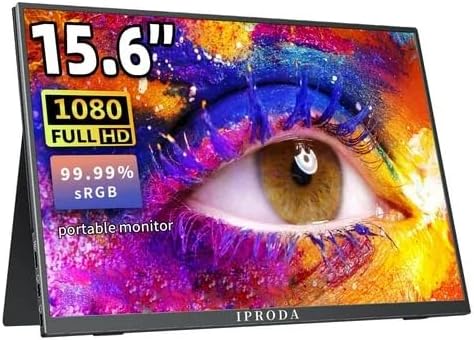
Figure 2.1: iProda 15.6-inch Portable Monitor showcasing its 1080 Full HD resolution and sRGB color accuracy.

Figure 2.2: Close-up of the iProda portable monitor screen highlighting IPS technology and a 178-degree super wide viewing angle for an excellent visual experience.
3. Installationsanleitung
The iProda portable monitor is designed for easy plug-and-play setup. Follow these steps to connect your device:
- Stromanschluss: Connect the monitor to a power source using the provided USB-C cable and a compatible power adapter (not always included, check packaging).
- Videoverbindung:
- USB-C (Voller Funktionsumfang): If your device (laptop, smartphone) has a full-function USB-C port that supports video output and power delivery, simply connect a single USB-C cable from your device to one of the monitor's USB-C ports.
- Mini-HDMI: Connect a mini HDMI to HDMI cable from the monitor's mini HDMI port to your device's HDMI port. You will also need to connect a USB-C cable for power.
- Audio (optional): If you prefer to use external headphones or speakers, connect them to the 3.5mm audio jack on the monitor.
- Geräteeinstellungen: Your device should automatically detect the monitor. If not, you may need to adjust display settings in your operating system (e.g., Windows Display Settings, macOS System Preferences).
4. Bedienungsanleitung
The monitor features intuitive controls for adjusting settings:
- Ein-/Ausschalter / Zurück-Taste: Press and hold to power on/off. Short press to return to the previous menu in OSD settings.
- Dial-wheel Switch (OSD Settings):
- Drücken: Enter the On-Screen Display (OSD) menu.
- Hoch-/Runterscrollen: Navigieren Sie durch die Menüoptionen oder passen Sie Werte an.
- Press (while in menu): Auswahl bestätigen.
The OSD menu allows you to adjust brightness, contrast, color settings, input source, and other display parameters.
5. Konnektivität und Kompatibilität
The iProda portable monitor offers broad compatibility with various devices:
- USB-C (x2, Full Function): Connects to laptops, PCs, tablets, and smartphones that support DisplayPort Alternate Mode and Power Delivery.
- Mini HDMI (x1): Connects to devices with an HDMI output, including laptops, PCs, gaming consoles (Xbox, PlayStation, Nintendo Switch), and media players.
- 3.5-mm-Kopfhörerbuchse (x1): Zum Anschluss externer Audiogeräte.
Kompatible Geräte umfassen:
- Desktop-Computer
- Laptops (Windows, macOS)
- Tablets
- Smartphones (with full-function USB-C)
- Nintendo-Schalter
- PlayStation 4/5
- Xbox One/Series X|S

Figure 5.1: Port layout and compatible devices for the iProda portable monitor.
6. Nutzungsmodi
When connected to a laptop or PC, the iProda portable monitor supports various display modes:
- Duplikat-Modus: Displays the same content on both your primary screen and the portable monitor. Ideal for presentations or sharing content.
- Erweiterungsmodus: Extends your desktop across both screens, providing more screen real estate for multitasking. Drag windows between screens.
- Nur-Zweiter-Bildschirm-Modus: Displays content only on the portable monitor, with your primary screen turned off. Useful for focusing on a single display or when using the portable monitor as the main display.

Figure 6.1: Display modes (Duplicate, Extend, Second Screen Only) with a laptop.
7. Anwendungen und Anwendungsfälle
The iProda portable monitor is versatile for various scenarios:
- Daily Work & Business: Enhance productivity by extending your workspace for spreadsheets, documents, and presentations.
- Phone Extension: Transform your smartphone into a larger display for media consumption or light productivity tasks.
- On-the-GO: Its lightweight design makes it perfect for travel, remote work, or mobile presentations.
- Spielen: Connect to your favorite gaming consoles for an immersive gaming experience anywhere.
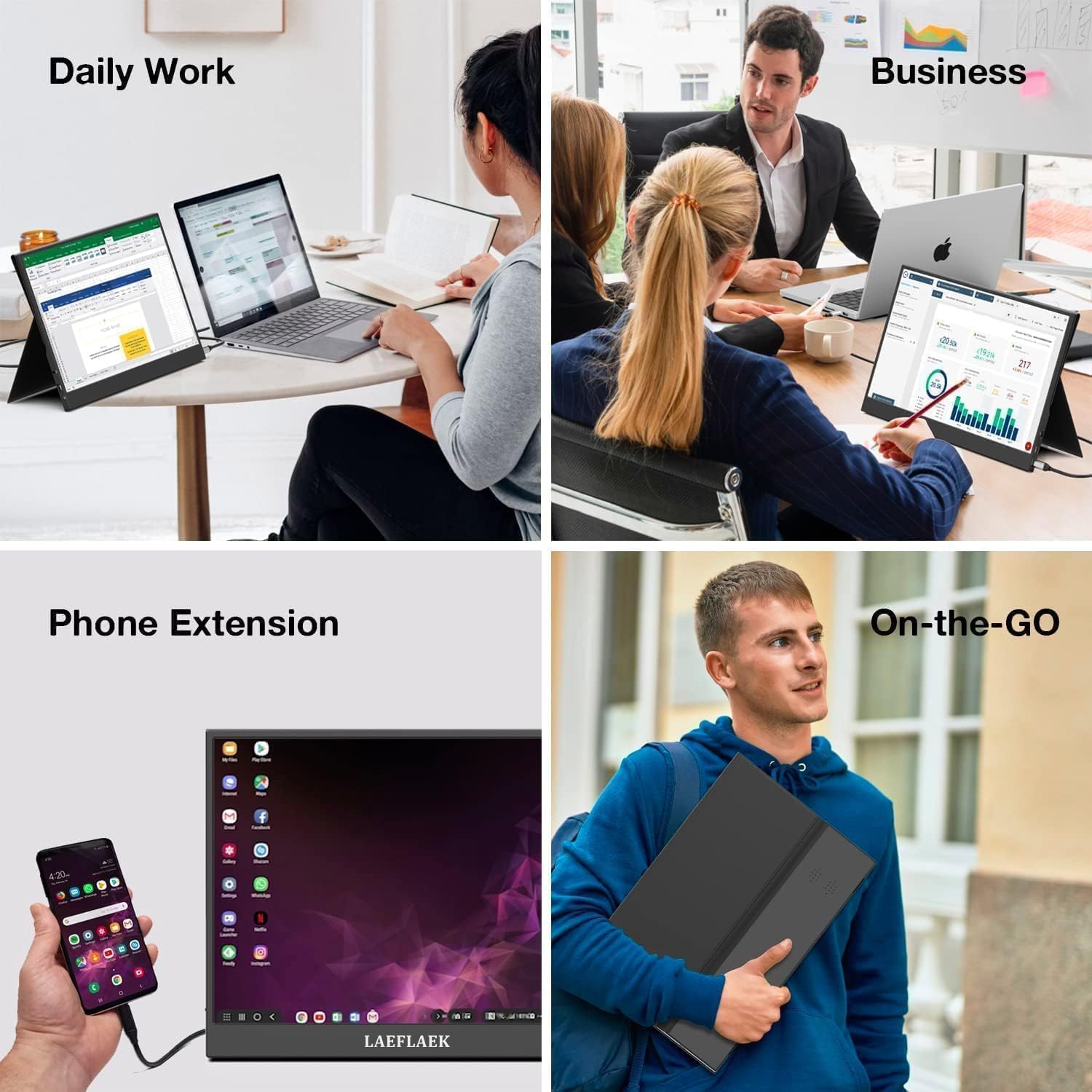
Figure 7.1: Various applications of the iProda portable monitor.

Figure 7.2: iProda portable monitor used for gaming with various consoles.
8. Wartung
To ensure the longevity and optimal performance of your iProda portable monitor, follow these maintenance guidelines:
- Reinigen des Bildschirms: Mit einem weichen, fusselfreien Tuch leichtampMit Wasser oder einem Siebreinigungsmittel abspülen. Flüssigkeit nicht direkt auf das Sieb sprühen. Scharfe Chemikalien oder Scheuermittel vermeiden.
- Reinigung des Casing: Wischen Sie die Oberfläche des Monitors ab.asinmit einem weichen, trockenen Tuch abwischen.
- Lagerung: Bewahren Sie den Monitor bei Nichtgebrauch an einem kühlen, trockenen Ort auf, vorzugsweise in der Originalverpackung oder einer Schutzhülle, um Staub und Kratzer zu vermeiden.
- Handhabung: Fassen Sie den Monitor immer an den Kanten an. Vermeiden Sie es, Druck auf den Bildschirm auszuüben.
9. Fehlerbehebung
If you encounter issues with your iProda portable monitor, refer to the following common problems and solutions:
| Problem | Mögliche Ursache | Lösung |
|---|---|---|
| Kein Signal / Schwarzer Bildschirm | Falsche Eingangsquelle ausgewählt; Lose Kabelverbindung; Unzureichende Stromversorgung; Gerät gibt kein Videosignal aus. | Check cable connections; Ensure monitor is powered; Select correct input source via OSD; Verify device's video output settings. |
| Kein Strom | Netzkabel nicht angeschlossen; Netzteil defekt; USB-C-Anschluss am Gerät liefert nicht genügend Strom. | Ensure power cable is securely connected; Try a different power adapter/USB-C port; Use an external power source if needed. |
| Flackernder Bildschirm | Defektes Kabel; Störungen; Problem mit dem Grafiktreiber. | Try a different cable; Ensure no strong electromagnetic interference; Update graphics drivers on your connected device. |
| Kein Ton vom Monitor | Monitor volume too low; Audio output not set to monitor; External speakers/headphones connected. | Adjust monitor volume via OSD; Set audio output to the monitor in your device's sound settings; Disconnect external audio devices if using monitor speakers. |
If the problem persists after trying these solutions, please contact iProda customer support for further assistance.
10. Spezifikationen
| Besonderheit | Spezifikation |
|---|---|
| Bildschirmgröße | 15.6 Zoll |
| Anzeigetyp | IPS, Anti-glare |
| Auflösung | Full HD (1920 x 1080) |
| Bildwiederholrate | 60 Hz |
| Seitenverhältnis | 16:9 |
| Konnektivität | 2x USB-C (Full Function), 1x Mini HDMI, 1x 3.5mm Audio Jack |
| Gewicht | Ca. 1.2 kg |
| Dicke | Ca. 0.6 cm (0.24 Zoll) |
| Eingebaute Lautsprecher | Ja |
11. Garantie und Support
Your iProda portable monitor comes with a standard manufacturer's warranty. Please refer to the warranty card included in your product packaging for specific terms and conditions.
For technical support, troubleshooting assistance, or warranty claims, please contact iProda customer service through the contact information provided on the official iProda webWebsite oder Ihre Einkaufsplattform.
Bitte halten Sie Ihre Produktmodell- und Kaufdetails bereit, wenn Sie den Support kontaktieren.


