Einführung
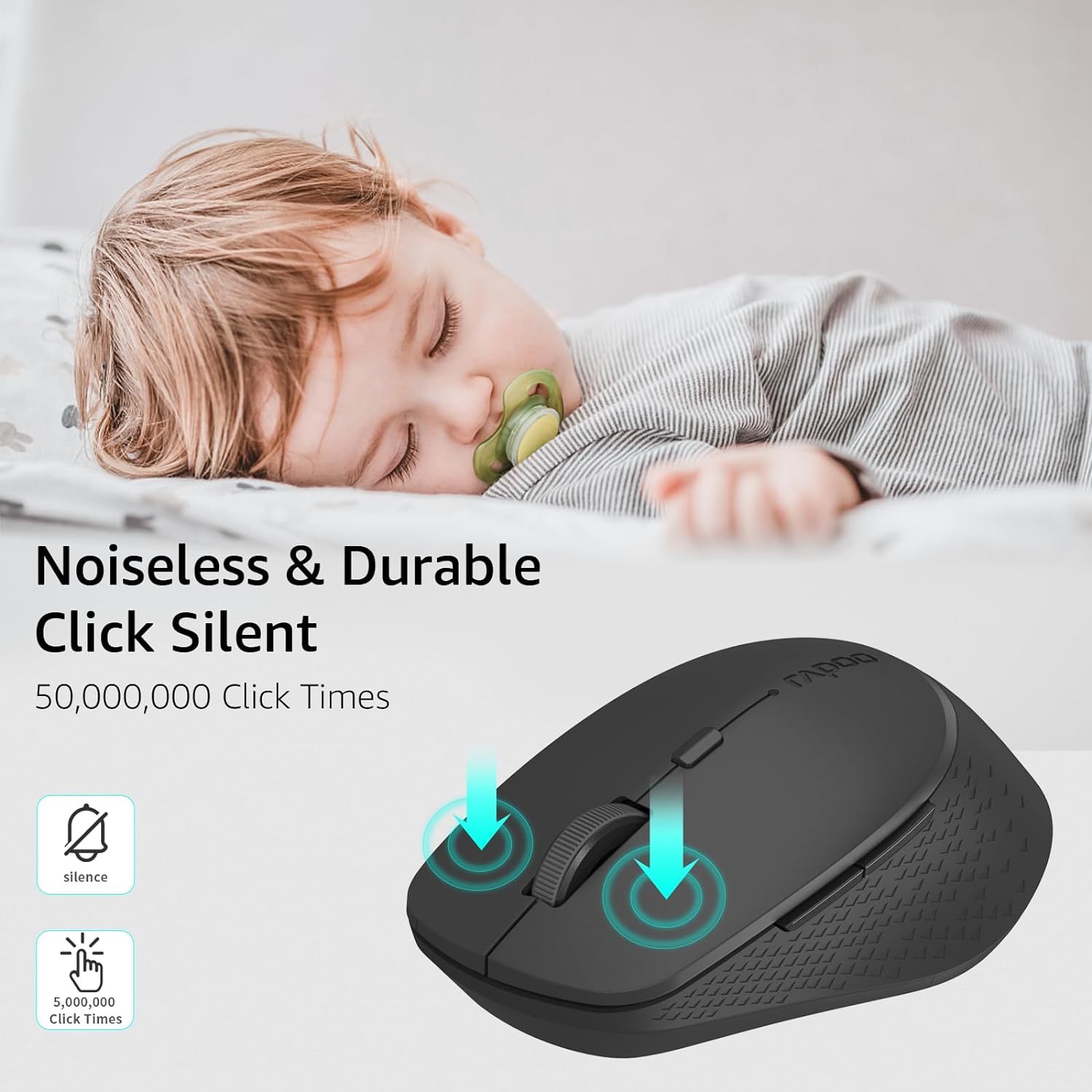
This manual provides detailed instructions for the setup, operation, and maintenance of your Rapoo M300G Silent Wireless Mouse. Please read this guide thoroughly to ensure proper use and to maximize the performance of your device. The Rapoo M300G offers versatile connectivity options, silent clicking, and adjustable DPI settings for an optimized user experience.
Packungsinhalt
Überprüfen Sie, ob alle Artikel im Paket vorhanden sind:
- Rapoo M300G Wireless Mouse x 1
- AA-Batterie x 1
- USB Receiver x 1 (typically stored inside the mouse)
- Produkthandbuch x 1
Produkt überview
Familiarize yourself with the components of your Rapoo M300G mouse:

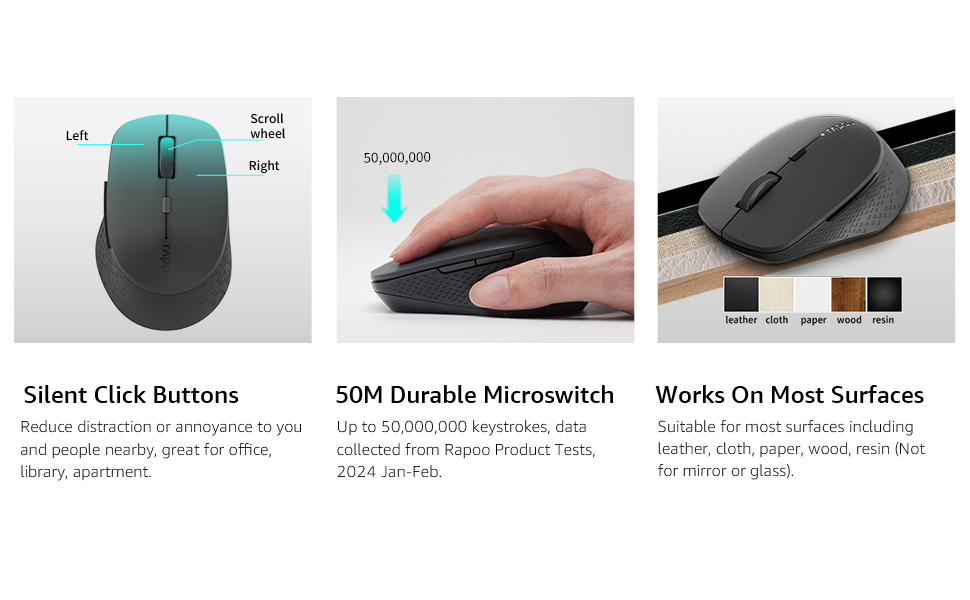
- Linke Taste: Standard-Klickfunktion.
- Rechter Knopf: Standardmäßige Rechtsklick-Funktion.
- Scrollrad: Zum Durchblättern von Dokumenten und web Seiten. Kann auch für die Funktion eines Mittelklicks gedrückt werden.
- DPI-Umschalttaste: Passt die Mausempfindlichkeit (DPI) an.
- Vorwärts-Taste: Navigiert vorwärts in web Browser bzw file Entdecker.
- Rückwärts-Taste: Navigiert rückwärts in web Browser bzw file Entdecker.
- Multi-function Button Switch (Underside): Used to switch between 2.4GHz and Bluetooth modes, and for Bluetooth pairing.
Aufstellen
1. Einlegen der Batterie
The Rapoo M300G mouse requires one AA battery (included).
- Suchen Sie die Abdeckung des Batteriefachs an der Unterseite der Maus.
- Schieben Sie die Abdeckung auf.
- Setzen Sie die AA-Batterie ein und achten Sie darauf, dass die Plus- (+) und Minus- (-) Anschlüsse mit den Markierungen im Batteriefach übereinstimmen.
- Schließen Sie den Batteriefachdeckel fest.

2. 2.4-GHz-Funkverbindung
To connect via the 2.4GHz USB receiver:
- Remove the USB receiver from its storage slot inside the mouse's battery compartment.
- Stecken Sie den USB-Empfänger in einen freien USB-Port Ihres Computers.
- Schalten Sie die Maus mit dem Netzschalter an der Unterseite ein.
- Set the multi-function button switch on the underside of the mouse to the 2.4G mode (indicated by a small icon).
- Ihr Computer sollte die benötigten Treiber automatisch erkennen und installieren. Die Maus ist nun einsatzbereit.
3. Bluetooth-Verbindung
The Rapoo M300G supports Bluetooth 5.0 and 4.0. To connect via Bluetooth:
- Schalten Sie die Maus mit dem Netzschalter an der Unterseite ein.
- Set the multi-function button switch on the underside of the mouse to the Bluetooth mode (indicated by a Bluetooth icon).
- Press and hold the multi-function button switch for 3-5 seconds until the indicator light on the mouse starts blinking, indicating it is in pairing mode.
- Öffnen Sie auf Ihrem Computer oder Gerät die Bluetooth-Einstellungen und suchen Sie nach neuen Geräten.
- Select "Rapoo M300G" from the list of available devices to pair.
- Once paired, the indicator light on the mouse will stop blinking and remain solid for a few seconds, then turn off. The mouse is now connected.

Betrieb
1. DPI-Anpassung
The Rapoo M300G features 5 adjustable DPI levels: 800, 1000, 1200, 1600, and 2400. To change the DPI:
- Drücken Sie die DPI-Umschalttaste located behind the scroll wheel.
- Each press cycles through the available DPI settings. The mouse cursor speed will change accordingly.

2. Umschaltung mehrerer Geräte
The M300G supports connection to two devices simultaneously (one via 2.4GHz, one via Bluetooth). To switch between connected devices:
- Drücken Sie kurz die Multi-function Button Switch auf der Unterseite der Maus.
- The mouse will switch between the 2.4GHz connection and the Bluetooth connection.
3. Oberflächenkompatibilität
The advanced optical tracking technology allows the Rapoo M300G to operate effectively on various surfaces without a mouse pad, including leather, cloth, paper, wood, and resin. Performance may vary on glass or mirrored surfaces.

Wartung
- Reinigung: Reinigen Sie die Maus mit einem weichen, trockenen Tuch. Vermeiden Sie die Verwendung von scharfen Chemikalien oder scheuernden Materialien.
- Batteriewechsel: Tauschen Sie die AA-Batterie aus, wenn die Leistung der Maus nachlässt oder die Kontrollleuchte einen niedrigen Batteriestand signalisiert.
- Lagerung: When not in use for extended periods, turn off the mouse to conserve battery life. Store the USB receiver in its dedicated slot to prevent loss.

Fehlerbehebung
| Problem | Mögliche Ursache | Lösung |
|---|---|---|
| Maus reagiert nicht | Low battery; Mouse turned off; Incorrect connection mode; USB receiver not connected (2.4GHz); Bluetooth not paired (Bluetooth). | Replace battery; Turn on mouse; Switch to correct mode (2.4G or BT); Plug in USB receiver; Re-pair Bluetooth. |
| Die Cursorbewegung ist unregelmäßig | Verschmutzter optischer Sensor; Ungeeignete Oberfläche; Niedriger Batteriestand. | Clean optical sensor; Use on a suitable surface or mouse pad; Replace battery. |
| Wechsel zwischen Geräten nicht möglich | Incorrect button press; Device not properly paired. | Ensure a brief press of the multi-function button; Verify both devices are correctly paired/connected. |
| Seitentasten funktionieren nicht (Mac OS) | Limited Mac OS compatibility for side buttons. | This is a known limitation. Side buttons may not function on Mac OS. |
Technische Daten
- Modell: M300G
- Konnektivität: Bluetooth 5.0, Bluetooth 4.0, 2.4-GHz-Funk
- DPI-Einstellungen: 800, 1000, 1200, 1600, 2400 (einstellbar)
- Tasten: 6 (Links, Rechts, Scrollrad, DPI-Umschalter, Vorwärts, Rückwärts)
- Leistung: 1 x AA-Batterie
- Akkulaufzeit: Bis zu 12 Monate (unter normalen Bedingungen)
- Abmessungen: 4.09 x 2.57 x 0.04 Zoll (103.91 x 65.43 x 37.29 mm)
- Gewicht: 2.46 Unzen (ca. 70 g)
- Kompatibilität: Windows, Mac OS, Linux, iOS, Android, Chrome OS
Garantie und Support
Your Rapoo M300G Silent Wireless Mouse comes with a Ein Jahr Garantie ab Kaufdatum. Zusätzlich ein 30-day return and refund or replacement policy is offered. For technical support or warranty claims, please refer to the contact information provided on the Rapoo official webWebsite oder die Supportkanäle Ihres Händlers.