Einführung
This manual provides detailed instructions for the setup, operation, and maintenance of your Rapoo M300G Silent Wireless Mouse. Please read this manual thoroughly to ensure proper use and to maximize the performance of your device.
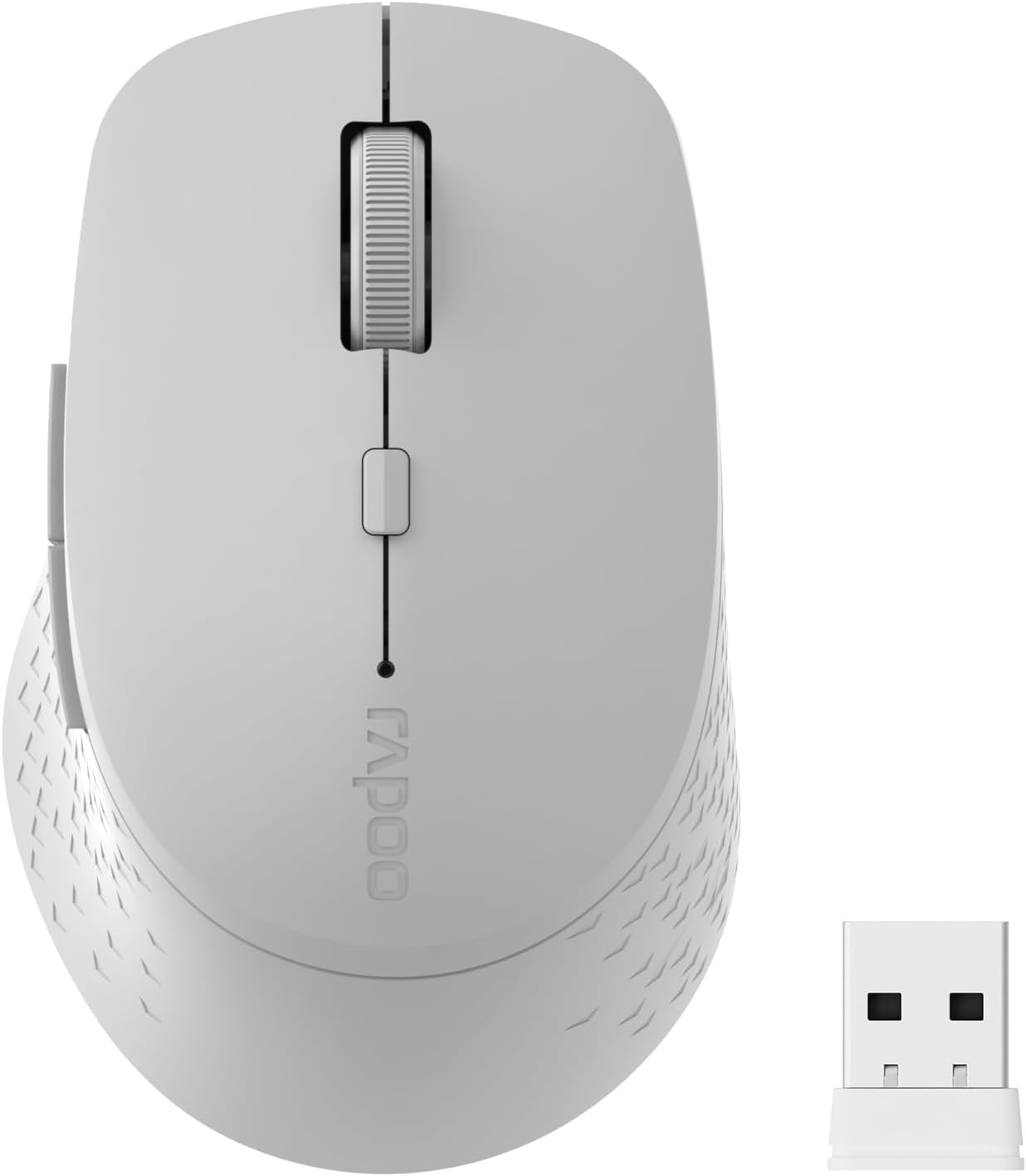
Image: The Rapoo M300G Silent Wireless Mouse in light grey, shown with its accompanying USB receiver.
Packungsinhalt
Überprüfen Sie, ob alle Artikel im Paket vorhanden sind:
- Rapoo M300G Wireless Mouse (x1)
- USB Receiver (x1)
- AA-Batterie (x1)
- Produkthandbuch (x1)
Produkt überview
Machen Sie sich mit den Komponenten Ihrer Rapoo M300G Maus vertraut.
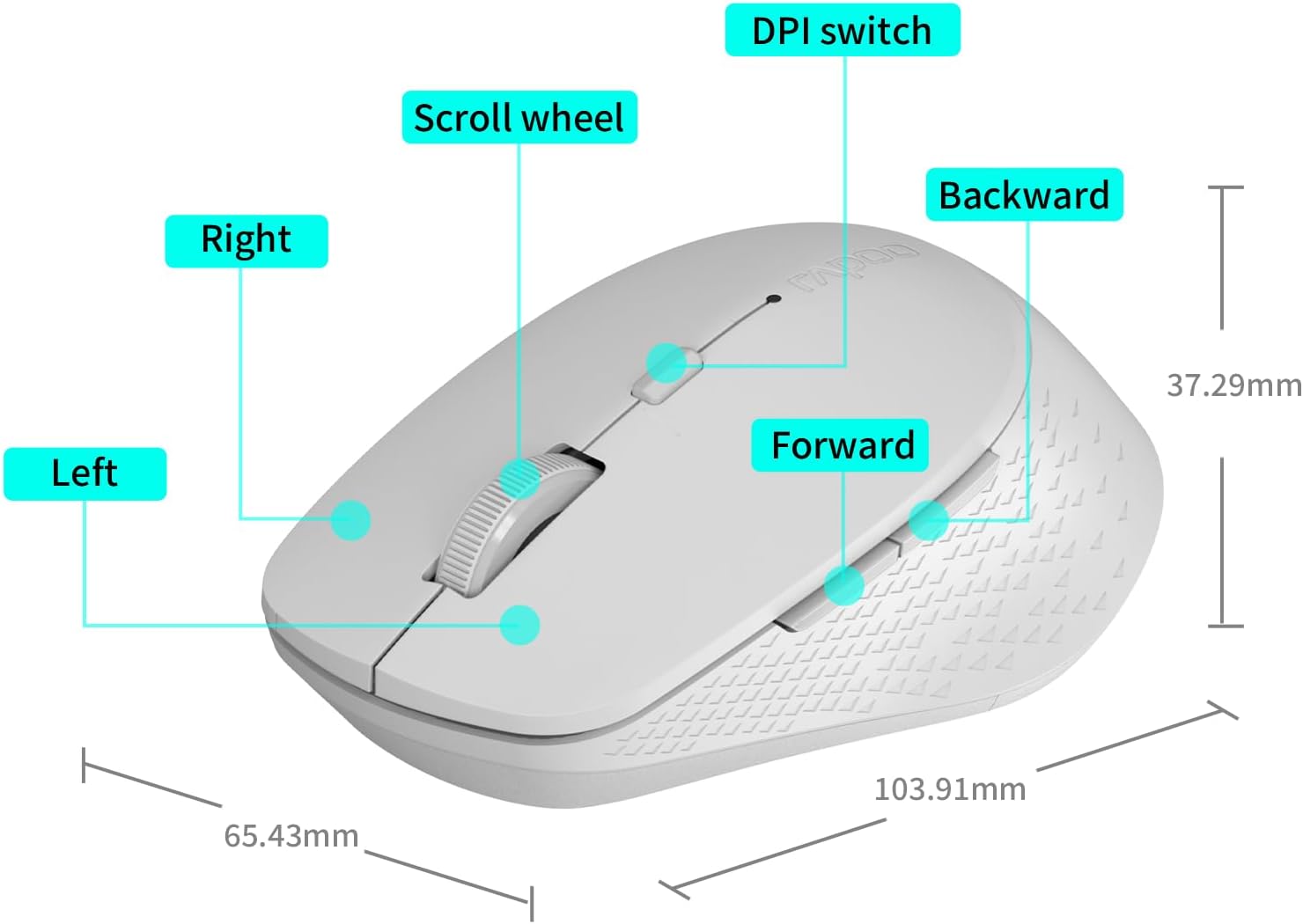
Image: A diagram illustrating the various parts of the Rapoo M300G mouse, including the left and right click buttons, scroll wheel, DPI switch, and forward/backward side buttons.
- Linke Taste: Standard-Klickfunktion.
- Rechter Knopf: Kontextmenüfunktion.
- Scrollrad: Für vertikales Scrollen und Klicken mit der mittleren Maustaste.
- DPI-Schalter: Passt die Cursorempfindlichkeit an.
- Vorwärts-Taste: Navigiert vorwärts in web Browser bzw file Entdecker.
- Rückwärts-Taste: Navigiert rückwärts in web Browser bzw file Entdecker.
Installationsanweisungen
The Rapoo M300G mouse supports both 2.4GHz wireless and Bluetooth connectivity. Choose the method that best suits your device.
1. Einlegen der Batterie
Open the battery compartment on the underside of the mouse. Insert the provided AA battery, ensuring correct polarity. Close the compartment.

Image: Illustration of the mouse's underside, highlighting the battery compartment and the integrated USB receiver storage slot.
2. Verbindung über den 2.4-GHz-Funkmodus
- Suchen Sie den USB-Empfänger im Batteriefach der Maus.
- Nehmen Sie den USB-Empfänger heraus und stecken Sie ihn in einen freien USB-Anschluss Ihres Computers.
- Schalten Sie die Maus mit dem Netzschalter an der Unterseite ein.
- Die Maus sollte sich automatisch mit Ihrem Computer verbinden. In der Regel sind keine zusätzlichen Treiber erforderlich.
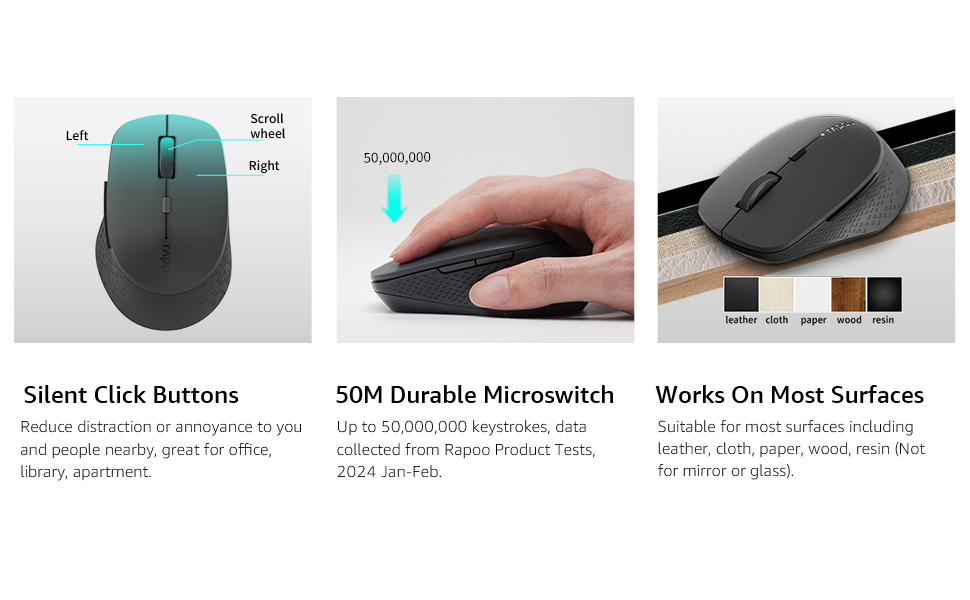
Image: Visual guide for connecting the mouse. The 2.4GHz mode shows the USB receiver being inserted into a computer.
3. Verbindung über Bluetooth-Modus
The mouse supports Bluetooth 5.0 and 4.0.
- Schalten Sie die Maus mit dem Netzschalter an der Unterseite ein.
- Press and hold the multifunction button on the underside of the mouse for 3-5 seconds until the indicator light flashes slowly. This indicates pairing mode.
- Öffnen Sie die Bluetooth-Einstellungen auf Ihrem Computer oder Gerät.
- Suchen nach new devices and select "Rapoo M300G" (or similar) from the list.
- Folgen Sie den Anweisungen auf dem Bildschirm, um den Kopplungsvorgang abzuschließen. Die Kontrollleuchte hört auf zu blinken, sobald die Verbindung hergestellt ist.

Image: Diagram detailing the multifunction button on the mouse's underside, explaining its use for DPI adjustment (short press) and Bluetooth pairing (long press).
Image: Visual guide for connecting the mouse. The Bluetooth mode shows the mouse pairing with a laptop.
Bedienungsanleitung
1. Switching Between Devices (Multi-Mode)
The Rapoo M300G can connect to two devices simultaneously (one via 2.4GHz, one via Bluetooth). To switch between connected devices, briefly press the multifunction button on the underside of the mouse. The indicator light will change to confirm the active connection mode.

Image: The Rapoo M300G mouse demonstrating its ability to connect to two devices simultaneously, one via 2.4GHz and another via Bluetooth.
2. DPI (Empfindlichkeit) anpassen
The mouse offers 5 adjustable DPI levels: 800, 1000, 1200, 1600, and 2400. To change the DPI, press the DPI switch button located on the top of the mouse, below the scroll wheel. Each press cycles through the available DPI settings.

Image: A visual representation of the mouse's adjustable DPI settings, ranging from 800 to 2400, with an arrow pointing to the DPI switch button.
3. Funktion für geräuschloses Klicken
The Rapoo M300G features silent click buttons, reducing operational noise by 90%. This design is intended for quiet environments, minimizing disturbance to others.
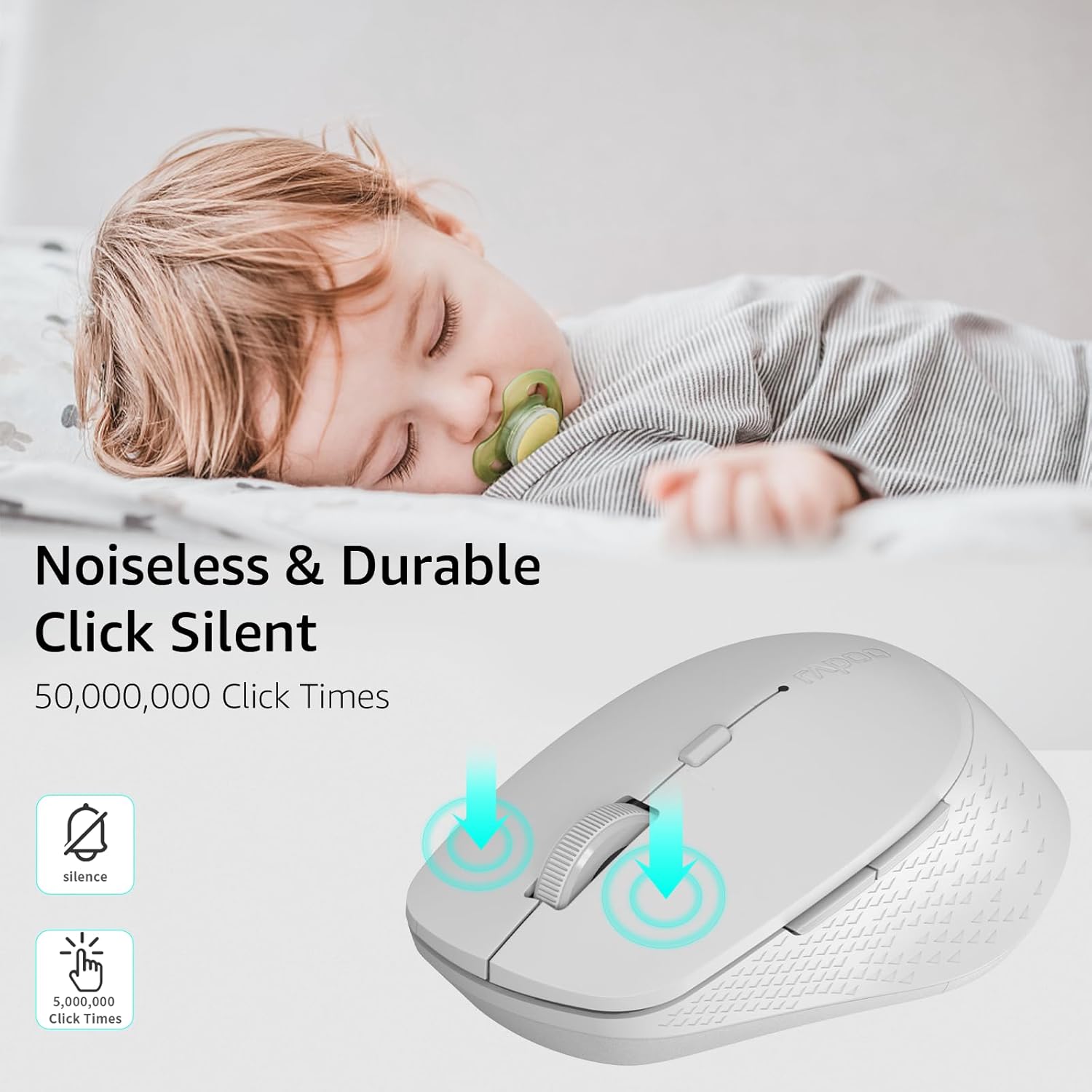
Image: The Rapoo M300G mouse, emphasizing its silent click functionality, suitable for quiet environments.

Bild: Detailliert view of the mouse's silent click buttons, durable microswitches, and its ability to function on various surfaces.
4. Oberflächenkompatibilität
The advanced optical tracking engine allows the mouse to operate effectively on various surfaces, including leather, cloth, paper, wood, and resin, without requiring a mouse pad. Performance may vary on glass or mirrored surfaces.

Image: The Rapoo M300G mouse positioned on different materials, highlighting its capability to track on diverse surfaces.
Wartung
1. Batteriewechsel
When the mouse performance degrades or the indicator light signals low battery, replace the AA battery. The mouse is designed for low power consumption, offering up to 12 months of battery life under normal conditions.

Image: An illustration emphasizing the Rapoo M300G mouse's extended battery life of up to 12 months.
2. Reinigung
Reinigen Sie die Maus mit einem weichen, trockenen Tuch. Bei hartnäckigem Schmutz kann ein leicht feuchtes Tuch hilfreich sein.amp Ein Tuch kann verwendet werden, um sicherzustellen, dass keine Feuchtigkeit in die internen Komponenten eindringt. Vermeiden Sie die Verwendung von scharfen Chemikalien oder scheuernden Materialien.
Fehlerbehebung
Maus reagiert nicht
- Batterie prüfen: Stellen Sie sicher, dass die AA-Batterie korrekt eingesetzt ist und ausreichend geladen ist. Tauschen Sie sie gegebenenfalls aus.
- Stromschalter: Prüfen Sie, ob die Maus eingeschaltet ist.
- USB Receiver (2.4GHz Mode): Stellen Sie sicher, dass der USB-Empfänger fest an einen funktionierenden USB-Anschluss angeschlossen ist. Versuchen Sie es mit einem anderen USB-Anschluss.
- Bluetooth-Verbindung (Bluetooth-Modus):
- Stellen Sie sicher, dass Bluetooth auf Ihrem Gerät aktiviert ist.
- Re-enter pairing mode on the mouse (long press multifunction button) and re-pair with your device.
- Entfernen Sie die Maus aus der Bluetooth-Liste Ihres Geräts und versuchen Sie erneut, sie zu koppeln.
- Interferenz: Bewegen Sie die Maus näher an den Empfänger/das Gerät heran. Vermeiden Sie die Verwendung der Maus in der Nähe anderer drahtloser Geräte, die Störungen verursachen könnten.
Die Cursorbewegung ist unregelmäßig
- Sensor reinigen: Ensure the optical sensor on the underside of the mouse is clean and free from dust or debris.
- Oberfläche: Try using the mouse on a different surface. While the mouse works on many surfaces, some highly reflective or uneven surfaces may affect tracking.
- DPI-Einstellung: Adjust the DPI setting using the DPI switch button to see if a different sensitivity improves performance.
Technische Daten
| Modell | M300G |
| Konnektivitätstechnologie | Bluetooth 5.0, Bluetooth 4.0, 2.4-GHz-Funk |
| Bewegungserkennungstechnologie | Optisch |
| Einstellbare DPI | 800 / 1000 / 1200 / 1600 / 2400 |
| Besondere Merkmale | Silent Clicks, Multi-Device Switching, Portable, Ergonomic Design |
| Akku-Typ | 1 x AA Batterie (im Lieferumfang enthalten) |
| Akkulaufzeit | Bis zu 12 Monate |
| Technische Daten | 4.09 x 2.57 x 0.04 Zoll (103.91 x 65.43 x 37.29 mm) |
| Artikelgewicht | 3.52 Unzen (100 g) |
| Kompatibilität | Windows, Mac OS, Linux, iOS, Android, Chrome OS |
Garantie und Support
Your Rapoo M300G Silent Wireless Mouse comes with a ein Jahr Garantie ab Kaufdatum. Zusätzlich ein 30-day return and refund or replacement policy is offered. For warranty claims, technical support, or product inquiries, please contact your retailer or visit the official Rapoo webWebsite für Unterstützung.
Weitere Informationen finden Sie unter Rapoo Markenshop auf Amazon.


