1. Einleitung
The DIGITUS DS-55328 Wireless HDMI KVM Extender Kit is designed to transmit HDMI video and audio signals wirelessly. This kit supports UHD 4K/30Hz resolution over distances up to 150 meters in an unobstructed environment. It consists of a sending unit (Transmitter) and a receiving unit (Receiver).
Key features include KVM functionality, allowing control of the signal source from the receiver unit using a connected mouse and keyboard. An HDMI Loop-Out port on the sending unit enables a local monitor connection for monitoring the output. The system supports point-to-multipoint connections, allowing one transmitter to connect with up to four receivers (additional receivers, model DS-55329, are sold separately).
- Drahtlose Übertragung von HDMI-Signalen bis zu 150 Meter (mit kostenloser view).
- Point-to-multipoint connection: 1 sender (source) + up to 4 receivers (output devices).
- Supports wireless transmission of AV signals with resolutions up to 4K UHD (2160p/30Hz).
- HDMI 2.0- und HDCP 2.2-kompatibel.
- KVM functionality for mouse/keyboard control at the receiver.
- HDMI Loop-Out on the transmitter for local monitoring.
- Easy plug & play operation, no drivers or software required.
- Touch Screen Back Control compatible via USB connection on receiver.
- Power via USB-C connection and included power supply.
- 128-bit AES encoding and WPA2 protocol for secure transmission.
2. Packungsinhalt
Bitte überprüfen Sie, ob alle unten aufgeführten Artikel in Ihrem Paket enthalten sind. Sollten Artikel fehlen oder beschädigt sein, wenden Sie sich bitte an Ihren Händler.
- 1x DIGITUS DS-55328 Transmitter Unit
- 1x DIGITUS DS-55328 Receiver Unit
- 2x Power Adapters (USB-C)
- 2x HDMI-Kabel
- 2x USB-C-Stromkabel
- 1x IR Link Cable
- Benutzerhandbuch (dieses Dokument)
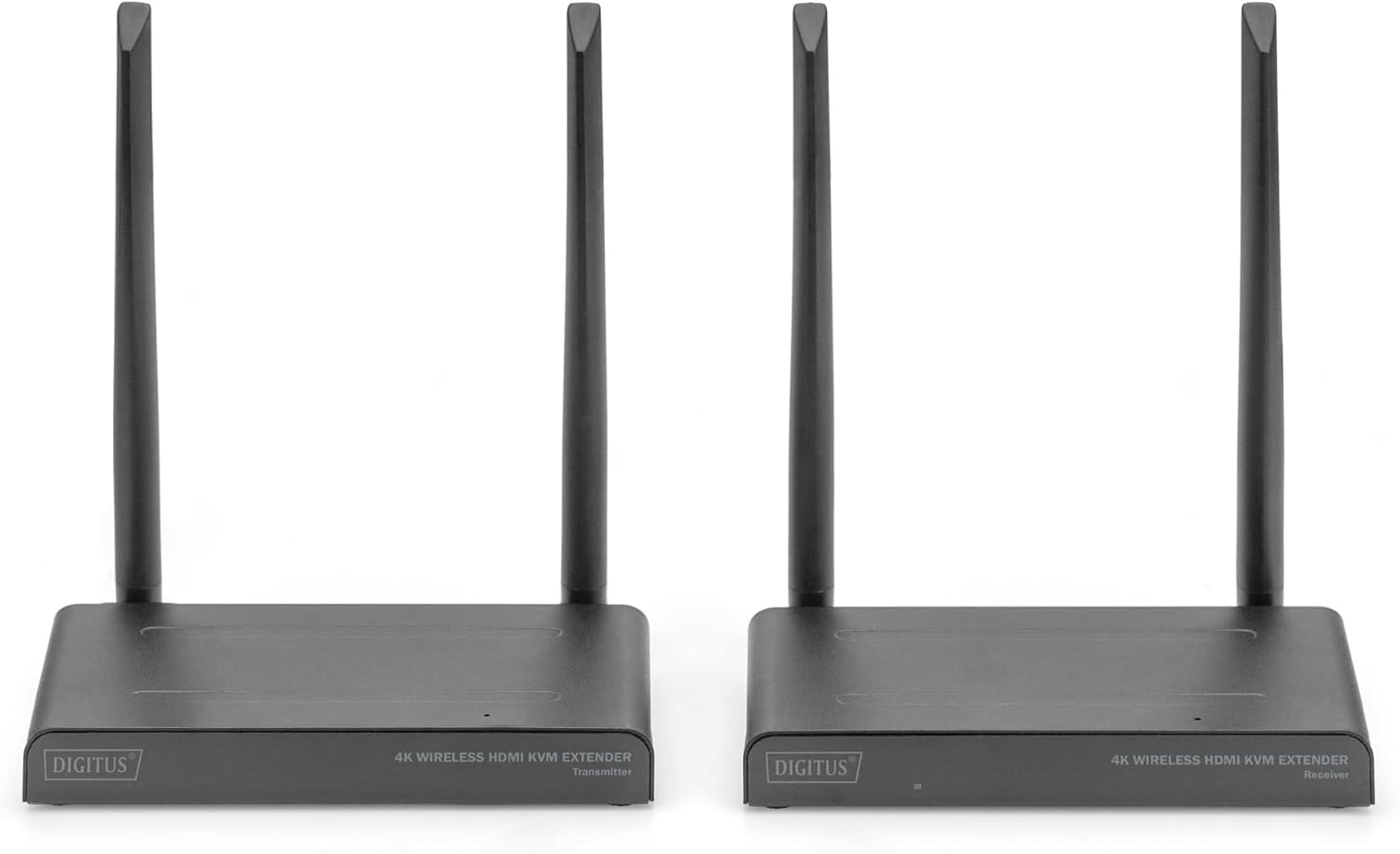
Bild 2.1: Contents of the DS-55328 package, including the transmitter, receiver, power adapters, HDMI cables, USB-C cables, and an IR link cable.
3. Produktüberschreitungview
Familiarize yourself with the ports and indicators on both the Transmitter and Receiver units.
3.1. Transmitter Unit (TX)
- HDMI-IN: Connects to your HDMI source device (e.g., PC, laptop, media player).
- HDMI-Ausgang (Loop-Out): Connects to a local monitor for direct display of the source signal.
- USB-C: Stromeingangsanschluss.
- IR Link: Connects to the IR blaster cable for controlling the source device.
- Taste: For pairing or mode selection.
- Stromschalter: Zum Ein- und Ausschalten des Geräts.
3.2. Receiver Unit (RX)
- HDMI-AUSGANG: Verbindet sich mit Ihrem Anzeigegerät (z. B. Fernseher, Monitor, Projektor).
- USB-Anschlüsse: Connects to a keyboard, mouse, or touch screen panel for KVM functionality.
- USB-C: Stromeingangsanschluss.
- Statusanzeige: Indicates connection status and other operational information.
- Taste: For pairing or mode selection.
- Stromschalter: Zum Ein- und Ausschalten des Geräts.

Bild 3.1: Detailed diagram showing the various ports and features on both the Transmitter and Receiver units of the DS-55328.

Bild 3.2: Front view of the DS-55328 Transmitter and Receiver units, highlighting their compact design.

Bild 3.3: Hinteren view of the DS-55328 Transmitter and Receiver units, showing all input and output ports.
4. Einrichtungsanweisungen
Follow these steps to set up your Wireless HDMI KVM Extender Kit.
4.1. Punkt-zu-Punkt-Verbindung
- Connect Source to Transmitter: Use an HDMI cable to connect your source device (e.g., PC, laptop) to the HDMI IN port on the DS-55328 Transmitter unit.
- Connect Local Monitor (Optional): If you wish to monitor the source locally, connect an HDMI cable from the HDMI-Ausgang (Loop-Out) port on the Transmitter to your local monitor.
- Sender mit Strom versorgen: Connect one of the provided USB-C power cables to the USB-C port on the Transmitter, and then plug the power adapter into an electrical outlet.
- Connect Receiver to Display: Use an HDMI cable to connect your display device (e.g., TV, monitor) to the HDMI-Ausgang port on the DS-55328 Receiver unit.
- Connect KVM Peripherals (Optional): For KVM functionality, connect your USB keyboard and mouse to the USB-Anschlüsse on the Receiver unit.
- Empfänger mit Strom versorgen: Connect the second USB-C power cable to the USB-C port on the Receiver, and then plug the power adapter into an electrical outlet.
- Einschalten: Turn on both the Transmitter and Receiver units using their respective power switches. Ensure your source device and display are also powered on.
- Paarung (falls erforderlich): The units should automatically pair. If not, refer to the operating instructions for manual pairing.

Bild 4.1: Diagram illustrating a typical point-to-point connection setup for the DS-55328, showing connections from a source to the transmitter and from the receiver to a display with KVM peripherals.
4.2. Punkt-zu-Mehrpunkt-Verbindung
The DS-55328 supports connecting one Transmitter to up to four Receiver units (DS-55329, sold separately).
- Follow steps 1-3 from the Point-to-Point Connection for setting up the Transmitter unit.
- For each additional Receiver unit (DS-55329), follow steps 4-6 from the Point-to-Point Connection.
- Ensure all Transmitter and Receiver units are powered on. The Transmitter will broadcast the signal to all paired Receivers.

Bild 4.2: Diagram showing a point-to-multipoint connection setup, where one DS-55328 Transmitter sends signals to multiple DS-55329 Receiver units.
5. Bedienungsanleitung
5.1. Ein-/Ausschalten
Use the power switch on each unit to turn it on or off. Ensure both Transmitter and Receiver units are powered on for operation.
5.2. KVM-Funktionalität
Once a USB keyboard and mouse are connected to the Receiver's USB ports, you can control the source device connected to the Transmitter. This allows for remote operation of your computer or other KVM-compatible source.
5.3. IR-Steuerung
Connect the IR Link cable to the IR port on the Transmitter. Position the IR blaster head near the IR receiver of your source device. This enables you to use the source device's remote control from the location of the Receiver unit.
5.4. Statusanzeigen
The Status Display on the Receiver unit provides visual feedback on the connection status. Refer to the device's LED indicators for specific states (e.g., power, signal, connection status).
5.5. Paarung
In most cases, the Transmitter and Receiver units will automatically pair upon power-up. If pairing does not occur, press the 'Button' on both the Transmitter and Receiver units simultaneously for a few seconds until the status indicators confirm a successful connection.
6. Wartung
To ensure optimal performance and longevity of your DIGITUS DS-55328, follow these maintenance guidelines:
- Reinigung: Use a soft, dry cloth to clean the units. Do not use liquid or aerosol cleaners, as they may damage the casing oder interne Komponenten.
- Umfeld: Operate the device in a well-ventilated area. Avoid exposing the units to extreme temperatures, high humidity, or direct sunlight.
- Lagerung: When not in use for extended periods, store the units in a cool, dry place, away from dust and moisture.
- Kabel: Ensure all cables are connected securely and are not bent or crimped, which could lead to signal loss or damage.
7. Fehlerbehebung
If you encounter issues with your DS-55328, refer to the following troubleshooting steps:
| Problem | Mögliche Ursache | Lösung |
|---|---|---|
| No image or black screen on display. |
|
|
| Schlechte Bildqualität oder Flimmern. |
|
|
| KVM (keyboard/mouse) not responding. |
|
|
| Die Infrarotsteuerung funktioniert nicht. |
|
|
| Audio delay/synchronization issues. |
|
|
8. Spezifikationen
| Besonderheit | Detail |
|---|---|
| Modellnummer | DS-55328 |
| Übertragungsdistanz | Up to 150 meters (unobstructed viewing) |
| Unterstützte Auflösung | UHD 4K/30Hz (2160p/30Hz) |
| HDMI-Version | HDMI 2.0 |
| HDCP-Version | HDCP 2.2 |
| KVM-Funktionalität | Yes (Keyboard/Mouse via USB) |
| Schleifenausgang | Yes (on Transmitter) |
| IR-Steuerung | Ja |
| Punkt-zu-Mehrpunkt | 1 Transmitter to up to 4 Receivers (DS-55329) |
| Sicherheit | 128-bit AES encryption, WPA2 protocol |
| Stromversorgung | USB-C (5V DC) |
| Technische Daten | 3.11 x 6.06 x 0.87 Zoll |
| Artikelgewicht | 2.64 Pfund |
| Hersteller | DIGITUS |
9. Garantie und Support
For warranty information, please refer to the documentation provided with your purchase or visit the official DIGITUS website. Technical support may be available through your retailer or the manufacturer's support channels.
Bitte bewahren Sie Ihren Kaufbeleg für Garantieansprüche auf.