1. Produktüberschreitungview
Die CZEview 3K 5MP Indoor Security Camera is a versatile device designed for home surveillance, pet monitoring, and baby monitoring. It offers crystal-clear 3K 5MP resolution, dual-band 2.4/5GHz Wi-Fi connectivity, and advanced features such as remote pan, tilt, and zoom capabilities. The camera includes night vision for low-light conditions, motion detection with auto-tracking, and two-way audio communication. It is also compatible with Alexa for convenient voice control.


2. Lieferumfang
Bitte überprüfen Sie den Packungsinhalt, um sicherzustellen, dass alle Artikel vorhanden sind:
- 2x CZEview Schwenk-/Neigekamera
- Netzteil
- Kurzanleitung
- Befestigungsschraube
- Montageplatte
3. Installationsanleitung
3.1 Ersteinrichtung
- Stromanschluss: Connect the camera to the power adapter using the provided micro-USB cable and plug it into a power outlet. The camera will power on and initiate its startup sequence.
- App herunterladen: Download the designated mobile application (e.g., 'Elemage Cam' or as specified in the Quick Start Guide) from your device's app store (compatible with Android and iOS).
- Kontoregistrierung: Öffnen Sie die App und folgen Sie den Anweisungen auf dem Bildschirm, um ein neues Konto zu registrieren oder sich anzumelden, falls Sie bereits eines besitzen.
- Gerät hinzufügen: Within the app, select the option to add a new device. Follow the prompts to scan the QR code on the camera or manually select your camera model.
3.2 Wi-Fi-Verbindung
Die CZEview camera supports both 2.4GHz and 5GHz Wi-Fi networks, offering flexibility and improved performance.

- Netzwerkauswahl: Ensure your smartphone is connected to the Wi-Fi network you intend to connect the camera to.
- Passworteingabe: Enter your Wi-Fi password accurately into the app when prompted. Double-check for typos.
- Verbindungsprozess: The app will guide you through the connection process, which may involve displaying a QR code on your phone screen for the camera to scan, or emitting an audible tone.
- Bestätigung: Once connected, the camera will typically indicate a successful connection (e.g., a voice prompt or LED indicator change), and the app will confirm the device is online.
3.3 Montage der Kamera
The camera is designed for indoor use and can be ceiling-mounted for optimal coverage.
- Standort: Wählen Sie einen Standort, der die gewünschten Eigenschaften bietet. viewDer Winkel muss im Sichtfeld liegen und sich innerhalb der Reichweite Ihres WLAN-Netzwerks befinden.
- Installation: Use the provided mounting plate and screws to secure the camera to a ceiling or wall. If mounting into wood, pre-drilling pilot holes is recommended.
4. Bedienungsanleitung
4.1 Schwenken, Neigen und Zoomen (PTZ)
The camera offers a 355° horizontal rotation and 100° vertical rotation, allowing for comprehensive coverage of your indoor space. It also features 4x digital zoom.
- Kontrolle: Use the directional controls within the mobile app to remotely adjust the camera's viewing-Winkel.
- Zoom: Pinch-to-zoom on the live feed within the app to digitally zoom in on specific areas.

4.2 Nachtsicht
Equipped with infrared LEDs, the camera provides clear video footagselbst bei schwachem Licht oder völliger Dunkelheit.
- Automatische Aktivierung: Die Nachtsichtfunktion wird bei schwachem Umgebungslicht automatisch aktiviert.
- Klarheit: The 3K 5MP resolution ensures details are visible in night vision mode.
4.3 Bewegungserkennung und automatische Verfolgung
The camera can detect motion and sound, sending instant notifications to your phone. It also features auto-tracking to follow detected movement.
- Benachrichtigungen: Enable motion and sound alerts in the app settings to receive real-time notifications.
- Automatische Verfolgung: When enabled, the camera will automatically pan and tilt to keep a moving subject within its field of view.

4.4 Zwei-Wege-Kommunikation
Communicate with family members or pets through the camera using the two-way talk feature.
- Aktivierung: Tippe auf das Mikrofonsymbol im Live-Video. view Benutzeroberfläche der App zur Sprachausgabe über den Lautsprecher der Kamera.
- Hören: Das in die Kamera eingebaute Mikrofon ermöglicht es Ihnen, Audio vom Standort der Kamera zu hören.

4.5 Datenschutzmodus
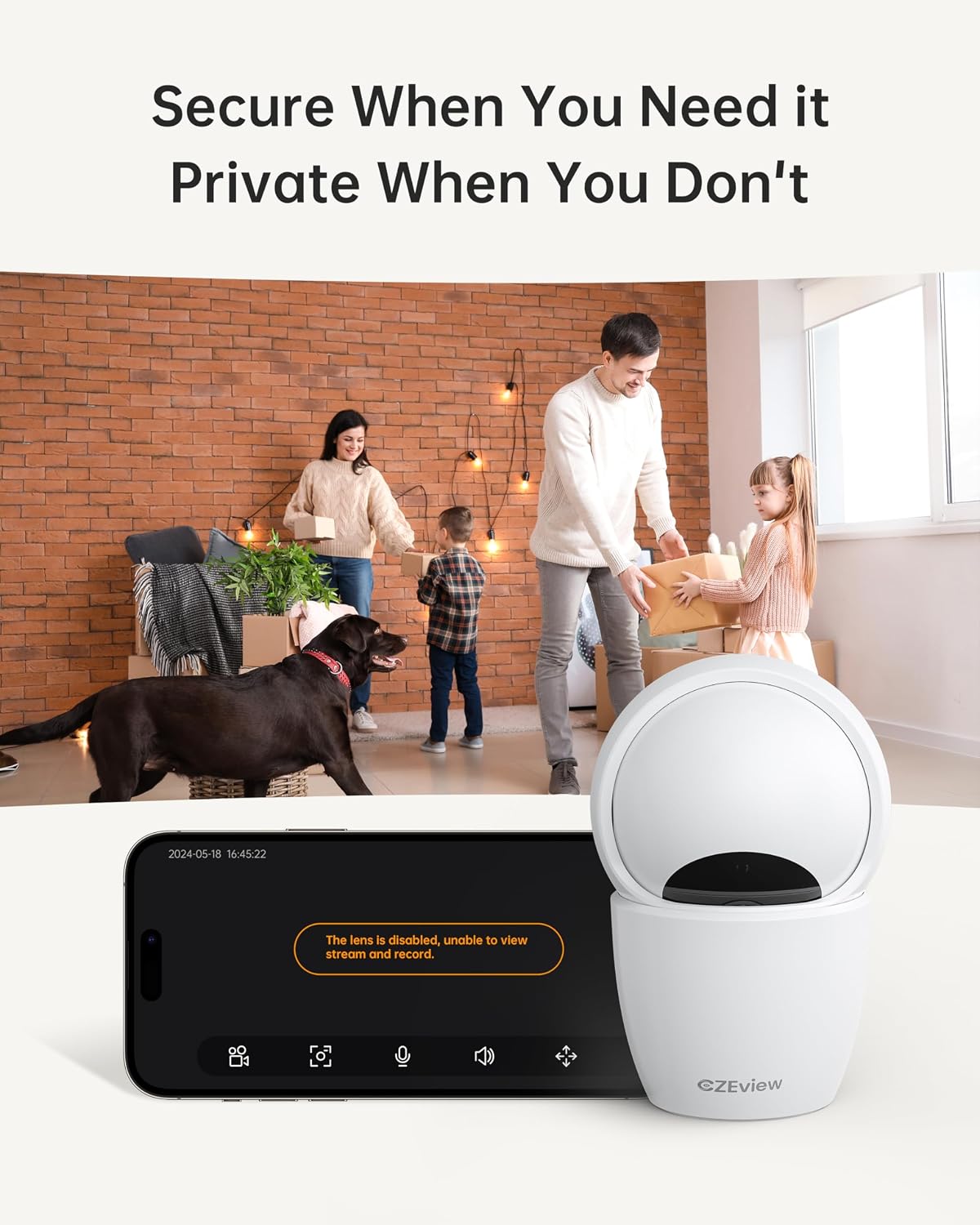
To ensure privacy, the camera can be deactivated with a single click in the app, physically turning the lens away.
- Aktivierung: Locate the privacy mode option in the app settings or live view screen. Activating it will disable video streaming and recording.
- Terminplanung: Some app versions may allow scheduling privacy mode for specific times.

4.6 Aufzeichnung und Speicherung
The camera supports local storage via a Micro SD card (up to 128GB, not included) and offers optional cloud storage plans for continuous 24/7 recording.
- Micro SD Karte: Insert the Micro SD card into the slot. To locate the slot and reset button, gently tilt the camera's 'eyeball' (lens housing) upward.
- Cloud-Speicher: Refer to the app for details on available cloud storage plans and subscription options.
4.7 Alexa-Integration
The camera works with Alexa, allowing for voice-activated control and viewing.
- Konto verknüpfen: Follow the instructions in the Alexa app to enable the CZEview skill and link your camera account.
- Sprachbefehle: Use commands such as "Alexa, show me the [camera name]" to view the live feed on compatible Alexa devices with screens.
5. Wartung
- Reinigung: Reinigen Sie Objektiv und Gehäuse der Kamera mit einem weichen, trockenen Tuch. Vermeiden Sie scheuernde Reinigungsmittel oder Lösungsmittel.
- Software-Updates: Regularly check the mobile app for firmware updates to ensure optimal performance and security. Follow the in-app instructions for updating.
- Platzierung: Ensure the camera is placed in a stable, dry indoor environment, away from direct sunlight, extreme temperatures, and sources of vibration.
6. Fehlerbehebung
| Problem | Mögliche Ursache | Lösung |
|---|---|---|
| Die Kamera verbindet sich nicht mit dem WLAN. | Incorrect Wi-Fi password; Camera too far from router; Router band incompatibility; Network congestion. | Double-check Wi-Fi password. Move camera closer to router. Ensure router supports 2.4GHz or 5GHz (whichever you are connecting to). Try restarting your router and camera. |
| Schlechte Bildqualität | Verschmutzte Linse; Unzureichende Beleuchtung; Probleme mit der Netzwerkbandbreite. | Clean the camera lens with a soft cloth. Ensure adequate lighting or verify night vision is active in low light. Check your internet speed. |
| Keine Bewegungserkennungswarnungen | Motion detection disabled in app; Sensitivity too low; App notifications blocked. | Enable motion detection in the app settings. Adjust sensitivity level. Check your phone's notification settings for the app. |
| Two-way talk audio issues | Microphone/speaker muted in app; Network delay; Obstruction. | Ensure microphone and speaker are enabled in the app. Check network connection stability. Ensure no physical obstructions are blocking the microphone or speaker. |
| Camera is unresponsive / needs reset | Softwarefehler; Konfigurationsfehler. | Unplug the camera, wait 10 seconds, then plug it back in. If issues persist, locate the reset button (by tilting the lens upward) and press it for 5-10 seconds until the camera resets. You may need to re-add the camera to the app after a factory reset. |
7. Spezifikationen
| Besonderheit | Detail |
|---|---|
| Modellname | ZY-D4 |
| Verwendung im Innen- und Außenbereich | Innenbereich |
| Effektive Standbildauflösung | 5 MP (3K) |
| Auflösung der Videoaufnahme | 1920p |
| Konnektivitätsprotokoll | Wi-Fi (2.4/5Ghz Dual Band) |
| Stromquelle | Kabelgebundene Elektrik |
| Controllertyp | Elemage Cam App |
| Montagetyp | Deckenmontage |
| Schwenk-/Neigebereich | 355 ° Horizontal, 100 ° Vertikal |
| Digital Zoom | 4x |
| Speicheroptionen | Micro-SD-Karte (bis zu 128 GB, nicht im Lieferumfang enthalten), Cloud-Speicher (optional) |
| Besondere Merkmale | Night Vision, Motion Sensor, Dual Band Wi-Fi, Auto Tracking, Two-Way Talk, Privacy Mode, Alexa Compatible |
| Technische Daten | 3 x 3 x 5 Zoll |
| Artikelgewicht | 1.37 Pfund |
8. Garantie und Support
For warranty information and technical support, please refer to the Quick Start Guide included in your product packaging or visit the official CZEview webDie Kontaktdaten des Kundendienstes finden sich üblicherweise auf der Website des Herstellers. webWebsite.


