BlitzWolf BW-VT2 Mini-Projektor – Benutzerhandbuch
Your comprehensive guide to setting up, operating, and maintaining your BlitzWolf BW-VT2 Mini Projector.
1. Produktüberschreitungview
1.1 Packungsinhalt
Bitte überprüfen Sie, ob alle Artikel in Ihrem Paket vorhanden sind:
- BlitzWolf BW-VT2 Mini-Projektor
- Fernbedienung
- Netzteil
- HDMI-Kabel
- Benutzerhandbuch (dieses Dokument)
1.2 Geräteaufbau
Machen Sie sich mit den verschiedenen Teilen und Anschlüssen Ihres Projektors vertraut.
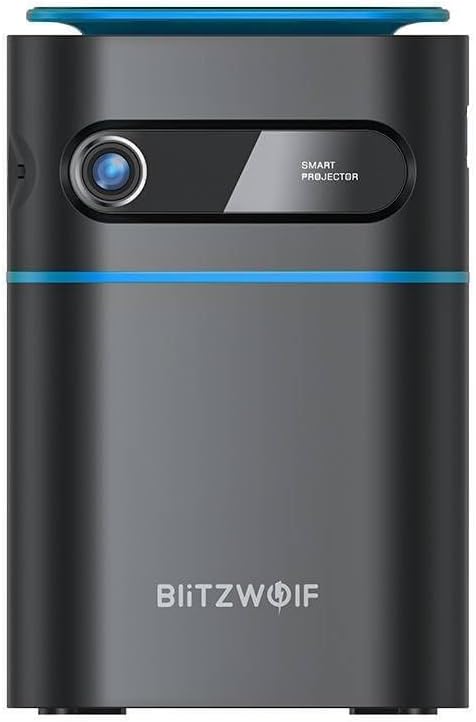
Abbildung 1.1: Vorderseite View. This image displays the front of the BlitzWolf BW-VT2 Mini Projector, highlighting the projection lens and the 'SMART PROJECTOR' branding.

Figure 1.2: Projector with Remote Control. This image shows the BlitzWolf BW-VT2 Mini Projector alongside its dedicated remote control, illustrating the compact size of both devices.
Abbildung 1.3: Rückseite View. The rear of the projector is shown, featuring ventilation grilles and various input/output ports.

Abbildung 1.4: Seite View. This image highlights the side of the projector where additional connectivity options such as USB and HDMI ports are located.

Abbildung 1.5: Oben View. The top surface of the projector is visible, featuring the integrated touch control panel for direct interaction.
1.3 Anschlüsse und Bedienelemente
- HDMI-Anschluss: Connect to laptops, game consoles, Blu-ray players, etc.
- USB-Anschluss: Schließen Sie USB-Speichersticks zur Medienwiedergabe an.
- Audioausgang (3.5 mm) Anschluss: Schließen Sie externe Lautsprecher oder Kopfhörer an.
- DC-Eingangsanschluss: Schließen Sie das Netzteil an.
- Netzschalter: Schaltet den Projektor ein/aus.
- Fokusrad: Passt die Bildschärfe an.
- Touch-Bedienfeld: Navigate menus and control playback directly on the device.
2. Installationsanleitung
2.1 Einschalten
- Schließen Sie das Netzteil an den DC IN-Anschluss des Projektors an.
- Stecken Sie das Netzteil in eine Wandsteckdose.
- Press and hold the Power Button on the projector or the remote control until the device powers on.
2.2 Erstplatzierung
Für optimale viewBei entsprechender Erfahrung sollten Sie Folgendes beachten:
- Stellen Sie den Projektor auf eine stabile, ebene Fläche.
- Ensure there is adequate ventilation around the projector to prevent overheating.
- Position the projector perpendicular to the projection surface (wall or screen) for a rectangular image.
- Adjust the distance to achieve your desired screen size.
2.3 Fokuseinstellung
After powering on, adjust the focus to ensure a clear image:
- Rotate the focus wheel located near the lens until the projected image appears sharp and clear.
2.4 Einrichtung der Fernbedienung
Insert batteries into the remote control before first use:
- Öffnen Sie den Batteriefachdeckel auf der Rückseite der Fernbedienung.
- Legen Sie zwei AAA-Batterien (nicht im Lieferumfang enthalten) ein und achten Sie dabei auf die richtige Polarität (+/-).
- Schließen Sie den Batteriefachdeckel.
3. Bedienungsanleitung
3.1 Navigation
You can navigate the projector's interface using either the remote control or the touch control panel on top of the device.
- Fernbedienung: Use the directional buttons (up, down, left, right) to move through menus and the 'OK' button to select.
- Touch-Bedienfeld: Swipe and tap on the touch-sensitive surface to navigate.
3.2 Geräte anschließen
The BW-VT2 supports various input sources:
- HDMI-Eingang: Connect your laptop, game console, or other HDMI-enabled devices using an HDMI cable. Select the HDMI input source from the projector's menu.
- USB Eingang: Stecken Sie einen USB-Stick in den USB-Anschluss. Der Mediaplayer des Projektors erkennt den Stick in der Regel automatisch, sodass Sie unterstützte Medien durchsuchen und abspielen können. files (Videos, Fotos, Musik).
- Wi-Fi-Konnektivität: Navigate to the 'Settings' menu, then 'Network' or 'Wi-Fi'. Select your Wi-Fi network and enter the password to connect the projector to the internet. This enables access to online streaming apps and updates.
3.3 Android-Betriebssystemfunktionen
As an Android-powered projector, the BW-VT2 offers smart functionalities:
- App-Zugriff: Download and install various streaming apps (e.g., Netflix, YouTube) directly from the pre-installed app store or by sideloading APKs.
- Einstellungen: Customize display settings, audio output, network configurations, and system preferences through the Android settings menu.
- Bildschirmspiegelung: Utilize built-in screen mirroring features (e.g., Miracast, AirPlay compatible apps) to project content from your smartphone or tablet wirelessly.
3.4 Audioausgang
The projector has built-in speakers, but you can also connect external audio devices:
- 3.5-mm-Audioausgang: Connect headphones or external speakers via the 3.5mm audio jack for enhanced sound.
4. Wartung
Durch die richtige Wartung wird die Langlebigkeit und optimale Leistung Ihres Projektors gewährleistet.
4.1 Linsenreinigung
To maintain clear image quality, clean the projector lens regularly:
- Verwenden Sie ein weiches, fusselfreies Tuch, das speziell für optische Linsen entwickelt wurde.
- Wischen Sie die Linse vorsichtig in kreisenden Bewegungen ab.
- Avoid using abrasive cleaners or excessive force, which can scratch the lens.
4.2 Belüftung
Ensure proper airflow to prevent overheating:
- Do not block the ventilation vents on the projector.
- Betreiben Sie den Projektor in einem gut belüfteten Raum.
- Periodically clean dust from the vents using a soft brush or compressed air.
4.3 Speicherung
When not in use, store your projector properly:
- Bewahren Sie den Projektor an einem kühlen, trockenen Ort auf, fern von direkter Sonneneinstrahlung und extremen Temperaturen.
- Verwenden Sie die Originalverpackung oder eine Schutzhülle, um Staubansammlungen und Beschädigungen zu vermeiden.
5. Fehlerbehebung
In diesem Abschnitt finden Sie häufig auftretende Probleme und deren Lösungen.
| Problem | Mögliche Ursache | Lösung |
|---|---|---|
| Der Projektor lässt sich nicht einschalten. | Keine Stromverbindung; defektes Netzteil. | Stellen Sie sicher, dass das Netzteil fest mit dem Projektor und der Steckdose verbunden ist. Versuchen Sie es mit einer anderen Steckdose. |
| Es wird kein Bild projiziert. | Incorrect input source selected; loose HDMI/USB cable. | Verify the correct input source is selected in the menu. Check cable connections. |
| Das Bild ist unscharf. | Fokus nicht eingestellt; Projektor zu nah/zu weit entfernt. | Rotate the focus wheel until the image is clear. Adjust projection distance if necessary. |
| Kein Ton. | Volume too low; external audio device not connected properly. | Increase volume. Check connections to external speakers/headphones. Ensure audio output is set correctly in settings. |
| Probleme mit der WLAN-Verbindung. | Falsches Passwort; Routerprobleme; Signalstörungen. | Re-enter Wi-Fi password. Restart router. Move projector closer to router. |
| Fernbedienung funktioniert nicht. | Leere Batterien; Hindernis; Fernbedienung nicht gekoppelt. | Batterien austauschen. Sicherstellen, dass sich keine Hindernisse zwischen Fernbedienung und Projektor befinden. |
6. Technische Daten
Key specifications of the BlitzWolf BW-VT2 Mini Projector:
| Besonderheit | Spezifikation |
|---|---|
| Marke | BlitzWolf |
| Modellnummer | BW-VT2EU |
| Farbe | Schwarz |
| Konnektivitätstechnologie | HDMI, USB, VGA, WLAN |
| Bildschirmauflösung | 1920 x 1080 (Full HD) |
| Anzeigetyp | LCD, LED |
| Formfaktor | Tragbar |
| Besondere Merkmale | Portable, Android OS, Wi-Fi, HDMI, USB, VGA |
| Kompatible Geräte | Laptops, Smartphones, Game Consoles, Blu-ray Players, Media Players, Wi-Fi enabled devices |
| Empfohlene Verwendung | Heimkino |
7. Garantie und Support
7.1 Herstellergarantie
The BlitzWolf BW-VT2 Mini Projector comes with a 2 Jahr HerstellergarantieDiese Garantie deckt Material- und Verarbeitungsfehler bei normalem Gebrauch ab. Bitte bewahren Sie Ihren Kaufbeleg für Garantieansprüche auf.
7.2 Kundendienst
If you encounter issues not covered in the troubleshooting section or require further assistance, please contact BlitzWolf customer support. Refer to the product packaging or the official BlitzWolf webDie aktuellsten Kontaktinformationen finden Sie auf dieser Webseite.


