1. Einleitung
Welcome to the user manual for your VGN N75 Gaming Keyboard. This manual provides essential information on setting up, operating, maintaining, and troubleshooting your new keyboard. The VGN N75 is a compact, numeric keyless mechanical keyboard designed for an optimal gaming and typing experience.

Figure 1.1: VGN N75 Gaming Keyboard with RGB lighting enabled.

Abbildung 1.2: Schräg view of the VGN N75 keyboard, highlighting its compact form factor.
2. Sicherheitshinweise
Please read the following safety guidelines carefully before using your VGN N75 keyboard:
- Um Beschädigungen zu vermeiden, halten Sie die Tastatur von Flüssigkeiten und übermäßiger Feuchtigkeit fern.
- Setzen Sie die Tastatur keinen extremen Temperaturen (Hitze oder Kälte) aus.
- Versuchen Sie nicht, die Tastatur zu zerlegen oder zu verändern. Dies kann zum Erlöschen der Garantie und zu Schäden führen.
- Use only the provided USB-C cable for connection.
- Handle with care to prevent physical damage from drops or impacts.
3. Produktmerkmale
The VGN N75 keyboard is engineered with several features to enhance your typing and gaming experience:
- Kompaktes 75%-Layout: The US82 key numeric keyless design offers a space-saving solution compared to full-size keyboards, providing more desk space for mouse movement.
- Advanced Internal Construction: Features multiple buffer layers and specially tuned stabilizers for a smooth, quiet, and consistent typing experience.
- VGN "Dynamic Silver" Mechanical Switches: Equipped with VGN's original linear mechanical switches, offering a responsive feel and vibrant RGB illumination.
- Unverwechselbares Design: The "Caribbean Blue" model features striking keycap colors, adding a unique aesthetic to your setup.
- Integrated Metal Volume Knob: A conveniently located metal rotary knob allows for quick and precise volume adjustments, useful for both work and gaming.
- Anpassbare RGB-Beleuchtung: Enjoy dynamic and customizable RGB backlight options to personalize your keyboard's appearance.

Figure 3.1: The compact 75% layout of the VGN N75, demonstrating its space-saving advantage over a traditional full-size keyboard.

Figure 3.2: Detail of the VGN N75's unique "Dynamic Silver" mechanical switches, known for their linear feel and RGB compatibility.

Figure 3.3: An exploded diagram illustrating the multiple buffer layers and components within the VGN N75 keyboard, contributing to its smooth and quiet operation.

Figure 3.4: Close-up of the metal volume knob, providing convenient audio control.
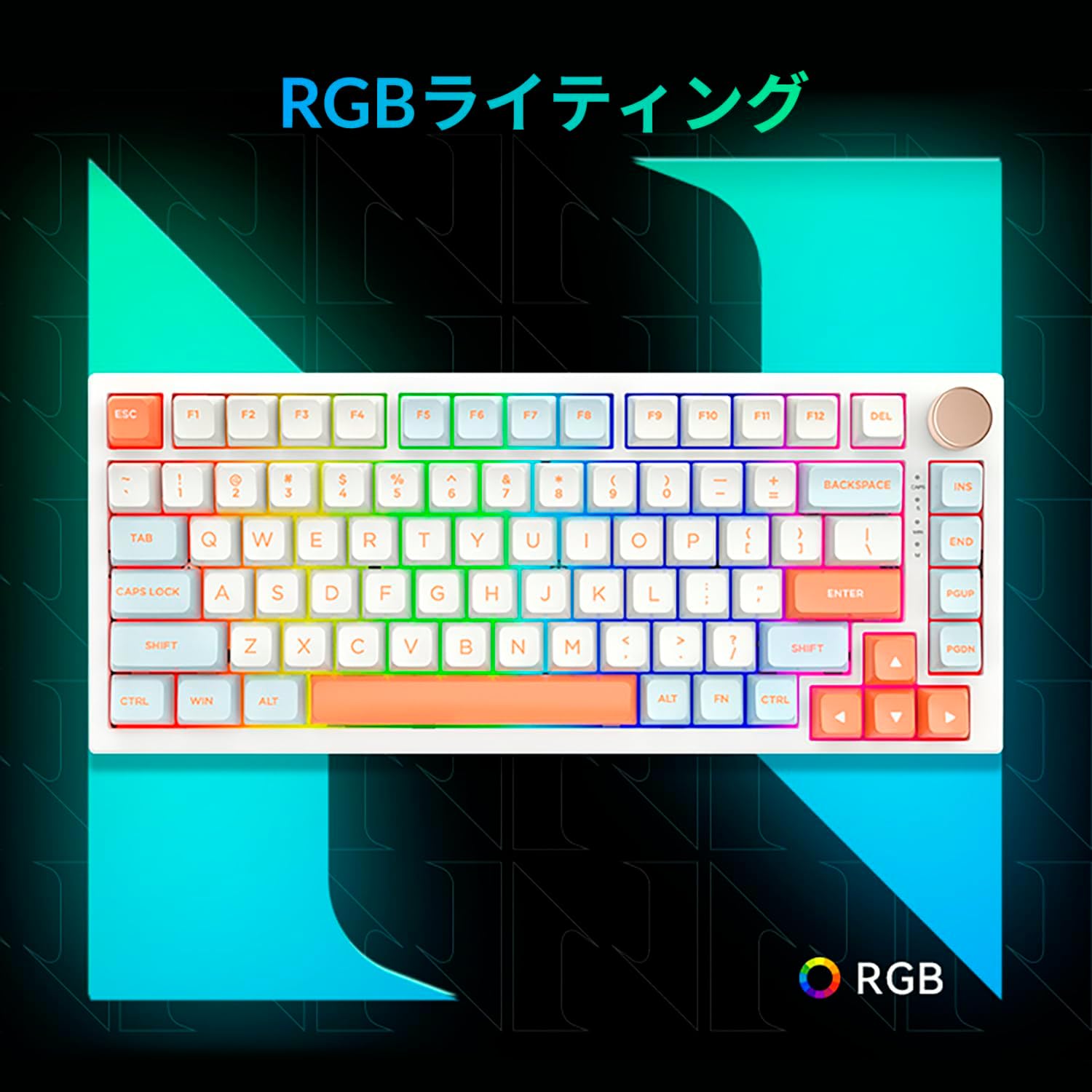
Figure 3.5: The VGN N75 keyboard displaying its customizable RGB lighting, enhancing the visual appeal.
4. Installationsanleitung
Follow these steps to set up your VGN N75 keyboard:
- Auspacken der Tastatur: Carefully remove the keyboard and all included accessories (USB cable, keycap puller, replacement key) from the packaging.
- Schließen Sie das USB-C-Kabel an: Insert one end of the provided USB-C cable into the USB-C port on the keyboard.
- Verbinden Sie sich mit Ihrem Gerät: Plug the other end of the USB-C cable into an available USB port on your computer or laptop.
- Treiberinstallation (automatisch): Die Tastatur ist Plug-and-Play-fähig. Ihr Betriebssystem erkennt und installiert die benötigten Treiber automatisch. Eine manuelle Treiberinstallation ist in der Regel nicht erforderlich.
- Erster Test: Open a text editor or any application to test the keys and ensure all functions are working correctly.
5. Bedienungsanleitung
This section details the basic operation of your VGN N75 keyboard:
5.1. Grundlegende Tastenfunktionen
The VGN N75 features a standard US82 key layout. All keys function as labeled. For specific key combinations or software-defined macros, refer to any accompanying software documentation (if applicable, not included in this manual).
5.2. Using the Rotary Knob
- Lautstärkeregelung: Durch Drehen des Knopfes im Uhrzeigersinn wird die Lautstärke erhöht, durch Drehen gegen den Uhrzeigersinn verringert.
- Stummschalten/Stummschaltung aufheben: Press the knob to mute or unmute audio.
5.3. RGB-Beleuchtungssteuerung
The VGN N75 supports RGB lighting. While specific key combinations for lighting modes are not provided in the product description, most RGB keyboards allow cycling through effects using function key combinations (e.g., Fn + F-keys or dedicated lighting keys). Experiment with the 'Fn' key in combination with other keys (like arrow keys or Ins/Del/Home/End/PgUp/PgDn) to discover lighting controls.
6. Wartung
Durch ordnungsgemäße Wartung wird die Lebensdauer Ihrer Tastatur verlängert:
- Reinigung:
- Trennen Sie die Tastatur vor der Reinigung vom Computer.
- Mit einem weichen, fusselfreien Tuch leichtampAnschließend mit Wasser oder einer milden Reinigungslösung abwischen, um die Tastenkappen und den Rahmen zu reinigen.
- Für Staub und Schmutz zwischen den Tasten verwenden Sie Druckluft.
- Sprühen Sie keine Flüssigkeit direkt auf die Tastatur.
- Tastenkappen- und Schalteraustausch:
- The keyboard comes with a keycap puller and a replacement key.
- To remove a keycap, gently use the keycap puller to grip the keycap and pull upwards.
- To replace a keycap, align it with the switch stem and press down firmly until it clicks into place.
- Notiz: The VGN N75 features hot-swappable switches, allowing for easy replacement without soldering. To remove a switch, use a switch puller (not explicitly listed as included, but implied by "hot-swappable") to gently pry it out. Align the new switch's pins with the sockets and press firmly until it seats correctly.
7. Fehlerbehebung
If you encounter issues with your VGN N75 keyboard, try the following solutions:
- Tastatur reagiert nicht:
- Stellen Sie sicher, dass das USB-C-Kabel sowohl mit der Tastatur als auch mit Ihrem Computer fest verbunden ist.
- Versuchen Sie, die Tastatur an einen anderen USB-Anschluss Ihres Computers anzuschließen.
- Starten Sie Ihren Computer neu.
- Testen Sie die Tastatur an einem anderen Computer, um ein systemspezifisches Problem auszuschließen.
- Schlüssel werden nicht registriert:
- Prüfen Sie, ob sich unter der Tastenkappe physische Hindernisse befinden.
- If a specific key is not working, consider replacing its switch if you have a switch puller and replacement switches.
- RGB-Beleuchtungsprobleme:
- Stellen Sie sicher, dass die Tastatur ordnungsgemäß mit Strom versorgt wird.
- Try cycling through lighting modes using the keyboard's function key combinations.
- Rotary Knob Not Working:
- Check for any physical obstructions around the knob.
- Stellen Sie sicher, dass die Tastatur ordnungsgemäß angeschlossen ist.
8. Spezifikationen
| Attribut | Detail |
|---|---|
| Marke | VGN |
| Modellnummer | N75BLUE |
| Serie | N75 |
| Farbe | Blau |
| Tastaturbeschreibung | Mechanisch |
| Anzahl der Schlüssel | 82 |
| Konnektivitätstechnologie | USB-C |
| Stromquellentyp | USB-Stromversorgung |
| Kompatible Geräte | Laptop |
| Empfohlene Produktverwendungen | Spiele |
| Keyboard Backlight Colour Support | RGB |
| Material | Plastik |
| Im Lieferumfang enthaltene Komponenten | Keycap Puller, Replacement Key, USB Cable |
| Verpackungsabmessungen | 42.1 x 18.8 x 6.5 cm; 1.1 kg |
| Datum der ersten Verfügbarkeit | 22 2024. März |
9. Garantie und Support
The VGN N75 Gaming Keyboard comes with a 1-year warranty from the date of purchase, as indicated in the product listing. This warranty covers manufacturing defects under normal use.
For warranty claims, technical support, or further inquiries, please contact your point of purchase or the official VGN support channels. Keep your proof of purchase for warranty validation.
Notiz: Unbefugte Demontage oder Modifizierung des Produkts kann zum Erlöschen der Garantie führen.